Pick your geek calendar source
Finding the right data source is the foundation of a functional geek calendar. You generally have two choices: static lists or dynamic iCal feeds. Static lists, often found as PDFs or web pages, require manual entry. Dynamic feeds provide automatic updates, ensuring your calendar reflects the latest schedule without extra work.
For most users, a dynamic iCal (.ics) feed is the superior option. It syncs automatically with Google Calendar, Apple Calendar, or Outlook. This approach is especially useful for tracking events that change dates, such as tech conventions or release windows. If you prefer a curated collection of niche holidays, GitHub repositories like geek-holidays offer comprehensive, community-maintained lists that can often be converted into feed formats.
App-based solutions are another viable path. Platforms like the Geek Calendar app aggregate major geek celebrations into a single mobile interface. While convenient for quick reference, these apps often lack the flexibility of a standard iCal feed that integrates directly into your desktop workflow. Choose the source that best matches your primary device and syncing needs.
Import the feed into Google Calendar
Adding a geek calendar to your Google Workspace is straightforward once you have the correct RSS or iCal URL. Google Calendar treats these external feeds as just another layer on top of your existing schedule, allowing you to track sci-fi holidays, tech anniversaries, and convention dates alongside your work commitments.
You can find official feeds for various geek holidays on community-maintained repositories like GitHub, or subscribe to niche feeds from calendar vendors. The process involves navigating to your settings and pointing Google to that external source.
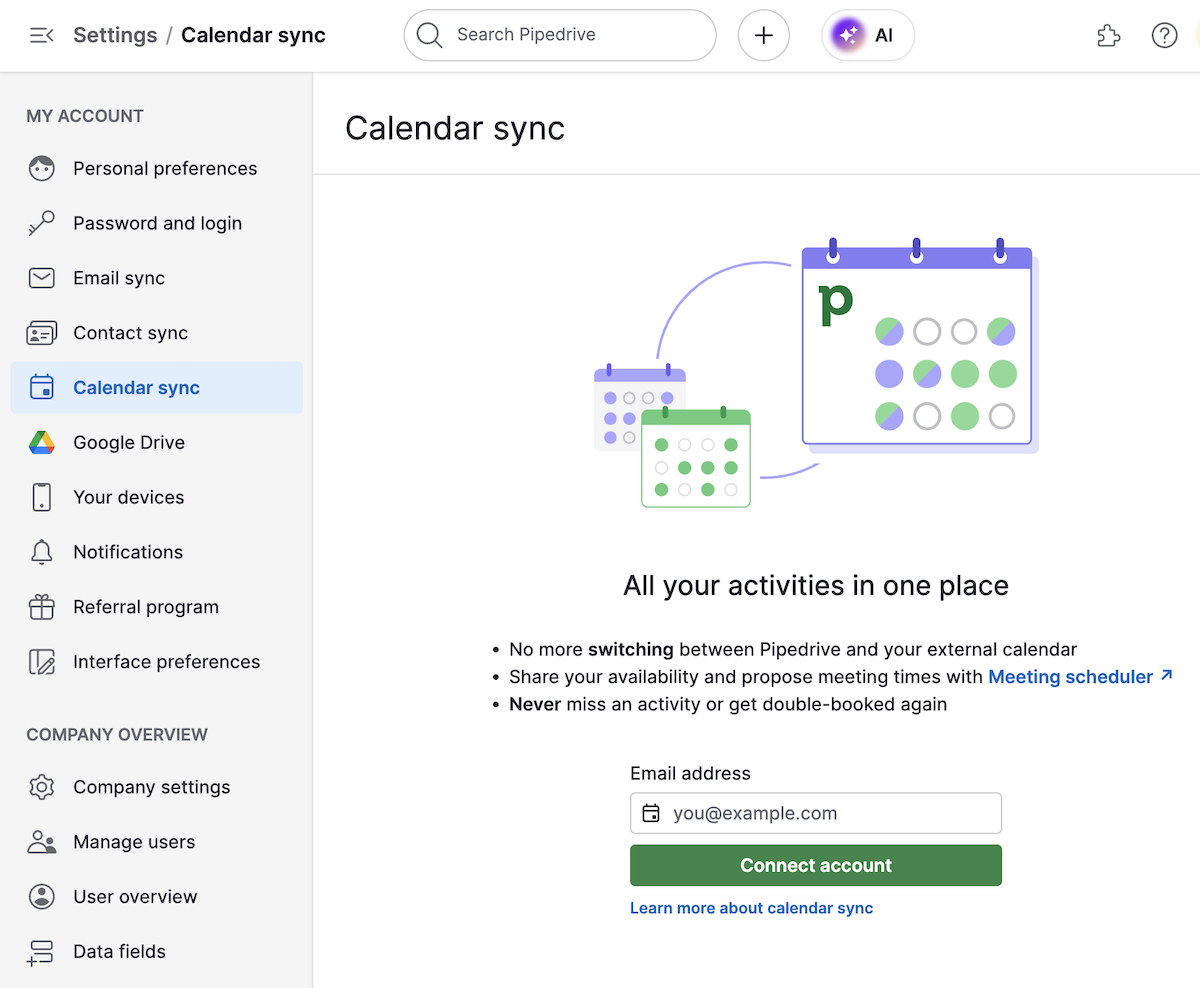
Log in to your Google Account and navigate to Google Calendar. On the left sidebar, locate the "Other calendars" section. Click the small plus icon next to it and select "From URL."

Paste the full RSS or iCal URL you found into the text box. Ensure the link is complete and ends in the correct file extension (usually .ics or .xml). Click "Add calendar" to initiate the import.
Once added, the calendar will appear in your "Other calendars" list. Click the three-dot menu next to its name to rename it (e.g., "Geek Holidays") and choose a distinct color. You can also adjust notification settings if you want alerts for specific events.
Scroll through your monthly view to confirm that events are populating correctly. Check a few known dates, such as National Science Fiction Day, to ensure the feed is syncing properly. If events are missing, double-check the URL or the feed's update frequency.
After importing, you can toggle the visibility of the geek calendar on or off from the sidebar. This allows you to keep your primary work schedule clean while having access to niche dates when needed. For most users, this method provides a reliable, low-maintenance way to track specialized interests without cluttering their main inbox.
Add the calendar to Apple and Outlook
Once you have your geek calendar file or link, the next step is getting it into your daily routine. Apple Calendar and Outlook handle external subscriptions differently, but both rely on the same underlying iCal format. The goal is to sync the events so they appear alongside your work and personal commitments without manual entry.
Sync with Apple Calendar
Apple Calendar is built to handle iCal URLs natively. This is often the smoothest experience because macOS and iOS recognize the protocol immediately. You simply need the direct URL to your calendar feed. If you are using a file, you will first need to host it on a server that supports HTTPS, as Apple requires secure connections for subscriptions.
- Open the Calendar app on your Mac or iPhone.
- Select File > New Calendar Subscription (macOS) or go to Settings > Calendars > Subscribed Calendars (iOS).
- Paste the URL of your geek calendar feed.
- Click Subscribe and choose your preferred settings for alert frequency and calendar color.
Apple will now check for updates automatically. You can manage how often it syncs in your system settings, but the default interval is usually sufficient for most users.
Add to Outlook
Outlook handles subscriptions through its "Add Calendar" feature. The process is slightly more manual than Apple's native subscription, particularly if you are using the web version. Outlook treats these as "Shared Calendars" rather than true subscriptions in some contexts, which can sometimes lead to sync delays.
- In Outlook, go to Calendar and select Add Calendar from the ribbon.
- Choose From Internet.
- Enter the URL of your iCal feed.
- Click Import.
If you are using the desktop app, the process is similar but located under File > Open > Subscription. Note that Outlook may ask you to name the calendar; give it a clear name like "Geek Holidays" to distinguish it from your private events.
Verify the Sync
After adding the calendar, verify that the events are appearing correctly. Check a few specific geek holidays, such as National Science Fiction Day or First Contact Day, to ensure the dates and times are accurate. If events are missing, check the URL for typos and ensure your internet connection allows access to the source server.
Both platforms allow you to toggle the visibility of the calendar. Use this to hide the geek calendar during work hours if you prefer a cleaner interface, then toggle it on when you want to celebrate the occasion.
Compare platforms for sync reliability
When convention dates shift or a speaker lineup changes, your geek calendar needs to update without manual intervention. The reliability of that sync depends entirely on how each platform handles external iCalendar (ICS) feeds. We compared Google Calendar, Apple Calendar, and Microsoft Outlook to see which handles these dynamic updates most effectively.
| Platform | Sync Frequency | Offline Access | Notification Customization |
|---|---|---|---|
| Google Calendar | Near real-time | Full | High |
| Apple Calendar | Every 15-30 mins | Full | Medium |
| Microsoft Outlook | Every 30-60 mins | Limited | Low |
Google Calendar generally offers the most robust handling of external feeds. Its near real-time sync ensures that if a conference organizer updates an ICS file, your schedule reflects the change almost immediately. This is critical for geek calendar enthusiasts who rely on accurate timestamps for panels and workshops that often run late or shift locations.
Apple Calendar provides solid offline access, which is useful if you are traveling to a convention center with spotty Wi-Fi. However, the sync delay of 15 to 30 minutes means you might miss a last-minute announcement until you reconnect to the internet. Microsoft Outlook tends to lag further behind, with sync intervals often stretching to an hour, making it less ideal for fast-moving event schedules.
Verify your synced events
Build a Geek Calendar for Any Platform works best as a clear sequence: define the constraint, compare the realistic options, test the tradeoff, and choose the path with the fewest hidden costs. That order keeps the advice usable instead of decorative. After each step, pause long enough to check whether the recommendation still fits the reader's actual situation. If it depends on perfect timing, unusual access, or a best-case budget, include a simpler fallback.
The simplest way to use this section is to write down the real constraint first, compare each option against it, and choose the path that still works outside ideal conditions.
Keep your geek calendar updated
Syncing is only half the work. A geek calendar that stops reflecting reality loses its value fast. Treat maintenance like a monthly code review: quick, routine, and focused on breaking changes.
Start by scanning for broken links. If your calendar pulls events from external feeds, verify that the source URLs are still active. A dead feed breaks the sync, leaving gaps in your schedule. Check your sync preferences to ensure you are still pulling the right data sources. Update any changed API keys or subscription tokens immediately.
Finally, audit the event data itself. Remove obsolete holidays or outdated conventions. Add new geek holidays that have emerged since your last update. This keeps the calendar relevant and ensures you never miss a niche celebration.
Common syncing: what to check next
Geek calendars often face friction when crossing platform boundaries. Whether you are moving from a desktop client to a mobile app or syncing across different operating systems, understanding the underlying protocols helps prevent missed events.
No comments yet. Be the first to share your thoughts!