
Sync vs. share: pick the right method
Calendars serve two distinct purposes: collaboration and synchronization. Choosing the wrong method often leads to missed appointments or duplicate entries. Before connecting Google, Outlook, or iCloud, understand whether you need to view events from another source or keep two calendars identical.
Sharing: One-Way Visibility
Sharing (or importing) a calendar is a one-way street. You give permission for another calendar to appear in your view, but changes made in the source calendar do not automatically update your local copy. This is ideal for viewing team schedules, class timetables, or public holidays alongside your personal events.
Think of sharing like watching a live sports broadcast. You see what is happening, but you cannot change the score. If the source calendar deletes an event, it disappears from your view. If you add a meeting to your shared view, it does not save back to the original calendar.
Syncing: Two-Way Real-Time Updates
True syncing creates a bidirectional link. When you add, edit, or delete an event on either calendar, that change propagates to the other instance instantly. This ensures both calendars remain identical. Syncing is necessary when you manage the same schedule across multiple devices or email accounts and need a single source of truth.
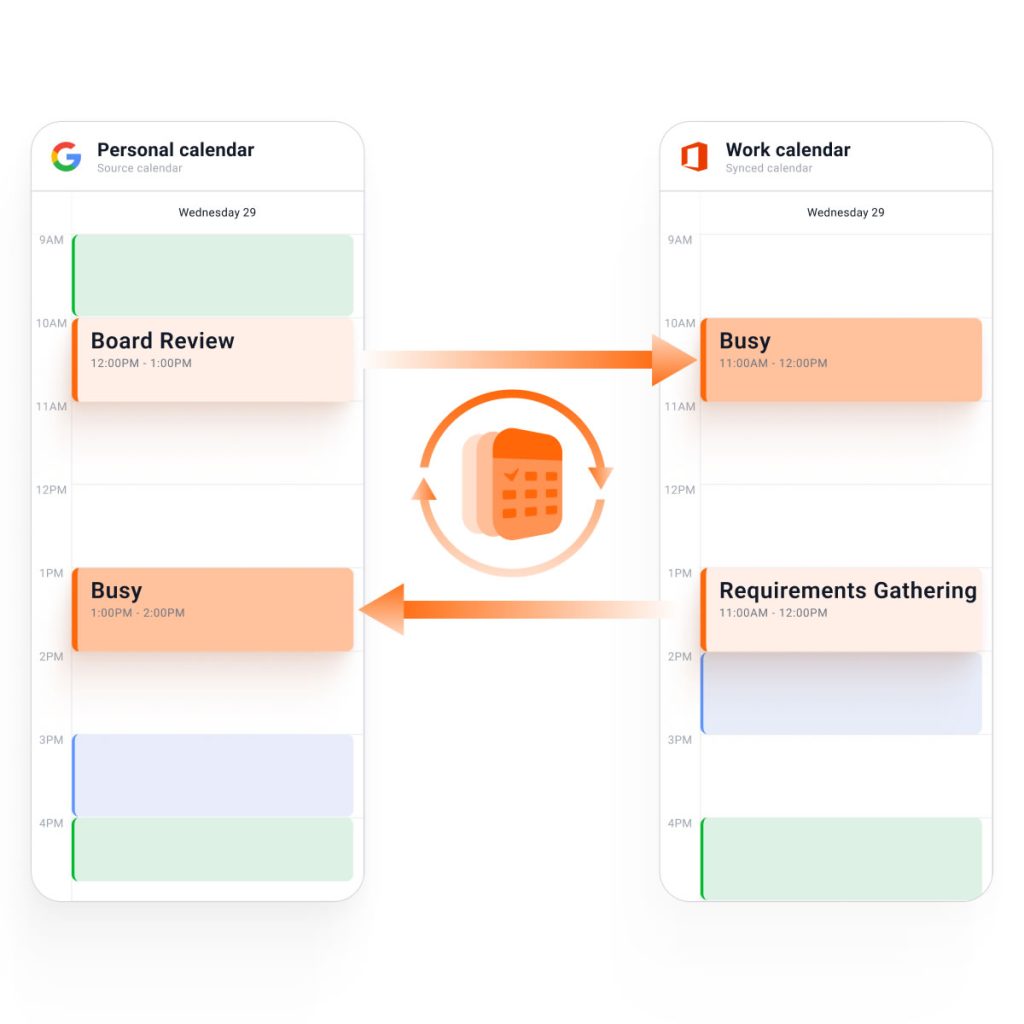
How to decide between sharing and syncing
Use sharing if you only need to see another schedule without modifying it. Use syncing if you actively manage events across multiple platforms and need every change reflected everywhere. Most users who switch between Google and Outlook for daily management should choose two-way syncing to avoid data fragmentation.
Sync Google Calendar with Outlook
Connecting Google Calendar to Outlook ensures your events appear in both places without manual entry. This guide covers the built-in method for Outlook.com and the desktop application.
Sync via Outlook.com (Web)
For most users, the web version of Outlook offers the simplest integration. Microsoft has streamlined the process to link external calendars directly.
Sign in to Outlook.com and click the Calendar icon in the left sidebar. Click the gear icon in the top right corner, then select View all Outlook settings at the bottom of the menu.
In the settings menu, expand the Calendar section and select Shared calendars. This area manages all external accounts linked to your primary calendar.
Under the Add calendar section, select From an email service provider. Choose Google from the list of available services. You will be prompted to sign in to your Google account to authorize the connection.
Once authorized, select the Google calendars you wish to sync. Toggle Sync to allow Outlook to pull events. You can choose to import only specific categories or events from a certain date forward. Click Save to finish.
Sync via Outlook Desktop App
If you use the installed Outlook application, the process involves adding the Google account as a new profile rather than just linking a calendar.
Troubleshooting Common Issues
If your calendars do not update, check your internet connection and ensure both accounts are active. For Outlook.com, verify that the sync toggle is still enabled in the Shared calendars settings. For the desktop app, try restarting Outlook to force a resync.
Link iCloud Calendar to Windows and Android
Linking iCloud to non-Apple devices requires using the CalDAV protocol, as Apple does not offer a native "sync" button for Windows or Android in the same way it does for iOS and macOS. The most reliable method is adding the iCloud account as a CalDAV source.
Merge multiple calendars into one view
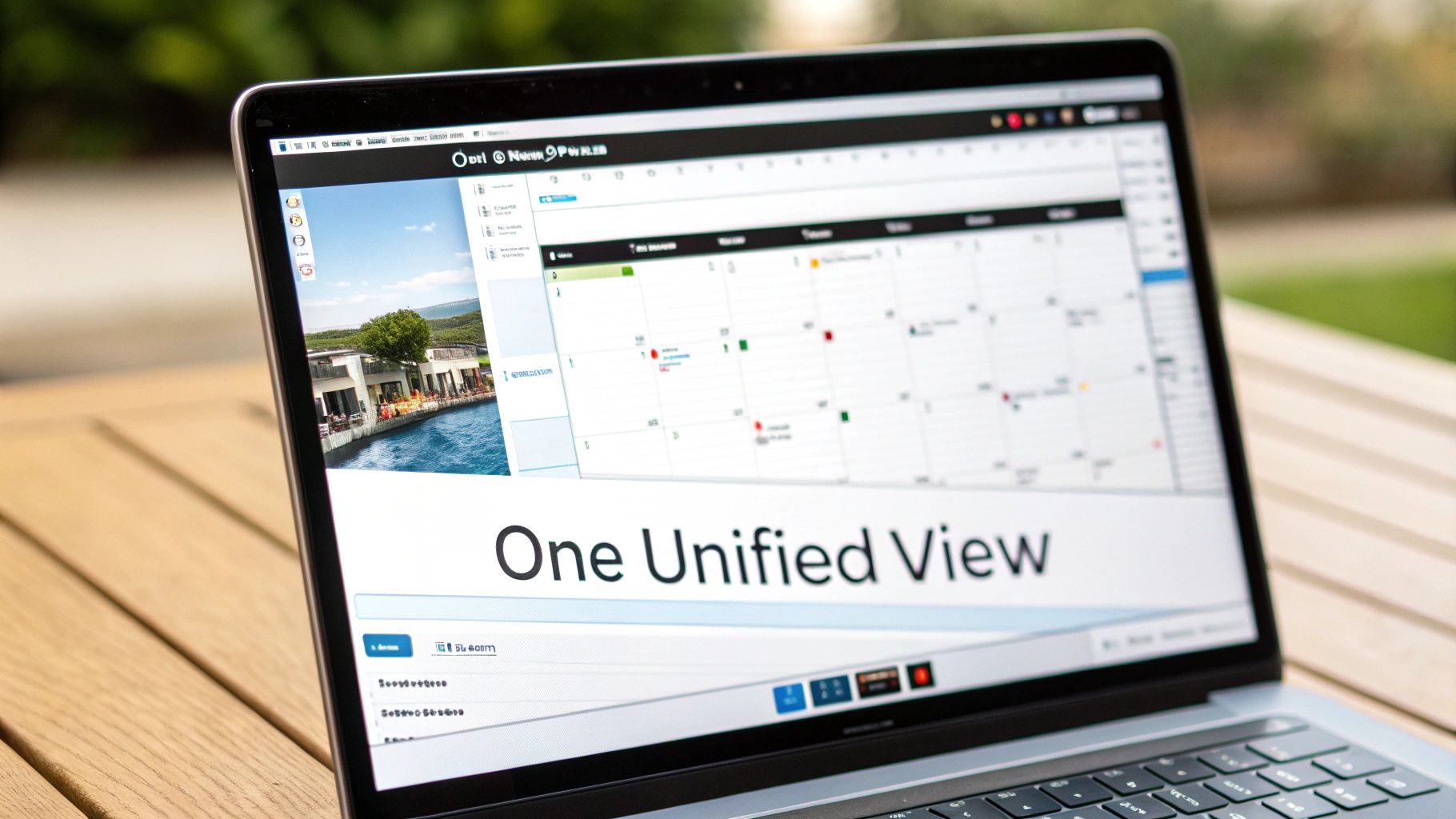
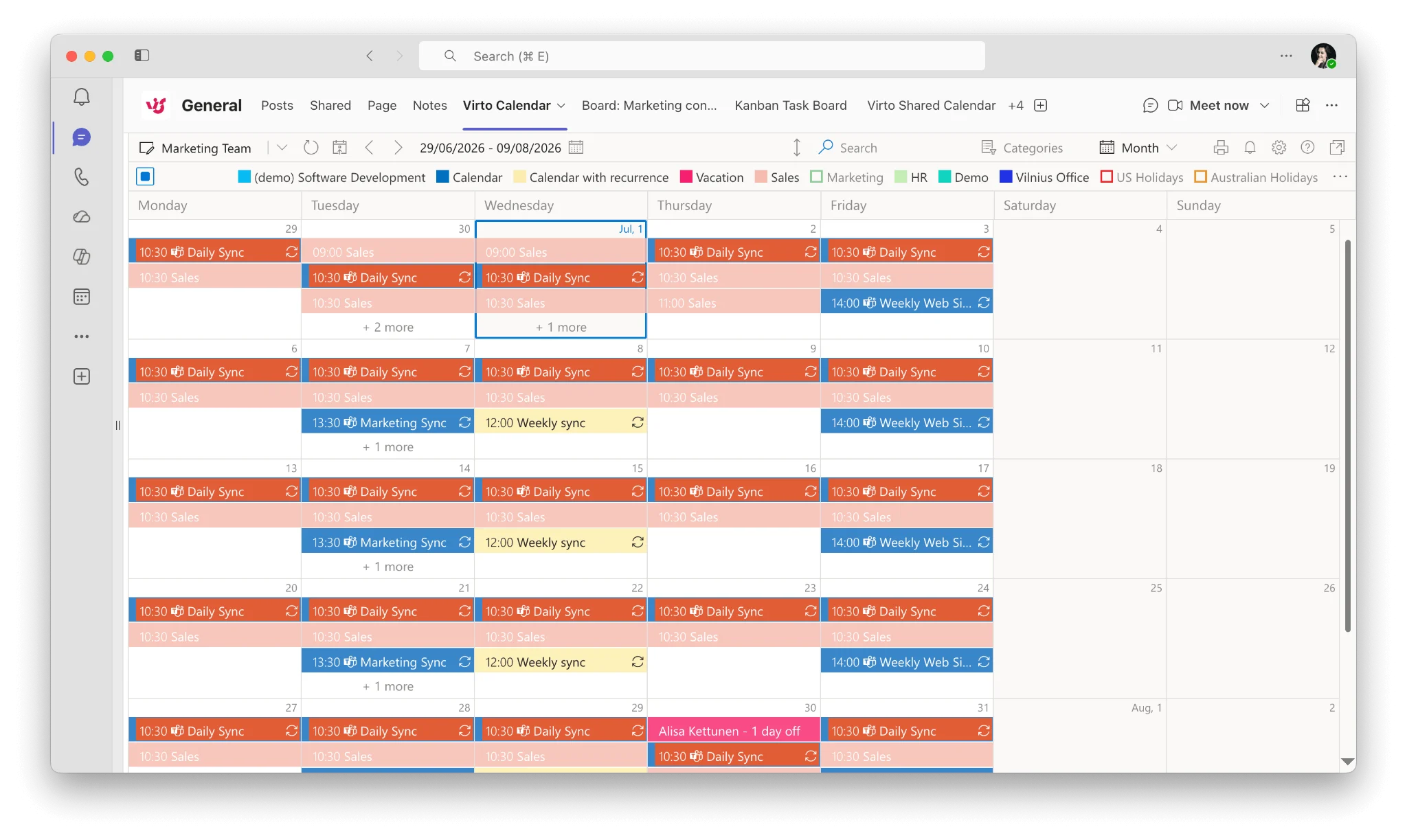
Merging calendars into a single view allows you to see all your commitments—work, personal, and shared—in one place. This is often called a "unified calendar" view. Most modern calendar apps support this natively without needing third-party syncing tools.
| Factor | What to check | Why it matters |
|---|---|---|
| Fit | Match the option to the primary use case. | A good deal still fails if it does not fit the job. |
| Condition | Verify age, wear, and service history. | Hidden condition issues erase upfront savings. |
| Cost | Compare purchase price with likely upkeep. | The cheapest option is not always the lowest-cost option. |
Fix duplicate events and sync errors
Duplicate events usually occur when two sync processes are active simultaneously or when permissions are misconfigured. To fix this, first identify if you are using both a native sync (like Outlook.com's "Shared Calendars") and a third-party tool (like CalendarBridge) for the same accounts. Disable one of these methods to stop the duplication.
If duplicates persist, check the "Write" permissions. In Google Calendar, ensure that the connected Outlook account does not have "Make changes to events" permission if you only intend to view it. Conversely, if you need two-way sync, ensure both accounts have write access but monitor for conflicts.
For sync errors, clear the cache of your calendar app. On mobile devices, go to Settings > Apps > [Calendar App] > Storage > Clear Cache. This forces the app to re-download the latest event data from the server.
Verify your calendar sync status
Before relying on your synced calendars for important meetings, confirm that your Google, Outlook, and iCloud calendars are talking to each other correctly. A quick verification prevents double-booking and missed appointments when events update across platforms.
Open each calendar app on your primary devices. Check that the shared calendars appear in your sidebar and that recent events have populated correctly. If a calendar shows a "syncing" icon indefinitely, refresh the connection or toggle the sync setting off and on again.
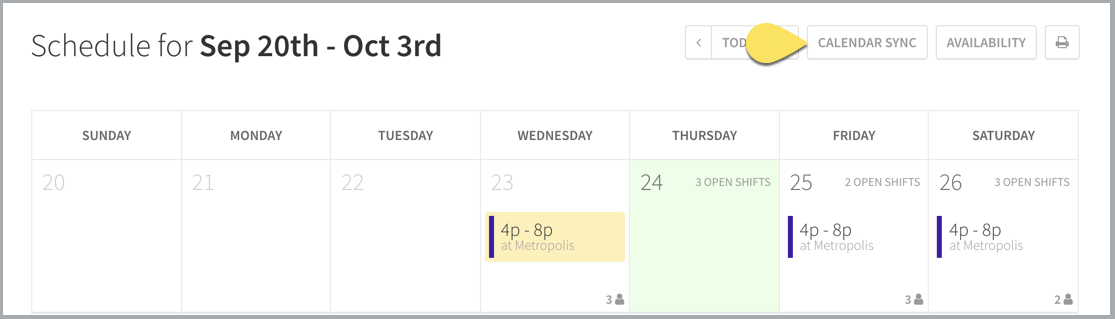
Run a test by creating a temporary event with a unique title in one calendar. Wait a few minutes, then check your other connected calendars. If the event appears everywhere, your sync is healthy. Delete the test event once confirmed.
-
Check Google Calendar for recent updates
-
Verify Outlook calendar sync status
-
Confirm iCloud calendar visibility on all devices
-
Test sync with a temporary event
Common calendar sync: what to check next
Syncing calendars across Google, Outlook, and iCloud is straightforward, but platform quirks often cause confusion. Below are answers to the most frequent technical questions about sync frequency, privacy, and compatibility.
How often do calendars sync?
Most native integrations sync in near real-time, usually within minutes of a change. Google Calendar and Outlook typically push updates instantly to connected devices. iCloud may take up to 15 minutes to propagate changes across all Apple devices due to its batched processing.
If you rely on third-party tools like CalendarBridge or Calendars.com, sync frequency depends on the provider’s polling interval. These services often check for updates every 5 to 15 minutes. For critical appointments, always verify the event appears on the destination calendar before the meeting starts.
Is my calendar data private during sync?
Yes. When you connect Google, Outlook, or iCloud calendars, you grant the service permission to read and write events, but the data remains encrypted in transit. Neither Google, Microsoft, nor Apple sells your calendar data to third parties.
However, if you use a third-party syncing tool, review its privacy policy carefully. These services act as intermediaries, meaning your calendar data passes through their servers. Stick to reputable providers with clear data retention policies to ensure your schedule stays private.
Can I sync Outlook with iCloud and Google simultaneously?
Yes. You can connect multiple calendar providers to a single device. For example, you can view your work Outlook calendar, personal Google Calendar, and private iCloud events all in one view.
Be aware that conflicts can arise if you edit the same event in multiple places. Most platforms resolve this by keeping the "last edit wins" rule. To avoid data loss, edit events only in their native calendar app whenever possible. If you need to view all events in one place, consider using a unified view rather than trying to merge them into a single account.
No comments yet. Be the first to share your thoughts!