

Get calendar syncing right
Before you connect your accounts, distinguish between sharing and syncing. Sharing lets others view your schedule, but syncing duplicates events across all your calendars. True syncing means your events are identical on every device, which is the only way to avoid double-booking or missed appointments.
You need a central calendar to anchor the sync. Whether you use Google, Apple, or Microsoft, pick one primary account. All other calendars—work, personal, family—should sync to this master. This prevents a chaotic loop where changes bounce back and forth between two equal sources.
Ensure you are using the same account across devices. A common error is logging into the Google Calendar app on your phone with a different email than the one on your desktop. If the accounts don't match, the sync will fail silently.
Check your sync settings for "two-way" or "bi-directional" updates. One-way sync only pushes changes from source to destination. Two-way sync ensures that if you delete an event on your phone, it disappears from your laptop too. Without this, you risk creating duplicate entries that clutter your schedule.
Work through the steps
Seamless calendar syncing means events appear identically across all your platforms. Unlike basic sharing, which only displays external events in a read-only view, true syncing duplicates data so edits on one device reflect everywhere. Follow this sequence to set up two-way synchronization for Google and Outlook calendars.
1. Enable Calendar Sync in Settings
Start by locating the sync feature in your primary calendar application. In Google Calendar, navigate to Settings and select Integrate calendars. For Outlook, go to File > Open & Export > Import/Export or use the Add Account menu if setting up a new integration. Look for the option labeled Sync with another calendar or Connect external calendar. This is the gateway to linking your accounts.
2. Choose Your Sync Direction
Define how data moves between your accounts. You can choose Two-way sync to keep both calendars identical, meaning deletions or edits on one side update the other. Alternatively, select One-way sync to push events from a source calendar to a destination without altering the original. For most users managing personal and work schedules, two-way sync prevents conflicts, while one-way sync is safer for archiving or sharing specific project timelines.
3. Select Calendars to Sync
Choose exactly which calendars you want to merge. If you have multiple sub-calendars (e.g., "Work," "Personal," "Holidays"), you can select individual streams or sync the entire account. Be careful not to sync overlapping calendars, as this creates duplicate events. Review the color-coding options to ensure synced events remain visually distinct in your main view.
4. Configure Sync Frequency
Set how often the system checks for updates. Most platforms offer Real-time (instant) or Periodic (every 15–30 minutes) sync intervals. Real-time sync is ideal for meeting-heavy schedules, while periodic sync reduces server load and battery usage on mobile devices. Test the setting by creating a test event on one device and observing how quickly it appears on the other.
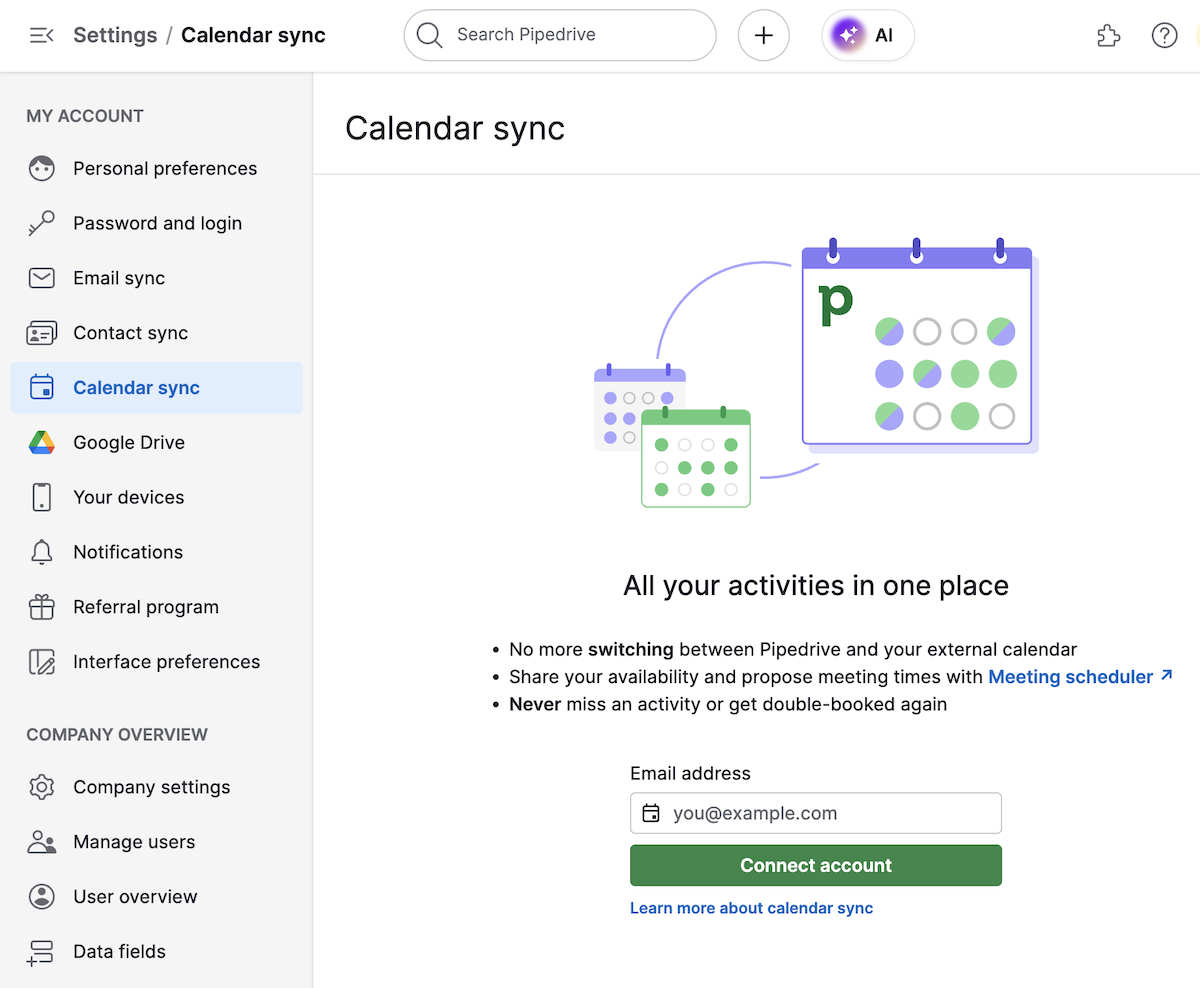
Open your primary calendar app (Google or Outlook) and navigate to Settings. Locate the Integrate calendars or Add Account section. Select the option to Sync with another calendar to begin the linking process. This step establishes the connection between your accounts.
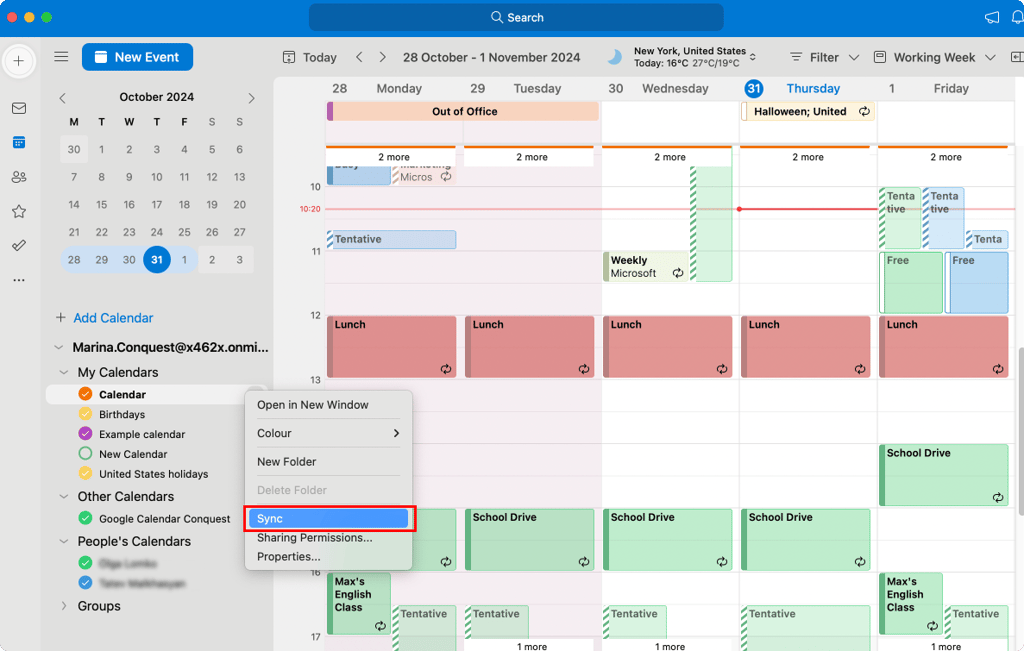
Choose Two-way sync to keep events identical across both platforms, or One-way sync to push data in a single direction. Select the specific calendars you want to merge. Avoid syncing overlapping calendars to prevent duplicate events. Assign a distinct color to synced events for clarity.
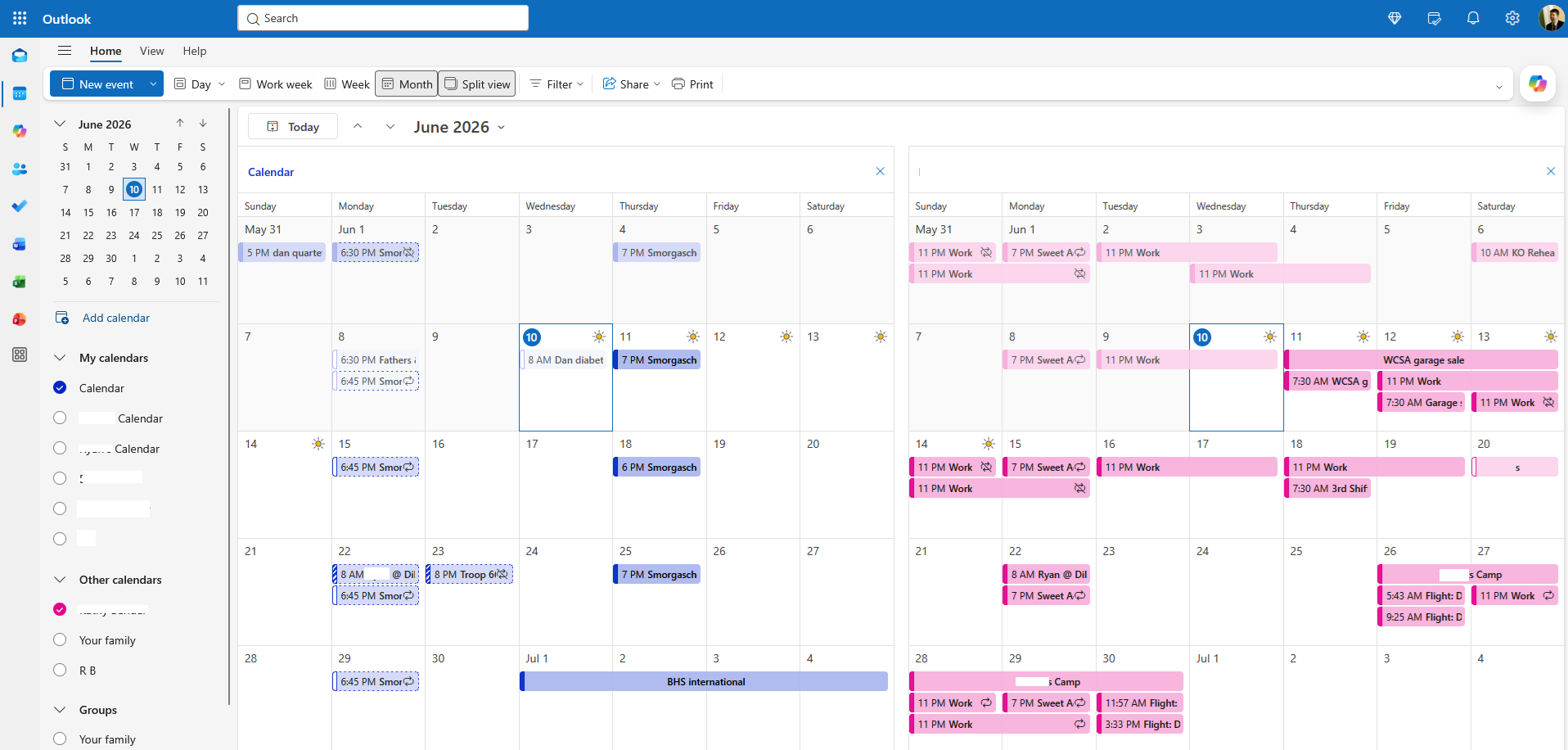
Configure the sync interval to Real-time for instant updates or Periodic (15–30 mins) to save battery. Create a test event on one device and verify it appears on the other. Check for any permission prompts and approve them to ensure the sync runs continuously.
After completing these steps, verify the setup by creating a test event on one device and checking if it appears on the other. If events do not sync, check your internet connection and ensure both accounts have the necessary permissions enabled. For mobile users, downloading the respective calendar app (Google Calendar or Outlook) ensures events sync across all your devices seamlessly.
Fix common mistakes
Even with reliable tools, calendar sync often breaks because of simple configuration errors. These mistakes usually result in duplicate events, missing appointments, or conflicting time zones. Catching them early saves hours of manual correction later.
Confusing sharing with true syncing
The most frequent error is treating calendar sharing as if it were syncing. Sharing sends a read-only link; it does not create editable copies on your device. If you add an event to a shared calendar, it appears on the source account but may not propagate to your local phone or desktop app depending on the platform’s settings.
True syncing means events are duplicated across calendars, making them identical and editable on both ends. Learn how to sync calendars properly to ensure changes flow both ways. Always check the "Editable" or "Sync" toggle in your calendar settings, not just the "Share" menu.
Ignoring time zone mismatches
Calendar apps often default to the device’s local time zone, while the original event might be set to UTC or a different region. This mismatch causes events to appear at the wrong hour, especially for remote meetings or international travel. If your calendar app shows an event at 2 PM but your meeting is at 5 PM, check the event’s specific time zone setting, not just your app’s global preference.
Overloading a single calendar
Adding every recurring task to one master calendar can cause sync conflicts, particularly on older devices or with limited bandwidth. When too many events update simultaneously, the sync engine may drop changes or fail to push updates to all connected devices. Split your calendar into separate views—for example, "Work," "Personal," and "Travel"—to reduce sync load and improve reliability across platforms.
Not verifying sync status regularly
Many users assume sync is active until they miss an appointment. Verify that your calendar apps are actually syncing by checking the last sync timestamp in the settings menu. If the status says "Syncing..." indefinitely or shows an error, force a manual refresh or re-authenticate your account. Regular checks prevent small sync failures from becoming major scheduling disasters.
Calendar syncing: what to check next
You may run into sync delays, conflicting time zones, or duplicate events when managing calendars across platforms. These answers address the most common technical hurdles readers face when trying to keep their schedules identical on every device.
No comments yet. Be the first to share your thoughts!