
Get calendar syncing right
Before you connect your accounts, you need to distinguish between sharing, importing, and true syncing. Most platforms offer all three, but they behave very differently. If you choose the wrong option, you will end up with duplicate events or missed updates.
True calendar syncing means events are duplicated across all calendars, making them identical and live. When a source event changes, the synced copy updates automatically. This is distinct from sharing, which simply displays a read-only view, or importing, which is a one-time snapshot that never updates. For most users, true sync is the only reliable way to keep a unified schedule.
You also need to check the sync direction. Some tools allow two-way sync, where changes on either calendar push to the other. Others are one-way, where only the source calendar dictates the changes. If you are managing a shared family calendar, two-way sync is usually essential. If you are just mirroring a work calendar to your personal phone, one-way is safer and prevents accidental deletions.
Finally, verify your time zone settings. Calendar sync engines rely on UTC timestamps, but local display times depend on your device settings. If your source and destination calendars are in different time zones, events can appear at the wrong time. Always confirm that your primary calendar is set to the correct local time before starting the sync process.
Set up cross-platform calendar syncing
True calendar syncing means events are duplicated across all your platforms, keeping them identical in real time. Unlike simple sharing or one-way importing, a synced calendar updates automatically when the source changes. This guide walks you through the standard workflow for connecting your iCal feeds across different services.
1. Locate your source calendar’s iCal URL
Every major calendar provider allows you to export a private subscription link. In Google Calendar, go to Settings and select the specific calendar you want to share. Scroll to the "Integrate calendar" section to find the URL starting with webcal:// or https://. For Apple Calendar, right-click the calendar in the sidebar and choose "Copy Calendar Address." Copy this link carefully; it is your primary key for syncing.
2. Choose your destination platform
Decide where the events will live. Most users add a secondary calendar to their primary app (like Outlook or Apple Calendar) rather than syncing to a standalone app. This keeps your main interface clean while pulling in external data. Ensure the destination platform supports iCal subscriptions. If you are using a niche scheduling tool, verify it accepts standard .ics links before proceeding.
3. Import the iCal feed
In your destination app, look for an option labeled "Add calendar by URL" or "Subscribe to calendar." Paste the link you copied in step one. Most platforms will ask for a name; label it clearly, such as "Work Schedule" or "Family Events," so you can distinguish it from your local entries. Click "Subscribe" or "Add." The app will now fetch the existing events from the source.
4. Verify sync direction and permissions
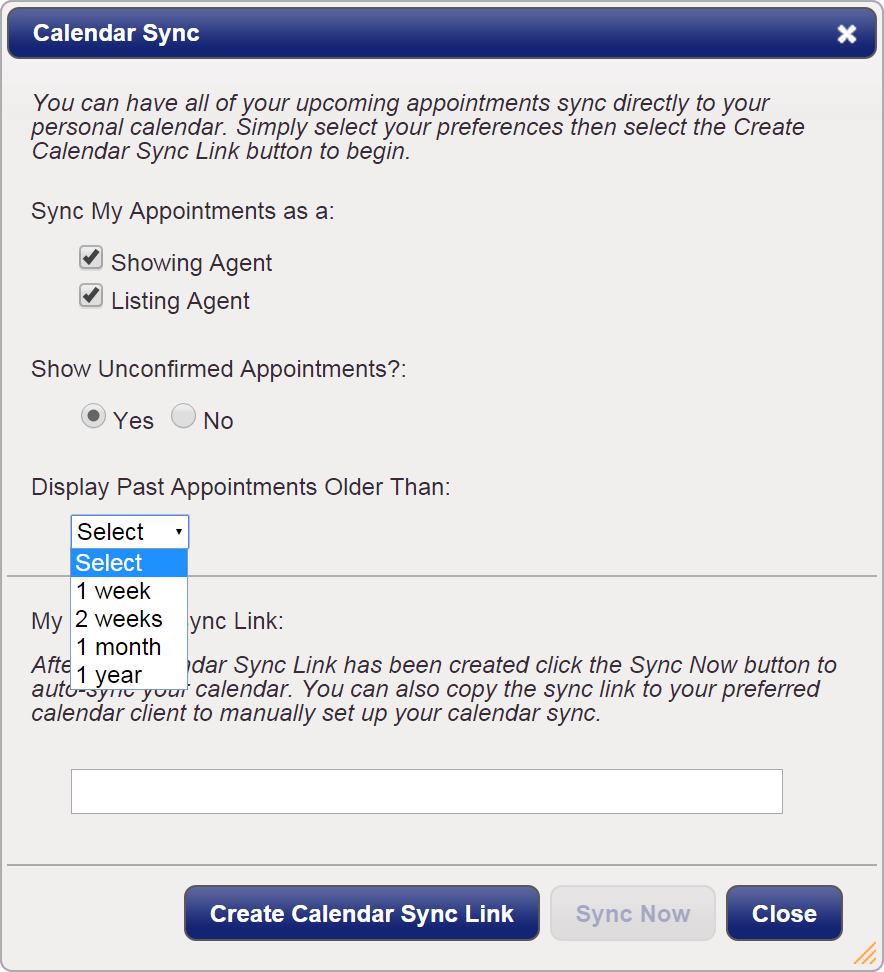
Not all subscriptions are two-way. Standard iCal feeds are usually read-only: changes made in the source update in the destination, but edits in the destination do not go back. If you need two-way syncing, you must use a dedicated sync service like Calendar Sync or Reclaim AI, which creates smart copies that stay up-to-date as source events change. Check the sync settings to confirm the direction matches your needs.
5. Test with a dummy event
Create a test event in the source calendar. Wait a few minutes, then refresh the destination calendar. If the event appears, your sync is active. If it does not, check the URL for typos or ensure the source calendar is set to "public" or "private but shared" depending on the destination’s requirements. Delete the test event once confirmed to keep your schedule clean.
6. Manage refresh intervals
Most apps refresh iCal feeds every 15 to 60 minutes. If you need near-instant updates, check if your destination app allows manual refreshes. For critical appointments, keep your source calendar open in a browser tab to verify the event exists before heading to a meeting. Avoid syncing more than three heavy calendars at once, as this can slow down your app’s performance.
Checklist for successful syncing
-
Source iCal URL is copied correctly.
-
Destination platform supports iCal subscriptions.
-
Calendar is named clearly in the destination.
-
Sync direction (read-only vs. two-way) is verified.
-
A test event appears in the destination calendar.
Fix common calendar sync mistakes
Most sync failures stem from confusing three distinct actions: sharing, importing, and true syncing. When you mix these up, you create duplicate events, broken links, or schedules that never update.
Here are the three most common errors and how to fix them.
Mistake 1: Importing instead of syncing
Importing a calendar pulls in events as static copies. If you edit the original event in your source calendar, the imported copy remains unchanged. This leads to outdated information and manual maintenance.
True syncing creates a live link. Changes in the source calendar automatically update the destination calendar. Always choose the sync option in your calendar settings rather than the import function.
Mistake 2: Mixing public and private links
Public calendar links allow anyone with the URL to view your schedule. Private links require authentication. Using a public link for a private team calendar exposes sensitive data. Conversely, using a private link for a public resource creates access errors for viewers.
Check the permission level before copying any URL. Ensure the link type matches the intended audience.
Mistake 3: Ignoring time zone settings
Calendar sync tools often default to the source calendar’s time zone. If your team spans multiple regions, events may appear at incorrect local times. This causes missed meetings and scheduling conflicts.
Set your destination calendar to your local time zone during setup. Verify that the sync tool respects time zone conversions for all events.
Calendar syncing: what to check next
You might have doubts about whether cross-platform calendar syncing will actually keep your schedule consistent. The following answers address the most common practical objections before you commit to a method.
How does calendar syncing work?
Calendar syncing takes events from a source calendar and creates smart copies on a destination calendar. These synced copies stay up-to-date as the source events change, so you never have to manually update or add events across multiple platforms. This is different from simply sharing a calendar, where you view the events but cannot edit them.
Can I sync calendars without losing existing events?
Yes, but you must choose the right method. Importing a calendar usually merges new events while leaving old ones untouched. True syncing, however, duplicates events across calendars. If you import an old calendar, those events will remain separate from your synced stream. Always check your sync settings to ensure you aren't accidentally duplicating your entire history.
Why are my synced calendars not updating in real time?
Most calendar apps do not push updates instantly. Instead, they pull new data at set intervals, typically every 15 to 30 minutes. If you just created an event on one platform, it may take a few minutes to appear on another. You can usually force an immediate update by pulling down to refresh or restarting the app.
What happens if I edit an event on both calendars?
If you edit the same event on two different synced calendars, the changes may conflict. One platform might overwrite the other, or you might end up with two separate versions of the same meeting. To avoid this, always edit events in your primary source calendar and let the sync tool propagate the changes to the destinations.
Work through The Cross-Platform Calendar Sync

No comments yet. Be the first to share your thoughts!