

Start with a single master view
Calendar management is the process of prioritizing your time and managing your life through a unified system. Without a central source of truth, you risk double-booking yourself or missing critical deadlines buried in separate apps. Unifying your fragmented schedules into one view reduces cognitive load and ensures you see the full picture of your week.
To begin, consolidate every calendar into a single dashboard. Most modern productivity platforms allow you to link Google Calendar, Outlook, Apple Calendar, and even project management tools like Asana or Trello. This creates a "master view" where all events, regardless of origin, appear on one timeline.
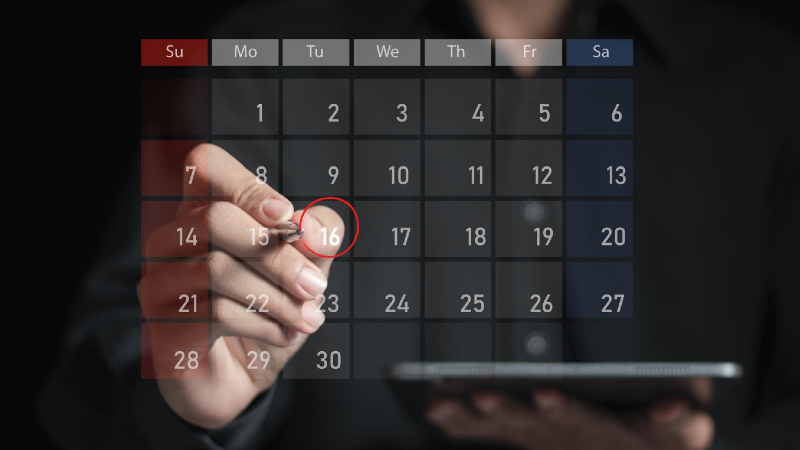
Once integrated, organize these calendars using color-coding and layers. Group personal events, work meetings, and deep-work blocks into distinct categories. This visual hierarchy allows you to quickly assess availability without digging through nested sub-calendars. The goal is to make your schedule readable at a glance, turning a chaotic collection of dates into a coherent plan.
Sync your primary accounts
Calendar management relies on a single source of truth. When your Google, Outlook, and Apple calendars operate in silos, double-booking becomes inevitable and context switching drains focus. Syncing these accounts consolidates your schedule into one view, allowing you to see conflicts before they happen.
The setup process varies slightly depending on your operating system, but the goal is identical: establish a reliable two-way sync. This ensures that a meeting added on your phone appears instantly on your desktop, and vice versa.

Open your primary calendar application (Google Calendar, Apple Calendar, or Outlook) and navigate to the settings menu. Look for the "Add Calendar" or "Sync" option. Select Google as the source and follow the authentication prompts. Grant the necessary permissions to read and write events. This creates a bridge that pulls your Google schedule into your current view.
For work schedules, add your Outlook or Exchange account directly. In most native apps, this is found under "Accounts" or "Mail & Calendars." Enter your credentials and select the option to sync calendars, not just email. This step is critical for professionals who manage separate work and personal timelines, ensuring that professional commitments are visible alongside personal ones.

If you use an iPhone or Mac, open the Settings app and tap your name at the top. Select "Calendar" and then "Accounts." Tap "Add Account" to bring in non-Apple services like Google or Outlook. Toggle the "Calendars" switch to on. This integrates external schedules into the native Apple Calendar app, allowing you to toggle visibility of each calendar individually.
Test the connection by creating a test event on one platform and checking if it appears on the others within a few minutes. If the event does not appear, check the sync frequency settings. Some accounts default to manual sync to save battery; switch this to automatic for real-time calendar management. Ensure that edits made in one app propagate to all connected accounts.
Once synced, organize your view by color-coding each account. This visual separation helps you distinguish between work commitments, personal appointments, and shared family events at a glance. Effective calendar management is not just about seeing all your events; it is about understanding which domain they belong to so you can prioritize accordingly.
Import and share external calendars
Effective calendar management requires bringing disparate schedules into one view without creating access chaos. You can ingest public or private schedules via iCal feeds and grant specific colleagues or family members access to only the calendars they need to see.
Ingest iCal feeds
Most calendar platforms allow you to subscribe to external feeds. Look for the "Add by URL" or "Subscribe" option in your settings. Paste the iCal link provided by the external service. This pulls events into your main view for reference, but you typically cannot edit them. This is ideal for tracking team availability, project deadlines, or shared family events.
Share with controlled permissions
When sharing your own calendar, avoid giving "Edit" access unless absolutely necessary. Edit permissions allow others to delete or move your appointments, which can disrupt your workflow. Instead, share the calendar with "View-only" or "See only free/busy" permissions.
| Permission Level | What They See | Risk |
|---|---|---|
| View-only | Full event titles and times | Low – they can track you but not change you |
| Free/Busy | Only shows "Busy" blocks, no titles | Minimal – protects privacy while showing availability |
| Edit | Full access to modify events | High – accidental deletions or schedule changes |
Use the "Free/Busy" option for vendors or large groups where you only need to know when you are unavailable. Reserve "View-only" for close collaborators who need context on your meetings. This approach keeps your calendar management secure and organized.
Fix common syncing errors
Even the best calendar management tools break if the connections between them aren't maintained. Duplicates, missed events, and timezone drift are the most frequent symptoms of a failing sync. You can resolve these issues by following a quick diagnostic sequence.
Remove duplicate events
Duplicates usually appear when two apps write to the same calendar simultaneously. This happens often when you add an event in Gmail and it automatically creates a copy in Google Calendar, or when a third-party app syncs over an existing entry.
- Identify the duplicates by scanning your weekly view for identical titles or overlapping time slots.
- Delete the older or less detailed version. Keep the one with the correct location, attachments, and attendee list.
- Check your sync settings to prevent recurrence. In Google Calendar, go to Settings > Sync settings and ensure "Sync all calendars" is active but not duplicating sources. In Outlook, verify that the same account isn't added twice.
Resolve timezone mismatches
Timezone errors cause the most confusion for remote teams. If a meeting appears at 9:00 AM for you but 12:00 PM for your colleague, the sync engine likely used the wrong default timezone for one of the accounts.
- Verify your primary calendar's timezone in the settings menu. It should match your physical location.
- Check individual event details. If a specific meeting is wrong, click into the event and look for the timezone dropdown. Manually correct it to the organizer's timezone.
- For recurring events, ensure the timezone is set to "Default" or explicitly selected, rather than left blank, which often defaults to the viewer's local time.
Force a manual sync
Sometimes the background sync process hangs. A manual refresh clears the cache and forces the apps to re-download the latest state from the server.
- On mobile, pull down on the calendar view to trigger a refresh.
- On desktop, go to File > Offline Work > Go Online (Outlook) or Settings > Sync (Google Calendar) to toggle the connection off and on.
- Wait two minutes. If duplicates or missing events persist, try removing and re-adding the calendar account in your device settings to reset the connection token.
Audit and declutter regularly
A calendar that accumulates dead weight becomes a source of stress rather than a tool for productivity. Just as a cluttered desk distracts from current tasks, a bloated schedule obscures what actually matters. Treating calendar management as a static setup rather than an ongoing maintenance routine leads to scheduling friction and missed priorities.
Set aside 30 minutes weekly to review the past week and preview the next. Delete events that no longer serve a goal, reschedule items that have lost relevance, and archive completed projects. This regular pruning keeps your time blocks aligned with your current objectives, ensuring you are planning for reality, not just intent.
Focus on removing low-value commitments and double-bookings. If a recurring meeting no longer provides clear value, cancel it or reduce its frequency. By consistently clearing out the noise, you create space for high-impact work. This habit transforms your calendar from a passive log into an active filter for your most important work.
-
Delete events that are no longer relevant or have passed
-
Reschedule items that have lost their priority or context
-
Cancel recurring meetings that no longer provide clear value
-
Archive completed projects to reduce visual clutter
-
Review next week for potential conflicts or gaps
No comments yet. Be the first to share your thoughts!