

Understand sync versus share
When setting up your schedule, it is easy to confuse sharing or importing a calendar with true two-way syncing. They sound similar, but they behave very differently. Understanding this distinction prevents the frustration of missing updates or accidentally overwriting events.
The one-way street: Sharing and importing
Sharing or importing a calendar creates a read-only copy. When you share a calendar with someone or import an .ics file, you are essentially handing them a snapshot of your schedule. If you add a new meeting to your primary calendar, that new event does not appear in the shared or imported version. Similarly, if the original owner deletes an event, your copy remains unchanged.
This setup is useful for visibility. You might share your work calendar with a colleague so they know when you are busy, or import a friend’s holiday schedule to see their free time. However, it is not a live connection. It is a static view that requires manual refreshes or re-imports to stay current.
True two-way syncing
True calendar syncing is a live, bidirectional link. When you sync calendars, the events are duplicated across all connected accounts in real time. This means any change made in one place immediately reflects everywhere else. If you move a meeting on your phone, it updates on your desktop. If your partner cancels an appointment in their app, it vanishes from yours.
This is the difference between a mirror and a window. A shared calendar is like looking through a window; you can see the other side, but you cannot touch it. A synced calendar is like a mirror; what you do to one side is instantly reflected on the other. For most users managing multiple accounts, this real-time synchronization is essential to keep a single, accurate source of truth.
Why the distinction matters
Confusing these two modes can lead to data loss or scheduling conflicts. If you rely on a shared calendar for your actual planning, you might miss updates that happen on the original account. Conversely, if you need to protect your primary schedule from accidental edits by others, sharing is the safer choice because it prevents others from modifying your events.
Always check your calendar settings to confirm whether you are sharing, importing, or syncing. Most modern calendar apps label these options clearly, but the underlying behavior remains the same. Choose sharing for visibility, importing for one-time data transfer, and syncing for active, collaborative management.
Sync Google Calendar with other services
Connecting Google Calendar to external platforms like Outlook or iCloud is rarely a manual copy-paste job. Modern sync tools handle the heavy lifting, keeping events aligned across devices without you touching each date twice. We will walk through the two most reliable methods: using a dedicated third-party sync app for real-time updates, or using iCal URLs for one-way imports.
Use a third-party sync tool for real-time updates
For most users, a dedicated calendar bridge is the cleanest solution. Apps like OneCal or CalendarBridge act as a middleman, listening for changes in Google Calendar and pushing them to Outlook, iCloud, or Apple Calendar instantly. This method ensures that if you delete a meeting in Google, it disappears from your Outlook calendar too.
To set this up, you will need to create an account with a sync provider. Once logged in, you authorize the app to access both your Google Calendar and your secondary calendar service (such as Outlook 365 or iCloud). The app will then begin a background sync process. You can usually configure which specific calendars to sync, allowing you to keep work events separate from personal ones if needed.
Export iCal URLs for one-way imports
If you only need to view Google Calendar events inside another app—without needing to edit them from there—the iCal URL method is sufficient and free. This is common when you want to see your Google schedule inside the Apple Calendar app on your iPhone or Mac.
Open Google Calendar on a desktop browser. Click the gear icon in the top right and select Settings. On the left sidebar, click the name of the calendar you want to share. Scroll down to the Integrate calendar section to find the Private address or iCal address.
Copy the long URL ending in .ics. This link is your private key; anyone with this link can view your calendar, so keep it secure. Do not share it publicly.
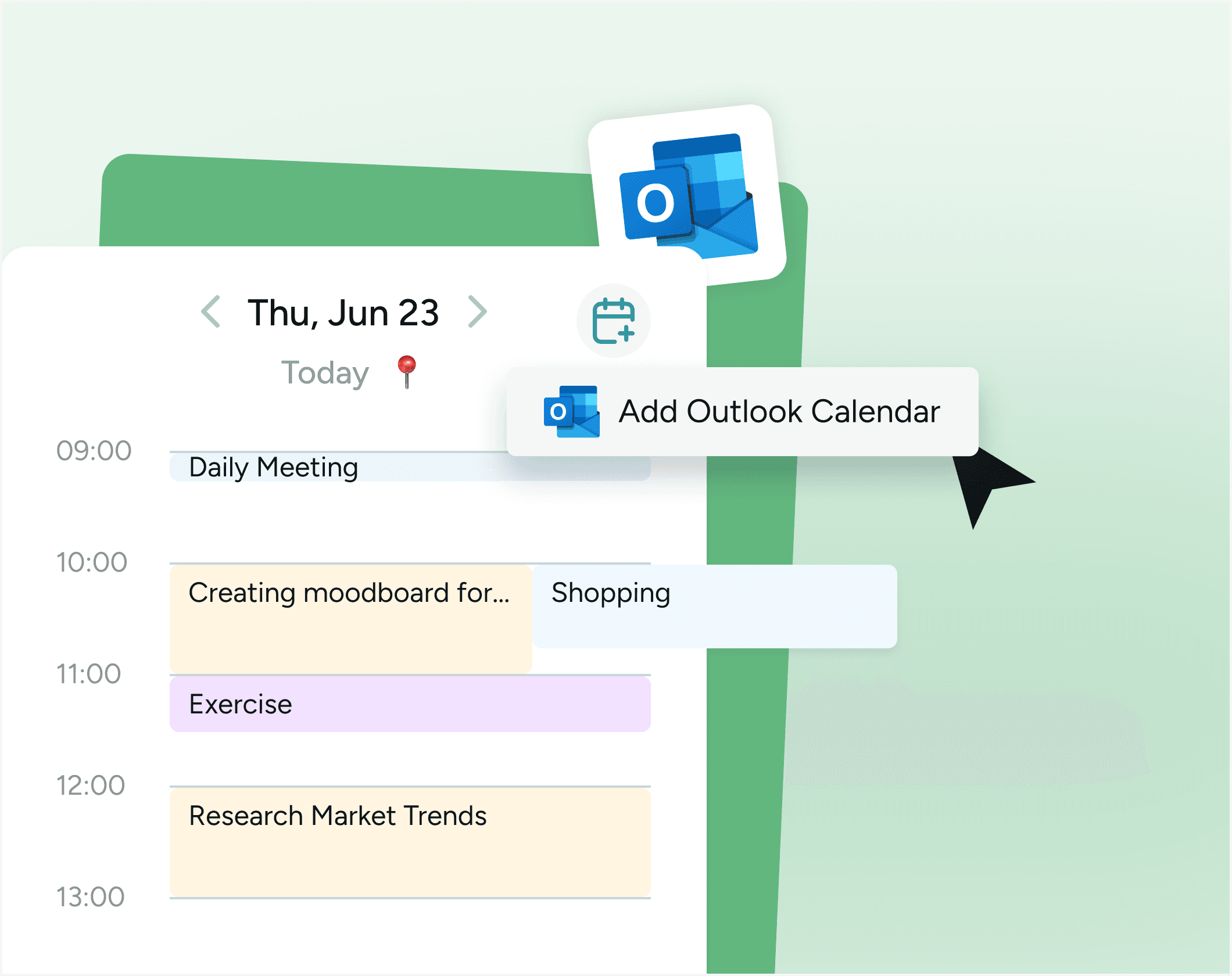
Open your target calendar app (Outlook, iCloud, or Apple Calendar). Look for an option to Add Calendar or Subscribe to Calendar. Paste the iCal URL you copied. The app will fetch the events and display them in read-only mode.
Verify your sync settings
After connecting your calendars, spend five minutes checking for conflicts. Ensure that the time zones are set correctly in both the source and target apps. A mismatched time zone is the most common reason for "missing" meetings after a sync. Test the connection by creating a test event in Google Calendar and waiting for it to appear in the other app. If you use a third-party tool, check the sync log to confirm the data transfer was successful.
Sync Outlook and iCloud calendars
Connecting Microsoft Outlook and Apple iCloud calendars bridges the gap between corporate schedules and personal life. Because Microsoft and Apple use different sync protocols, you cannot simply "merge" the two into one native database without a bridge. Instead, you manage them as separate accounts that live side-by-side in your device's calendar app.
This approach ensures that Outlook meetings do not overwrite iCloud birthdays and that Apple reminders remain distinct from work assignments. You will set up the sync on each platform separately, allowing both services to push updates to your device.
Open Outlook on your Windows PC and navigate to File > Account Settings > Account Settings. Select New to add a new email profile. Enter your Apple ID and password when prompted. Outlook will use the Exchange protocol to pull your iCloud calendar data into the main view. Once added, your iCloud events will appear alongside your Outlook meetings in the same monthly grid.
On your iPhone, iPad, or Mac, go to Settings > Mail > Accounts (or System Settings > Internet Accounts on macOS). Tap Add Account and select Outlook.com or Exchange. Sign in with your Microsoft credentials. Ensure the Calendars toggle is switched on. This allows your work schedule to sync directly into the Apple Calendar app, keeping your professional commitments visible next to your personal iCloud events.
Once both accounts are active, you will see two distinct calendar layers. Use the sidebar to toggle visibility for each. Color-code them in your device settings—blue for Outlook and green for iCloud—to quickly distinguish between work obligations and personal plans. This visual separation prevents accidental double-booking and helps you maintain a clear boundary between professional and private time.
When syncing Outlook and iCloud calendars, the most common issue is duplicate events. This usually happens if you add the same account twice or if your device tries to sync the same calendar via both iCloud and Outlook.com protocols. To fix this, check your account settings and remove any redundant entries. Keep one primary sync path for each service to ensure data integrity.
If events do not appear immediately, check your internet connection and force a refresh by pulling down on the calendar list. For bulk changes, it is often faster to edit the event on the source platform (Outlook or iCloud.com) rather than trying to sync edits across both apps simultaneously.
Fix common sync errors
When calendars refuse to sync, the issue usually boils down to one of three things: duplicate events, delayed updates, or permission blocks. These errors often feel like a broken connection, but they are typically just configuration mismatches. Here is how to diagnose and fix the most frequent syncing headaches.
Duplicate events
Duplicate events happen when two calendars are linked to the same account or when a sync tool pushes the same data twice. This creates clutter and confusion, making it hard to see what is actually on your schedule. To fix this, check if you have added the same calendar multiple times in your settings. If you are using a third-party sync tool, ensure it is not set to "import" rather than "sync." True syncing means events are identical across platforms, not duplicated unnecessarily.
Delayed updates
If you add an event on your phone but it takes hours to appear on your laptop, you are likely dealing with caching or server lag. Most calendar apps have a "refresh" or "sync now" button; use it to force an immediate update. If the delay persists, check your internet connection and ensure that background app refresh is enabled for your calendar app. In some cases, clearing the app cache can resolve stubborn sync delays.
Permission errors
Permission errors occur when a calendar app is blocked from accessing your account data. This often happens after a security update or password change. To resolve this, go to your account settings and review the "Connected Apps" or "Third-party access" section. Revoke access for the calendar app and reconnect it, granting the necessary permissions. This ensures the sync tool has the authority to read and write events across your platforms.
Check your sync settings
Calendar syncing relies on active permissions and correct update intervals. If sync appears broken, the issue usually lies in how the platforms communicate rather than the data itself. Verify that the connection is live, the frequency is set to real-time, and the calendar is visible to the syncing app.
Verify the connection is active
Most calendar apps provide a status indicator to confirm the link is established. Look for a "Connected" or "Synced" badge in the integration settings. If the status shows an error or "Disconnected," re-authenticate the account to refresh the permission token. A stable connection is the foundation of seamless calendar syncing.
Confirm update frequency
Sync frequency determines how quickly events appear on your secondary calendar. Set this to "Real-time" or "Every 15 minutes" for the most accurate schedule. Slower intervals, such as hourly or daily, can cause double bookings if you add events on one platform while the other is still outdated.
Review calendar permissions
Ensure the syncing app has write access to the specific calendar you want to update. Some apps default to "Read-only" mode to prevent accidental deletions. If you need two-way sync, explicitly grant "Edit" or "Write" permissions to both the primary and secondary calendars.
No comments yet. Be the first to share your thoughts!