
Set up your primary calendar
Start by choosing one calendar platform to serve as your single source of truth. This primary calendar will hold the master schedule that other tools sync to. Picking the right foundation prevents the fragmentation that makes cross-platform management difficult.

Audit your current tools. Identify which calendar app you open most frequently. This is likely the one integrated with your primary email provider. Selecting the tool you already know reduces the learning curve and ensures immediate adoption.

Set your default time zone to your local area. If you travel or work with remote teams, configure a secondary time zone for reference. Set default meeting durations (e.g., 30 or 60 minutes) and buffer times between appointments to prevent back-to-back burnout.
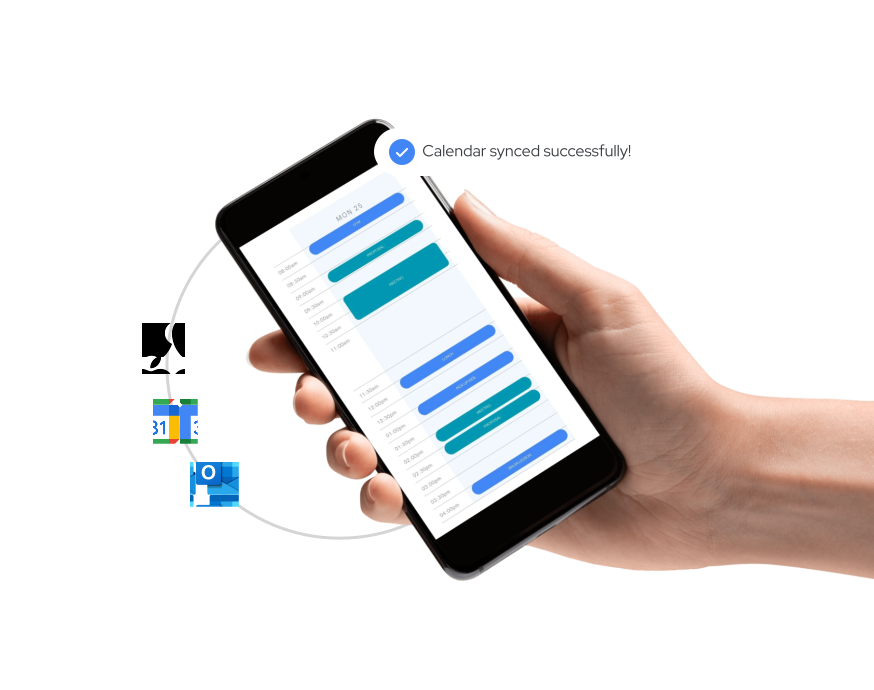
Ensure your primary calendar is set to sync two-way with your other devices. This means changes made on your phone update your desktop view instantly, and vice versa. Verify that email invitations automatically create events in this primary calendar to keep the data complete.
Think of your primary calendar as the trunk of a car. All other tools—task managers, secondary work calendars, or habit trackers—are the passengers. They need to know exactly where the car is going. If the trunk is empty or misaligned, the passengers get lost. By locking in this one platform first, you create a stable anchor for the rest of your management strategy.
Import calendars from other providers
Centralizing your schedule starts by pulling in external data. Instead of juggling multiple apps, you can subscribe to public or shared calendars from Google, Outlook, and Apple. This creates a single view where all your commitments appear side by side.
The process relies on iCal URLs (also known as webcal links). These are simple strings that tell your primary calendar app where to fetch updates. Once connected, changes made in the source calendar reflect in your main view within minutes.
Open your primary calendar app and locate the settings for adding a new calendar. Look for the option to subscribe via URL. Paste the iCal link from your Google Calendar settings (found under "Integrate calendar" in Google Calendar settings). Name the feed clearly, such as "Work Google," to distinguish it from your native events.

Microsoft calendars require a slightly different approach depending on your account type. For personal Outlook.com accounts, generate an iCal link from the calendar settings page. For Microsoft 365 business accounts, you may need to use the "Open from URL" feature in Apple Calendar or add the account directly in Google Calendar if your organization allows external subscriptions. Verify the permissions allow read-only access to avoid accidental conflicts.
If your main hub is Apple Calendar, you can subscribe to iCloud calendars from other Apple IDs. Go to File > New Calendar Subscription and enter the public iCal URL. This is ideal for bringing in family schedules, shared team events, or external project timelines. Ensure the "Refresh every 10 minutes" setting is enabled to keep your view current.
Once added, these calendars will appear in your sidebar. You can toggle their visibility on and off to reduce clutter. Remember that imported calendars are typically read-only; you cannot edit events directly from the synced view. Any changes must be made in the original source application.
Share calendars with team members
Giving colleagues or assistants access to your schedule is the fastest way to offload scheduling friction. However, sharing your calendar without clear boundaries often leads to double-bookings, privacy leaks, or accidental cancellations. The goal is to grant the minimum access required for the task.
Most platforms offer three distinct permission tiers: view-only, make changes, and full manage access. Understanding the difference between these levels prevents the most common collaboration errors.
1. Grant view-only access for transparency
Use this level for colleagues who need to find a meeting time but shouldn’t touch your schedule. They can see your free and busy blocks but cannot add, edit, or delete events. This is ideal for cross-functional partners or clients who need to coordinate around your availability without risking accidental overwrites.
2. Allow "make changes" for assistants and peers
When delegating to an executive assistant or a close project partner, grant permission to add and edit events. They can schedule meetings, adjust times, and decline invitations on your behalf. Crucially, they typically cannot delete existing events or modify the calendar’s sharing settings. This balance allows them to manage your inbox and schedule while preserving your historical data and security settings.
3. Reserve "manage access" for primary owners
Full manage access is the highest level of trust. It allows the user to delete events, change sharing permissions, and even remove other users from the calendar. Limit this role to yourself or a trusted right-hand assistant who handles administrative cleanup. Never grant this level to temporary contractors or external collaborators.
-
View-only: For finding meeting times
-
Make changes: For assistants adding/editing events
-
Manage access: For primary owners only
-
Verify email addresses before sharing
-
Notify recipients of new access
Avoid common sharing mistakes
The most frequent error is granting too much access too quickly. Start with view-only permissions and escalate only if the workflow demands it. Another mistake is forgetting to revoke access when roles change. If an assistant leaves the project or the company, immediately remove their access to prevent data leakage or accidental scheduling conflicts.
Resolve syncing conflicts and errors
When multiple calendar apps talk to each other, they often disagree. A meeting booked on your phone might not appear on your laptop for hours, or worse, it might appear twice. These syncing conflicts break your schedule and create unnecessary stress. Fixing them requires a systematic check of your connections and settings.
Start by verifying your account permissions. Most conflicts stem from an app losing access to your calendar data. Go to your primary calendar’s settings and review the connected apps. Re-authorize any app that shows a warning or has been inactive. This step alone resolves the majority of delayed updates.
Next, clear the cache on your devices. Stale data often causes double-bookings or missing events. On mobile, force-close the calendar app and reopen it. On desktop, sign out and sign back in to refresh the sync token. This forces the app to pull the latest data from the server rather than relying on old local copies.
If conflicts persist, check your time zone settings. A mismatch between your device and the calendar service can shift meeting times by hours, making it look like an error. Ensure all devices use the same time zone and that daylight saving time adjustments are enabled automatically.
Compare top calendar management tools
Choosing the right calendar management tool depends on whether you need basic scheduling or advanced automation. Most standard apps handle time blocks well, but third-party options add features like AI-driven rescheduling, unified views across multiple accounts, and task integration. This comparison highlights three leading options to help you identify which fits your workflow.
| Tool | AI Scheduling | Cross-Platform Sync | Price |
|---|---|---|---|
| Google Calendar | Limited | Excellent | Free |
| Morgen | Strong | Excellent | Freemium |
| Notion Calendar | Moderate | Good | Free |
Google Calendar remains the default for many due to its seamless integration with email and robust free tier. It handles cross-platform sync reliably but lacks native AI features for automatic conflict resolution. For users needing deeper automation, Morgen offers stronger AI scheduling capabilities and a unified view for multiple calendars, though it operates on a freemium model. Notion Calendar provides a middle ground with moderate AI assistance and clean design, appealing to those already in the Notion ecosystem.


As an Amazon Associate, we may earn from qualifying purchases.
If your primary goal is to master calendar management across platforms, consider testing the free versions of Morgen or Notion Calendar first. Their trial periods allow you to evaluate AI features without commitment. For those who prefer analog methods, a physical planner can complement digital tools by providing a distraction-free space for daily priorities.
No comments yet. Be the first to share your thoughts!