

The cost of calendar chaos
Remote work makes scheduling a headache. Coordinating across time zones and managing asynchronous habits turns a simple 'let's meet' into a logistical puzzle.
Too often, teams rely on a patchwork of tools: personal calendars, email threads, and instant messaging. This leads to missed meetings, double-bookings, and a general sense of chaos. It's easy for someone to forget a meeting is at 2 AM for a colleague in another country. The cost of this disorganization isn't just wasted time; it's eroded trust and productivity.
A dedicated calendar tool is necessary for respecting a team's time. It makes the invisible work of scheduling visible to everyone.
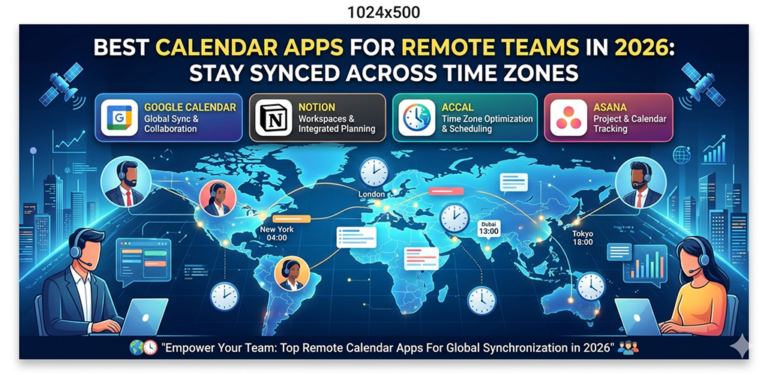
Seven calendar tools for 2026
The market is full of calendar apps, but some are better suited to the unique demands of remote teams. Here’s a look at seven options that stand out, considering features, pricing, and how well they address the challenges of distributed work.
Google Calendar remains a solid, free option, especially if your team is already invested in the Google ecosystem. Its strength lies in its simplicity and seamless integration with other Google Workspace apps like Meet and Gmail. Pricing is free for basic use, with paid Google Workspace plans adding features like larger meeting capacity and custom branding. It’s ideal for teams who need a reliable, no-frills calendar.
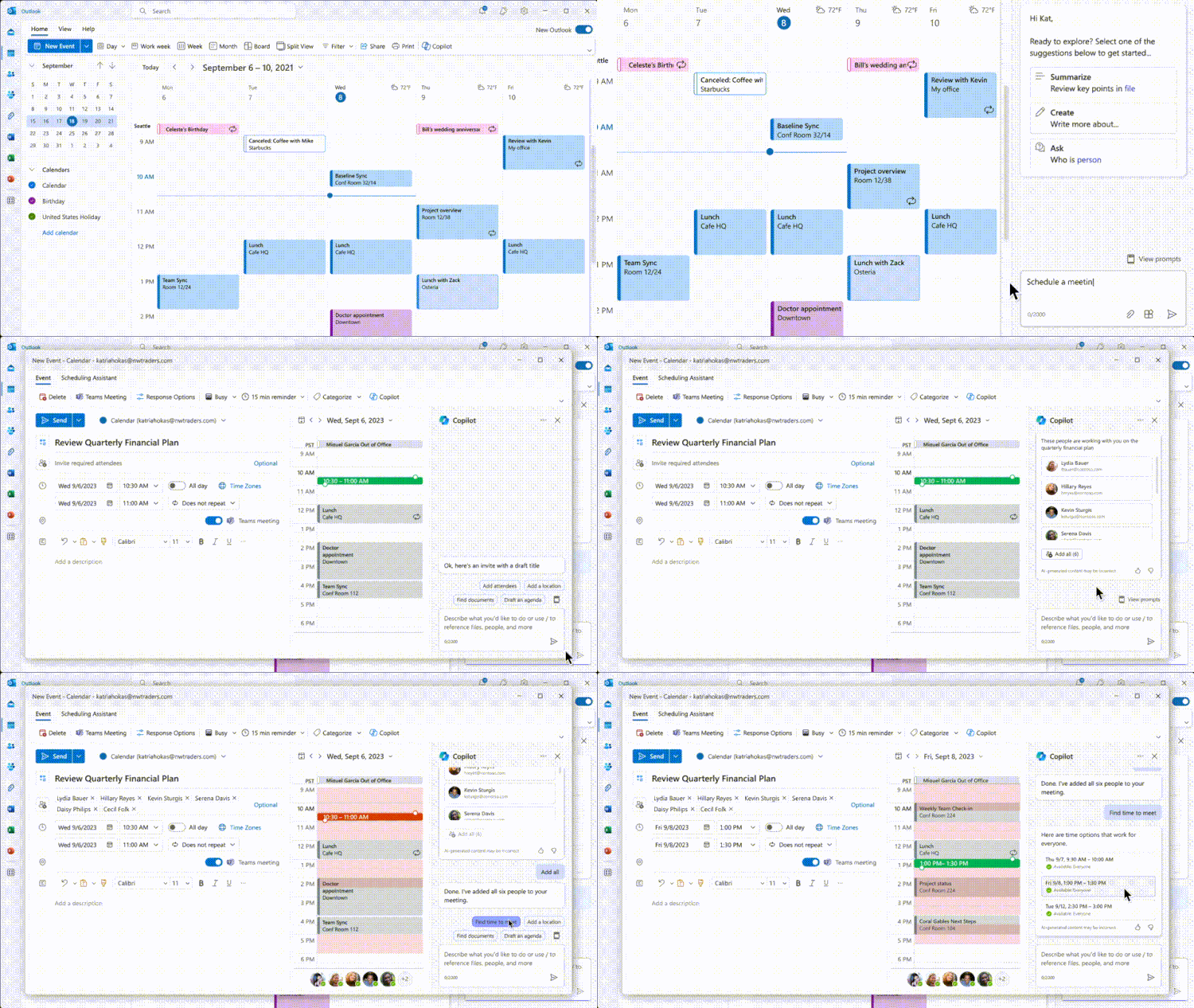
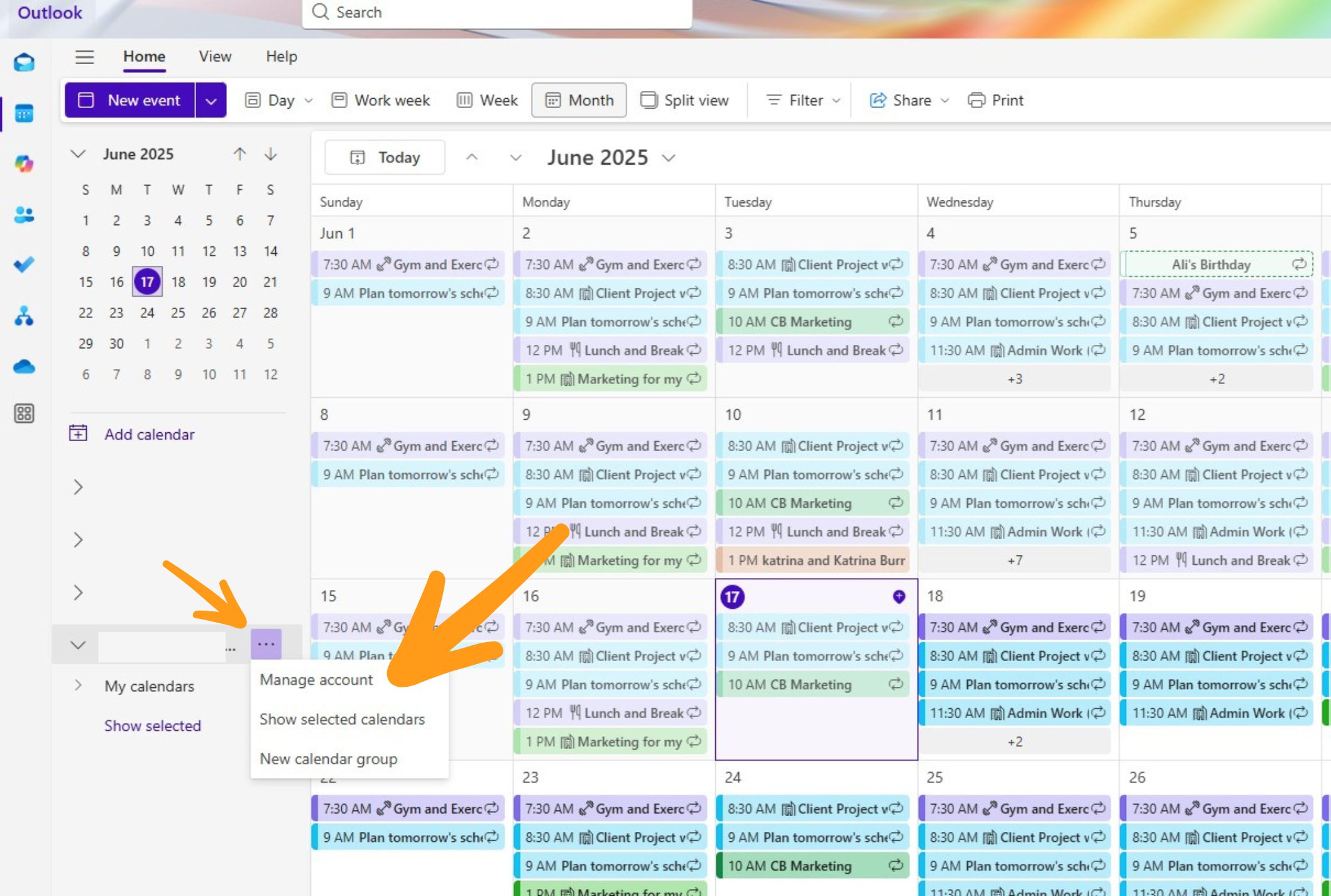
Microsoft Outlook Calendar, similarly, shines within the Microsoft 365 environment. It’s deeply integrated with Outlook email and Teams, making it a natural choice for organizations already using those tools. Pricing starts at around $6 per user per month with a Microsoft 365 Business Basic subscription. It’s best for teams heavily reliant on the Microsoft suite.
Clockwise tackles the problem of fragmented time. It intelligently blocks out "Focus Time’ to help individuals concentrate, and automatically finds the best meeting times for everyone, considering time zones and preferences. Clockwise starts at $7 per user per month. It"s a fantastic choice for teams struggling with constant interruptions and needing to prioritize deep work.
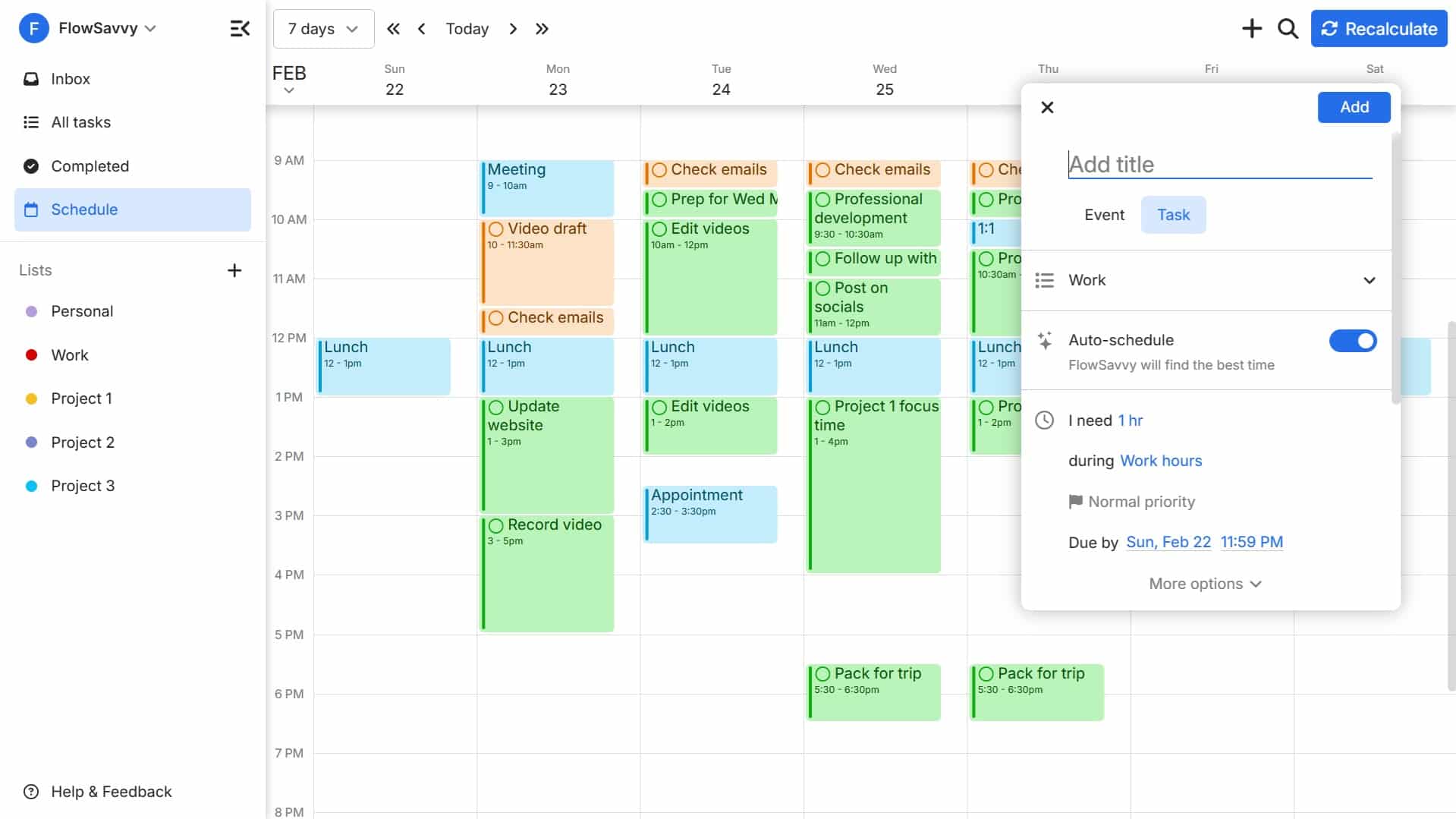
Reclaim.ai goes beyond simple scheduling; it's about time management. It uses AI to schedule tasks, habits, and breaks alongside meetings, ensuring you have dedicated time for everything that matters. Reclaim.ai's pricing starts at $12 per user per month. It’s perfect for individuals and teams who want to proactively protect their time and prevent burnout.
Motion aims to automate scheduling entirely. It uses AI to handle meeting requests, find optimal times, and even reschedule conflicts. Motion’s pricing starts at $12 per user per month. It’s a powerful solution for teams that spend a lot of time coordinating meetings and want to offload that work to an AI assistant.
TimeTree offers a more visually-oriented calendar experience, with a focus on shared calendars for families and small teams. It's free to use, and its simplicity makes it easy to adopt. It's a good option for teams who want a straightforward way to share events and schedules without a lot of complexity. SkedPal is a newer entrant, focusing on automated scheduling and task management integrated directly into the calendar. Pricing is around $9 per user per month, geared toward project-based teams.
Featured Products

Comprehensive guide to Google Workspace essentials · Covers Drive, Docs, Sheets, and Slides · Ideal for beginners in 2026
This guide provides a foundational understanding of Google Workspace tools, which are crucial for collaborative scheduling and document sharing in remote environments.

12-month subscription for one person · Includes premium Office apps (Word, Excel, PowerPoint) · 1TB of cloud storage
Microsoft 365 offers integrated applications and cloud storage that facilitate seamless document creation, sharing, and calendar management for individual remote professionals.

Explores personality dynamics in teams · Focuses on team efficiency · Free resource
Understanding team dynamics is vital for effective collaboration, and this book offers insights into how different personalities can impact remote team productivity and coordination.

Step-by-step user guide for Asana · Focuses on task organization and team management · Aims to boost productivity
Asana is a powerful tool for project and task management, offering robust features for shared calendars and team coordination essential for remote work.

Focuses on project management basics · Emphasizes repeatable processes · Easy-to-follow guide
ClickUp provides a flexible platform for managing projects and tasks, enabling remote teams to easily share calendars and synchronize schedules for improved workflow.
As an Amazon Associate I earn from qualifying purchases. Prices may vary.
The limits of iCal syncing
Syncing calendars across different platforms is rarely seamless. The iCal format is the common denominator, allowing apps to exchange calendar data. However, iCal has limitations. It's often one-way, meaning changes in one calendar don’t always immediately reflect in another. And it can struggle with complex recurring events or time zone information.
Many users experience syncing issues: missing events, duplicate entries, or incorrect time zone conversions. These problems are especially frustrating when coordinating with team members across multiple time zones. The truth is, relying solely on iCal for syncing is often a recipe for headaches. As Calendar Geek notes, understanding the nuances of iCal management is essential.
Google and Outlook have the most reliable syncing within their own ecosystems. Reclaim.ai and Motion use native integrations for two-way sync to prevent missed appointments. Check these integrations before you commit to a platform.
Permissions and privacy
Sharing calendars is essential for remote team collaboration, but it requires careful consideration of permissions and privacy. Most calendar apps offer different levels of access: view-only, free/busy time, edit access, and the ability to manage sharing settings. It’s crucial to understand what each level allows.
Oversharing can lead to security risks and unwanted visibility into personal appointments. Be especially cautious when sharing with external clients or contractors. Grant only the necessary level of access and regularly review sharing permissions. A good rule of thumb is to start with view-only access and grant more permissions only when needed.
Clearly communicate your calendar sharing policies to your team. Explain what information is appropriate to share and what should remain private. This fosters trust and ensures that everyone understands the boundaries. Consider using features like "hide details" to obscure sensitive information from shared calendars.
Managing time zones
Time zone support is arguably the most important feature for remote teams. Basic time zone conversion is no longer enough. You need apps that automatically adjust event times to each user’s local time, display events in their preferred time zone, and make it easy to find mutually convenient meeting times.
Clockwise and Motion truly excel in this area. Clockwise’s "Smart Scheduling" considers everyone's time zones when suggesting meeting times, while Motion’s AI assistant can automatically reschedule meetings to accommodate time zone differences. These apps go beyond simply converting times; they actively work to minimize scheduling conflicts.
Look for apps that allow users to set their preferred time zone and display events accordingly. The ability to see a team’s availability in your local time is invaluable. Avoid apps that rely solely on UTC or require manual time zone conversions. The simpler the experience, the less likely errors become.
Time Zone Handling in Calendar Apps for Remote Teams (2026)
| App Name | Automatic Conversion | Display in My Time | Scheduling Assistant | Time Zone Awareness |
|---|---|---|---|---|
| Google Calendar | Yes, automatically converts events when scheduling with others. | Yes, events can be displayed in the user's local time. | Excellent - suggests optimal meeting times based on attendees' time zones. | Excellent |
| Microsoft Outlook Calendar | Yes, offers automatic time zone conversion. | Yes, displays events in the user’s preferred time zone. | Good - provides suggestions, but may require manual adjustments for complex scenarios. | Good |
| Apple Calendar | Yes, automatically adjusts for time zones. | Yes, allows viewing events in your own time zone. | Fair - scheduling assistance is basic and relies heavily on manual input. | Fair |
| Zoom Scheduler | Yes, automatically converts event times. | Yes, displays event times in the user's local time. | Excellent - tightly integrated with Zoom meetings and automatically handles time zone conversions for attendees. | Excellent |
| Calendly | Yes, automatically handles time zone conversions when scheduling. | Yes, displays event times in the invitee's time zone. | Excellent - focuses on providing availability based on time zone preferences. | Excellent |
| Doodle | Yes, converts times when polling participants. | Yes, displays poll options in participant's local time. | Good - helps identify overlapping availability across different time zones. | Good |
| Acuity Scheduling | Yes, offers automatic time zone detection and conversion. | Yes, allows viewing appointments in the user’s local time. | Good - provides time zone-aware availability options. | Good |
Illustrative comparison based on the article research brief. Verify current pricing, limits, and product details in the official docs before relying on it.
Essential software integrations
A calendar app is rarely used in isolation. It needs to integrate seamlessly with other essential remote work tools. Video conferencing integrations (Zoom, Google Meet, Microsoft Teams) are non-negotiable. The ability to add a meeting link directly from the calendar is a huge time-saver.
Project management integrations (Asana, Trello, Jira) can help you link calendar events to specific tasks and projects, providing a clear overview of your workload. Communication integrations (Slack, Microsoft Teams) allow you to receive calendar notifications and updates directly in your team’s chat channels. These integrations streamline workflows and reduce context switching.
Consider the apps your team already uses and prioritize calendar solutions that offer native integrations. A well-integrated calendar can become a central hub for all your work, connecting your schedule to your tasks, projects, and communication channels.
No comments yet. Be the first to share your thoughts!