

The mess of remote scheduling
Most calendar apps were built for people sitting in the same office. When you move to a remote setup, those same tools fall apart. You end up fighting time zones and guessing when people are actually at their desks instead of just seeing a block of blue on a screen.
The problem isn't just about having a calendar, it's about everyone being on the same page. Missed meetings, double-bookings, and the constant back-and-forth of “What time works for you?” are all symptoms of a fragmented system. This leads to wasted time, reduced productivity, and a general sense of chaos. It’s a real drain on team morale.
That’s where dedicated calendar management apps come in. These tools go beyond basic scheduling to offer features like smart time zone conversion, automated meeting scheduling, and seamless integration with other essential work apps. They’re designed to address the specific challenges of remote collaboration and help teams reclaim control of their time. The demand for these solutions is driven by a simple need: to make remote work work better.
A significant issue is meeting fatigue. Remote workers report attending more meetings than their in-office counterparts, often due to the need for more frequent check-ins and clearer communication. Effective calendar management isn’t just about filling the schedule, it’s about protecting focused work time and ensuring meetings are purposeful. This is a change in mindset, and the right tools can help facilitate it.
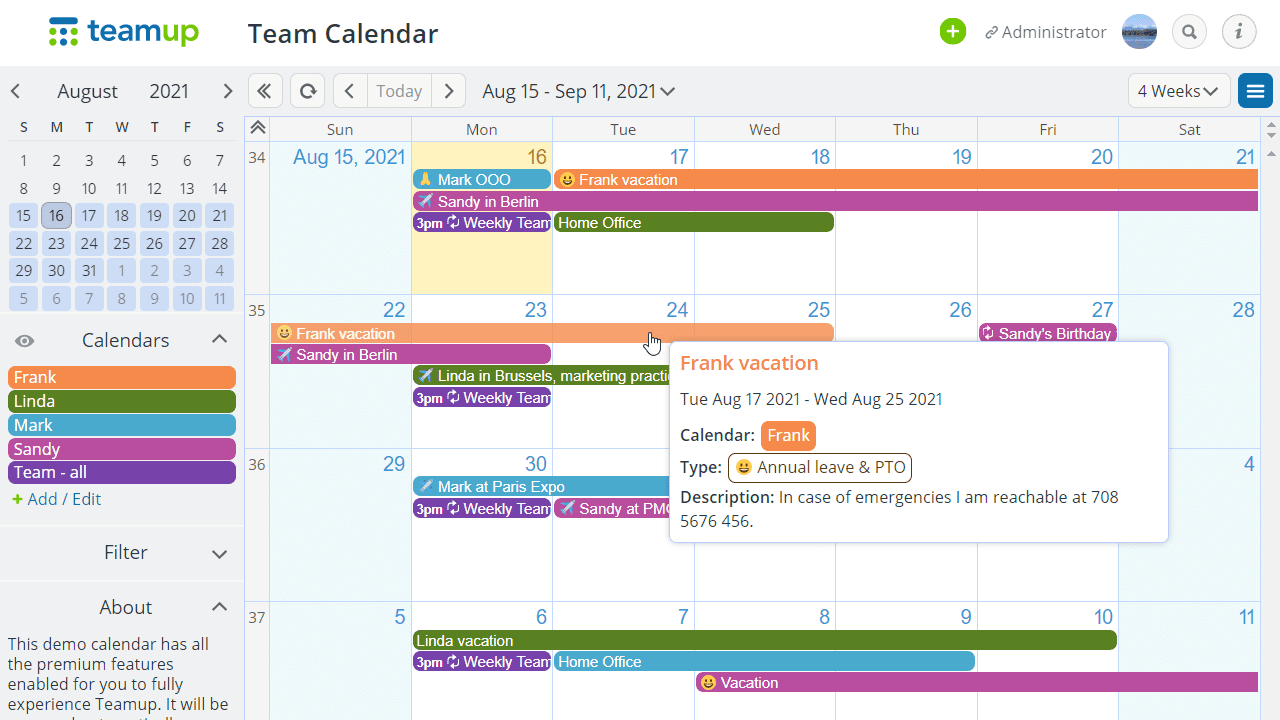
Seven calendar apps to try in 2026
Choosing the right calendar app for your remote team depends on your specific needs and workflow. Here’s a look at seven leading contenders in 2026, each with its own strengths and weaknesses. Pricing information is current as of January 2026, but is always subject to change.
Clockwise stands out for its focus on time blocking and meeting optimization. It analyzes your calendar and automatically creates “Focus Time” blocks to protect your deep work. It also intelligently reschedules meetings to minimize fragmentation. Clockwise starts at $7 per user, per month. However, some users find its aggressive rescheduling can be disruptive.
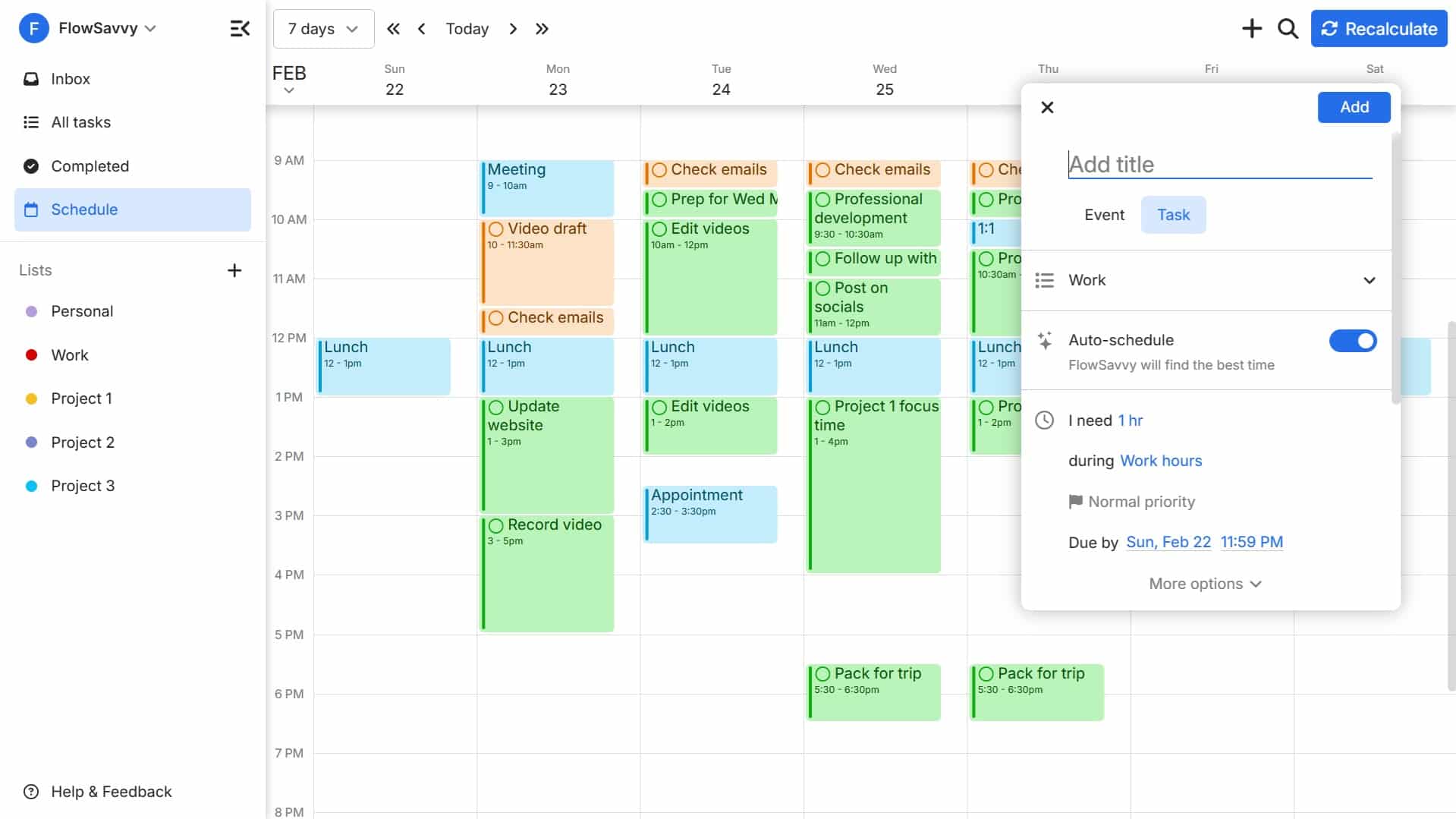
Reclaim.ai takes a different approach, using AI to schedule tasks and meetings around your priorities. It learns your work habits and automatically blocks out time for focused work, exercise, or personal commitments. Reclaim.ai’s pricing begins at $12 per user, per month. It’s a powerful tool, but the AI learning curve can take some time.
Calendly is primarily a scheduling link tool, simplifying the process of booking meetings with external clients or colleagues. It integrates with most major calendar platforms and offers a free plan with limited features. Paid plans start at $8 per user, per month. While excellent for external scheduling, it lacks the team-wide management features of some other apps.
Google Calendar remains a popular choice, especially for teams already invested in the Google ecosystem. It’s free to use, offers solid syncing capabilities, and integrates seamlessly with Google Meet and other Google Workspace apps. However, its advanced features are limited compared to dedicated calendar management tools.
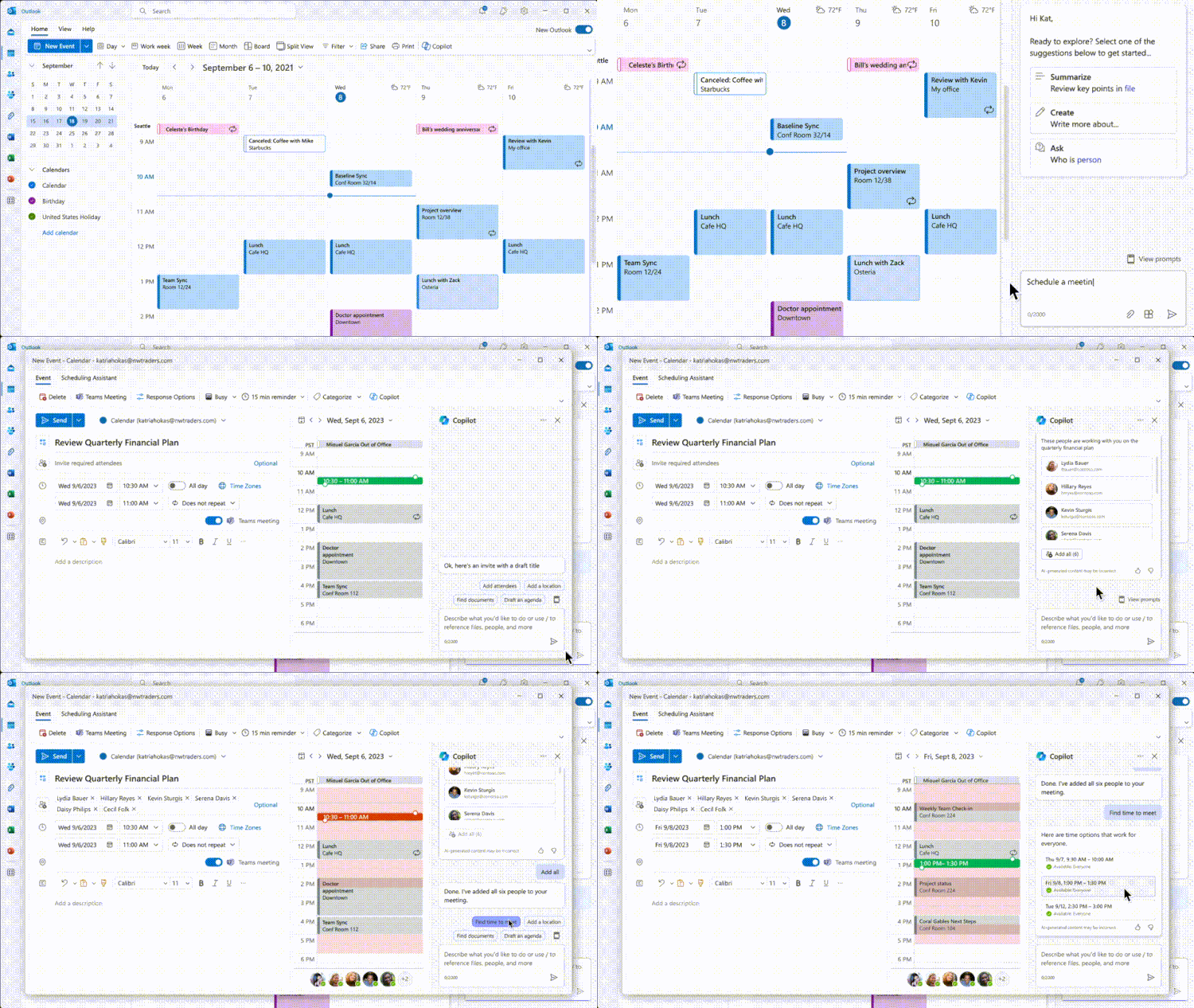
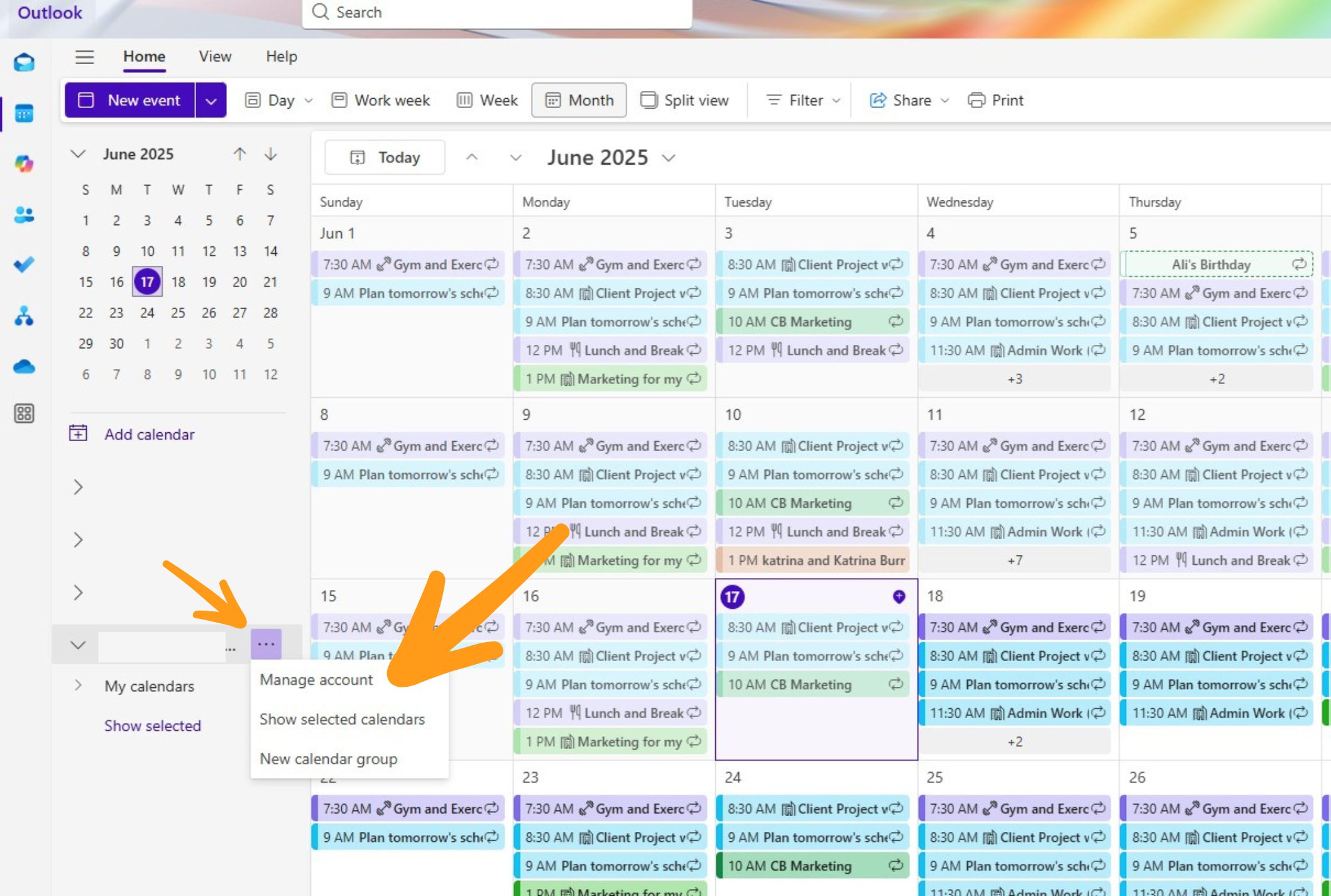
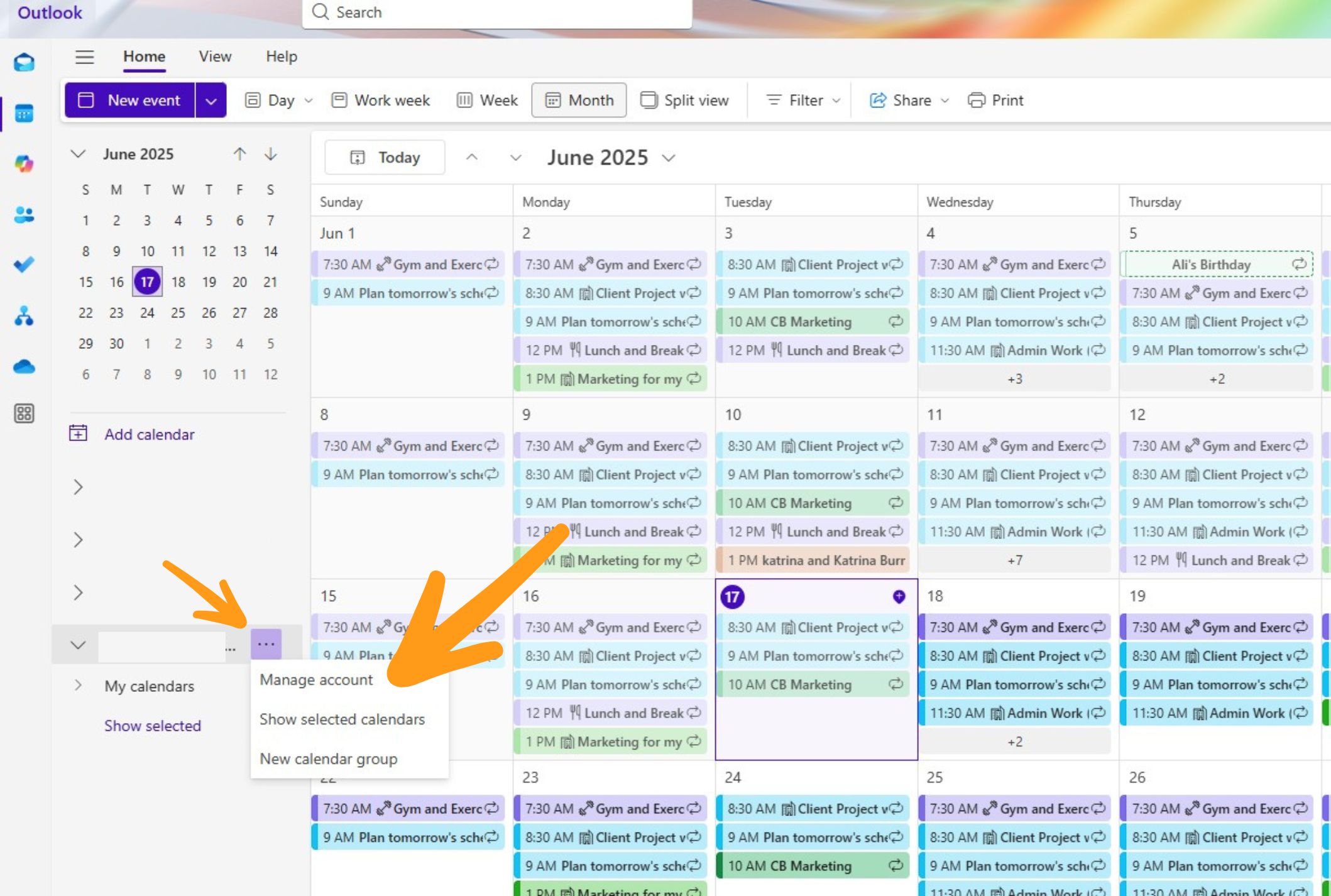
Microsoft Outlook Calendar is the go-to option for organizations using Microsoft 365. It offers robust features for scheduling, sharing, and managing meetings, and integrates tightly with Outlook email and Teams. Pricing is included with Microsoft 365 subscriptions. It can be complex to set up and customize.
TimeTree is a visually appealing calendar app designed for personal and family use, but it’s also surprisingly effective for small remote teams. It allows you to create shared calendars with color-coded events and supports various communication features. TimeTree is free to use, with optional premium features. It’s less feature-rich than some of the other options, but its simplicity is a major draw.
SkedPal (I was a bit unsure about this one, but it’s gaining traction) focuses on automated scheduling and time zone management. It uses AI to find optimal meeting times based on everyone’s availability and time zone. SkedPal’s pricing starts at $10 per user, per month. Early reviews suggest it’s particularly strong for teams with globally distributed members.
Essential Hardware for Seamless Calendar Management

27-inch 4K UHD resolution for sharp visuals · Wide 16:9 aspect ratio · ENERGY STAR and EPEAT certified for energy efficiency
This monitor provides a large, high-resolution display ideal for multitasking and viewing detailed schedules or project plans.

Ultra-fast scrolling and 8K DPI for precise control · Ergonomic design for comfort during long work sessions · Quiet clicks and Bluetooth/Logi Bolt connectivity for seamless integration
The MX Master 3S mouse offers superior comfort and control, essential for navigating complex calendars and managing multiple applications efficiently.

Advanced noise cancellation for focused work environments · Spatial Audio for immersive sound · Up to 30 hours of playtime on a single charge
These headphones create a distraction-free zone, allowing remote team members to concentrate on scheduling, virtual meetings, and important tasks.

Full HD 1080p video quality for clear calls · Clear stereo audio for effective communication · Built-in privacy shutter for security
The C920S webcam ensures high-quality video and audio for all virtual interactions, crucial for clear communication and effective calendar discussions.
As an Amazon Associate I earn from qualifying purchases. Prices may vary.
Why syncing usually fails
Even with the best calendar app, syncing calendars across different platforms can be a frustrating experience. Conflicts arise when the same time slot is booked by multiple users, often due to delays in synchronization. Permissions issues can prevent team members from accessing or modifying shared calendars. And the dreaded double-booking is a constant threat.
The root of these problems lies in the underlying technology. The iCal standard, while widely used, has limitations in handling complex scheduling scenarios and real-time updates. APIs (Application Programming Interfaces) that allow different apps to communicate with each other can also be unreliable or have rate limits. Time zone conversions add another layer of complexity.
Understanding how each platform handles syncing is crucial. Some apps prioritize speed over accuracy, while others prioritize accuracy over speed. Some use a push-based system, where changes are immediately propagated to all connected calendars, while others use a pull-based system, where calendars are periodically refreshed. Knowing these differences can help you troubleshoot problems.
When syncing issues occur, start by checking your internet connection and verifying that all your calendars are properly connected. Clear the cache and cookies in your browser or app. If the problem persists, contact the support team for each platform involved. Don’t assume the issue is with one specific app – it could be a conflict between multiple systems.
Managing multiple time zones
For remote teams spanning multiple time zones, effective time zone management isn't just a convenience – it’s essential. The apps we’ve discussed approach this challenge in different ways. Many offer automatic time zone conversion, displaying meeting times in each participant’s local time. This is a basic, but incredibly valuable, feature.
Some apps, like Clockwise and SkedPal, go further by offering scheduling assistants that suggest optimal meeting times based on everyone’s availability and time zones. These tools can help you avoid scheduling meetings during inconvenient hours for team members in different locations. Reclaim.ai also considers time zones when scheduling tasks and meetings.
When writing meeting invites, always specify the time zone. Don’t assume everyone knows where your team members are located. Using a clear and consistent format, such as “10:00 AM PST,” can prevent confusion. Tools like World Time Buddy can help you visualize time zone differences and find suitable meeting times.
Beyond the technical solutions, it’s important to cultivate a culture of time zone awareness. Encourage team members to be mindful of their colleagues’ locations and to avoid scheduling meetings outside of reasonable working hours. Empathy and consideration go a long way in building a productive and respectful remote work environment.
Software that plays well together
A calendar app is most effective when it integrates seamlessly with the other tools your team uses daily. Video conferencing platforms (Zoom, Google Meet, Microsoft Teams) are essential for remote collaboration, and direct integration allows you to easily add meeting links to calendar events. This saves time and reduces the risk of errors.
Project management tools (Asana, Trello, Jira) can also benefit from calendar integration. Linking tasks to calendar events helps you stay on top of deadlines and manage your workload effectively. Communication platforms (Slack, Microsoft Teams) can be integrated to send calendar notifications and reminders. This keeps everyone informed about upcoming events.
Some apps offer native integrations with these tools, while others rely on third-party services like Zapier or IFTTT. Zapier and IFTTT allow you to connect apps that don’t have native integrations, creating custom workflows to automate tasks and streamline processes. This adds flexibility, but can also introduce complexity.
Consider your team’s existing tech stack when choosing a calendar app. If you’re heavily invested in the Google ecosystem, Google Calendar is a natural choice. If you’re a Microsoft shop, Outlook Calendar is the way to go. Prioritize apps that integrate well with the tools you already use to minimize disruption and maximize efficiency.
Integration Capabilities of Popular Calendar Management Apps (2026)
| App Name | Zoom | Google Meet | Slack | Asana | Trello | Microsoft Teams |
|---|---|---|---|---|---|---|
| Clockwise | Native Integration | Zapier/IFTTT | Native Integration | Native Integration | Zapier/IFTTT | Native Integration |
| Reclaim.ai | Zapier/IFTTT | Zapier/IFTTT | Native Integration | Zapier/IFTTT | Zapier/IFTTT | Zapier/IFTTT |
| Calendly | Native Integration | Native Integration | Native Integration | Zapier/IFTTT | Zapier/IFTTT | Native Integration |
| Google Calendar | Native Integration | Native Integration | Native Integration | Native Integration | Zapier/IFTTT | Native Integration |
| Microsoft Outlook Calendar | Native Integration | Native Integration | Native Integration | Zapier/IFTTT | Zapier/IFTTT | Native Integration |
| TimeTree | Zapier/IFTTT | Zapier/IFTTT | Zapier/IFTTT | No Integration | No Integration | Zapier/IFTTT |
| SkedPal | Zapier/IFTTT | Zapier/IFTTT | Zapier/IFTTT | Zapier/IFTTT | Zapier/IFTTT | Zapier/IFTTT |
Illustrative comparison based on the article research brief. Verify current pricing, limits, and product details in the official docs before relying on it.
Security and Privacy Considerations
When entrusting a third-party app with your calendar data, security and privacy are paramount. Look for apps that offer robust security measures, such as encryption in transit and at rest. Encryption protects your data from unauthorized access, even if it’s intercepted during transmission or stored on a server.
Access controls are also important. Ensure the app allows you to control who can view and modify your calendar events. Data storage policies should be transparent and compliant with relevant privacy regulations. Look for apps that comply with GDPR (General Data Protection Regulation) and other industry standards.
Privacy concerns extend beyond data security. Consider how the app handles data sharing and tracking. Some apps may collect data about your usage patterns for marketing or analytics purposes. Read the privacy policy carefully to understand what data is collected and how it’s used. Be wary of apps that share your data with third parties without your consent.
Check if the provider has a SOC 2 Type II report. It is a standard way to verify they actually follow the security protocols they claim to have in place. If they won't show you their compliance docs, move on.
No comments yet. Be the first to share your thoughts!