

Why Outlook stops syncing
A calendar that fails to sync leads to double-booked meetings and missed appointments. While server issues happen, the problem usually stems from local configuration errors or bloated data files.
Sync errors aren’t usually caused by one single thing. Often, it’s a combination of factors. Server hiccups at Microsoft are a possibility, of course, but more frequently, the issue lies closer to home. Large mailbox sizes can slow things down, conflicting add-ins can wreak havoc, and even cached data can become corrupted over time.
Most sync errors are fixable through a few standard troubleshooting steps, ranging from connection checks to profile repairs.
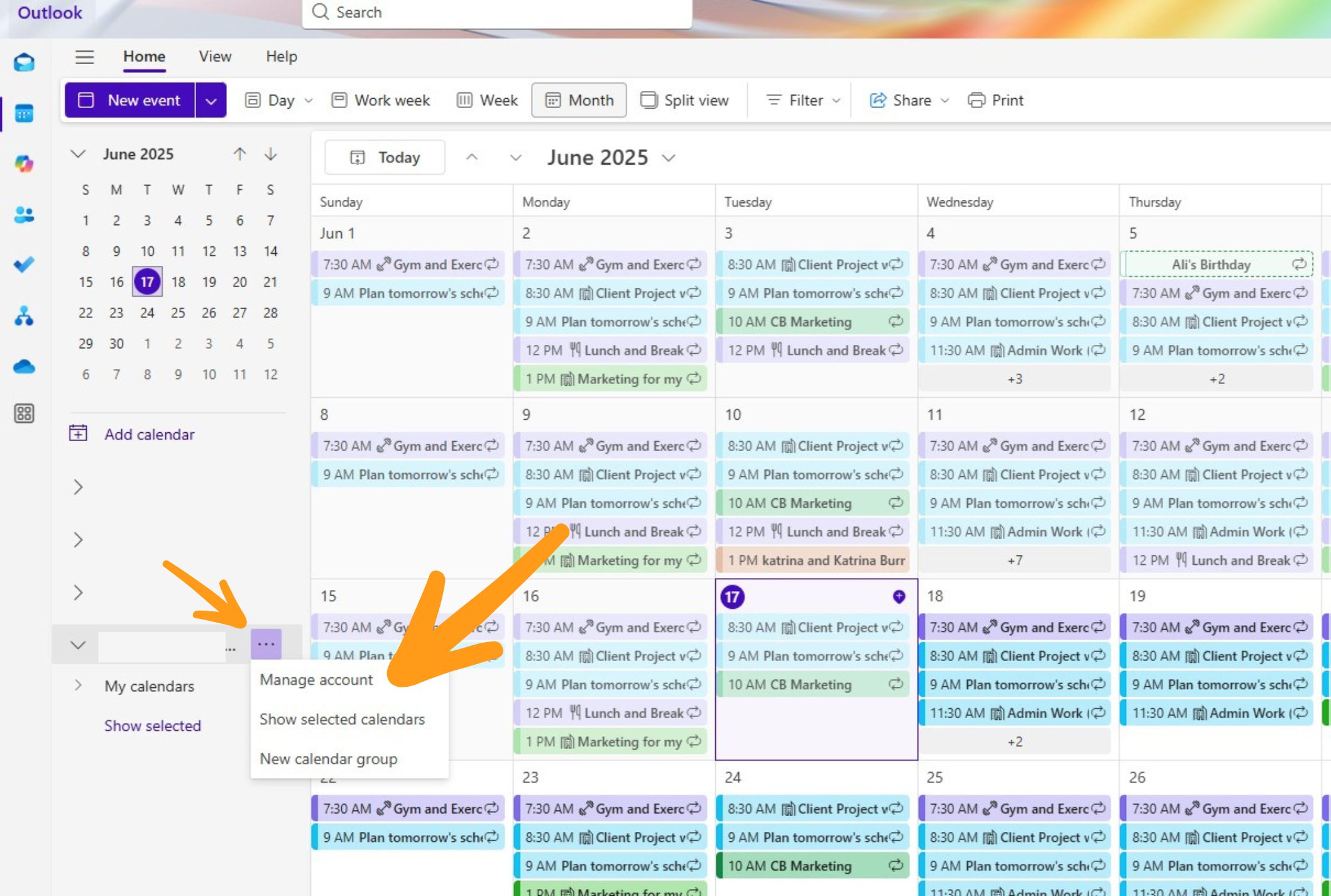
Check your connection first
An unstable connection is the most common cause of sync failures. Verify your signal strength even if the 'connected' icon is visible.
Look beyond the basic 'connected' indicator. What's your signal strength? Are other devices experiencing connectivity issues? Wi-Fi interference from other electronics can also play a role. Temporarily disabling your VPN is a smart troubleshooting step, too, as VPNs can sometimes introduce latency and instability.
Consider the difference between mobile data and Wi-Fi. If you’re syncing on the go, try switching between the two to see if that resolves the issue. A strong Wi-Fi signal is generally more reliable for syncing large amounts of data like calendar information.
Restart the application
It sounds almost too simple, but restarting Outlook is often surprisingly effective. The application, like any software, can accumulate temporary glitches and errors over time. A restart clears the cache, releases system resources, and gives Outlook a fresh start.
But don't just close the window. A proper restart means fully closing the application and then reopening it. If that doesn’t work, try restarting your computer. This clears even more temporary files and processes that might be interfering with the sync process.
To ensure a complete restart, check the system tray (the area near your clock) for the Outlook icon. If it’s there, right-click and choose 'Exit'. If Outlook doesn’t close that way, open Task Manager (Ctrl+Shift+Esc), find Outlook in the list of running applications, and end the task.
Adjust exchange cache settings
Outlook uses something called the Exchange cache to store a local copy of your mailbox data, including your calendar. This speeds up access to your information, especially when you’re offline. However, a corrupted or outdated cache can cause sync problems. Benedictine.edu provides a good overview of how these syncing options function.
You can adjust the size of the Exchange cache in Outlook's settings. To do this, go to File > Account Settings > Account Settings. Select your Exchange account and click 'Change'. Then, click 'More Settings'. In the 'Advanced' tab, you’ll find a slider that controls the cache size.
Increasing the cache size can improve performance, especially if you have a large mailbox, but it will also use more disk space. Decreasing the cache size can free up disk space, but it might slow down Outlook. Experiment with different settings to find the right balance for your needs. Be aware that changing this setting can take some time to fully propagate.
There's a trade-off here. A larger cache means faster access, but it requires more disk space. A smaller cache saves space but might make Outlook feel sluggish. It's about finding what works best for your setup.
- Open File > Account Settings > Account Settings.
- Select your Exchange account and click Change.
- Click More Settings.
- In the Advanced tab, adjust the cache slider.
Disable conflicting add-ins
Add-ins can extend Outlook’s functionality, but they can also be a source of conflict and instability. A poorly coded or incompatible add-in can interfere with the calendar sync process. I’ve seen this cause problems more often than I care to admit.
The easiest way to diagnose an add-in issue is to start Outlook in safe mode. This disables all add-ins. If your calendar syncs correctly in safe mode, you know an add-in is the culprit. To start Outlook in safe mode, hold down the Ctrl key while launching the application.
Once you’ve identified an add-in as the problem, you can manage them by going to File > Options > Add-ins. From there, you can enable or disable individual add-ins. Start by disabling any add-ins you’ve recently installed. If you're still having trouble, disable them one by one until you find the one causing the issue.
Syncing with Google Calendar
If you use both Outlook and Google Calendar, syncing can be a bit more complicated. Many users rely on the Google Calendar Sync tool, but its effectiveness can vary. It’s important to ensure you’ve granted the necessary permissions for Outlook to access your Google Calendar.
Common problems include permission conflicts and incorrect account credentials. Verify that the specific Google account has authorized Outlook access in your Google Security settings.
If you’re experiencing persistent issues with Google Calendar Sync, consider using Exchange ActiveSync instead. This protocol is often more reliable for syncing Outlook with Google Calendar, especially on mobile devices. You’ll need to configure your Google account in Outlook using Exchange ActiveSync settings, which can be found in Google’s help documentation.
Repair the Outlook profile
If you've tried all of the above steps and your calendar still won’t sync, the problem might be with your Outlook profile itself. An Outlook profile stores your account settings, email messages, and other data. If the profile becomes corrupted, it can cause a wide range of issues, including sync problems.
You can try repairing your Outlook profile using the Microsoft Support and Recovery Assistant (SaRA) tool. This tool can automatically diagnose and fix many common Outlook problems. Alternatively, you can create a new Outlook profile. To do this, go to Control Panel > Mail (Microsoft Outlook) > Show Profiles.
Creating a new profile will require you to reconfigure your email accounts, so it’s a bit more involved. However, it’s often the only way to resolve a severely corrupted profile. Be sure to back up your data before creating a new profile, just in case. This is a more advanced step, so proceed carefully.
Before you start, understand that creating a new profile means re-adding all your email accounts and customizing your settings. It’s a bit of work, but sometimes it’s the only way to get things working smoothly again.
No comments yet. Be the first to share your thoughts!