

what is an ical file?
An iCal file is a standard format for sharing calendar data. It is the technology behind the event invitations you receive from colleagues or the season schedules published by sports leagues. These files allow Google Calendar, Apple Calendar, and Outlook to exchange information without compatibility issues.
The format uses the .ics extension. The Internet Engineering Task Force created the iCalendar standard in 1998. It remains the industry standard because it is open and universal. Most modern software still relies on this 90s-era design to move data between platforms.
Think of it as a standardized message format for calendar events. It doesn’t care where the calendar lives, just what is happening on it. That’s why a file created in Apple Calendar can be opened and used in Google Calendar—and vice versa. This interoperability is what makes it so useful. It's a remarkably robust system for something so often taken for granted.
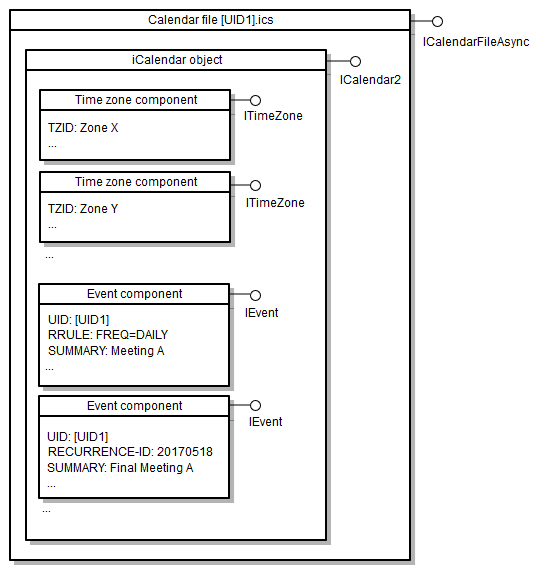
inside the .ics structure
While iCal files appear as simple text files with the .ics extension, they’re structured in a specific way. Don't let the text-based nature fool you—it's not meant to be read casually. The core components are events, to-dos, journal entries, and alarms. Each of these is represented as a "vcalendar" object within the file.
An event, for example, contains properties like `DTSTART` (start time), `DTEND` (end time), `LOCATION`, `DESCRIPTION`, and a list of `ATTENDEE`s. To-dos have properties for completion status and priority. These properties are defined using a specific syntax. It's a bit like a mini-programming language for calendar data.
Because it's a text-based format, you can actually open an iCal file in a plain text editor like Notepad or TextEdit. You’ll see a lot of lines starting with `BEGIN:` and `END:`, defining the start and end of each calendar object. It won't be pretty, but it confirms the file isn’t some complex binary format. You can inspect the data directly, though understanding it requires knowing the iCalendar specification.
importing ical files
Importing an iCal file is usually straightforward, but procedures vary slightly depending on your calendar application. Let's look at the most popular options. In Google Calendar, open the settings menu, select 'Import', and then choose the .ics file from your computer. Google Calendar will then add the events to your calendar. You can choose which calendar to import the events into, too.
For Apple Calendar on macOS, you can simply double-click the .ics file. The Calendar app will automatically open and prompt you to add the events. Alternatively, you can drag and drop the .ics file directly onto the Calendar icon in the Dock. On iOS, you’ll usually open the file from an email or messaging app, and it will offer to add the events to your Calendar.
Outlook offers a few options. You can go to 'File' > 'Open & Export' > 'Import/Export'. Select "Import an iCalendar (.ics) or vCalendar (.vcf) file" and follow the prompts. Outlook also allows you to subscribe to iCal feeds—meaning it automatically updates whenever the source calendar is changed. A common issue is duplicate events; make sure you check your calendar after importing to remove any duplicates.
Sometimes, time zone discrepancies can occur during import. If events appear at the wrong time, double-check your calendar’s time zone settings and ensure the iCal file also specifies a time zone. If the file doesn’t, the calendar application may interpret the times based on your local time zone, leading to errors.
exporting your calendar
Exporting a calendar as an iCal file is just as simple as importing. In Google Calendar, open the settings menu, go to 'Settings', and then select 'Export'. You can choose to export your entire calendar or a specific date range. Google Calendar will generate an .ics file that you can then save and share.
In Apple Calendar, select the calendar you want to export from the sidebar. Then, go to 'File' > 'Export' > 'Export…'. You’ll be prompted to choose a location to save the .ics file. You can export multiple calendars at once, too.
Outlook lets you export to iCal format via 'File' > 'Open & Export' > 'Import/Export'. Select "Export to a file’ and choose ‘Calendar Data File (.ics)". You can choose to export all folders or just specific ones. When exporting, be mindful of any private events. The .ics file will include those events, so only share it with trusted parties.
subscriptions and automation
iCal isn’t just for one-time event sharing. You can subscribe to public calendars using an iCal feed URL. This is how you can easily add holiday calendars, sports schedules, or school calendars to your calendar app. Many websites offer iCal feed URLs for their event listings. Just copy the URL and add it as a new calendar in your app.
Sharing calendars with others is also incredibly easy. Instead of sending the entire .ics file, you can generate a shareable link that points to your calendar. This allows others to view your availability without needing access to the file itself. Google Calendar and Apple Calendar both offer this feature. Be careful about what you share, though—anyone with the link can see the events on that calendar.
For developers, iCal can be used for automated calendar updates. Webhooks can trigger the generation of an iCal file when data changes, allowing applications to automatically update calendars with the latest information. This is commonly used for booking systems and event management platforms. It's a powerful way to keep calendars synchronized in real-time.
troubleshooting common errors
Corrupted iCal files are a frustrating but relatively common problem. If a file won't open or import correctly, try downloading it again. If the problem persists, the file may genuinely be damaged. Time zone discrepancies are another frequent issue. Ensure both your calendar application and the iCal file are using the same time zone settings.
Missing event data can occur if the iCal file is incomplete or if the calendar application doesn't fully support all iCalendar properties. Try opening the file in an iCal viewer (see below) to inspect its contents and identify any missing information. Compatibility issues can also arise between different calendar applications. While iCal is a standard, some applications may interpret it slightly differently.
A simple fix for many import problems is to try importing the file into a different calendar application first. This can help you isolate whether the problem lies with the file itself or with your primary calendar app. If you’re still stuck, searching online forums specific to your calendar application can often turn up solutions from other users who have encountered the same issue.
using ical viewers
Sometimes, you need to look inside an iCal file to understand what’s going on. That’s where iCal viewers come in handy. These tools allow you to open and inspect the contents of an .ics file without importing it into a calendar application. They’re great for troubleshooting import problems or verifying the file’s structure.
EmailShot.io offers a free online iCal viewer that’s easy to use. You simply drag and drop the .ics file onto their website, and it displays the file’s contents in a readable format. You can then examine the events, to-dos, and other data within the file. Using a viewer can help you identify errors, understand the file structure, and even extract specific information.
iCal Viewers
- EmailShot.io - A web-based iCal viewer and validator, EmailShot.io allows you to inspect the contents of iCal files directly in your browser. It offers features for testing and debugging calendar feeds.
- iCalendar Parser (Python) - A Python library for parsing and generating iCalendar data. It's useful for developers who need to work with iCal files programmatically.
- ical-tools - A command-line tool for manipulating iCalendar files. It can be used to merge, split, filter, and validate iCal data.
- Calendar Labs iCalendar Viewer - An online tool to view and validate iCalendar (.ics) files. It displays calendar events in a readable format and checks for errors in the iCal data.
- FreeFormatter iCalendar Viewer - A free online viewer for iCalendar files. It allows you to upload an .ics file and view its contents in a structured format.
- iCalBuddy - A macOS command-line tool for managing iCalendar data. It can be used to import, export, and modify iCal files.
- Apple Calendar (macOS/iOS) - While primarily a calendar application, Apple Calendar can open and display iCal files, allowing users to view the events within.
No comments yet. Be the first to share your thoughts!