

What is an iCal file?
An iCal file – technically a file with the .ics extension – is essentially a standardized way to share and manage calendar data. Think of it like a universal address for calendar events. It doesn't matter what calendar application someone uses; if they can open an .ics file, they can see the event details. It’s more than just a file type, though; it’s a format. It defines how calendar information – events, to-dos, reminders – is structured and stored.
Apple developed the format in the 1990s, but it is now an open standard. You don't need Apple hardware to use it; almost every modern calendar app supports the format because it is simple and reliable.
An iCal file contains details like event summaries, start and end times, locations, descriptions, and even recurrence rules. It's a plain text file, which makes it relatively lightweight and easy to transfer. Common applications that use iCal files include Apple Calendar, Google Calendar, Microsoft Outlook, and many third-party calendar apps. You’ll also encounter them when subscribing to calendars for sports teams, holidays, or other publicly available schedules.
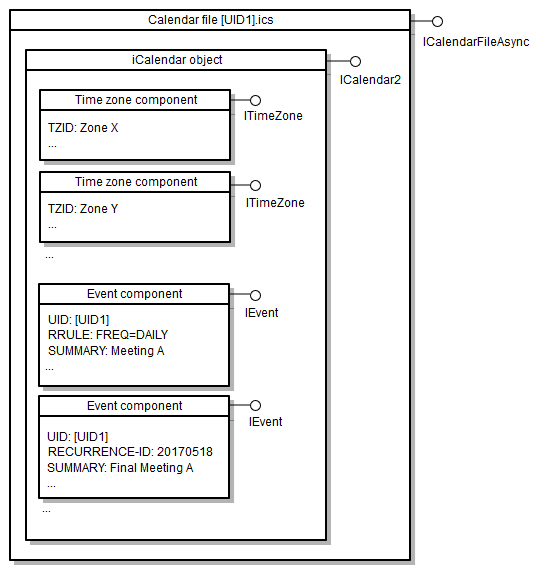
How .ics data is structured
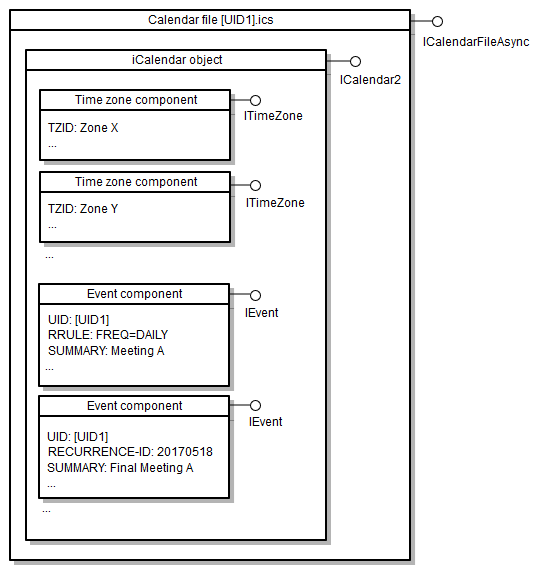
At its heart, an iCal file is a text-based file, meaning you could theoretically open it in a text editor. Don't expect it to be immediately readable, though! It follows a specific structure based on 'components' and 'properties'. The file is organized into sections that begin and end with `BEGIN:` and `END:` tags, defining the type of component.
The most common components are `VEVENT` (for events) and `VTODO` (for to-do items). Within these components, you’ll find properties that describe the event or task. These properties are represented as key-value pairs. For example, `SUMMARY:Meeting with John` or `DTSTART:20260315T100000`.
Let’s break down some key properties: `SUMMARY` is the event title, `DTSTART` is the start date and time, `DTEND` is the end date and time, `LOCATION` is the event location, and `DESCRIPTION` provides more details. Recurrence rules are handled with the `RRULE` property, allowing you to define repeating events. While a full iCal file can be complex, understanding these basic components and properties gives you a solid foundation for working with them.
How to import iCal files
Importing an iCal file is generally a straightforward process, though the exact steps vary slightly depending on your calendar application. Let’s look at how to do it in Google Calendar, Apple Calendar, and Outlook.
Google Calendar: Open Google Calendar in your browser. Click the gear icon for settings, then select "Settings’. In the left sidebar, click ‘Import & export’. Click ‘Select file from your computer’ and choose your .ics file. Select the calendar you want to add the events to and click ‘Import".
Apple Calendar: Open Apple Calendar on your Mac. Go to File > Import… and select your .ics file. The events will be added to your default calendar, or you’ll be prompted to choose a calendar. You can also drag and drop the .ics file directly onto the Calendar app icon.
Microsoft Outlook: Open Outlook and go to File > Open & Export > Import/Export. Select "Import an iCalendar (.ics) or vCalendar (.vcs) file’ and click ‘Next’. Browse to your .ics file and click ‘Next’. Choose the calendar folder where you want to import the events and click ‘Finish".
A common issue is duplicate events if you accidentally import the same file multiple times. Most calendar applications have a way to filter or delete duplicate events. Another potential problem is incorrect time zones. Ensure your calendar application’s time zone settings are correct before importing. Sometimes, you may need to manually adjust the event times after importing.
Exporting Your Calendar as iCal
Exporting your calendar as an iCal file is the reverse of importing. It allows you to create a backup of your calendar data or share events with others who may not use the same calendar platform. Here's how to do it in the major calendar applications.
Google Calendar: In Google Calendar settings (gear icon > Settings), go to "Import & export’. Click ‘Export" to download a .ics file of all your calendars. You can choose to export specific calendars by selecting them from the list.
Apple Calendar: Select the calendar you want to export in the left sidebar. Go to File > Export > Export… and choose a location to save the .ics file. You’ll be prompted to name the file.
Microsoft Outlook: Right-click on the calendar you want to export in the folder list. Select "Save Calendar…’. Choose a location and file name, and ensure the ‘Format’ is set to ‘Outlook Calendar (.ics)’. It’s important to remember that exporting only saves the events themselves; it doesn"t export calendar settings like colors or reminders.
Syncing calendars without manual imports
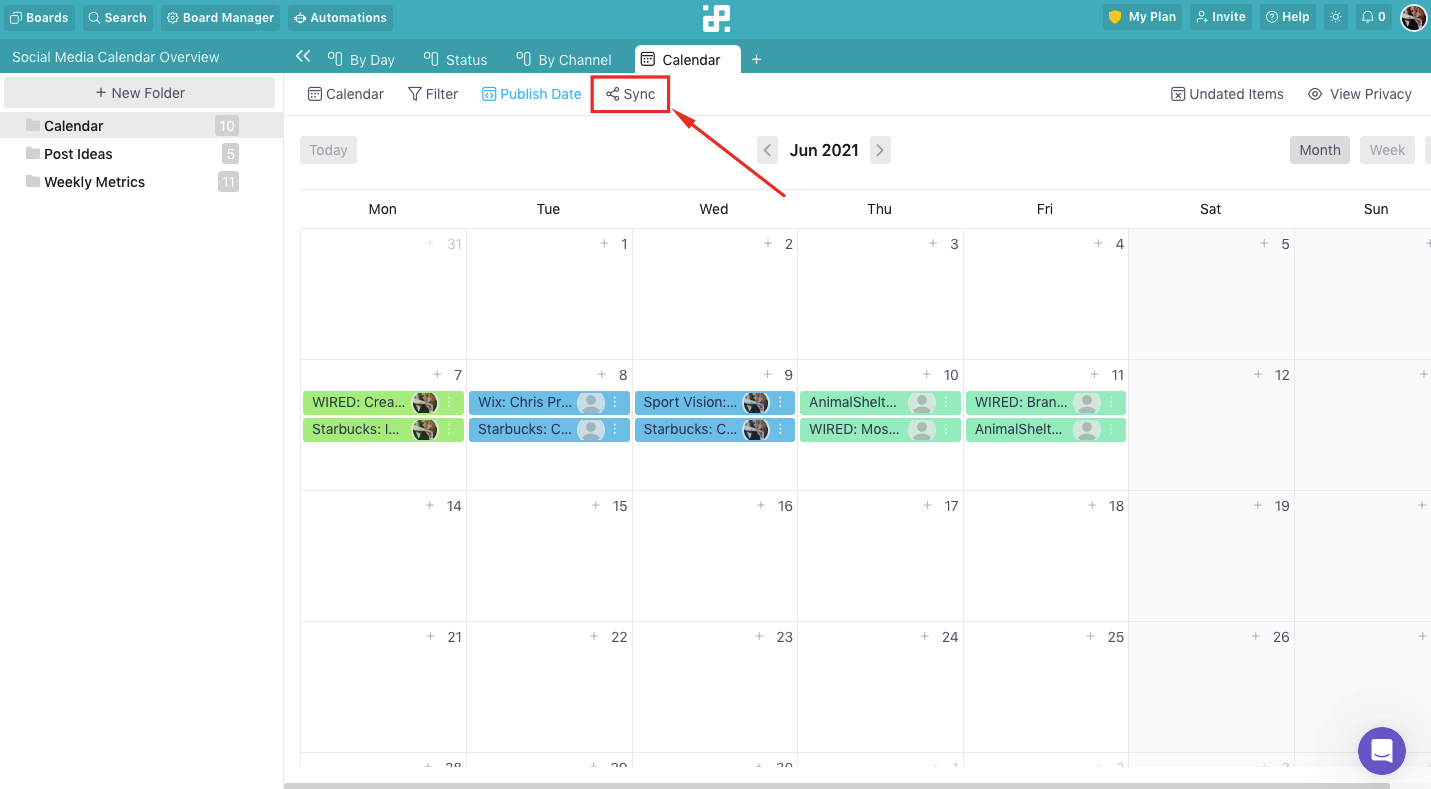
iCal files aren’t just for one-time imports and exports; they can also be used for ongoing calendar syncing. This is achieved by "subscribing" to a calendar using its iCal URL. Many websites and services offer publicly available calendars that you can subscribe to, such as sports schedules, public holidays, or school calendars.
When you subscribe to a calendar, your calendar application periodically checks for updates to the iCal file and automatically adds or modifies events. This is a one-way sync – changes you make to your calendar won’t be reflected in the source calendar. The refresh rate varies depending on the calendar application and the server hosting the iCal file, but it’s typically every few hours.
Services like sports teams or public holiday providers often use this method to distribute their schedules. While convenient, be aware of potential delays in updates. It’s not a real-time sync. If you need a two-way sync, you’ll need to explore other solutions like CalDAV or dedicated syncing tools.
Fixing common iCal problems
Despite its simplicity, you might encounter issues when working with iCal files. Here are some common problems and how to fix them.
Events Not Showing Up: Double-check that you imported the file into the correct calendar within your application. Also, verify that the date range in your calendar view includes the event dates. Sometimes, events might be hidden by default; check your calendar settings.
Incorrect Time Zones: Ensure your calendar application’s time zone settings match your actual time zone. If events still appear at the wrong time, the iCal file itself might have incorrect time zone information. Unfortunately, fixing this requires editing the file directly (which is beyond the scope of this guide).
Garbled Characters: This usually happens when the iCal file uses a character encoding that your calendar application doesn’t support. Try opening the file in a text editor and saving it with UTF-8 encoding. Then, try importing it again.
Duplicate Events: Most calendar applications have a feature to identify and remove duplicate events. If not, you may need to manually delete the duplicates.
iCal and Third-Party Apps: What Integrates?
Many platforms use iCal to keep data in sync. Airbnb and VRBO hosts use these files to move booking dates between different listing sites so they don't get double-booked. It is a basic way to bridge two different apps that don't talk to each other directly.
Project management tools like Asana and Trello often offer iCal integration, allowing you to sync task deadlines with your calendar. This helps visualize your workload and stay on top of important deadlines. While the level of integration varies, iCal provides a common ground for data exchange.
Many other productivity apps and services leverage iCal for calendar sharing and syncing. The widespread adoption of the format makes it a valuable tool for connecting different applications and streamlining your workflow. However, integration features and limitations can vary, so it’s always best to check the documentation for each specific application.
No comments yet. Be the first to share your thoughts!