

what is an icalendar file?
An iCalendar file (.ical or .ics) is a plain text file for calendar data. It lets you move appointments, meetings, and birthdays between different apps without losing the details. While the name sounds like an Apple product, it is an open standard that works on any platform.
The story of iCalendar starts in 1998 with the publication of RFC 2449. Before this, sharing calendar information was a real headache; each application used its own unique method. The iCalendar standard provided a common language, making it significantly easier to share events across platforms. Its popularity grew as people began using multiple calendars and devices.
At its most basic, an iCalendar file is human-readable, though not necessarily easy to read. If you open one in a text editor, you’ll see a series of lines defining events and their properties. But the real power of iCalendar isn't in manually editing these files, it’s in letting applications handle the complexity while you focus on managing your schedule. It’s about sharing information, plain and simple.
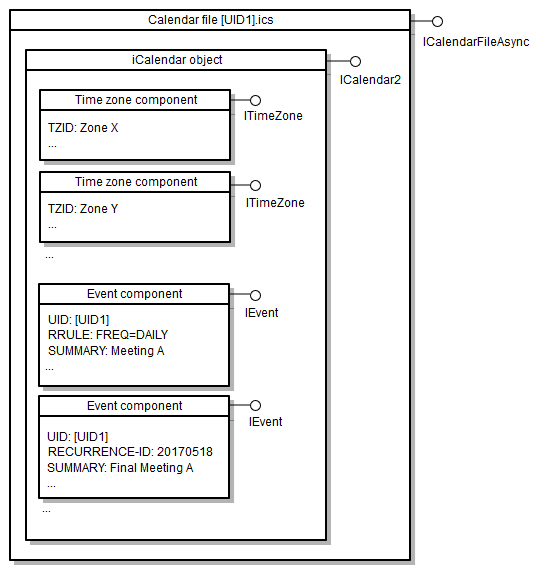
how ics files are structured
iCalendar files aren't just a jumble of text; they follow a specific structure. Everything within an ICS file is organized into components, the most important being events (VEVENT) and to-do items (VTODO). These components are enclosed by BEGIN and END markers, clearly defining where each item starts and stops.
Within each component, you’ll find properties that describe the event or task. Some of the most common properties include SUMMARY (the event title), DESCRIPTION (a more detailed explanation), LOCATION (where the event takes place), START and END (the event’s time), and UID (a unique identifier). These properties are formatted as key-value pairs, making the file relatively easy for computers to parse.
You generally won’t be editing these files directly. Calendar applications handle the creation and modification of these components and properties for you. However, understanding the basics is helpful for troubleshooting. Two particularly important properties are TZID, which specifies the time zone, and RRULE, which defines recurring events. Getting these wrong can lead to significant scheduling errors.
importing files to google, apple, and outlook
Importing an ICS file is usually straightforward, but the exact steps vary depending on your calendar application. In Google Calendar, you'll go to Settings > Import & export, then click 'Select file from your computer' and choose the ICS file. Google Calendar is generally quite good at handling multiple ICS files imported at once, merging events where possible.
Apple Calendar on macOS is similar. Open Calendar, go to File > Import, and select the ICS file. On iOS, you can open the ICS file directly from the Mail app or a file sharing service, which will prompt you to add the events to your calendar. Apple Calendar tends to create a new calendar for each imported ICS file, which some users find convenient.
Outlook offers several import options. In the desktop app, go to File > Open & Export > Import/Export, then choose 'Import an iCalendar (.ics) or vCalendar (.vcf) file'. Outlook, particularly the desktop version, can sometimes struggle with complex recurring events in ICS files. The web version uses a similar process, allowing you to import via the settings menu. It’s also worth noting that Outlook’s import process might not automatically update events if the source calendar is changed.
exporting and sharing your calendar
Just as you can import calendars from an ICS file, you can also export your calendar as one. In Google Calendar, it's under Settings > Import & export > Export. Apple Calendar’s export function is found under File > Export > Export… Outlook’s export is available under File > Open & Export > Import/Export > Export to a file.
Sharing calendars via ICS files is useful in several situations. It’s a great way to send event details to someone who doesn’t use the same calendar app as you, or to back up your calendar data. You can also create a public calendar by publishing an ICS file on a website, allowing anyone to subscribe to your events. This is common for event organizers.
However, be mindful of the security implications. ICS files contain event details, potentially including sensitive information like meeting topics or attendee lists. Avoid sharing ICS files with untrusted individuals. ICS files are best suited for one-time sharing or backups, not for ongoing calendar synchronization.
syncing vs. importing
It's vital to understand the difference between importing and syncing. Importing an ICS file is a one-time event. The file is read, the events are added to your calendar, and that’s it. If the original calendar source is updated, those changes won't automatically reflect in your imported calendar. You’d need to re-import the ICS file to see the updates.
True syncing, on the other hand, involves a continuous, two-way connection between calendars. When an event is changed on one calendar, it automatically updates on the other. This is typically achieved through protocols like CalDAV or through the sharing features built into services like Google Calendar. ICS files simply don’t offer that level of dynamic connection.
Think of ICS as a snapshot of a calendar at a specific point in time. It's perfect for sharing a single event or backing up your data, but it’s not ideal for ongoing collaboration or keeping multiple calendars constantly in sync. For those needs, you’ll want to explore dedicated syncing solutions.
Calendar Sharing Method Comparison - 2026
| Method | Update Frequency | Ease of Use | Security Considerations | Platform Compatibility |
|---|---|---|---|---|
| iCal (.ics) Files | Manual - Requires re-import for updates | Simple for one-time sharing; more complex for ongoing sync | Relies on secure transfer method; content not inherently encrypted | Universal - Compatible with almost all calendar applications |
| CalDAV | Near Real-time | Requires CalDAV client setup; moderately complex | Secure protocol with authentication; data transmitted securely | Good - Supported by many clients, but requires client support |
| Google Calendar Sharing | Near Real-time | Very Easy - Sharing permissions managed within Google ecosystem | Relies on Google’s security infrastructure; potential privacy considerations | Best within Google ecosystem; accessible via web browsers and apps |
| Microsoft Exchange ActiveSync | Near Real-time | Generally straightforward within Microsoft ecosystem; may require IT support | Secure protocol with authentication; relies on Exchange server security | Primarily Microsoft Outlook and compatible clients |
| iCal via Web Subscriptions | Variable - Dependent on publisher update frequency | Easy to set up if supported by both parties | Security depends on the server hosting the iCal feed | Good - Supported by many calendar applications, but not universally |
| Apple Calendar Sharing (CalSync) | Near Real-time | Easy within Apple ecosystem, requires Apple ID | Relies on Apple's security infrastructure | Best within Apple ecosystem |
Qualitative comparison based on the article research brief. Confirm current product details in the official docs before making implementation choices.
fixing common ical errors
Several common problems can arise when working with ICS files. Events might not display correctly, time zones could be off, recurring events might not function as expected, or the file might be corrupted. If events appear at the wrong time, double-check the time zone settings in both the ICS file (TZID property) and your calendar application.
Recurring events can be particularly tricky. Ensure the RRULE property is correctly formatted and that your calendar application supports the specific recurrence rules used in the file. If the file is corrupted, try opening it with a different calendar application or an iCal viewer. The official iCalendar specification (RFC 5545) is a comprehensive, though highly technical, resource for developers.
Another frequent issue is special characters in event titles or descriptions. These can sometimes cause parsing problems. Try removing or replacing these characters. An iCal viewer is invaluable for inspecting the file’s contents and identifying the source of the error. It allows you to see the raw data and pinpoint any formatting issues.
using ical viewers for diagnostics
When things go wrong with ICS files, an iCal viewer can be a lifesaver. Tools like the free online viewer at emailshot.io and icscalendar.com allow you to inspect the raw data within the file without needing to import it into a calendar application. This is incredibly helpful for troubleshooting.
These viewers display the components and properties of the ICS file in a human-readable format, allowing you to identify errors in event formatting, time zone settings, or recurrence rules. You can easily see if a property is missing or incorrectly formatted. They are read-only tools, you can't edit the file within the viewer, but you can gain a deep understanding of its structure.
Using a viewer is often the fastest way to diagnose problems with ICS files. Instead of blindly importing and hoping for the best, you can proactively identify and address any issues before they cause headaches.
No comments yet. Be the first to share your thoughts!