

What is an iCal file?
You probably use iCal files without realizing it. These files, usually ending in .ics, are digital containers for event data like times and locations. They remain popular because they are simple and work on almost every device.
Apple developed the format, but it isn't tied to their apps. It is a plain text format, so you can move data between different platforms easily. If you open one in a text editor, you'll see the raw code behind your appointments.
The format adheres to standards defined in RFC 5545, ensuring that different applications interpret the data consistently. Think of it as a common language for calendars. While newer formats may offer more features, iCal’s broad support and straightforward nature make it a reliable option for sharing and importing calendar data, even in 2026.
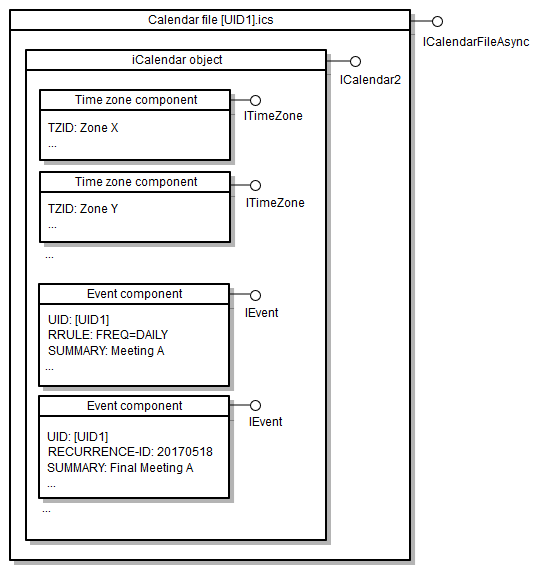
The iCal structure
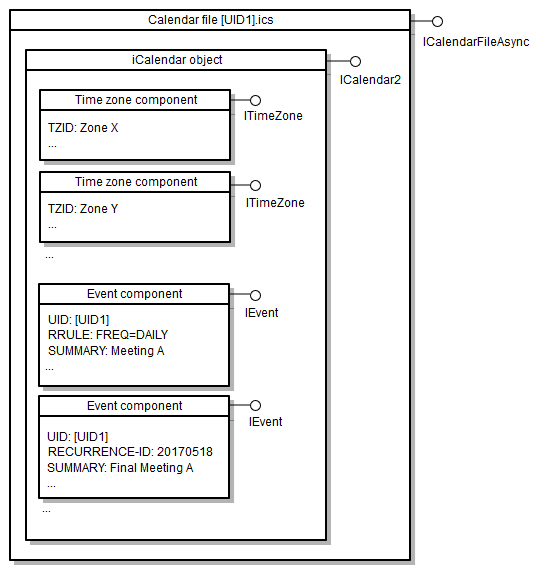
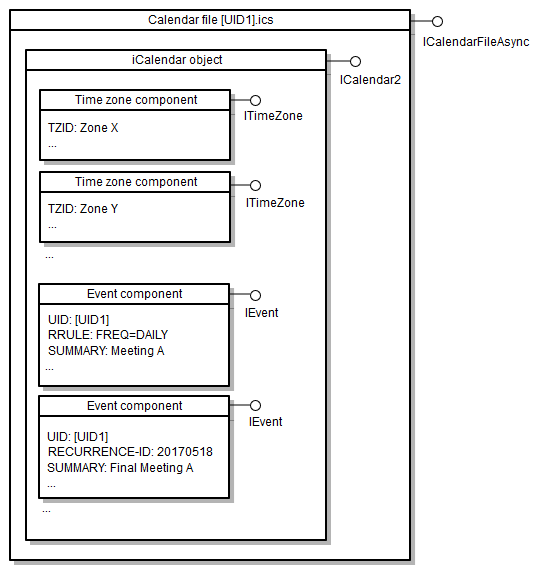
An iCal file isn't just a jumble of text; it’s carefully organized using specific components. It begins and ends with `BEGIN:VCALENDAR` and `END:VCALENDAR`, defining the boundaries of the calendar data. Within that, you'll find `VEVENT` blocks for each event and `VTIMEZONE` definitions for handling different time zones.
Let's break down some key components you'll see: `SUMMARY` is the event title – what you see on your calendar. `DTSTART` isn’t just a code; it’s the moment your event begins! `DTEND` marks the end time. `LOCATION` specifies where the event takes place, and `DESCRIPTION` provides more details. These are the building blocks that create a calendar event.
You’ll also see properties like `UID` (a unique identifier for each event) and `RRULE` (for recurring events). Understanding these components isn't essential for using iCal files, but it can be helpful if you're troubleshooting issues or working with the files directly. The entire structure is based around RFC 5545, which defines the standard, but thankfully, you rarely need to interact with that level of detail.
- BEGIN:VCALENDAR / END:VCALENDAR: Defines the calendar data.
- VEVENT: Represents a single event.
- VTIMEZONE: Defines a time zone.
- SUMMARY: The event title.
- DTSTART: The event start time.
- DTEND: The event end time.
- LOCATION: The event location.
- DESCRIPTION: A detailed description of the event.
- UID: A unique identifier for the event.
- RRULE: Defines recurrence rules for repeating events.
Essential iCal Components
- BEGIN:VCALENDAR - This signifies the start of the iCalendar data, and without it, calendar applications won't recognize the file as a valid calendar.
- BEGIN:VEVENT - This marks the beginning of an event definition, and if missing, individual events won’t be parsed or displayed.
- DTSTART - This property defines the start date and time of an event; if incorrect, events will appear at the wrong time or not at all.
- DTEND - Specifying the end date and time of an event, a missing or incorrect DTEND will result in events appearing to have no duration or running indefinitely.
- SUMMARY - This provides the title or description of an event, and if absent, events will be listed without a clear name.
- LOCATION - This property indicates where an event is taking place, and its absence means event details won't show a physical location.
- END:VEVENT - This signifies the end of an event definition, and without it, the calendar application may not correctly process subsequent events.
How to import iCal files
Importing iCal files is generally straightforward, but the process varies slightly depending on your calendar application. Let's look at how to do it in Google Calendar, Apple Calendar, and Outlook. In Google Calendar, click the '+' button next to 'Other calendars' and select 'Import'. Choose the iCal file from your computer and click 'Import'.
For Apple Calendar, simply double-click the .ics file. It should automatically open and import into your calendar. Alternatively, you can go to File > Import and select the file. If you want to subscribe to a calendar (receive automatic updates), choose File > Subscribe to Calendar, then enter the calendar URL.
Outlook offers a similar process. Go to File > Open & Export > Import/Export. Select 'Import an iCalendar (.ics) or vCalendar (.vcs) file' and follow the prompts. A common issue is incorrect time zones during import. Double-check your time zone settings in your calendar app before importing. Another frequent problem is duplicate events – be mindful if you’re importing a calendar you’ve previously subscribed to.
Subscribing to a calendar using a webcal link (a public iCal URL) is different than importing a single file. With a webcal link, your calendar app will periodically check for updates, keeping your calendar synced with the source. If you’re not seeing events after importing, check your calendar’s settings to ensure the imported calendar is visible and that notifications are enabled.
Sharing calendars with links
One of the easiest ways to share a calendar is by creating a public iCal link, often called a webcal link. Most calendar applications allow you to generate this link. In Google Calendar, for example, you can find it under Calendar Settings > Integrate calendar > Public URL. Anyone with this link can subscribe to your calendar and see the events.
However, be cautious when sharing a public iCal link. It’s essentially making your calendar events visible to anyone who has the link. Consider the privacy implications before sharing. If you only want to share with specific people, it’s better to share the calendar directly through the application’s sharing features.
Alternatively, you can share iCal files directly via email or other messaging apps. This creates a snapshot of your calendar at that moment in time. The recipient needs to import the file into their calendar application to view the events. I haven't seen any widespread security concerns about sharing the .ics file itself, but always be mindful of what information you're sharing.
- Public links make your events visible to anyone who has the URL.
- Direct Sharing: Sharing the .ics file creates a snapshot of your calendar.
- Subscription vs. Import: Webcal links provide ongoing updates, while importing creates a static copy.
How syncing works
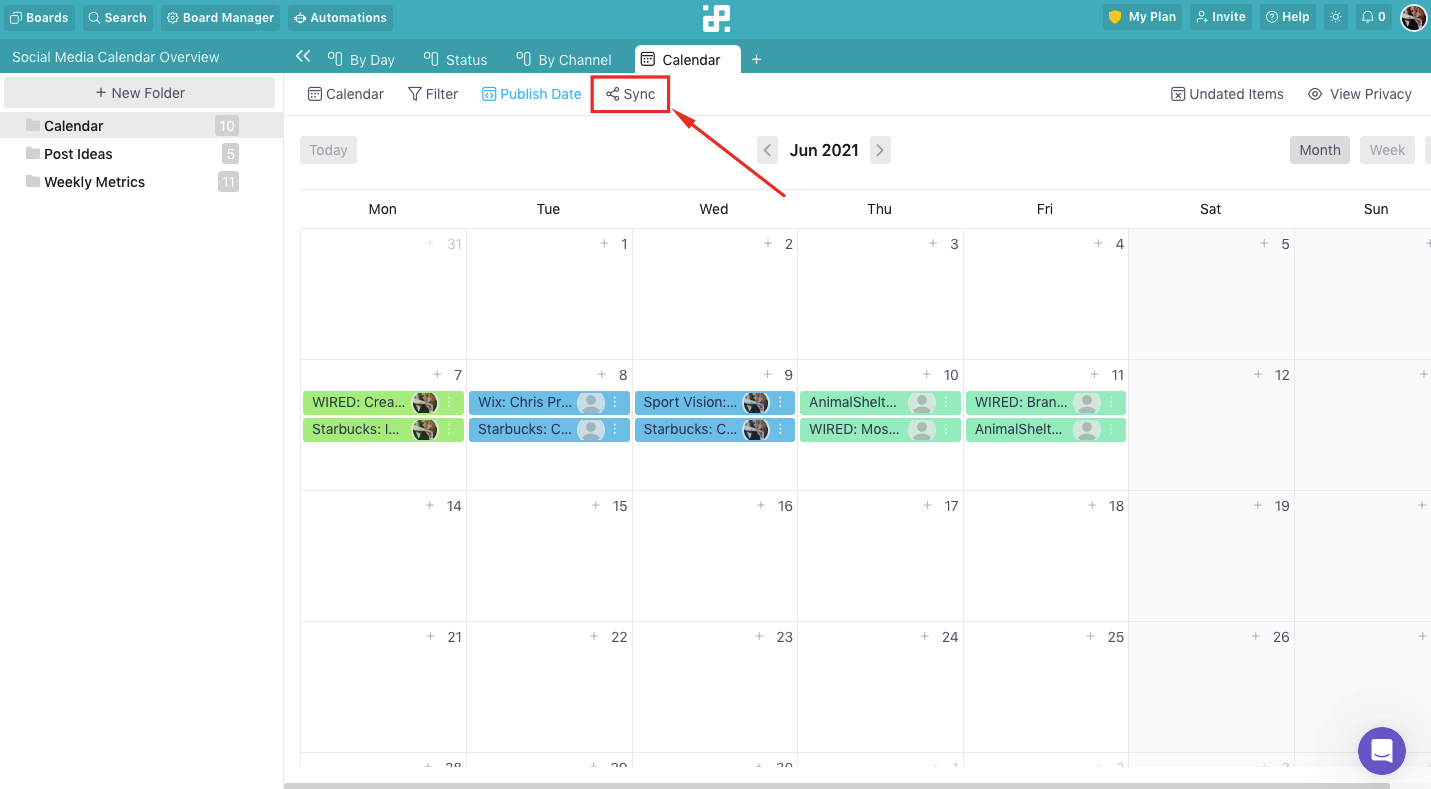
iCal files themselves don’t perform syncing; they’re a mechanism for transporting calendar data. When you import an iCal file or subscribe to a webcal link, your calendar application handles the actual syncing process. This means checking for updates and integrating the new events into your existing calendar.
Syncing issues can occur, such as conflicts if an event is modified in multiple places, delays in updates appearing, or events simply disappearing. These problems are usually related to the calendar application’s syncing settings or network connectivity, not the iCal file itself. CalDAV is a related protocol that does handle calendar syncing directly, but it’s more complex to set up and manage.
iCal files are not a real-time syncing solution. They are just the data. The actual syncing depends on your app's settings. It is like a package: the file is the box, and your app is the mailman.
Troubleshooting common problems
Corrupted iCal files are a surprisingly common issue. If a file won’t open or import correctly, it may be damaged. Try downloading the file again or asking the sender to resend it. Time zone issues are another frequent headache. Ensure your calendar application’s time zone settings are correct before importing. Incorrect time zones can cause events to appear at the wrong time.
Events appearing incorrectly – such as missing details or incorrect dates – can often be traced back to errors in the original iCal file. If you created the file yourself, double-check the event details. If you received the file from someone else, let them know about the issue. Import failures can be caused by a variety of factors, including file size limits or unsupported characters.
Our iCal viewer is a helpful tool for diagnosing problems. It allows you to open and inspect the contents of an iCal file without importing it into your calendar. This can help you identify errors or inconsistencies in the data. You can find it at EmailShot.io. Sometimes, simply deleting and re-importing the calendar can resolve stubborn issues.
- Step-by-Step Guide: Troubleshooting Import Failures
- 1. Verify the iCal file is not corrupted.
- 2. Check your calendar application’s time zone settings.
- 3. Ensure the file is not too large.
- 4. Use an iCal viewer to inspect the file for errors.
- 5. Delete and re-import the calendar.
No comments yet. Be the first to share your thoughts!