
Sync vs. Share vs. Import
Choosing the right method for managing your calendar depends on whether you need identical copies, collaborative access, or a one-time data transfer. Understanding the technical differences between syncing, sharing, and importing prevents duplicate events and permission errors.
Syncing: Identical Copies
Syncing duplicates events across multiple calendars so they remain identical. If you edit an event in one calendar, the change propagates to all synced calendars. This is ideal for keeping your personal and work schedules aligned on different devices. As noted by CalendarSync, true syncing ensures events are duplicated across all calendars, making them identical rather than just linked.
Sharing: Collaborative Access
Sharing allows others to view your calendar without duplicating the data. You retain full control over edit permissions, deciding if collaborators can only view or also modify events. This method is best for team projects or family coordination where multiple people need visibility into the same schedule without creating redundant entries.
Importing: One-Time Transfer
Importing moves events from one calendar file (like an .ics) into another as a static copy. Unlike syncing, imported events do not update automatically if the source changes. This is useful for archiving old schedules, migrating to a new provider, or adding one-off events like conference dates that won’t change.
| Feature | Sync | Share | Import |
|---|---|---|---|
| Data Direction | Bidirectional | View/Write | One-way |
| Update Frequency | Real-time | Real-time | None |
| Edit Permissions | All users | Configurable | None |
| Best For | Multi-device alignment | Team collaboration | Migration/Archiving |
Sync Google Calendar with Android
Syncing Google Calendar with your Android device keeps your schedule consistent across your phone, tablet, and computer. The process is straightforward and relies on the official Google Calendar app to handle the synchronization.
Open the Google Play Store on your Android device. Search for "Google Calendar" and install the app published by Google LLC. This is the most reliable way to ensure your events sync correctly with your Google account.
Open the newly installed Google Calendar app. You will be prompted to sign in. Enter the email address and password for the Google account that holds your calendar data. If you are already signed into other Google services on your device, you may see a list of accounts to choose from.
Once signed in, your calendar events should appear automatically. To confirm the sync is active, go to your device's Settings app. Tap Passwords & accounts (or Accounts on some devices), select your Google account, and ensure the Calendar toggle is turned on. This ensures background syncing continues even when the app is closed.
After completing these steps, your Android device will mirror the events in your Google Calendar. Changes made on your computer will appear on your phone within minutes, and vice versa. If events do not appear immediately, pull down on the calendar view to trigger a manual refresh.
Sync Apple Calendar with iPhone
Keeping your Apple Calendar in sync ensures that events from iCloud, Google, Outlook, and other providers appear in one unified view. This setup relies on iOS Settings to manage account connections and data permissions.
Add Your Accounts
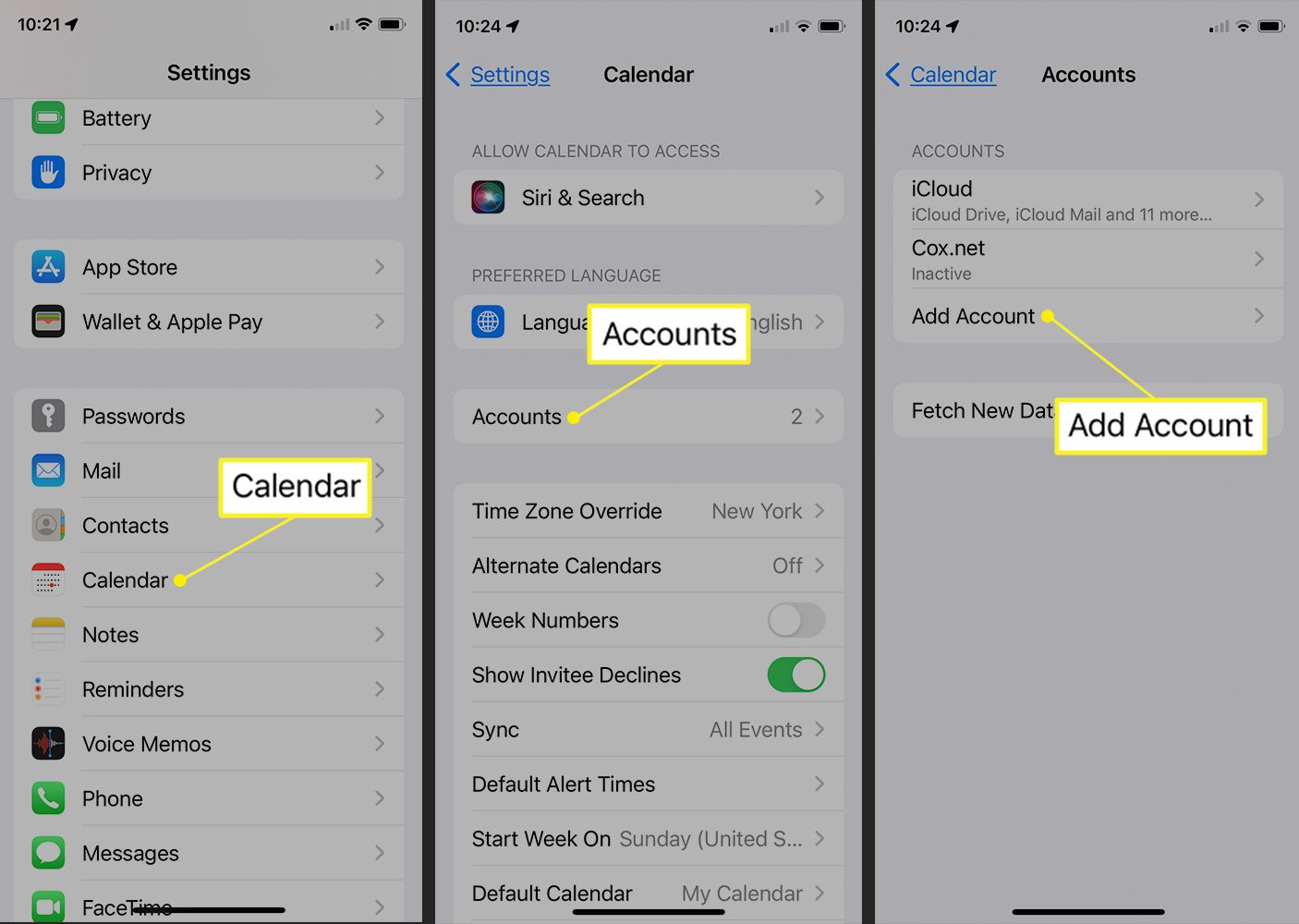
- Open Settings on your iPhone.
- Scroll down and tap Calendar.
- Tap Accounts.
- Tap Add Account.
- Select your provider (Google, Microsoft Exchange, Yahoo, or iCloud).
- Enter your login credentials and follow the on-screen prompts.
Enable Calendar Sync
Once the account is added, you must ensure the sync toggle is active so events flow between the app and the provider.
- Return to Settings > Calendar > Accounts.
- Tap the specific account you just added.
- Locate the Calendars toggle switch.
- Turn the switch On (green).
If the toggle is off, the iPhone will not pull new events or push local changes to the cloud. Repeat this for every account you wish to sync. Your events may take a few minutes to populate in the Calendar app.
Troubleshooting Sync Issues
If events do not appear after enabling sync, check your date and time settings. Incorrect system time can prevent authentication with calendar servers. You can also force a refresh by pulling down on the Calendar app home screen. For persistent issues, removing and re-adding the account often resolves connection glitches.
Sync Outlook Calendar with Windows
Syncing your Outlook calendar with Windows ensures your schedule stays consistent across your PC, phone, and web browser. Whether you use a personal Microsoft account, an Office 365 work account, or an external exchange server, the process relies on keeping your account details current in the Windows Settings.
Add or Update Your Account
The foundation of calendar syncing is adding your email account to Windows. This step registers your credentials with the system so it can pull calendar data.
- Open Settings and navigate to Accounts.
- Select Email & accounts from the left menu.
- Click Add an account and choose Outlook.com, Office 365, or Exchange.
- Enter your email address and password when prompted.
Once added, Windows automatically begins syncing mail and calendar events. If you are adding an existing account, verify that the calendar toggle is enabled in the account's synchronization options.
Manage Calendar Permissions
For work or school accounts, your organization may control which calendar data is visible. If your calendar does not appear after syncing, check your account permissions.
- Go to Settings > Accounts > Email & accounts.
- Click on your Outlook account.
- Select Manage to view synchronization settings.
- Ensure Calendar is checked under the sync options.
If you are using an external Exchange server, you may need to manually configure the server address. Refer to your IT department's documentation for the correct server details and authentication methods.
Verify Sync Status
After adding your account, give Windows a few minutes to sync your calendar. You can verify the connection by opening the Calendar app and checking for recent events.
If events do not appear, try these fixes:
- Check internet connection: Ensure you are connected to the network.
- Restart the Calendar app: Close and reopen the app to refresh the view.
- Sign out and back in: Remove the account from Windows Settings and re-add it to force a fresh sync.
For more detailed troubleshooting, Microsoft provides official support articles on fixing calendar sync issues.
Fix Common Syncing Errors
When your calendar events don’t appear where they should, the issue is rarely a broken app. It is usually a stale connection or a permission glitch. Start by checking the basics before diving into complex settings.
1. Force a manual resync Most sync issues resolve themselves with a quick refresh. On Android, open Settings > Passwords, passkeys & accounts > Google Account > Account sync. Toggle Calendar sync off, wait ten seconds, and turn it back on. On iOS, go to Settings > Calendar > Accounts, select your account, and tap "Fetch New Data." For desktop users, restart the browser or application to clear temporary cache locks.
2. Check time zone alignment A mismatched time zone is the most common cause of "missing" events. If your phone is set to UTC and your computer to EST, events will appear at the wrong time or not at all. Ensure the primary time zone in your calendar settings matches your current location exactly. This applies to both the device OS and the calendar app itself.
3. Verify permission settings If the calendar app cannot access your account data, syncing will fail silently. Check that the app has permission to access "Contacts" and "Storage" (or "Files and Media" on newer Android versions). On iOS, ensure "Calendars" is toggled on in Settings > Privacy & Security > Calendars.
4. Check internet connectivity Syncing requires an active internet connection. If you are on Wi-Fi, try switching to mobile data to rule out a local network block. Some corporate or school networks block calendar sync ports. If the issue persists only on one network, contact your IT administrator.
5. Re-add the account As a last resort, remove the calendar account from the device and add it back. This resets all local tokens and permissions. On Android, go to Settings > Accounts > Google > Remove Account. Then, sign in again. This often fixes deep-seated sync corruption that simple toggles cannot resolve.
Syncing Calendars Checklist
Use this list to verify that your calendar syncing is working correctly across all devices. True syncing means events are duplicated and updated in real time, so changes on one device appear on all others. If your calendar feels out of sync, run through these steps to identify the bottleneck.
- Check account status: Ensure your Google or Microsoft account is active and that calendar sync is toggled on in your device settings.
- Verify time zones: Confirm that the time zone matches across all synced calendars to prevent scheduling conflicts.
- Review permissions: Make sure your calendar app has permission to read and write events.
- Test a change: Add a test event on one device and wait for it to appear on the others.
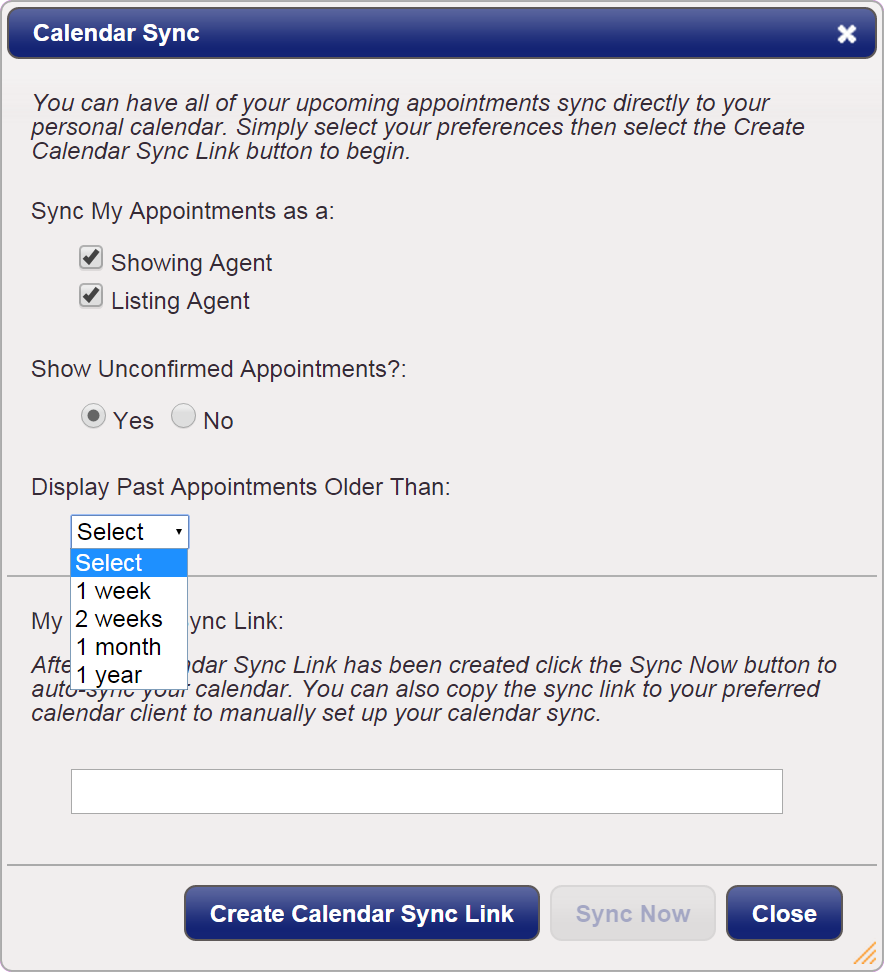
If events still do not appear, try removing and re-adding the calendar account. This forces a fresh sync and often resolves stubborn glitches. For detailed troubleshooting, refer to the Google Calendar support guide.
How do I resync my calendar?
When your events don’t update automatically, a manual resync usually fixes the disconnect. On Android, this process forces the device to check Google’s servers for the latest changes.
- Open your phone’s Settings app.
- Tap Passwords, passkeys & accounts (or About phone > Google Account).
- Select your Google Account.
- Tap Account sync.
- Ensure the toggle for Calendar is turned on.
If the toggle was already on, try turning it off and back on again to trigger a fresh data pull. For more detailed steps, refer to Google’s official support guide.
No comments yet. Be the first to share your thoughts!