
The Chaos of Multiple Calendars: Why Syncing Matters in 2024
Let’s be honest: most of us aren’t managing a single calendar anymore. There’s work, personal commitments, family events, and maybe even volunteer obligations all vying for space in our lives. Juggling these across separate apps feels less like organization and more like a constant game of catch-up. I’ve personally experienced the frustration of double-booking myself, and the resulting stress isn’t worth saving a few minutes.
This isn’t just a minor inconvenience. Missed meetings mean lost opportunities, forgotten appointments can damage relationships, and the mental load of constantly checking multiple calendars drains productivity. It's a real problem, and it impacts more than just your workday. It bleeds into personal time, creating a feeling of being perpetually overwhelmed.
Enter AI scheduling tools. These platforms aren’t just about automating meeting times; they’re about centralizing your life. They promise to connect all your calendars, intelligently manage your availability, and prevent those frustrating conflicts. But do they deliver? And how do they fit into the broader world of calendar management? That's what we'll explore.
The core issue isn’t simply having multiple calendars—it’s the lack of seamless communication between them. A calendar is only useful if you actually look at it, and when information is scattered, things inevitably fall through the cracks. Syncing isn’t a luxury anymore; it’s a necessity for anyone trying to maintain a semblance of control over their schedule.
Understanding Calendar Sync Methods: Native vs. Third-Party vs. AI
There are three main ways to approach calendar syncing. First, we have the native integrations offered by the big players: Google Calendar, Apple Calendar, and Outlook Calendar. These allow you to add accounts from other platforms directly within the app, creating a unified view. For example, you can add your work Google Calendar to your personal Apple Calendar.
Native integrations are great for basic syncing, but they often fall short when dealing with complex setups or specific needs. They can be slow to update, sometimes lack granular control over what information is shared, and don’t always play well with less common calendar apps. I’ve found that updates between Google and Apple can sometimes lag by several minutes, which isn’t ideal when scheduling time-sensitive meetings.
That’s where third-party sync services come in. Tools like SyncGene and CalendarBridge act as intermediaries, keeping your calendars synchronized even when native integrations struggle. They offer more advanced features, like customizable sync filters and conflict resolution. However, they add another layer of complexity and require you to trust a third party with your calendar data.
Finally, we have AI-powered scheduling tools like Reclaim.ai, Trevor, and SchedulingKit. These platforms do more than just sync; they manage your calendar. They learn your preferences, automatically block off focus time, and suggest optimal meeting times based on your availability. They often integrate directly with Google Calendar and Outlook, offering a more intelligent approach to calendar management. The downside? They usually come with a monthly subscription fee.
- Native Integrations: Simple, free, but limited functionality.
- Third-Party Sync Services: More control, better compatibility, but adds complexity.
- AI Scheduling Tools: Intelligent management, automated scheduling, but typically requires a subscription.
Syncing Google Calendar, Outlook, and Apple Calendar: Step-by-Step Guides
Let's get practical. Syncing Apple Calendar to Google Calendar is fairly straightforward. On your iPhone or Mac, go to Settings > Calendar > Accounts > Add Account > Google. Enable the Calendar toggle. That's it. Though, be aware that changes made on one platform can take a few minutes to reflect on the other. It’s not instantaneous.
Syncing Outlook to Google Calendar on an iPhone is trickier. Apple’s native calendar app doesn’t directly support Outlook accounts. You’ll likely need a third-party service like SyncGene. Download and install SyncGene, then add both your Outlook and Google accounts. Configure the sync filters to specify which Outlook folders you want to sync with Google Calendar. This is where it can get a little technical, but SyncGene provides good documentation.
To sync Apple Calendar to Outlook, the easiest method is through iCloud for Windows. Install iCloud for Windows, sign in with your Apple ID, and enable Calendar syncing. Outlook will then import your iCloud calendars. However, this method is one-way – changes in Outlook won't automatically update in Apple Calendar. It’s a workaround, not a true two-way sync.
A common issue is incorrect time zones. Double-check that the time zone settings are consistent across all your calendars. In Google Calendar, go to Settings > Time zone. In Apple Calendar, it’s in Calendar > Preferences > Time Zone. In Outlook, it’s File > Options > Calendar > Time Zones. A mismatch here can lead to meetings scheduled at the wrong time.
Another frequent problem is permission issues. Ensure that you have the necessary permissions to access and modify the calendars you’re trying to sync. If you’re using a work account, you may need to contact your IT administrator. Also, verify that you’ve granted the necessary permissions to any third-party apps you’re using.
Deep Dive: How AI Scheduling Tools Supercharge Calendar Sync
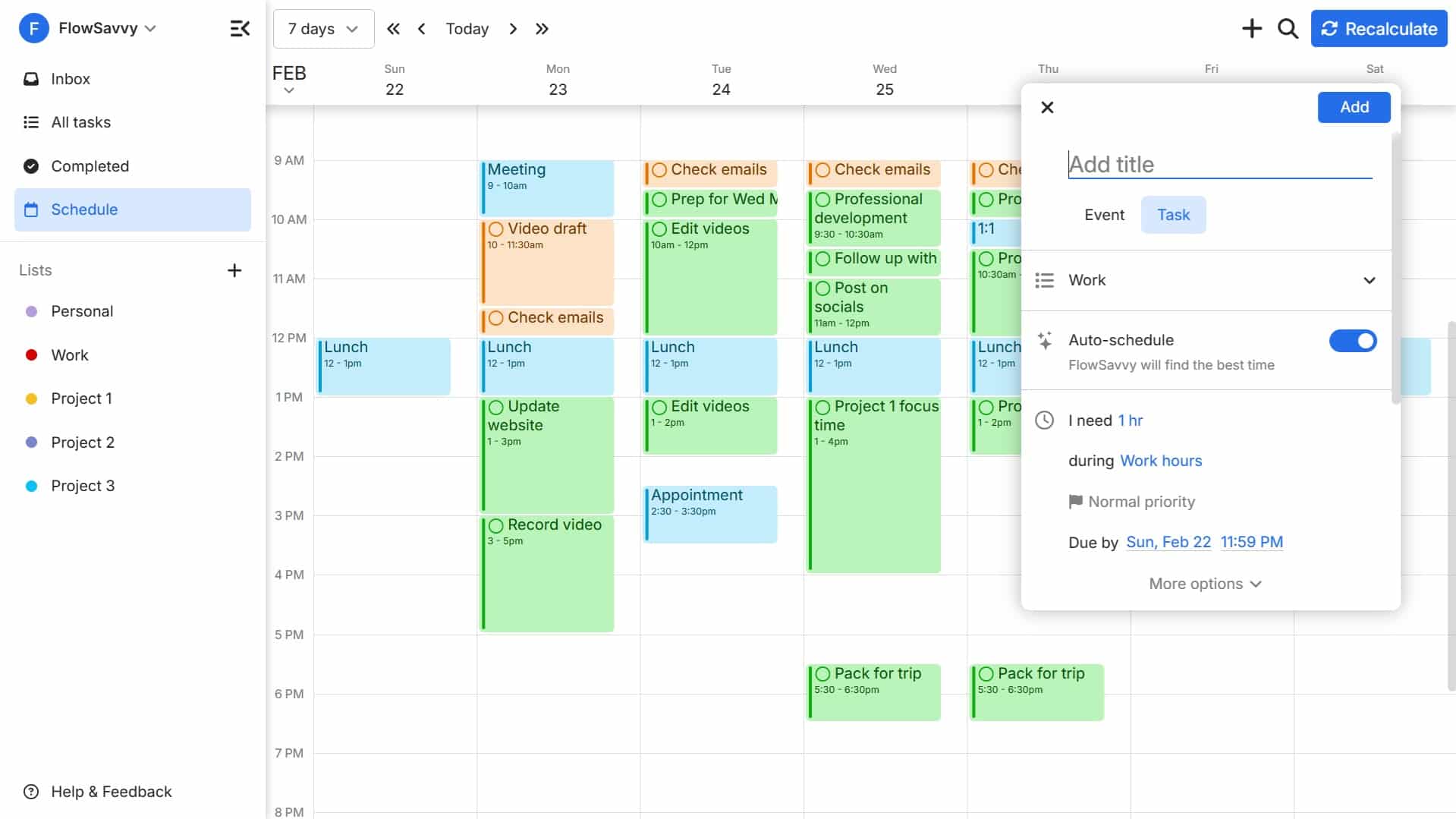
AI scheduling tools take calendar syncing beyond simply displaying events in one place. They actively manage your time, automating tasks that would otherwise consume hours each week. The core benefit is automatic availability updates. When you’re using an AI tool, you don’t need to manually block off time for focus work or personal commitments. The AI learns your preferences and does it for you.
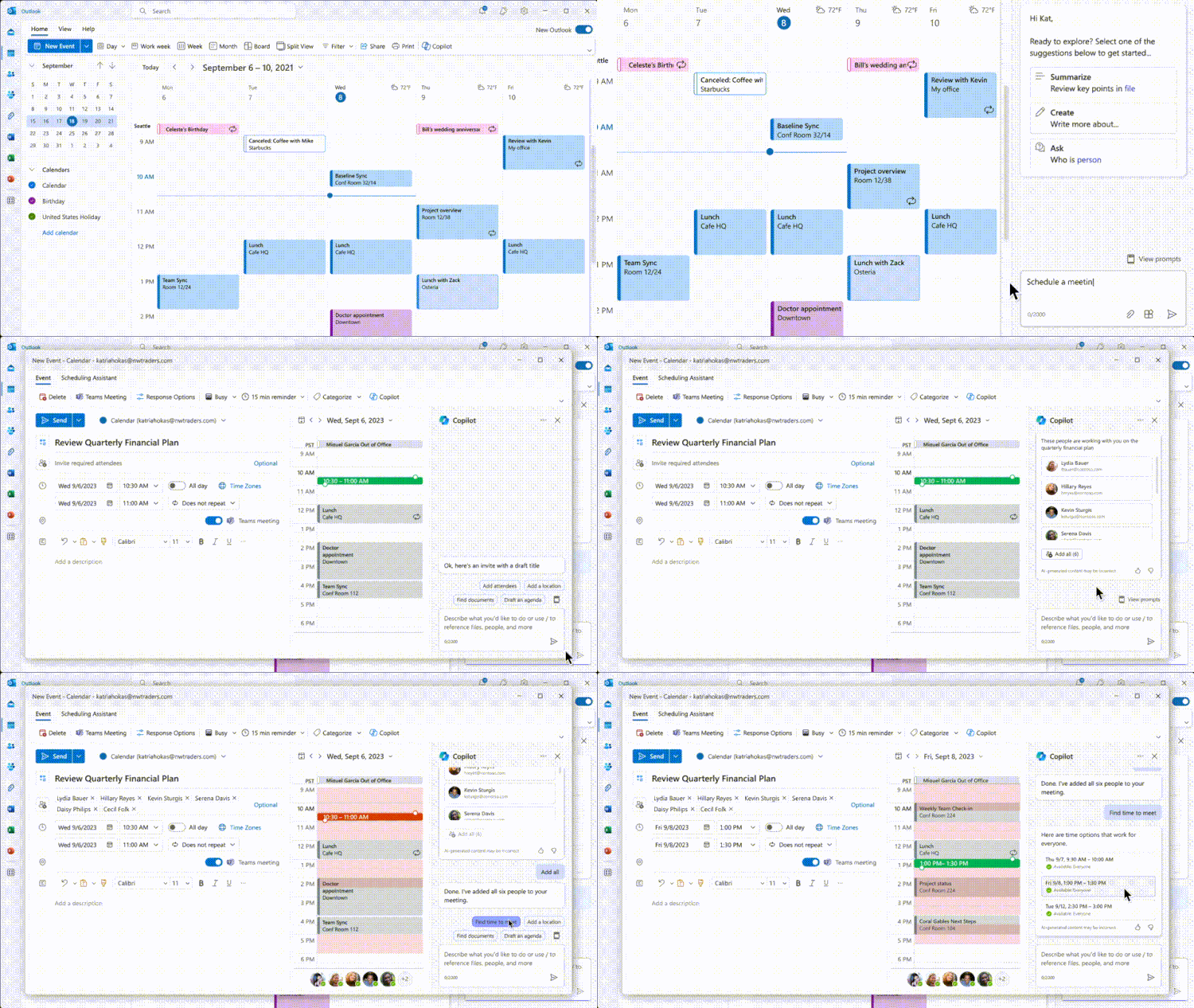
This leads to intelligent meeting suggestions. Instead of sending endless back-and-forth emails trying to find a time that works for everyone, you can let the AI tool handle it. It analyzes the calendars of all participants and proposes optimal meeting times, taking into account time zones and individual preferences. I’ve found this to be a massive time saver, especially when coordinating meetings with people in different countries.
Conflict resolution is another key feature. If a new meeting request clashes with an existing event, the AI tool will proactively alert you and suggest alternative times. Some tools can even automatically reschedule lower-priority meetings to accommodate urgent requests. This prevents double-booking and ensures that you’re always prepared.
These tools also excel at handling complex scenarios, like recurring meetings with variable attendance. They can automatically adjust meeting times and invite lists based on individual availability. Furthermore, many AI scheduling tools integrate with other productivity apps, like Slack and Zoom, streamlining your workflow.
Comparing the Leading AI Scheduling Platforms: Reclaim.ai, Trevor, and SchedulingKit
Let’s look at three popular AI scheduling platforms: Reclaim.ai, Trevor AI, and SchedulingKit. Reclaim.ai is known for its powerful time blocking features and its ability to protect your focus time. It integrates seamlessly with Google Calendar and Outlook, and offers a robust set of customization options. Pricing starts at $12 per month.
Trevor AI focuses on automating the entire meeting scheduling process. It can handle everything from initial outreach to follow-up reminders. It also offers a unique “meeting prep” feature that helps you prepare for upcoming meetings. Trevor AI’s pricing starts at $10 per month, making it a more affordable option than Reclaim.ai.
SchedulingKit is a simpler, more streamlined option. It’s designed for individuals and small teams who need a basic AI scheduling tool. It offers fewer features than Reclaim.ai and Trevor AI, but it’s also easier to use. SchedulingKit’s pricing starts at $7 per month.
In terms of calendar syncing capabilities, all three platforms offer reliable integration with Google Calendar and Outlook. However, Reclaim.ai arguably has the most advanced syncing features, allowing for granular control over what information is shared and how it’s displayed. Trevor AI excels at handling complex meeting scenarios, while SchedulingKit prioritizes simplicity and ease of use.
- Reclaim.ai: Powerful time blocking, advanced customization, $12+/month.
- Trevor AI: Automated scheduling, meeting prep, $10+/month.
- SchedulingKit: Simple, streamlined, $7+/month.
AI Scheduling Tool Comparison: Google, Outlook, & Apple Calendar Sync (2024)
| Feature | Reclaim.ai | Trevor.ai | SchedulingKit |
|---|---|---|---|
| Google Calendar Sync | Native, two-way | Native, two-way | Native, two-way |
| Outlook Calendar Sync | Native, two-way (via Microsoft Graph API) | Native, two-way | Native, two-way |
| Apple Calendar Sync | Via iCal feed (one-way) | Via iCal feed (one-way) | Via iCal feed (one-way) |
| Time Zone Handling | Automatic, robust support for multiple time zones | Automatic, supports multiple time zones | Automatic, supports multiple time zones |
| Meeting Suggestions | Smart time blocking & habit scheduling; suggests optimal times based on priorities | Focuses on deep work blocks; suggests time based on availability & task completion | Suggests times based on availability & meeting duration; integrates with CRM |
| Conflict Resolution | Automated rescheduling based on priority; allows manual overrides | Prioritizes deep work; reschedules meetings to protect focus time | Offers options to propose alternative times or decline based on availability |
| Pricing (as of Feb 29, 2024) | Free plan available; Paid plans from $12/month | From $10/month | From $15/month |
| Customizable Scheduling Templates | Yes, highly customizable with constraints & preferences | Limited customization options | Yes, customizable with meeting types and buffer times |
Data sourced from AI research — verify before making decisions
Troubleshooting Common Calendar Sync Issues
Calendar sync isn’t always perfect. A common issue is calendars not syncing at all. First, verify your internet connection. Then, check the account settings within each calendar app to ensure that syncing is enabled. If you’re using a third-party service, check its status page for any reported outages.
Duplicate events are another frequent complaint. This often happens when you have multiple sync sources enabled. Try disabling one of the sync sources to see if that resolves the issue. You can also manually delete the duplicate events. Another cause can be conflicting sync rules within a third-party tool—review those carefully.
Incorrect time zones, as mentioned earlier, are a persistent problem. Always double-check your time zone settings. Permission issues can also cause syncing problems. Make sure you’ve granted the necessary permissions to all apps and services. For Outlook, ensure Exchange ActiveSync is enabled.
If you're still stuck, consult the official support documentation for your calendar apps and third-party services. Google Calendar Help (https://support.google.com/calendar), Apple Calendar Support (https://support.apple.com/calendar), and Microsoft Outlook Help (https://support.microsoft.com/outlook) are good starting points.
Security and Privacy Considerations When Syncing Your Calendars
Syncing your calendar with third-party tools inevitably involves sharing your data. It’s crucial to understand the security and privacy implications. Most reputable services use data encryption to protect your information in transit and at rest. However, it’s still important to review the privacy policies of any app or service you’re using.
Pay attention to what data is being collected and how it’s being used. Some services may share your data with third-party advertisers. Choose services that prioritize your privacy and offer clear, transparent data policies. Look for services that comply with relevant data protection regulations, such as GDPR and CCPA.
Enable two-factor authentication (2FA) on all your calendar accounts. This adds an extra layer of security, making it more difficult for unauthorized users to access your data. Be cautious about granting broad permissions to third-party apps. Only grant the permissions that are absolutely necessary for the app to function.
The Future of Calendar Syncing: What to Expect in 2025 and Beyond
Calendar syncing is likely to become even more integrated with other productivity tools in the coming years. We can expect to see tighter integrations with project management apps, task managers, and communication platforms. The goal is to create a seamless workflow where all your tools work together harmoniously.
AI-powered scheduling will continue to evolve, becoming more sophisticated and personalized. We may see AI tools that can anticipate your needs and proactively schedule meetings based on your goals and priorities. I’m also curious to see how AI will handle more complex scheduling scenarios, like multi-person meetings across different time zones.
Emerging technologies like blockchain could potentially play a role in calendar syncing, offering a more secure and decentralized way to manage your schedule. While this is still speculative, it’s an area worth watching. Ultimately, the future of calendar syncing is about making our lives easier and more productive, by taking the friction out of managing our time.
No comments yet. Be the first to share your thoughts!