

Copilot & Calendar: A New Workflow
Microsoft Copilot is changing how we interact with Outlook Calendar. It's no longer just about blocking out time; it's about telling Copilot what needs to happen and letting it handle the details. The core promise is a shift from a series of steps to a single, fluid process – moving from intent to execution without losing context.
This isn’t merely automation. Traditional calendar tools automate tasks – sending invites, checking availability. Copilot aims to automate thought. It's about having an intelligent assistant that understands the "why’ behind your meetings, not just the ‘what’ and the ‘when." This agentic experience, as Microsoft calls it, fundamentally changes how we approach calendar management.
Initial impressions of Copilot with Outlook Calendar are positive. It feels less like issuing commands and more like collaborating with a colleague. The responsiveness is impressive, and the ability to refine requests through natural language feels intuitive. However, it’s still early days, and the true power of this integration will become clearer as it matures.
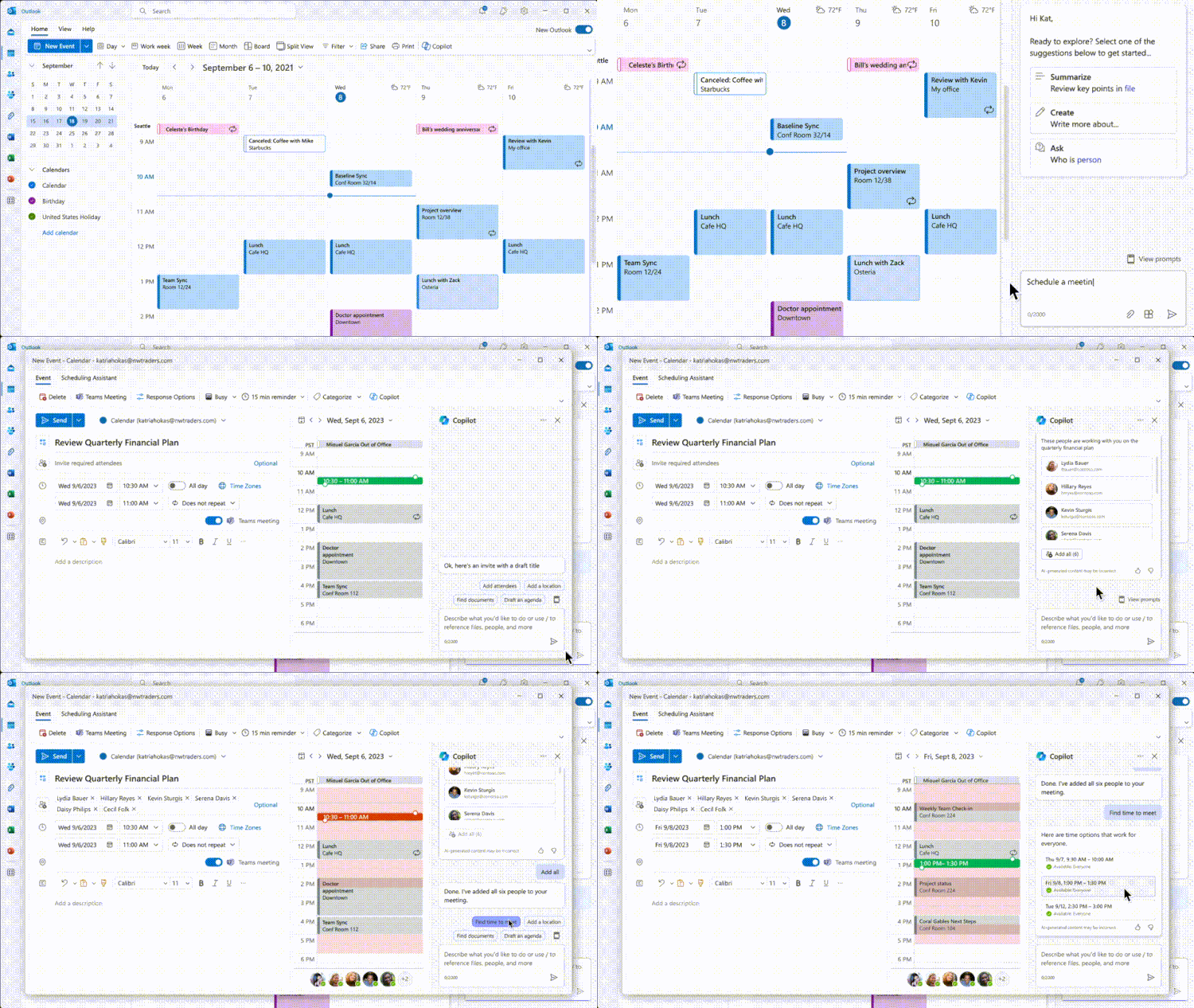
Scheduling Meetings with Natural Language
One of Copilot’s most compelling features is its ability to schedule meetings using plain English. Instead of navigating menus and searching for available slots, you can simply type a prompt like, “Schedule a meeting with John next week to discuss the Q3 report.” Copilot then interprets your request and suggests suitable times, drawing on information from both your calendar and John’s.
The system doesn’t just offer the first available slot. It considers context. For example, if you mention “Q3 report,” it might prioritize times when you’ve previously worked on similar documents or when John is typically focused on financial data. This level of awareness is a step beyond traditional scheduling tools.
Copilot handles simple requests flawlessly. However, more complex scenarios – like finding a time that works for five people across multiple time zones, with a specific room requirement – require more careful prompting and occasional manual adjustments. It’s not a perfect solution, but it’s a significant improvement over the traditional method.
Calendar Instructions: Copilot as Your Guide
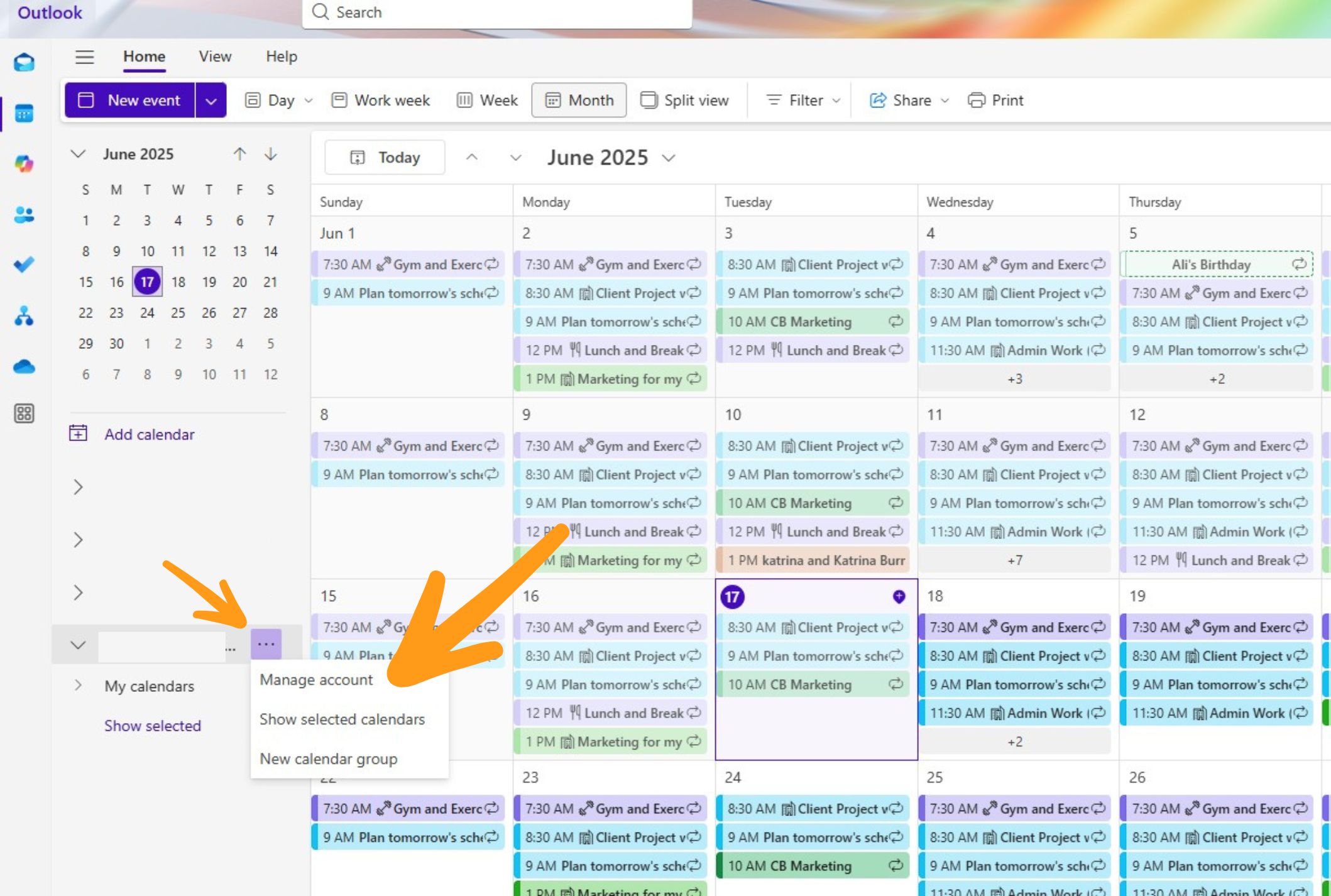
The “Calendar Instructions” feature takes things a step further. It’s distinct from simply asking Copilot to schedule a meeting because it allows you to provide a guided workflow. You essentially tell Copilot how to handle the scheduling process, and it follows your instructions. This is set up through selecting Copilot, then Calendar instructions, and following the guided steps in Outlook.
This is particularly useful for complex or recurring tasks. For instance, you could instruct Copilot to “Schedule a weekly 30-minute check-in with the marketing team, alternating between Tuesday and Thursday mornings.” Copilot will then handle the scheduling automatically, following your specified parameters.
Calendar Instructions will become invaluable for anyone who regularly schedules similar types of meetings. It’s a way to offload repetitive tasks and ensure consistency. It feels like a more proactive approach than simply reacting to scheduling requests.
Beyond Scheduling: Summarizing and Preparing
Copilot’s capabilities extend beyond just scheduling meetings. It can also help you prepare for them. Microsoft emphasizes the “agentic” nature of these experiences, meaning Copilot can proactively assist with tasks related to upcoming appointments. One potential application is summarizing relevant emails or documents. Imagine Copilot automatically compiling a briefing document for a meeting based on recent email threads and shared files.
Another possibility is automated agenda creation. Based on the meeting description and participants, Copilot could suggest a structured agenda, ensuring that all key topics are covered. While the exact implementation of these features is still evolving, the potential is significant.
Preliminary demonstrations show Copilot summarizing email chains with surprising accuracy. However, Copilot is an assistant, not a replacement for your own judgment. Always review its suggestions before relying on them completely.
Accessibility with Copilot Calendar
Microsoft has made a commendable effort to ensure Copilot Calendar is accessible to all users, including those who rely on screen readers. Microsoft Support documentation provides specific guidance on how to use Copilot with screen readers, outlining the key features and keyboard shortcuts.
This includes ensuring that all elements of the Copilot interface are properly labeled and announced by the screen reader. It also involves providing alternative ways to interact with Copilot, such as keyboard navigation. It’s a good sign that accessibility was considered from the outset.
It’s crucial that AI-powered tools are designed with accessibility in mind. Otherwise, they risk exacerbating existing inequalities. Microsoft’s commitment to accessibility in Copilot Calendar is a positive step in the right direction.
Syncing with Other Platforms: What Works Now?
One of the biggest questions surrounding Copilot Calendar is how well it integrates with other calendar platforms. For Google Calendar or Apple Calendar users, the benefit from Copilot’s AI-powered scheduling features is complicated. Currently, the deepest integration is naturally within the Microsoft ecosystem.
The syncing relies on the underlying Exchange/Outlook infrastructure. If your Google Calendar or Apple Calendar is already synced with your Outlook account, then Copilot should be able to access and manage your appointments. However, the experience may not be as seamless as it is within Outlook itself. There could be delays in syncing, or certain features might not be available.
Syncing with Google Calendar seems relatively reliable for basic scheduling. However, more advanced features – like Calendar Instructions – appear to be limited to Outlook. Be aware of these limitations before relying on Copilot for cross-platform calendar management.
Copilot Integration & Calendar Platform Compatibility - 2026 Assessment
| Platform | Sync Reliability with Copilot-Enhanced Outlook | Feature Parity with Copilot Features | Notes |
|---|---|---|---|
| Microsoft Outlook Calendar | Excellent | Full | Native integration provides the most seamless Copilot experience, including agentic scheduling and summarization. |
| Google Calendar | Good | Partial | Sync is generally reliable, but Copilot features may have reduced functionality or require workarounds. Full Copilot agentic capabilities are not available directly within Google Calendar. |
| Apple Calendar | Limited | None | Sync relies on standard iCal protocols. Copilot integration is minimal; primarily for viewing appointments, not agentic features. |
| Yahoo Calendar | Limited | None | Similar to Apple Calendar, relies on iCal. Copilot functionality is very limited, primarily read-only access to events. |
| Exchange Online | Excellent | Full | As a Microsoft product, Exchange Online benefits from the same robust integration and feature parity as Outlook Calendar. |
| Zoho Calendar | Good | Partial | Sync is possible, but Copilot features are unlikely to function as intended. Limited access to Copilot capabilities. |
| IBM Sametime Calendar | Limited | None | Compatibility is dependent on iCal sync. Copilot features are not directly supported. |
Qualitative comparison based on the article research brief. Confirm current product details in the official docs before making implementation choices.
Limitations and Workarounds (as of 2026)
Despite its impressive capabilities, Copilot Calendar has limitations. It sometimes struggles with ambiguous or overly complex requests. For example, if asked to “Schedule a meeting with the team sometime next week,” it may return a large number of irrelevant options. It's also not yet adept at understanding nuanced scheduling preferences.
Another limitation is its reliance on data. If your calendar isn’t well-maintained – with clear meeting titles and descriptions – Copilot may have difficulty understanding intentions. A poorly titled meeting like “Catch Up” provides little context for the AI to work with.
A workaround for complex requests is to break them down into smaller, more manageable steps. Instead of asking Copilot to schedule a multi-stage meeting with multiple attendees and specific room requirements, start by scheduling the core meeting and then add attendees and resources separately. This approach often yields better results.
The Future of AI-Powered Calendars
The future of AI-powered calendars is promising, but predicting the exact trajectory is difficult. Copilot will likely become even more proactive and predictive, learning scheduling habits and anticipating needs. It might start suggesting meeting times based on energy levels or travel schedules.
Deeper integration with other AI tools, such as task management apps and note-taking software, is also possible. Imagine Copilot automatically creating a to-do list based on the action items discussed in a meeting. That level of integration would be transformative.
Balancing automation with control is key. Users need to feel empowered, not overwhelmed. Copilot should augment abilities, not replace them. Microsoft has a strong foundation with Copilot Calendar, and its potential to revolutionize time
No comments yet. Be the first to share your thoughts!