

Why outlook sync fails
I've missed meetings because my phone didn't talk to my laptop, and I know I'm not alone. Outlook calendar sync is still broken for many of us in 2026, despite years of updates. It is frustrating when a tool meant for organization creates more chaos through double-bookings and outdated schedules.
At the heart of the issue are the different ways Outlook connects to your accounts. These include Exchange, IMAP, POP3, and Microsoft 365. Each has its own method for syncing, and understanding these differences is the first step to troubleshooting. The core problem is that Outlook is trying to juggle information across multiple servers and devices, and things can easily get out of sync.
The complexity is only increasing with the proliferation of devices. We’re not just talking about a work computer and a phone anymore. People are using tablets, smartwatches, and even web-based Outlook access. Each of these adds another layer to the synchronization process, increasing the potential for conflicts and delays. It's a lot for any system to handle, and Outlook is no exception.
Account types and their quirks
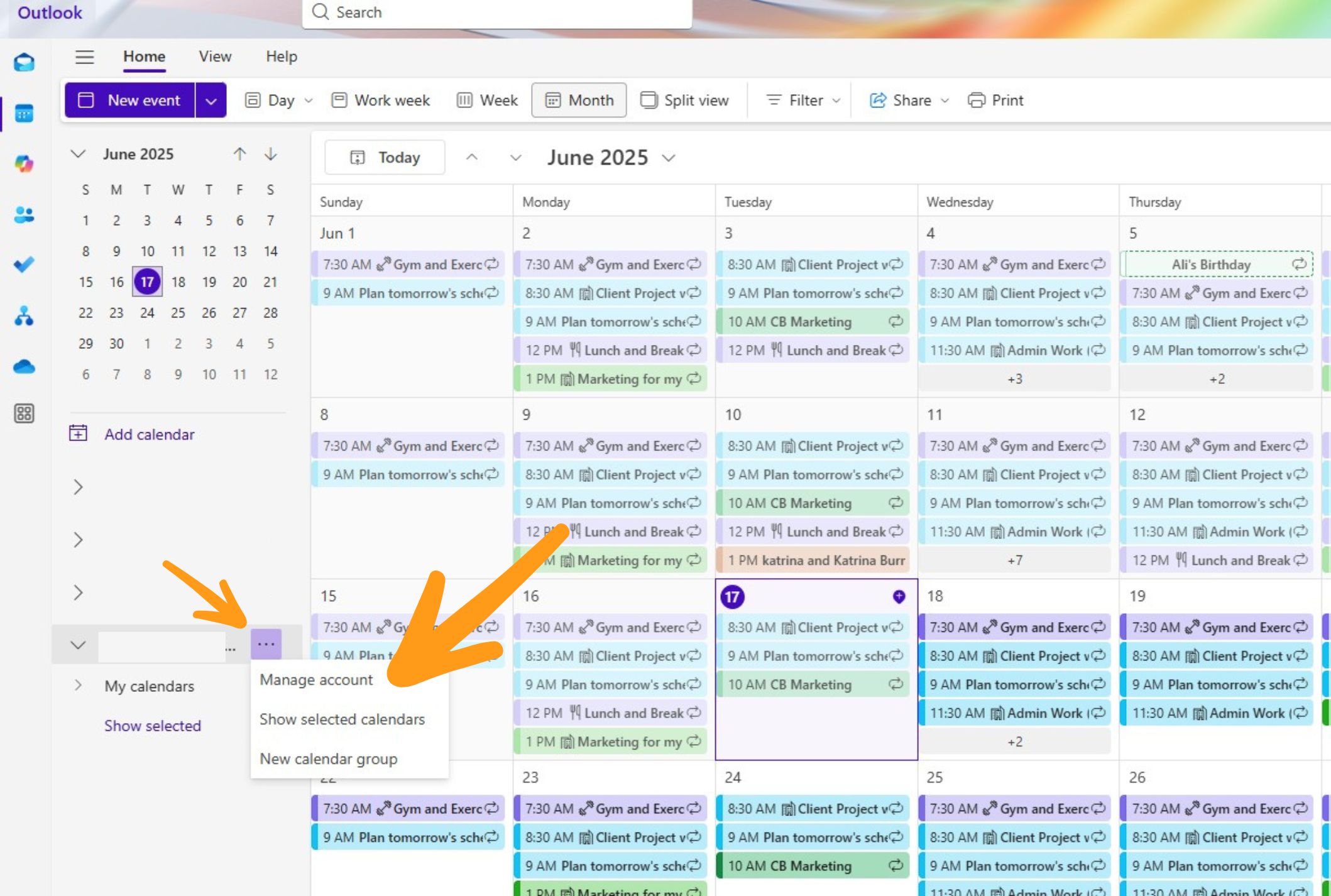
Let’s break down those account types. Exchange accounts, typically used in business environments, generally offer the most reliable syncing because they’re designed for it. Changes are reflected almost instantly across all devices. IMAP accounts are also fairly good, keeping your email and calendar data on the server, allowing for consistent syncing.
POP3 is usually the problem. It downloads data to one device and often wipes it from the server immediately. If you use POP3, a change on your desktop won't show up on your phone. You can toggle a setting to leave messages on the server, but most people never find it.
Microsoft 365 accounts should provide a seamless experience, leveraging the benefits of Exchange. But even with Microsoft 365, things can go wrong. Offline access, while convenient, can sometimes interfere with syncing if Outlook isn’t properly resolving conflicts when it comes back online. It’s a balancing act between accessibility and data consistency.
The mobile app maze
Mobile syncing – specifically with the Outlook apps on iOS and Android – often presents a unique set of challenges. Delayed updates are a frequent complaint. You might make a change on your computer, only to find it doesn’t appear on your phone for hours. Missing appointments are another common issue, especially after app updates.
Background app refresh plays a crucial role here. If background app refresh is disabled for Outlook in your phone’s settings, the app won’t sync automatically. Similarly, battery optimization settings can aggressively limit Outlook’s ability to sync in the background. You need to find a balance between preserving battery life and ensuring timely updates.
There’s also a bit of confusion surrounding the two Outlook mobile apps. The "classic’ Outlook app has been around for a while, while the newer ‘Outlook’ app is a more recent offering. I"ve heard reports that syncing can behave differently between the two, with the newer app sometimes being more prone to issues. Keeping the app updated to the latest version is always a good first step.
- Toggle background app refresh to 'on' in your phone settings.
- Review battery optimization settings.
- Ensure you're using the latest version of the Outlook app.
Fixing desktop outlook conflicts
Sync problems aren’t limited to mobile devices. The desktop version of Outlook can also experience issues. A corrupted Outlook profile is a common cause. Over time, profiles can become damaged, leading to syncing errors. Large mailbox sizes can also impact performance, slowing down the sync process significantly.
Conflicting add-ins can interfere with Outlook’s functionality, including syncing. Try disabling add-ins one by one to see if that resolves the problem. The "Send/Receive" settings allow you to manually force a sync. You can customize these settings to control how often Outlook checks for new data.
The "Test Email Accounts’ feature is a handy tool for verifying that your account settings are correct. If Outlook can’t connect to your email server, syncing won"t work. Cached Exchange mode stores a copy of your mailbox on your computer, which can improve performance but also introduce syncing conflicts. Clearing the cache can sometimes resolve these issues.
If you suspect Cached Exchange Mode is the issue, you can try rebuilding your cache. This is done through Account Settings > Data Files. Be warned, this process can take a while, especially with a large mailbox.
Google Calendar Integration: A Common Headache
Syncing Outlook with Google Calendar is a frequent source of frustration for many users. Common issues include one-way synchronization (changes made in Outlook don’t appear in Google Calendar, or vice versa), missing events, and duplicate events. It’s often a bit fiddly to get right.
There are several methods for syncing. You can use the Google Calendar add-in for Outlook, which is generally the most straightforward approach. Alternatively, you can use third-party tools designed specifically for this purpose. Manual import/export is also an option, but it’s time-consuming and doesn’t provide real-time synchronization.
Ray Tube posted a walkthrough on April 13, 2025, showing how to bridge these accounts via the web interface. You should also check your visibility permissions in both apps. If the 'Share' settings aren't open, the data stays locked in one ecosystem.
Advanced Troubleshooting: Logs & Support
For more technically inclined users, Outlook logs can provide valuable insights into sync problems. These logs contain detailed information about the synchronization process, including any errors that occurred. Accessing these logs can be a bit complex, but it's worth the effort if you're determined to diagnose the issue yourself.
The Microsoft Support and Recovery Assistant (SaRA) tool can automatically diagnose and fix common Outlook problems. It’s a good starting point if you’re not sure where to begin. You can find more information and download the tool from the Microsoft support website. The Microsoft Q&A forum (found through learn.microsoft.com) is another valuable resource, with a large community of users and experts.
As a last resort, you can try creating a new Outlook profile. This will essentially reset Outlook to its default settings, which can sometimes resolve persistent syncing issues. However, you’ll need to reconfigure your accounts and settings. If all else fails, contacting Microsoft support directly may be necessary.
Sync Strategies for Power Users
To minimize sync issues, consider adopting a few proactive strategies. Using a consistent naming convention for calendar events can help Outlook identify and resolve conflicts more easily. Regularly archiving old calendar items can also improve performance and reduce the risk of syncing errors.
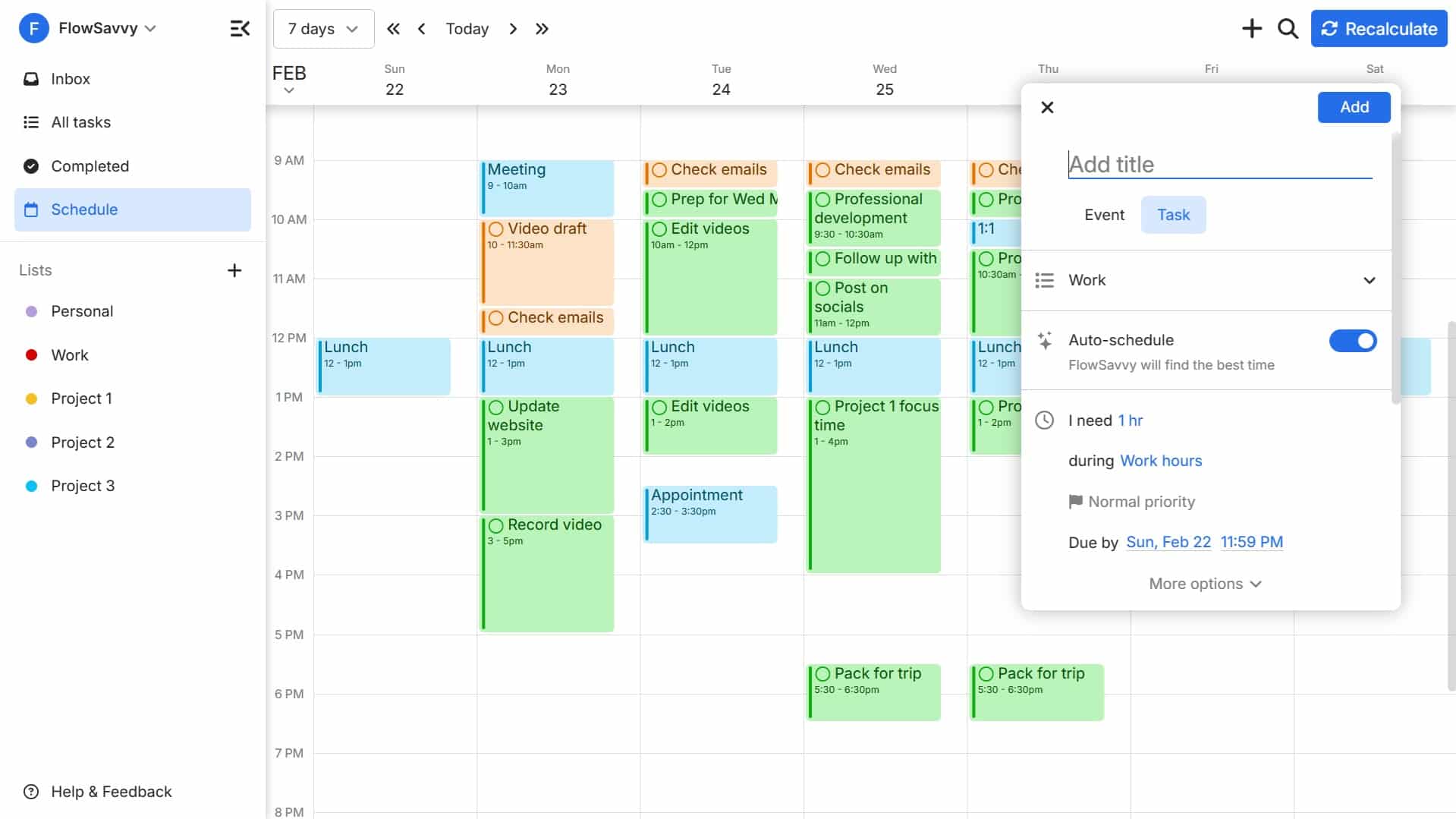
For specific purposes, consider using a dedicated calendar app alongside Outlook. For example, you might use a task management app with calendar integration for project deadlines. While scripting or automation tools can offer more advanced control over syncing, they require technical expertise and are beyond the scope of this guide.
What is your biggest Outlook calendar sync frustration when using multiple devices?
We are putting together an updated troubleshooting guide for multi-device Outlook calendar sync issues. Your input helps us focus on the problems that matter most to you. Vote below!
No comments yet. Be the first to share your thoughts!