

The fragmented remote work calendar
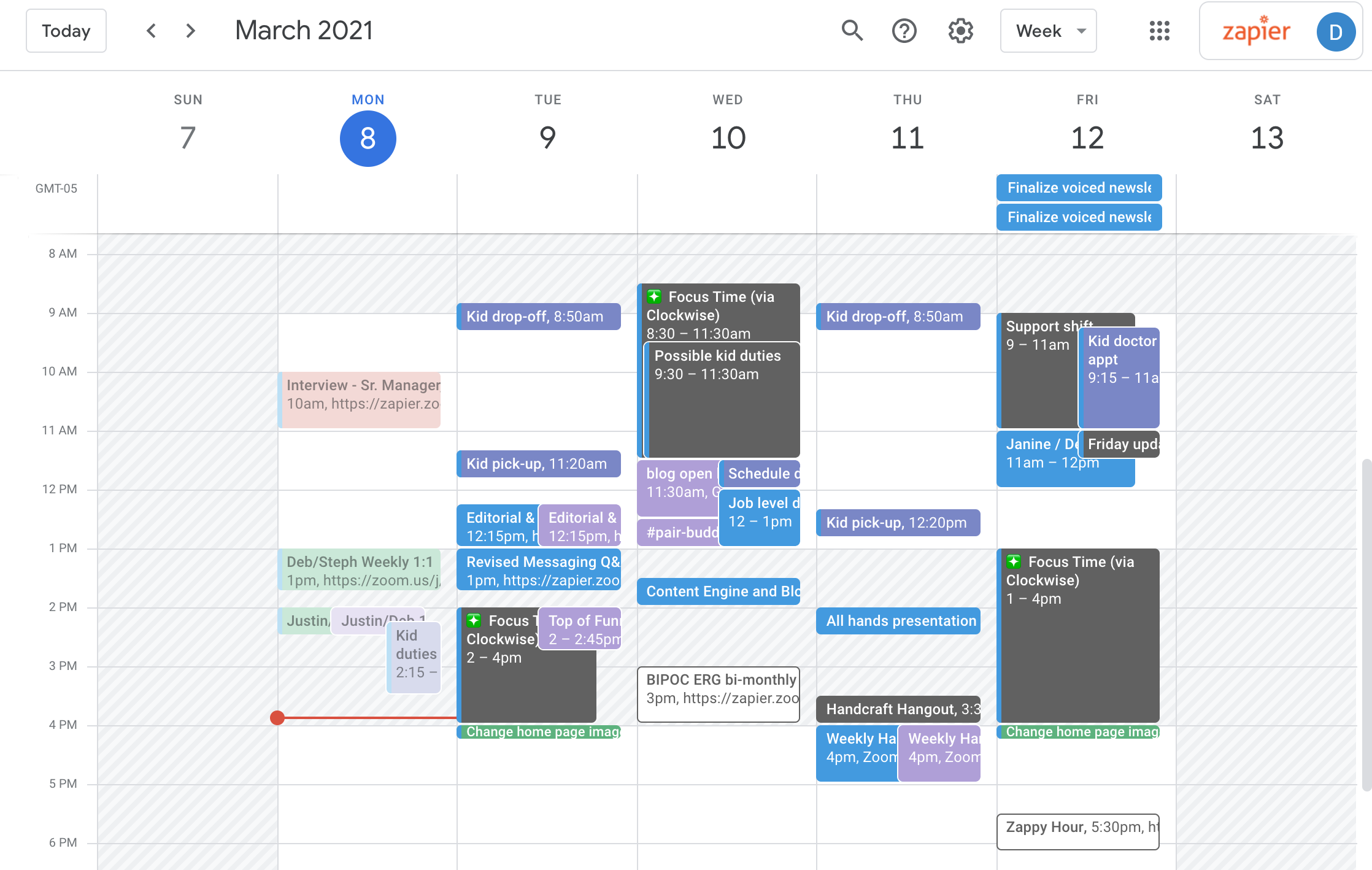
Remote work has changed so much about how we operate, and for many teams, the calendar is a complete mess. It feels like everyone is living in their own little calendar world – Google Calendar for personal stuff, Outlook for work, maybe Apple Calendar for family events. Trying to coordinate across all of those? It's a recipe for missed meetings and double-bookings. I’ve spoken to countless teams who struggle with this exact issue.
This wasn’t always the case, of course. When everyone was in the office, a quick check-in or hallway conversation could resolve scheduling conflicts. Now, those spontaneous moments are gone, and we’re reliant on calendars to communicate availability. The problem is getting worse, too. As companies embrace more asynchronous work – where team members work at different times – the need for clear, reliable calendar information becomes even more critical.
The rise of specialized tools adds to the complexity. Project management software like Asana and Monday.com often include calendar features, as do meeting assistants like MeetGeek. While these tools are great, they contribute to the fragmentation if they aren't properly integrated with core calendars. It’s easy to end up with important events scattered across dozens of different places, leaving team members constantly searching for the right information.
This mess isn't just a minor annoyance. It eats into deep work time and leaves everyone feeling disorganized. If you're spending twenty minutes just trying to find a gap in three different schedules, you're losing the focus needed for the actual job.
Syncing methods that actually work
There are a few primary ways teams attempt to synchronize their calendars. Native integrations – like the connection between Microsoft Teams and Google Calendar – are the most straightforward, but they often have limitations. The Microsoft documentation shows a lot of users are still running into issues with this integration, particularly around event updates not syncing reliably.
Third-party tools represent another approach. Products like Calendly or Doodle focus primarily on scheduling new meetings, but they don’t always solve the problem of keeping existing calendars in sync. Some offer broader syncing capabilities, but these can come with a cost, and the reliability varies considerably. I've seen teams spend hours troubleshooting syncing issues with these tools.
The most basic method, and often the most frustrating, is using iCal subscriptions. This allows you to view another person's calendar, but it's typically a one-way street. Changes made to the subscribed calendar don’t automatically update in your own, and there can be delays in seeing updates. It’s a decent solution for a limited number of external calendars, but it’s not scalable for a large team.
There is no perfect setup. You usually have to mix and match these methods based on how your team works. I've found that a combination of native syncing for internal staff and third-party links for clients works best, provided you test the feeds regularly.
- Native integrations are convenient but often fail to sync event updates reliably.
- Third-Party Tools: Powerful, but can be expensive and require troubleshooting.
- iCal Subscriptions: Simple, but one-way and not scalable.
Team Calendar Syncing & Sharing: A Comparison of Methods
| Method | Reliability | Real-time Updates | Ease of Use | Feature Set |
|---|---|---|---|---|
| Native Integration (e.g., Google Workspace, Microsoft 365) | High | Excellent | Good | Good |
| Third-Party Tool (e.g., dedicated calendar sync platforms) | Good | Good | Medium | Excellent |
| iCal Subscription | Medium | Low | Medium | Poor |
| Microsoft Teams Calendar Synchronization | Good | Good | Good | Medium |
| Google Calendar Integration with Assistants | Good | Good | Good | Good |
Illustrative comparison based on the article research brief. Verify current pricing, limits, and product details in the official docs before relying on it.
Five calendar platforms for teams in 2026
Choosing the right calendar platform is the foundation of effective remote work calendar management. Here are five platforms that stand out in 2026, based on their syncing capabilities, team collaboration features, and overall usability. I've tried to avoid simply listing features; I’m focusing on how these platforms address the real challenges of remote teams.
Google Workspace (Google Calendar): Still a dominant player, Google Calendar’s strength lies in its seamless integration with other Google apps like Meet and Docs. Sharing calendars is straightforward, and permission levels (view-only, edit access) are clearly defined. The biggest drawback is that syncing with non-Google calendars can be problematic, especially for teams heavily invested in the Microsoft ecosystem.
Microsoft 365 (Outlook Calendar): Outlook Calendar excels at syncing with other Microsoft apps, like Teams and Exchange. It offers robust features for scheduling meetings, managing availability, and tracking responses. However, as mentioned earlier, integrating Outlook with Google Calendar remains a pain point for many organizations. The Teams calendar synchronization issues documented in the Microsoft Tech Community are a real concern.
Clockwise: Clockwise is specifically designed to optimize team schedules and reduce meeting load. It uses AI to find the best times for meetings, taking into account individual work patterns and preferences. It integrates with both Google Calendar and Outlook Calendar, and its focus on time management makes it a valuable tool for remote teams.
Doodle: While primarily known for scheduling polls, Doodle now offers full calendar functionality. It’s particularly useful for teams that need to schedule meetings with external clients or partners. Doodle’s scheduling links make it easy to find a time that works for everyone, and its calendar integrations help keep everything organized.
Reclaim.ai: Reclaim.ai is another AI-powered calendar assistant that focuses on time blocking and habit scheduling. It helps team members protect time for focused work and personal commitments, and it integrates with both Google Calendar and Outlook Calendar. It’s a great option for teams that want to prioritize deep work and prevent burnout.
- Google Workspace (Google Calendar): Best for teams deeply integrated with the Google ecosystem.
- Microsoft 365 (Outlook Calendar): Best for teams using Microsoft products.
- Clockwise: Best for optimizing team schedules and reducing meeting load.
- Doodle: Best for scheduling meetings with external stakeholders.
- Reclaim.ai: Best for prioritizing deep work and preventing burnout.
Essential Tools for Seamless Remote Team Calendar Management in 2026

12-month daily planner for 2026 · Large 5" x 8.25" size · Soft cover and 400 pages
This classic daily planner offers a tangible way to track appointments and deadlines, serving as a reliable physical backup or primary tool for managing your schedule.

Comprehensive guide to Google Workspace tools · Covers Gmail, Docs, Sheets, Drive, and Calendar · Focuses on improving workflow and file management
This beginner-friendly guide is essential for teams adopting or optimizing their use of Google Calendar and other collaborative tools for seamless remote coordination.

12-month subscription for one person · Includes premium Office apps like Word, Excel, PowerPoint · 1TB of cloud storage
Microsoft 365 integrates Outlook Calendar, offering robust scheduling and collaboration features alongside essential productivity tools and ample cloud storage for remote teams.
Advanced task management features · Calendar integration and planning tools · Recurring tasks and reminders
Any.do Premium provides powerful task and calendar synchronization, helping remote workers stay organized and on top of their daily schedules and team commitments.

21-month coverage (until June 2027) · Large 17" x 12" monthly format · Suitable for desktop or wall display
This large desk and wall calendar offers a clear, at-a-glance monthly overview, complementing digital tools for immediate visibility of key dates and deadlines in a remote workspace.
As an Amazon Associate I earn from qualifying purchases. Prices may vary.
Beyond Basic Syncing: Advanced Sharing Strategies
Simply getting calendars to sync is only the first step. To truly streamline remote work calendar management, you need to implement advanced sharing strategies. This starts with carefully considering permission levels. Don’t give everyone edit access to your calendar. View-only access is sufficient for most team members, protecting you from accidental changes.
Shared team calendars are incredibly valuable for project timelines and tracking key milestones. Create a separate calendar specifically for project-related events, and share it with the relevant team members. This provides a clear overview of project progress and helps everyone stay on the same page. It’s also helpful to color-code events on the shared calendar for easy visual identification.
Availability scheduling tools, like Calendly or Doodle, can significantly reduce the back-and-forth involved in scheduling meetings. These tools allow recipients to see your availability and book a time that works for both of you. Clear communication is vital. Make sure everyone understands how calendars are being shared and what level of access they have.
- Permission Levels: Use view-only access whenever possible.
- Shared Team Calendars: Create separate calendars for projects and milestones.
- Availability Scheduling Tools: Reduce back-and-forth with tools like Calendly or Doodle.
The iCal Viewer: Your Testing Lifeline
Before you roll out any new calendar syncing or sharing configuration to your entire team, test it thoroughly. That’s where Calendar Geek’s iCal viewer comes in. This tool allows you to view iCal feeds without adding them to your personal calendar, letting you verify that events are displaying correctly, time zones are accurate, and recurring events are behaving as expected.
Testing is especially important when dealing with complex syncing scenarios or multiple calendar integrations. You can use the iCal viewer to check if event details (title, description, location) are being synced correctly, and to identify any potential conflicts. It's a quick and easy way to catch issues before they impact your team’s productivity.
To use the iCal viewer, simply paste the iCal feed URL into the tool. You’ll then be able to view the calendar events in a clear and organized format. Pay close attention to time zones – ensuring that events are displaying in the correct time zone is crucial for avoiding scheduling mishaps. It’s a small step, but it can save a lot of headaches.
- Paste the iCal feed URL into the viewer to see the raw data.
- Verify event details (title, description, location).
- Check time zone accuracy.
- Confirm recurring events are syncing correctly.
Time Zone Management: A Remote Team’s Biggest Headache
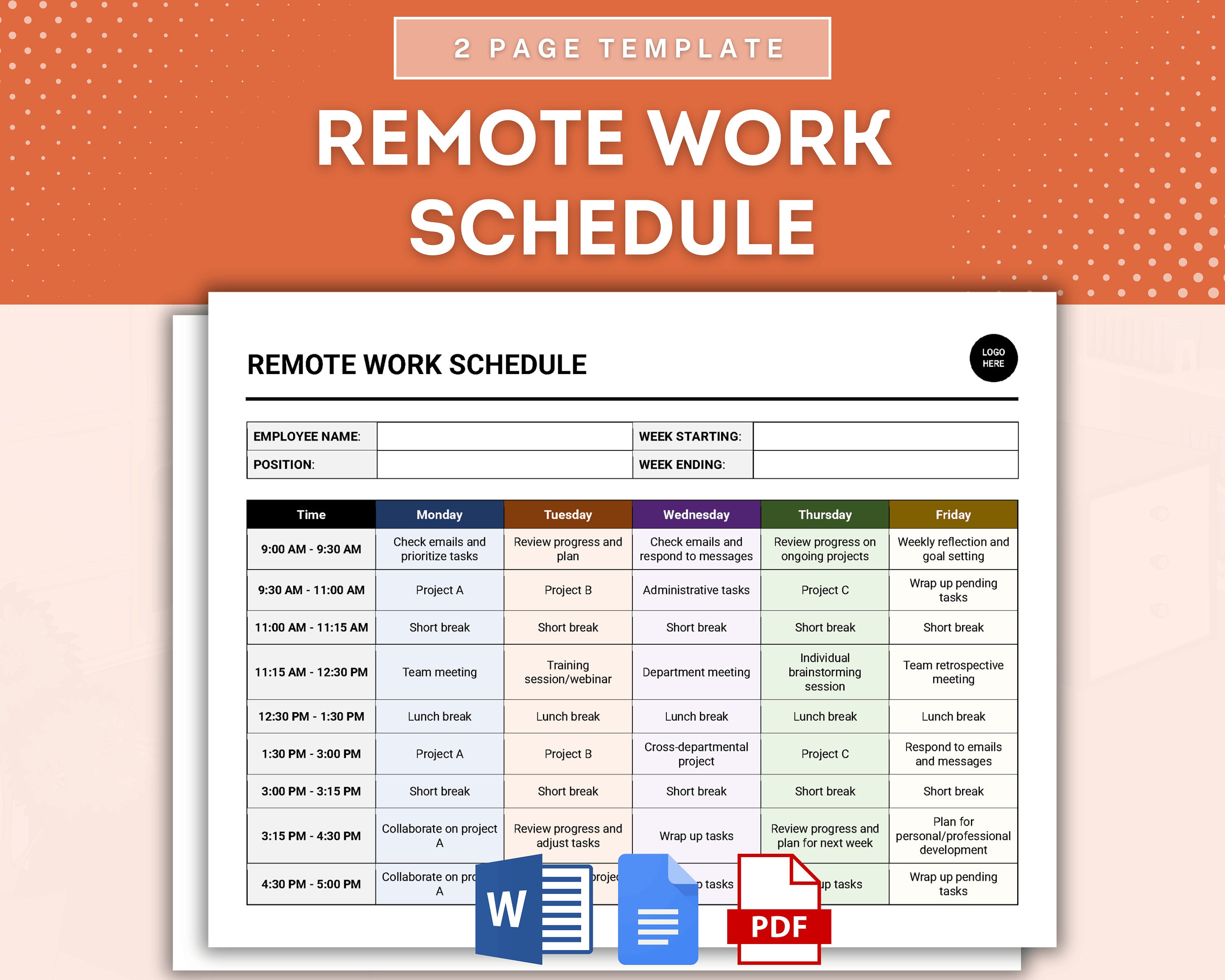
For remote teams spread across multiple time zones, scheduling meetings can feel like solving a complex puzzle. A seemingly simple meeting invite can quickly turn into a source of confusion and frustration if time zones aren’t handled correctly. I've personally been in meetings where people showed up an hour early or late because of time zone miscalculations.
The best practice is to always include the time zone in the meeting invite. Don’t just say “2 PM”; say “2 PM EST” or “2 PM PST”. Even better, use a world clock tool like World Time Buddy or Every Time Zone to visualize the meeting time in everyone’s local time. These tools allow you to quickly see how the meeting time translates across different time zones.
When scheduling meetings, be mindful of working hours. Avoid scheduling meetings that require someone to work outside of their normal business hours. Consider rotating meeting times to distribute the inconvenience fairly. And always double-check the time zone before sending the invite – a quick glance can prevent a lot of problems.
- Always include the time zone in meeting invites.
- Use a world clock tool to visualize meeting times.
- Be mindful of working hours.
- Rotate meeting times to distribute inconvenience.

No comments yet. Be the first to share your thoughts!