

Outlook calendar: beyond basic scheduling
Coordinating a meeting with five people across different systems usually ends in a mess of back-and-forth emails and double-bookings. While most see Outlook as just an email client, its calendar handles these complex scheduling conflicts directly.
Outlook has evolved significantly over the years. It’s no longer just about creating appointments and setting reminders. It’s about integrating your schedule with other platforms, leveraging AI to streamline meeting arrangements, and collaborating effectively with your team. As we look ahead to 2026, the potential for Outlook calendar management is greater than ever.
This isn’t simply about avoiding conflicts; it's about reclaiming your time. A well-managed Outlook calendar can reduce administrative overhead, improve productivity, and ensure that you’re always prepared. Let’s explore how to unlock the full potential of Outlook and transform it into the central hub for your calendar management.
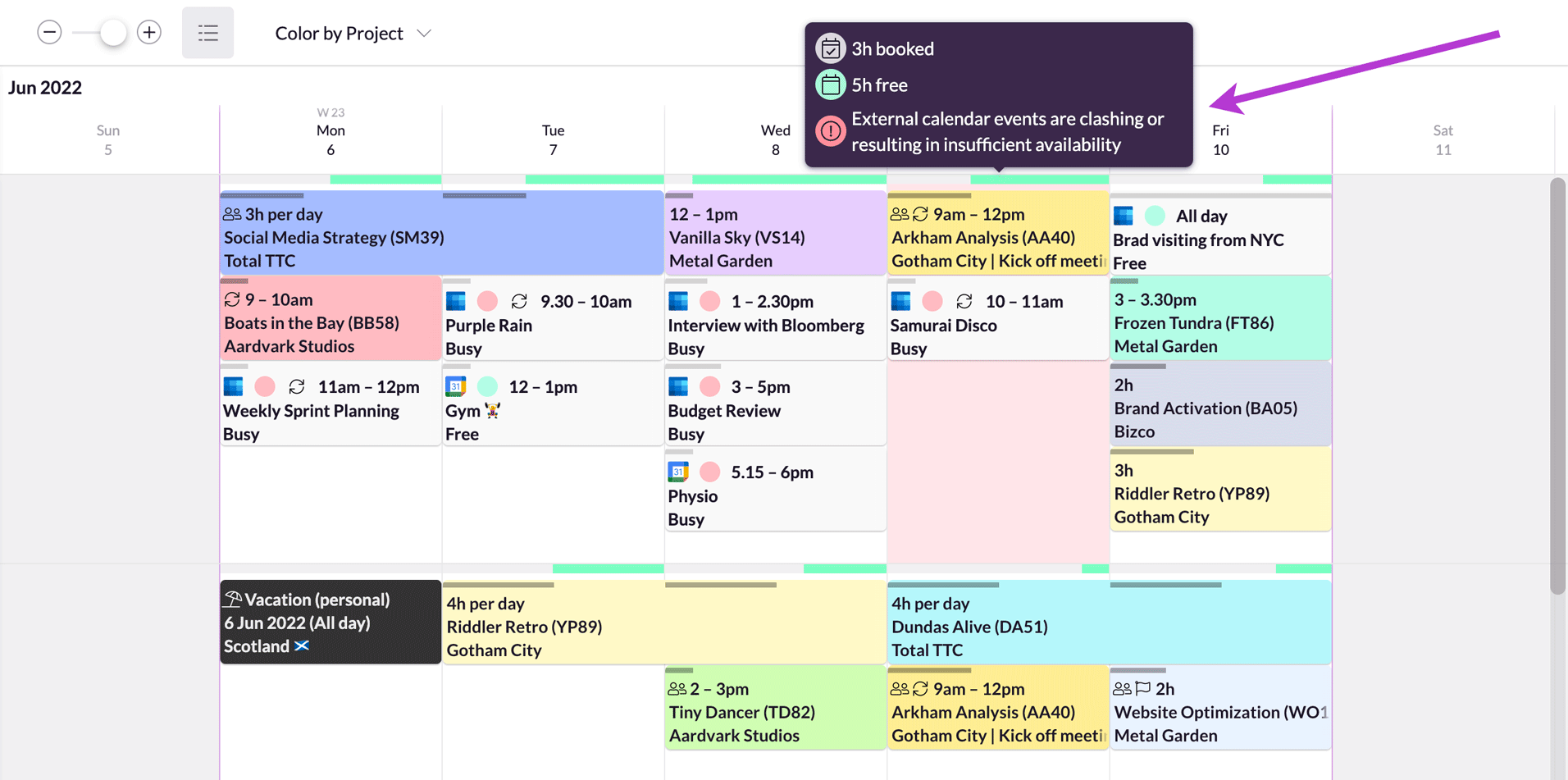
Syncing with other platforms
The biggest challenge for many users is keeping Outlook synchronized with other calendar platforms. Whether you need to share your schedule with colleagues who use Google Calendar or integrate with an Apple Calendar for personal appointments, seamless syncing is essential. Thankfully, Outlook offers several methods for achieving this, though none are entirely foolproof.
Exchange ActiveSync remains a cornerstone of Outlook syncing, especially within organizations using Microsoft Exchange Server. This protocol allows for real-time synchronization of email, contacts, and calendars across multiple devices. However, it requires an Exchange account and may not be suitable for syncing with non-Exchange services. iCal subscriptions are another option, allowing you to subscribe to calendars published in iCal format. This is a good solution for one-way syncing – for example, viewing a public calendar – but changes made in Outlook won’t automatically be reflected in the subscribed calendar.
Third-party tools like OneCalendar and CompanionLink bridge the gap between Outlook and Google Calendar more reliably than native settings. These usually require a subscription fee and access to your data. Exchange is still the most stable backbone for these syncs.
Potential pitfalls include syncing delays, data conflicts, and permission issues. Regularly checking your calendar for accuracy and understanding the limitations of each syncing method are crucial. Also, be mindful of privacy settings and ensure you’re only sharing your calendar with trusted individuals.
- Enable syncing in both Outlook and the external platform settings.
- Review Permissions: Ensure that you have the necessary permissions to access and modify the shared calendar.
- Monitor for Conflicts: Regularly check for and resolve any conflicts that may arise during synchronization.
- Consider Third-Party Tools: If native syncing isn’t working reliably, explore third-party solutions.
AI scheduling tools
AI tools now automate the search for open meeting slots. MeetGeek, for instance, joins Outlook meetings to record and transcribe the audio, which saves the time usually spent on manual minutes.
The benefits of AI scheduling are clear: reduced email back-and-forth, automated time zone conversions, and the ability to find optimal meeting times based on participants’ preferences. These tools often integrate with other productivity apps, such as Slack and Zoom, to streamline the entire meeting process. They can even suggest optimal meeting durations based on the agenda.
However, it’s important to be realistic about the limitations of AI. Privacy concerns are a valid consideration, as these tools often require access to your calendar data. It's essential to choose a reputable provider with strong security measures. Also, AI isn’t always perfect; it may occasionally suggest suboptimal meeting times or fail to account for complex scheduling constraints. I believe AI will become increasingly integrated, but human oversight will remain necessary.
- x.ai: Offers an AI scheduling assistant that integrates with Outlook.
- Calendly: A popular scheduling tool that can be linked to your Outlook calendar.
- Doodle: Simplifies the process of finding common availability among multiple participants.
- MeetGeek: Focuses on meeting recording, transcription, and summarization directly within Outlook.
Outlook Integration Strategies
- Leverage Microsoft 365’s Native Features - Outlook’s built-in sharing capabilities allow for easy calendar access with colleagues. Utilize permissions settings to control viewing and editing rights.
- Explore AI Scheduling Tools - Integrate Outlook with AI-powered scheduling assistants that offer features like automated availability checking, time zone management, and meeting link generation. These tools can streamline meeting setup.
- Utilize Outlook Add-ins - Extend Outlook’s functionality with add-ins from the Microsoft AppSource store. Many add-ins focus on scheduling, task management, and integration with other productivity apps.
- Sync with Mobile Devices - Ensure seamless calendar access across all devices by utilizing Outlook’s mobile app and Exchange ActiveSync for real-time synchronization.
- Implement Automated Reminders - Take advantage of Outlook’s reminder features, or integrate with AI scheduling tools that offer automated reminders to minimize missed appointments.
- Integrate Video Conferencing - Outlook simplifies scheduling virtual meetings with direct integration with video conferencing platforms like Microsoft Teams. This allows for easy inclusion of meeting links.
- Manage Meeting Requests Effectively - Utilize Outlook's features for accepting, declining, and proposing new times for meetings. Consider tools offering cancellation handling to automate rescheduling.
Sharing and permissions
Outlook offers granular control over calendar sharing, allowing you to specify exactly who can access your schedule and what level of access they have. Understanding these permissions is crucial for protecting sensitive information. You can share your calendar with colleagues, clients, or family members, but it’s important to choose the appropriate level of access.
The main sharing options include full access, which grants the recipient complete control over your calendar, including the ability to create, modify, and delete events; availability only, which only shows the recipient when you’re busy or free; and custom permissions, which allow you to define specific rights, such as the ability to view details or create updates. I've seen too many instances of people accidentally granting full access to the wrong person.
Always think carefully before sharing your calendar. Consider the sensitivity of the information contained within it and the level of trust you have in the recipient. Regularly review your sharing permissions to ensure they are still appropriate. Be wary of phishing attempts that may try to trick you into granting access to your calendar.
- Review Permissions Regularly: Ensure that your calendar is only shared with trusted individuals.
- Use Strong Passwords: Protect your Outlook account with a strong, unique password.
- Enable Two-Factor Authentication: Add an extra layer of security to your account.
- Be Wary of Phishing Attempts: Don’t click on suspicious links or share your credentials with anyone.
Microsoft Outlook Calendar Integration Method Comparison - 2026 Outlook
| Method | Complexity | Features | Security | Future-proofing |
|---|---|---|---|---|
| Microsoft Graph API | Medium | Extensive - Access to calendar, contacts, tasks, and more. Supports modern authentication. | High - Leverages Azure Active Directory and modern authentication protocols. | High - Microsoft's recommended API for new development; actively maintained and evolving. |
| Exchange Web Services (EWS) | Medium | Robust - Comprehensive access to mailbox data including calendar, contacts, and tasks. | Medium - Relies on older authentication methods; requires careful security configuration. | Medium - While still supported, Microsoft is shifting focus to Graph API. Long-term viability is less certain. |
| IMAP/CalDAV | Low | Basic - Primarily for calendar synchronization; limited feature set compared to APIs. | Low - IMAP/CalDAV security depends heavily on the server configuration and transport layer security. | Low - These are open standards, but Microsoft may prioritize API integrations in future updates. |
| Outlook REST API (deprecated) | Low | Limited - Provides access to some calendar data, but functionality is reduced. | Medium - Security depends on authentication method used. | Very Low - Microsoft has deprecated this API in favor of Graph API. |
| Microsoft 365 Outlook Add-ins | High | Highly Customizable - Allows for deep integration and custom experiences within Outlook. | Medium - Security relies on the add-in developer's implementation and Microsoft's add-in security review process. | Medium - Dependent on Microsoft's continued support for the add-in platform. |
Illustrative comparison based on the article research brief. Verify current pricing, limits, and product details in the official docs before relying on it.
Outlook Calendar Best Practices for Teams
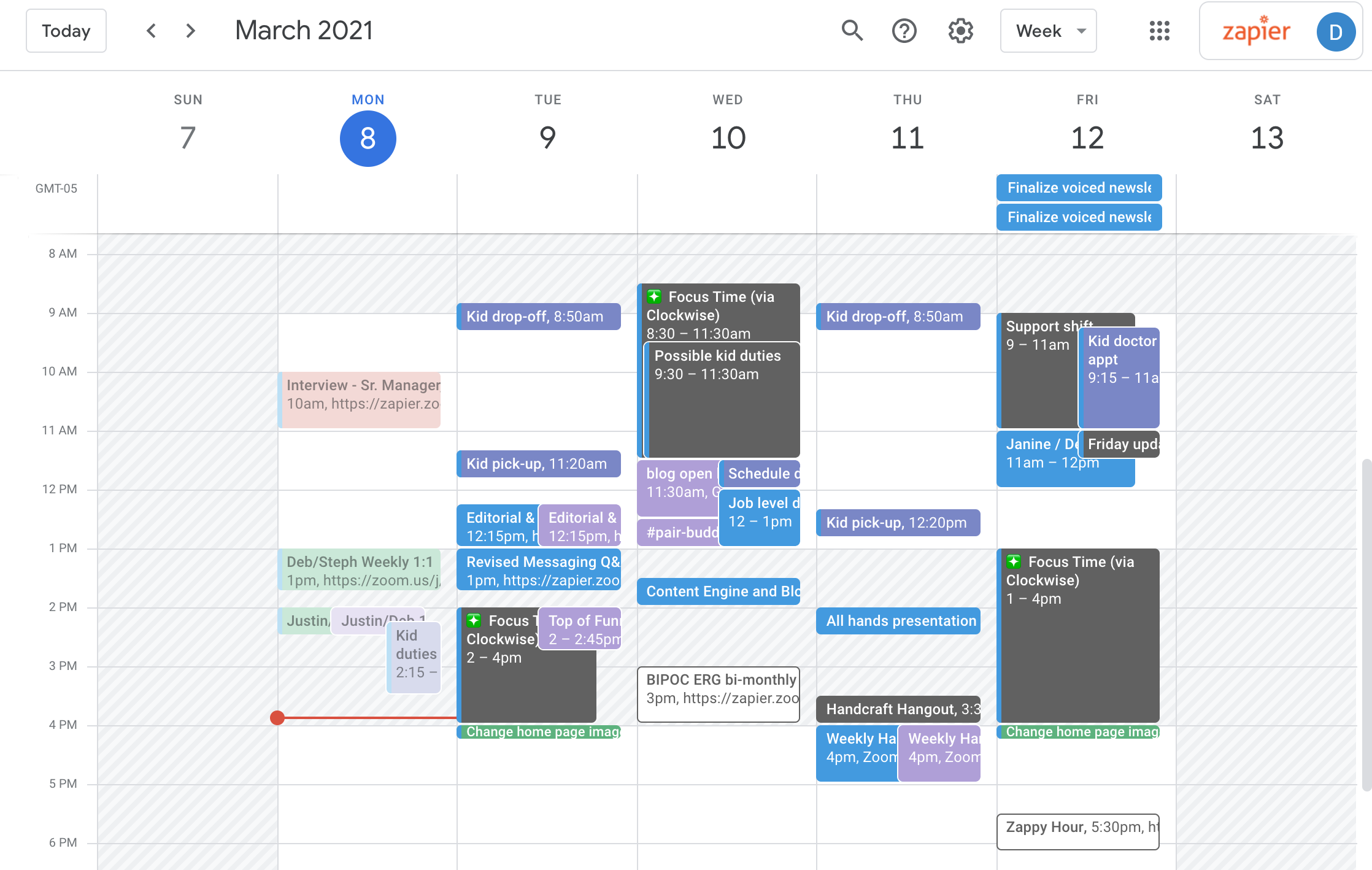
When it comes to team collaboration, Outlook Calendar can be a powerful tool. But it requires a consistent approach and clear guidelines. Shared calendars are essential for visibility into team members’ schedules, allowing you to easily coordinate meetings and avoid conflicts. Resource scheduling – for meeting rooms, equipment, or even vehicles – can also be managed effectively through Outlook.
Consistent naming conventions are key. Establish a standard format for event titles and descriptions to make it easy to identify the purpose of each meeting. Color-coding can further enhance visibility, allowing you to quickly differentiate between different types of events. For example, you could use different colors for project meetings, client calls, and internal training sessions.
Encourage team members to proactively block out time for focused work and personal appointments. This helps to manage expectations and prevent unnecessary interruptions. Regularly review team calendars to identify potential bottlenecks and optimize scheduling practices. A little bit of planning can go a long way in improving team productivity.
Essential Outlook Calendar Add-ins
Outlook’s functionality can be significantly extended through add-ins. These small programs integrate directly into Outlook, adding new features and capabilities. There’s a vast marketplace of Outlook add-ins available, but some stand out for their usefulness and reliability. Choosing the right add-ins can streamline your workflow and boost your productivity.
For appointment scheduling, Calendly for Outlook is a popular choice. It allows you to easily share your availability with others and let them book appointments directly on your calendar. FindTime (from Microsoft) is another great option, offering similar functionality. If you need to manage tasks alongside your calendar, Todoist for Outlook is an excellent choice, allowing you to create and track tasks directly from your inbox.
For business travelers, TripIt Pro integrates seamlessly with Outlook, automatically importing travel itineraries and providing real-time flight updates. And for those who frequently attend webinars, Zoom for Outlook simplifies the process of scheduling and joining Zoom meetings directly from your calendar. It’s worth exploring the Outlook Add-in store to discover other tools that may be relevant to your specific needs.
- Calendly for Outlook to simplify appointment booking.
- FindTime: Streamline meeting scheduling with team members.
- Todoist for Outlook: Manage tasks directly from your inbox.
- TripIt Pro: Organize travel itineraries and receive flight updates.
- Zoom for Outlook: Schedule and join Zoom meetings seamlessly.
Featured Products

Undated daily planner with hourly schedule · Includes calendar, holiday tracker, and habit tracker · 180 pages, letter size (8.5" x 11")
This planner offers a structured, physical system for daily planning and habit tracking, complementing digital calendar integration by providing a tangible space for task breakdown and time management.

Comprehensive guide to mastering Microsoft Outlook · Covers email, calendar, and contact management · Focuses on streamlining tasks and maximizing productivity
This guide provides foundational knowledge for effectively utilizing Outlook's core features, including its calendar, which is essential for implementing advanced integration strategies.

Synchronizes SharePoint calendars with Outlook · Allows for seamless viewing and management of shared calendars within Outlook · Facilitates collaboration on project schedules and team events
This add-on enables the integration of SharePoint calendars directly into Outlook, enhancing collaboration and providing a unified view of team schedules for improved meeting organization.

Laminated quick reference guide for Outlook 365 · Covers mail, calendar, people, tasks, and notes · Includes essential instructions, tips, and shortcuts for Windows users
This quick reference guide offers immediate access to essential Outlook functions and shortcuts, helping users efficiently manage their calendar and related tasks within the application.
As an Amazon Associate I earn from qualifying purchases. Prices may vary.

No comments yet. Be the first to share your thoughts!