

The reality of remote scheduling
Remote work is standard practice now. The Office of Personnel Management updated its guidance in August 2023 to reflect this, focusing on how telework changes official work hours. Most teams are distributed, which makes office-centric scheduling obsolete.
This move to remote work has essentially forced a re-evaluation of how we manage time and availability. The casual check-ins and impromptu meetings of the office are gone, replaced by deliberate scheduling. What worked when everyone was in the same building – a quick whiteboard session, a hallway conversation – now requires a calendar invite. Ignoring this change leads to missed meetings, double-bookings, and a general sense of disorganization.
The biggest challenge? A scattered approach to calendar management. Teams need a way to coordinate across time zones, account for asynchronous work styles, and respect individual boundaries. It's not enough to simply have a calendar; teams need a cohesive strategy for using them effectively. A fragmented approach to calendar management is a recipe for lost productivity and frustrated employees.
Managing multiple platforms
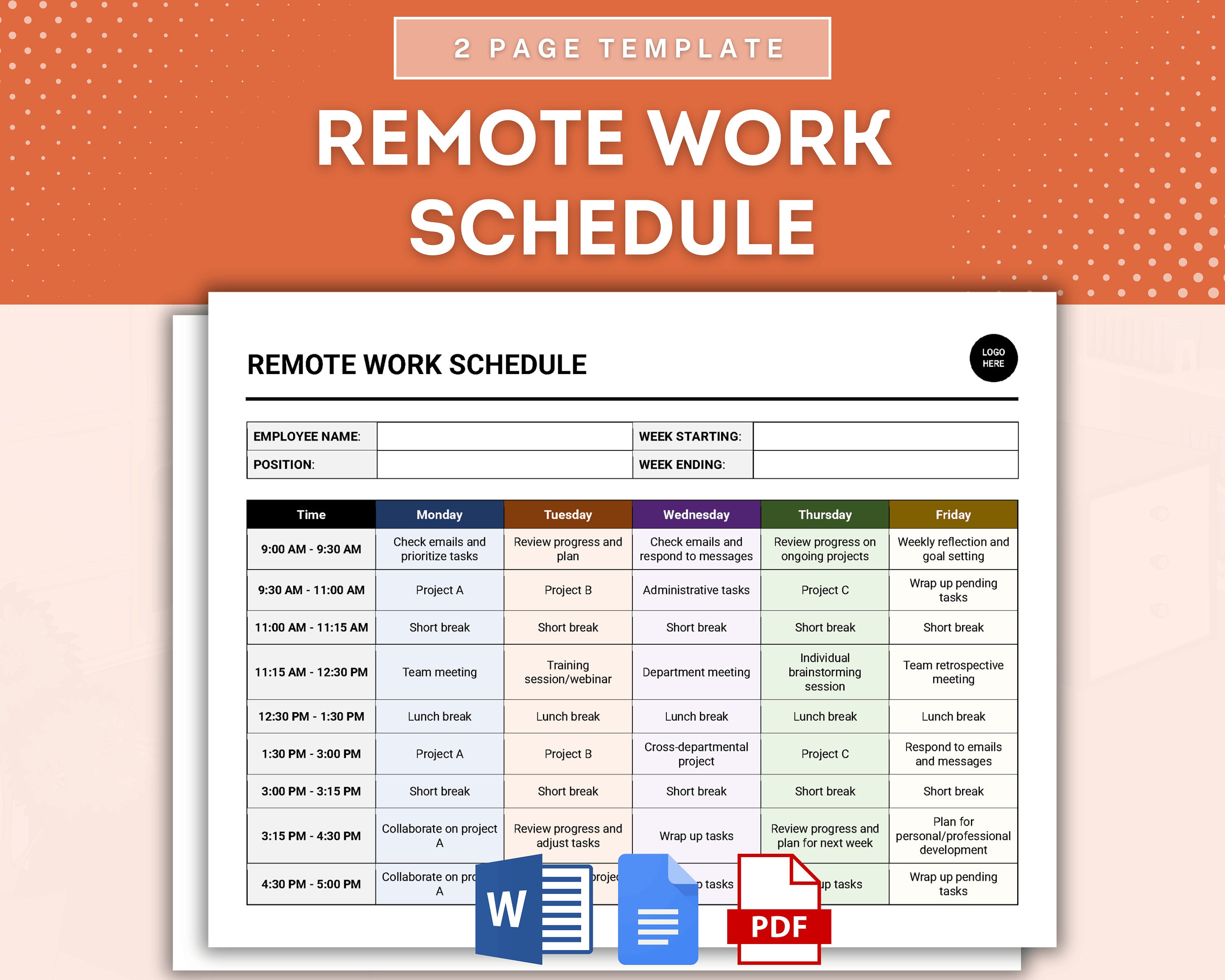
Most teams use several calendar platforms. Marketing usually sticks to Google Calendar, while engineering teams often prefer Outlook. Sales teams frequently layer CRM-specific calendars on top of Zoom scheduling. A single, unified system is rare in practice.
This creates a real mess. You’ll frequently find teams juggling Google Calendar + Zoom, Outlook + Microsoft Teams, or project management tools like Asana, Monday.com, or ClickUp alongside everything else. Each platform has its strengths, but managing them in isolation is a nightmare. It’s not uncommon for a single employee to maintain multiple calendars, constantly switching between apps and battling conflicting schedules.
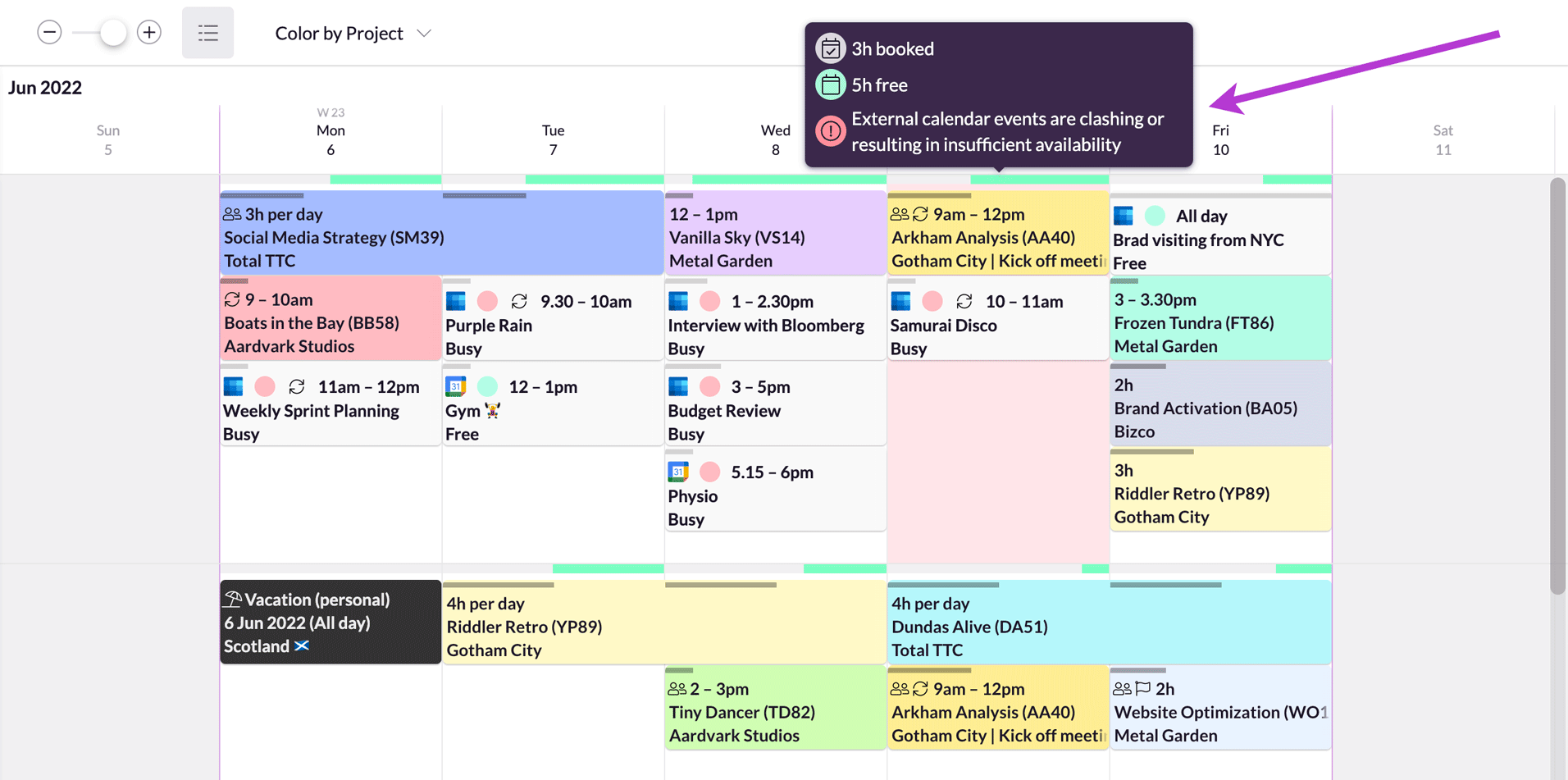
Adding to the complexity are the challenges of differing time zones. A meeting that’s convenient for someone in New York might be the middle of the night for a colleague in Tokyo. Simply knowing where everyone is located isn’t enough; you need a calendar system that intelligently handles time zone conversions and displays availability accurately. Without this, scheduling becomes a constant headache.
Syncing strategies that work
So, how do you wrestle these fragmented calendars into some semblance of order? Syncing is the obvious answer, but it’s rarely a simple one. There are a few core strategies. Direct integrations, like the Google Calendar and Outlook sync, are the most straightforward, but they often have limitations. They might not sync all event details, or they might experience occasional delays.
Then there are third-party tools specifically designed for calendar syncing. Calendar Geek is one option, offering features like two-way synchronization and conflict detection. Other players in this space include tools like OneSync and Calendly (though Calendly is more focused on scheduling). The best choice depends on your team’s size, technical expertise, and budget. Larger teams with complex needs will likely require a more robust, paid solution.
It’s important to be realistic about the challenges. Syncing isn't always seamless, and conflicts will happen. Even the best tools can struggle with complex recurring events or unusual calendar setups. You need a clear process for resolving conflicts and ensuring everyone is on the same page. Regularly checking your calendar and confirming meeting times is still crucial, even with syncing enabled. Don’t assume the technology will handle everything.
- Direct integrations like Google and Outlook are simple but often miss event details.
- Third-Party Tools: Calendar Geek, OneSync, Calendly (more features, potentially higher cost)
- Manual Syncing: (prone to errors, not recommended for teams)
Calendar Syncing Methods: A Comparison for Remote Teams (2026)
| Method | Ease of Setup | Reliability | Feature Set | Cost |
|---|---|---|---|---|
| Direct Integration (Google/Outlook) | High | High | Basic – Primarily free/busy status, some conflict detection within the same platform | Generally Low - Included with existing subscriptions |
| Third-Party Tools (e.g., Calendar Geek) | Medium | Medium-High | Advanced – Conflict resolution, timezone handling, potentially custom workflows, centralized view | Medium-High - Typically subscription-based, varying tiers |
| iCal Subscriptions | Medium | Low-Medium | Basic – One-way sync, limited real-time updates | Low - Free, but relies on consistent exporting/importing |
| Webhooks (for developers) | Low | High | Highly Customizable – Real-time updates, complex integrations possible | High - Requires development resources |
| CalDAV Sync | Medium | Medium | Good for cross-platform compatibility, requires configuration | Low-Medium - Often free, but can involve server maintenance |
| Exchange ActiveSync (EAS) | Medium | High | Robust for Microsoft environments, good for mobile sync | Generally Low - Included with Exchange/Microsoft 365 subscriptions |
Qualitative comparison based on the article research brief. Confirm current product details in the official docs before making implementation choices.
Sharing access and setting boundaries
Syncing keeps your calendars up-to-date, but sharing is what allows teams to collaborate effectively. It’s about granting access to relevant information, not just mirroring your personal schedule. Different levels of access are essential: view-only for stakeholders who just need to see availability, edit access for team members who need to schedule meetings, and free/busy information for a quick overview of who’s available.
Clear naming conventions for shared calendars are vital. Avoid vague names like “Team Calendar.” Instead, use descriptive titles like “Marketing Team - Campaigns,” “Engineering - Sprint Planning,” or “Sales - Client Meetings.” This makes it easy to identify the purpose of each calendar and prevents confusion. A well-organized calendar system is a self-documenting one.
Oversharing is a common pitfall. Giving everyone access to everything leads to information overload and the risk of accidental edits. Be mindful of privacy and only share what’s necessary. When dealing with external stakeholders – clients, vendors, partners – carefully consider their level of access and limit it accordingly. You don't want them accidentally deleting a crucial event.
iCal Feeds: The Surprisingly Useful Backup
Don't underestimate the power of iCal feeds. While they aren’t ideal for real-time syncing – updates aren’t instantaneous – they're a surprisingly reliable way to share static event information or provide a backup in case your primary integrations fail. They’re particularly useful for sharing events with people who don’t use the same calendar platform as you.
Generating and subscribing to iCal feeds is relatively straightforward in most calendar applications. Google Calendar, Outlook, and Apple Calendar all support this feature. You can typically find the iCal feed URL in the calendar settings. Just copy the URL and paste it into your calendar app to subscribe to the feed.
If you’re having trouble with iCal feeds, Calendar Geek’s iCal viewer can be a lifesaver. It allows you to test and troubleshoot iCal feeds, ensuring they’re properly formatted and displaying the correct information. It’s a handy tool for the technically inclined, but it’s also accessible enough for non-experts.
Best Apps for Remote Team Calendars (2026)
Choosing the right calendar app can make or break your remote team’s productivity. While there are countless options available, a few stand out for their features tailored to distributed teams. Google Calendar remains a strong contender, particularly for teams already invested in the Google ecosystem. Its time zone support is excellent, and its integration with other Google Workspace apps is seamless.
Microsoft Outlook Calendar is another popular choice, especially for organizations using Microsoft 365. It offers robust features for scheduling, meeting management, and integration with Microsoft Teams. However, it can be less intuitive than Google Calendar for some users. For teams focused on project management, integrating calendars with tools like Asana or Monday.com can streamline workflows.
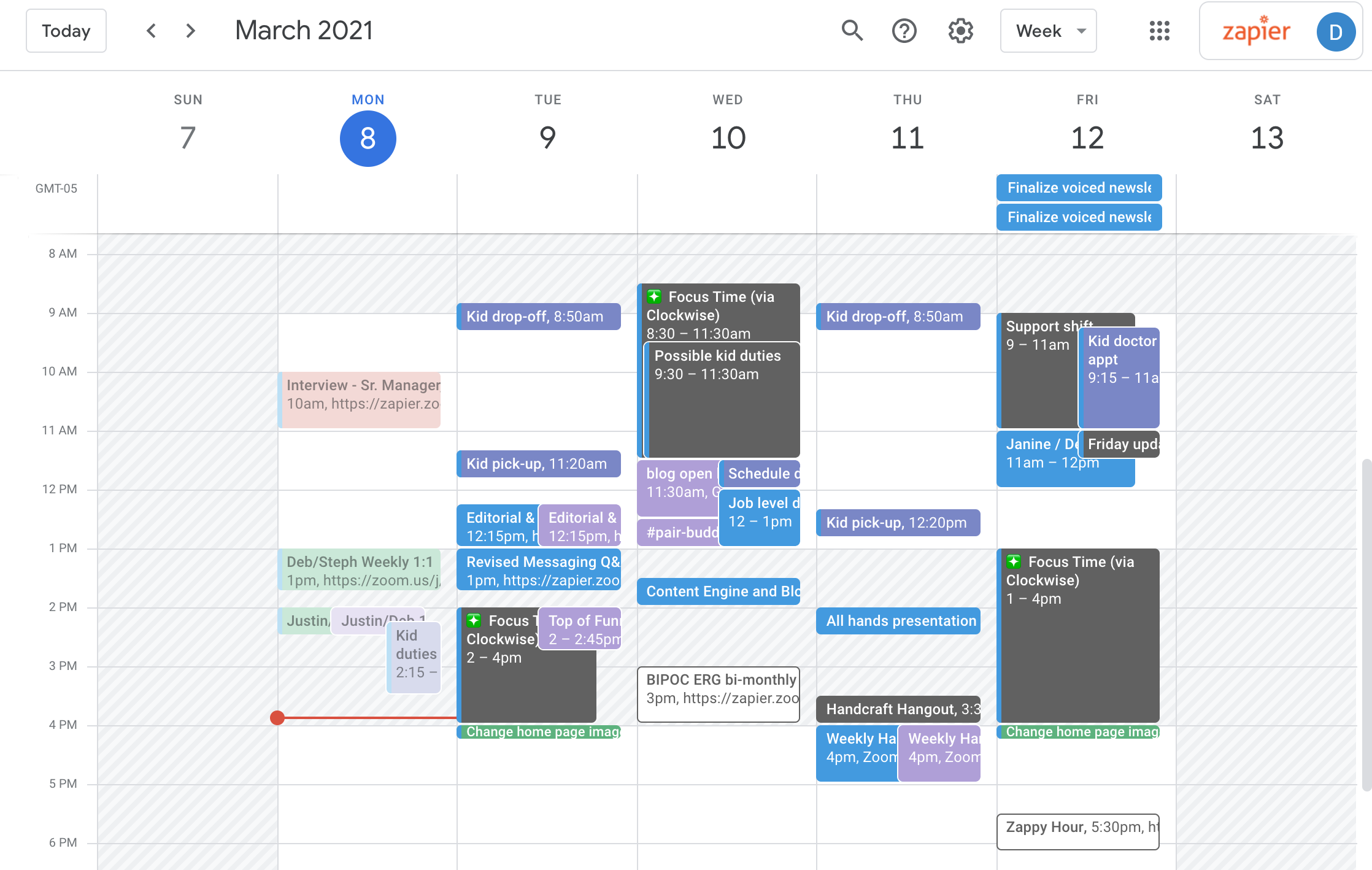
Doodle is excellent for quickly finding mutually available times for meetings, particularly when dealing with large groups or external stakeholders. Reclaim is a smart calendar assistant that automatically schedules tasks and protects focus time. Finally, Clockwise intelligently optimizes your calendar to minimize fragmentation and maximize productivity. Each of these apps brings something unique to the table.
- Google Calendar: Excellent time zone support, integrates well with Google Workspace.
- Microsoft Outlook Calendar: Robust features, strong Microsoft 365 integration.
- Doodle: Simplifies meeting scheduling with large groups.
- Reclaim handles task scheduling and blocks out focus time automatically.
- Clockwise: Optimizes your calendar for productivity.
Featured Products

Ergonomic design for comfort · Ultra-fast scrolling · 8K DPI sensor for precise tracking
Enhances navigation efficiency and comfort, crucial for managing multiple digital calendars.

75% compact layout · Hot-swappable mechanical switches · Bluetooth wireless and USB wired connectivity
Provides a superior typing experience that can improve input speed and reduce errors when scheduling.

Durable hard cover · Ruled pages · Large (5 x 8.25) size
Offers a tactile space for offline planning and note-taking, complementing digital calendar management.

App-controlled temperature setting · Maintains perfect drinking temperature · 80-minute battery life
Ensures uninterrupted focus by eliminating the need to reheat drinks, supporting sustained productivity.

Dual 4K HDMI monitor support · 85W USB-C Power Delivery · 1 Gbps Ethernet port
Facilitates a more organized and efficient workstation by enabling multiple displays and essential connections.
As an Amazon Associate I earn from qualifying purchases. Prices may vary.

No comments yet. Be the first to share your thoughts!