

Calendar technology has come a long way from simple paper planners. We’ve moved through desktop applications and now, increasingly, to AI-powered solutions. These aren’t just digital versions of old systems; they fundamentally change how we think about time management. The core problem AI calendars solve is the cognitive load of scheduling – the endless back-and-forth, the forgotten appointments, the double-bookings.
Smart scheduling is now standard. Tools like Motion and Reclaim already handle conflict detection and travel time estimation. These features aren't just trends; they are basic requirements for anyone managing a heavy meeting load in 2026.
However, even with these advancements, the need for syncing remains. Most people don’t operate within a single ecosystem. You might use an AI calendar for your work scheduling, Google Calendar for personal events, and need to share availability with someone using Outlook. This fragmentation is why reliable syncing is more important than ever, not less. It’s about bridging the gap between intelligent automation and the existing habits of users.
I’ve noticed a real shift in user expectations. People aren’t just looking for a place to store appointments; they want a tool that actively optimizes their time. This is where AI calendars excel, but only if they can play nicely with the other tools in someone’s digital life.
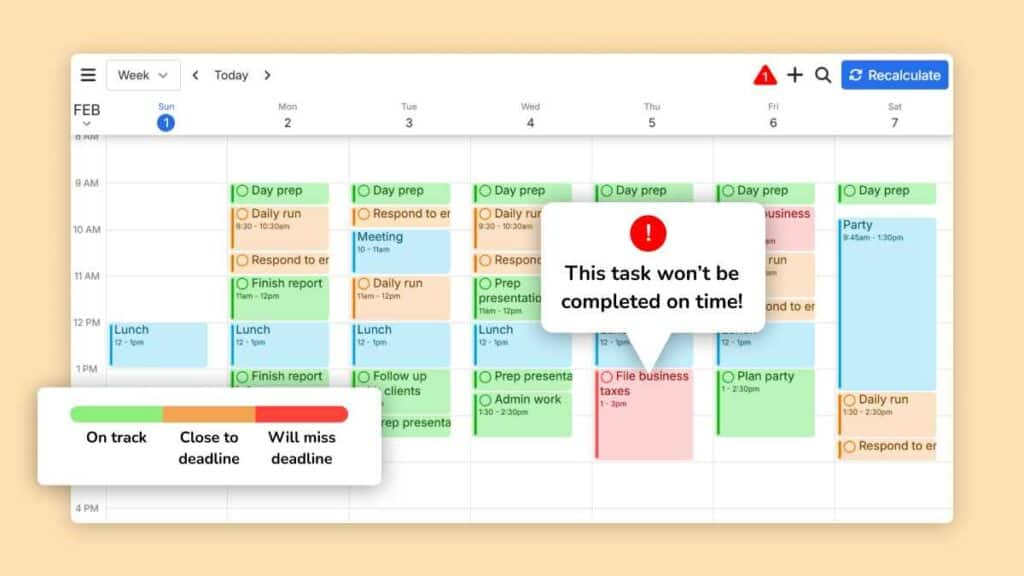
At the heart of most calendar syncing lies iCal. It’s a standard file format (.ics) for exchanging calendaring information. Think of it as a universal translator for appointments, events, and reminders. But iCal isn’t perfect. It’s primarily a one-way street – exporting and importing data – and doesn’t inherently support real-time, two-way synchronization. It also can struggle with complex event details, like attendee responses and attachments.
Other protocols attempt to address these limitations. CalDAV is an open standard that does enable two-way syncing, but it requires server support and isn’t universally adopted. Many platforms, like Google and Microsoft, rely on proprietary APIs (Application Programming Interfaces) for integration. These APIs offer more control and functionality, but they also create vendor lock-in and can be subject to change.
AI calendars generally expose their data in one of three ways: through standard iCal feeds, through dedicated integrations with major platforms, or via their own APIs. The security implications vary. iCal feeds are relatively insecure, as they don’t typically offer encryption. API integrations rely on the security protocols of the platforms involved. Understanding these methods is key to choosing the right syncing approach.
You usually won't see these protocols while clicking through an app. However, knowing if you're on an iCal feed or a direct API helps when the sync inevitably breaks. It's the difference between waiting for a refresh and knowing you need to re-authorize an account.
Google Calendar is the default for most of us. Most AI tools prioritize this integration. Motion and Reclaim both use direct two-way syncing, so a change in one shows up in the other almost immediately.
If a direct integration isn't available, you can often use third-party tools like Zapier or IFTTT to create a syncing workflow. These tools act as intermediaries, connecting different applications and automating tasks. While they’re versatile, they can introduce latency and may not support all event details. Another option is to export your AI calendar as an iCal file and import it into Google Calendar, but this is a manual process and doesn’t provide real-time syncing.
A common issue is two-way sync reliability. Sometimes, updates made in the AI calendar don’t propagate to Google Calendar, or vice versa. This often stems from API limitations or conflicts in event data. Troubleshooting typically involves checking the integration settings, verifying API keys, and ensuring that both calendars are authorized to access each other.
I've found that Google Calendar’s handling of complex events – those with numerous attendees, attachments, and recurring rules – can sometimes cause syncing problems with less mature AI integrations. It’s essential to test thoroughly with a variety of event types to ensure everything works as expected. Paying attention to error logs within the AI calendar’s settings can be helpful.
- Check the integration settings to confirm the Google account connection.
- Verify that the AI calendar has permission to access and modify your Google Calendar.
- If using a third-party tool like Zapier, review the workflow configuration and ensure it's active.
- Test the sync by creating a new event in both calendars and verifying that it appears in the other.
Syncing with Microsoft Outlook presents a slightly different set of challenges. Outlook’s API is more restrictive than Google Calendar’s, which can limit the functionality of direct integrations. Many AI calendars prioritize Google Calendar integration due to its wider adoption and more open API. However, tools like Clockwise do offer Outlook integration, though it may not be as feature-rich as their Google Calendar sync.
Apple Calendar, tightly integrated with the Apple ecosystem, can also be tricky. Direct integrations are less common, and syncing often relies on exporting/importing iCal feeds or using third-party tools. Apple’s emphasis on privacy and security can further complicate the process. I’ve observed that Apple Calendar is often more sensitive to formatting inconsistencies in iCal feeds, leading to display issues.
Outlook, particularly, can struggle with complex events and recurring series. Syncing issues often arise when attendees reply to meeting invitations or when event details are modified. Apple Calendar's handling of attachments can also be problematic. It’s crucial to test thoroughly with a variety of event types and scenarios.
One key difference with Apple Calendar is its reliance on iCloud. Syncing with iCloud Calendar is often the most reliable method, but it requires users to be fully invested in the Apple ecosystem. For users who prefer other platforms, syncing can be a more manual and less seamless experience.
While Google Calendar, Outlook, and Apple Calendar dominate the market, many users rely on niche platforms like Zoho Calendar, Proton Calendar, or specialized scheduling software for salons or medical practices. Syncing with these platforms often requires more creative solutions. Direct integrations are rare, and you’ll likely need to rely on third-party tools or manual workarounds.
Zoho Calendar, for example, supports CalDAV, which allows for two-way syncing with compatible applications. Proton Calendar, known for its end-to-end encryption, offers limited integration options, primarily through iCal feeds. Scheduling software for specific industries often has its own proprietary APIs, requiring custom integrations.
Third-party syncing tools like OneSync and AnyData can help bridge the gap between these platforms. They support a wider range of calendars and offer more advanced syncing options. However, they typically come with a subscription fee and may not support all features.
The challenge with these niche platforms is often data compatibility. Different platforms may handle event details, time zones, and recurring rules in different ways, leading to syncing errors. It’s essential to carefully test any syncing solution to ensure that data is transferred accurately and consistently.
Third-Party Calendar Syncing Tools for AI & Traditional Calendar Integration (2026)
| Tool Name | Supported Platforms | Two-Way Sync | Price (Approximate Range) | User Reviews (Rating out of 5) |
|---|---|---|---|---|
| OneCalendar | Google Calendar, Outlook Calendar, Apple Calendar, iCloud | Yes, generally robust | Free plan available; Paid plans starting around $9/month | 4.2 |
| Cronofy | Google Calendar, Outlook Calendar, Exchange | Yes, designed for developers and complex integrations | Pricing varies based on usage; typically starts around $100/month for significant use | 3.8 |
| Motion | Google Calendar, Outlook Calendar | Yes, with a focus on scheduling automation | Plans starting around $12/month | 4.5 |
| Reclaim.ai | Google Calendar, Outlook Calendar | Yes, integrates with task management tools for time blocking | Plans starting around $12/month | 4.3 |
| Clockwise | Google Calendar, Outlook Calendar | Yes, focuses on optimizing team schedules | Free plan available; Paid plans starting around $7/month | 4.0 |
| SavvyCal | Google Calendar, Outlook Calendar | Yes, offers customizable scheduling pages | Free plan available; Paid plans starting around $15/month | 4.1 |
Illustrative comparison based on the article research brief. Verify current pricing, limits, and product details in the official docs before relying on it.
Sync conflicts are inevitable, especially when using multiple calendars and integrations. Common causes include overlapping events, different time zone settings, and data corruption. The first step in troubleshooting is to identify the source of the conflict. Check the event details in both calendars to see which one has the most accurate information.
Data loss is a more serious issue. It can occur due to syncing errors, API outages, or accidental deletions. The best way to prevent data loss is to regularly back up your calendar data. Most platforms offer built-in backup features, or you can use third-party backup services.
If you encounter a sync conflict, try manually resolving it by editing the event in one of the calendars and then syncing again. If the problem persists, consider disabling and re-enabling the integration. In some cases, you may need to contact the support team for the AI calendar or the platform you’re syncing with.
Best practices for preventing sync issues include using consistent time zone settings, avoiding overly complex event details, and keeping your calendar software up to date. Regularly reviewing your calendar data and verifying that everything is syncing correctly is also a good idea.
Thoroughly testing your calendar syncing setup is essential. Several tools can help you verify that everything is working as expected. iCal viewers like iCalendarBuddy allow you to inspect the contents of iCal files and identify any formatting errors.
Online calendar checkers like Calendly’s test event tool can help you verify that events are being created and updated correctly in your calendar. You can also use free calendar services like Outlook.com or Yahoo Calendar to test syncing with different platforms.
For more advanced testing, consider using tools like Postman to send API requests and verify the responses. This requires some technical expertise, but it can provide valuable insights into the syncing process.
Ultimately, the best way to test calendar syncing is to use it in your daily life. Create a variety of events, invite attendees, and make changes to see how the syncing behaves in real-world scenarios.
- iCalendarBuddy: A free online iCal viewer for inspecting calendar files.
- Calendly Test Event Tool: A tool for verifying event creation and updates.
- Postman: A tool for testing API requests if you have the technical background to dig into the raw data.
- Google Calendar API Playground: A tool for experimenting with the Google Calendar API.
Useful Sync Testing Tools
- iCal Viewer by Calendar Geek - A free online tool to view and validate iCalendar (.ics) files, useful for inspecting calendar data before and after syncing.
- Jackie.js - A JavaScript library for parsing iCalendar data. Developers can use it to programmatically verify the content of synced calendars.
- Online ICalendar Validator - A web-based tool to check the validity of iCalendar files against the iCalendar specification (RFC 5545).
- Cronofy’s Calendar API Testing Tools - Cronofy provides tools to help test calendar integrations, including checking for correct event creation, modification, and deletion across different platforms.
- Event Tester - A web application to test calendar event creation and updates with Google Calendar, Microsoft Exchange, and Office 365.
- Microsoft Graph Explorer - Allows developers to directly test Microsoft Graph API calls, useful for verifying synchronization with Microsoft 365 calendars.
- Google Calendar API Playground - A web interface for experimenting with the Google Calendar API, enabling testing of read and write operations.
No comments yet. Be the first to share your thoughts!