

The mess of distributed schedules
Managing a calendar for a distributed team is a mess. It isn't just about picking a time; you're fighting time zones and different work rhythms. When everyone is in a different city, getting a single, accurate view of who is actually free is harder than it looks.
The pain points are familiar to anyone who’s tried to schedule a meeting with colleagues in different parts of the world. Endless email chains trying to find a time that works for everyone, double-booked appointments, and missed meetings due to miscommunication are all too common. These issues aren’t just frustrating; they directly impact productivity and can erode team morale. It's easy for a simple scheduling issue to snowball into a larger problem.
The shift toward hybrid work models adds another layer of complexity. Not everyone is remote all the time, so you have to account for both in-office and remote schedules. This requires a flexible system that can adapt to changing circumstances and accommodate different working preferences. It's more than just time zones; it’s about acknowledging that people have different rhythms and priorities.
Early solutions often involved simply sharing iCal files, but that approach quickly became unwieldy. Constant updates, version control issues, and the lack of real-time synchronization made it a less-than-ideal solution. Teams needed something more robust, more automated, and more integrated with the tools they already use. The need for a cohesive system is clear, and the tools available have been evolving to meet that demand.
Primary calendar platforms in 2026
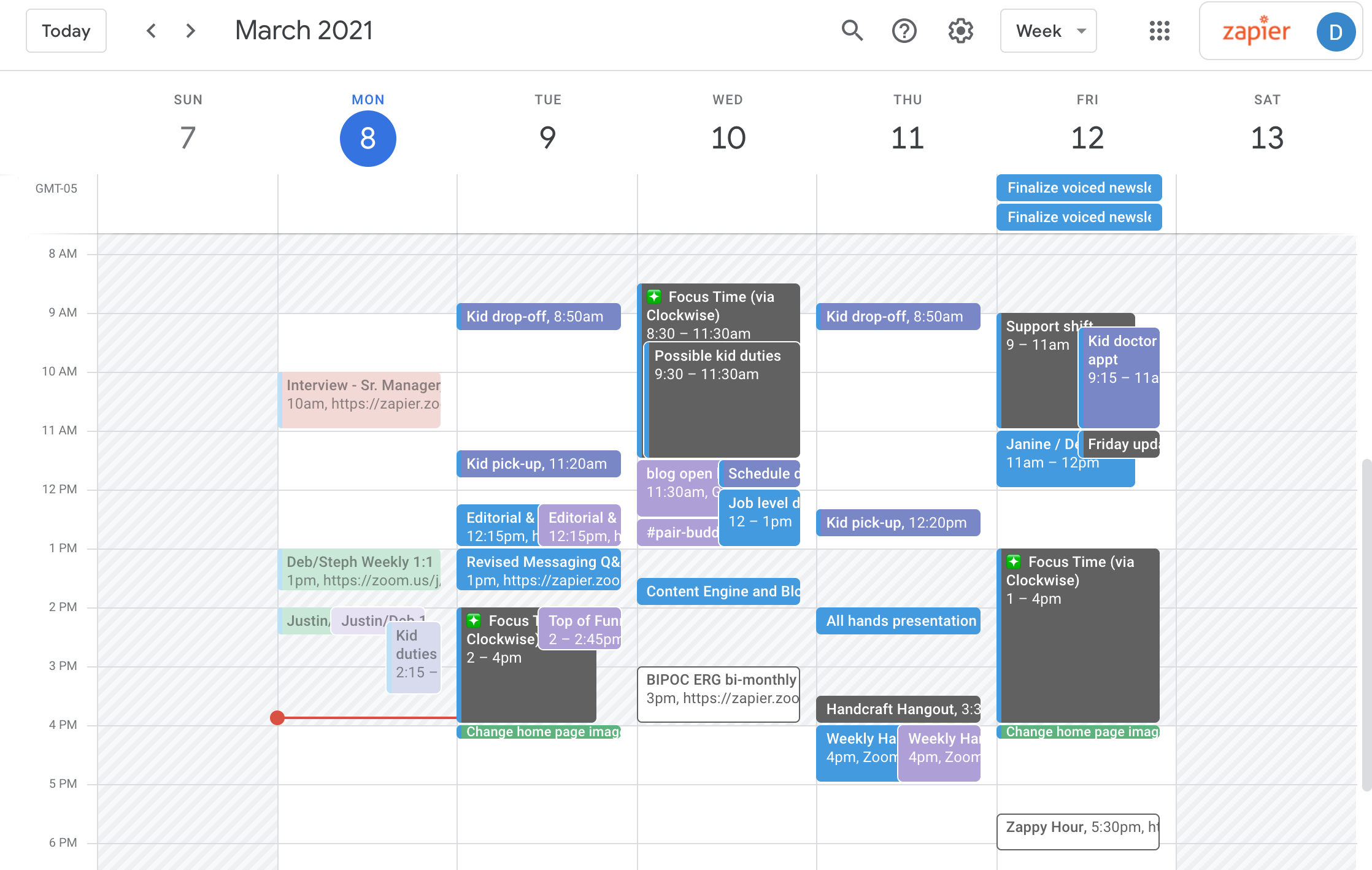
In 2026, several calendar platforms dominate the remote work landscape. Google Calendar remains a popular choice, particularly for teams already invested in the Google Workspace ecosystem. Its strength lies in its ease of use, strong integration with other Google apps like Gmail and Meet, and its broad accessibility across devices. However, some users find its interface a bit cluttered and its advanced features less intuitive.
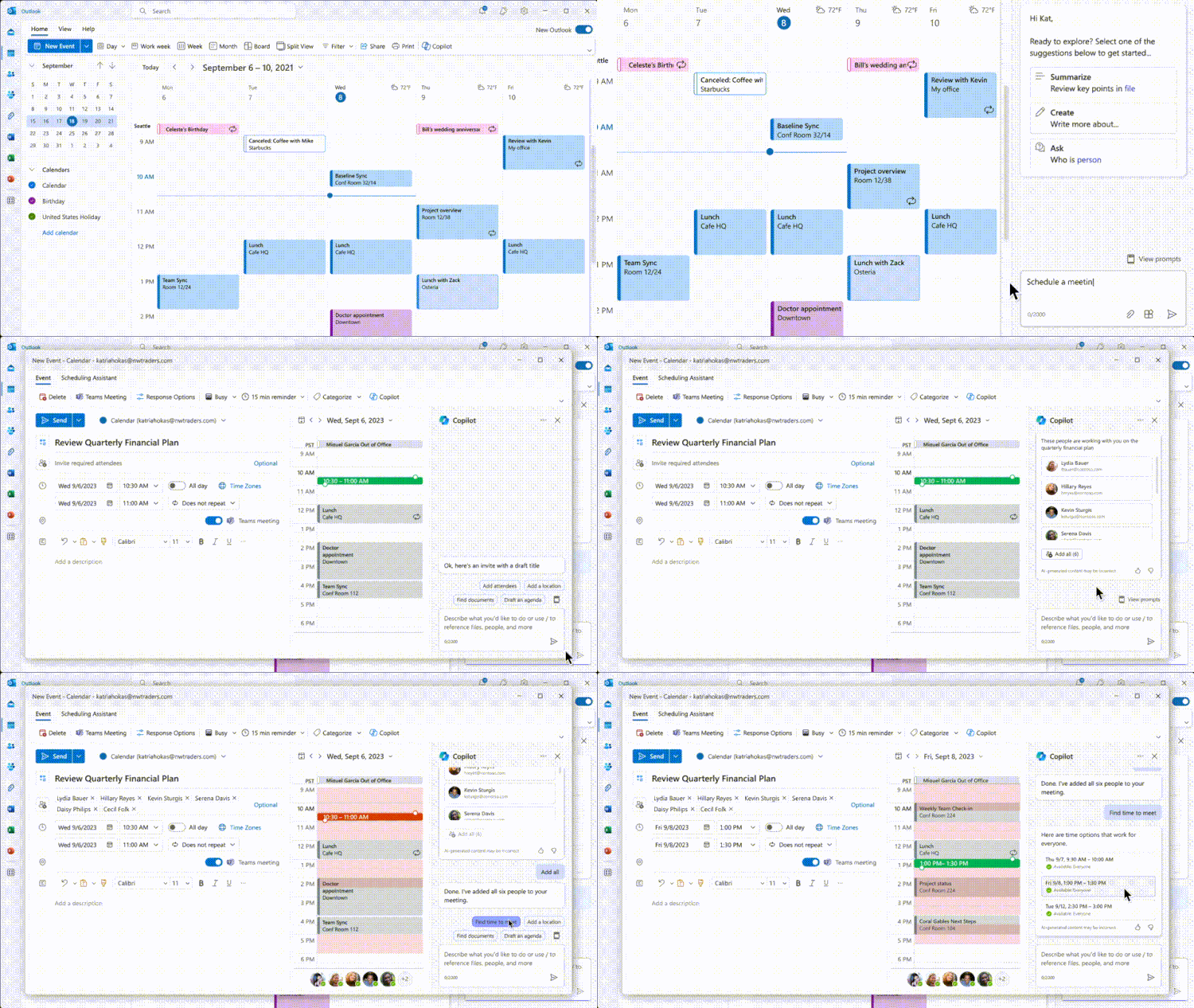
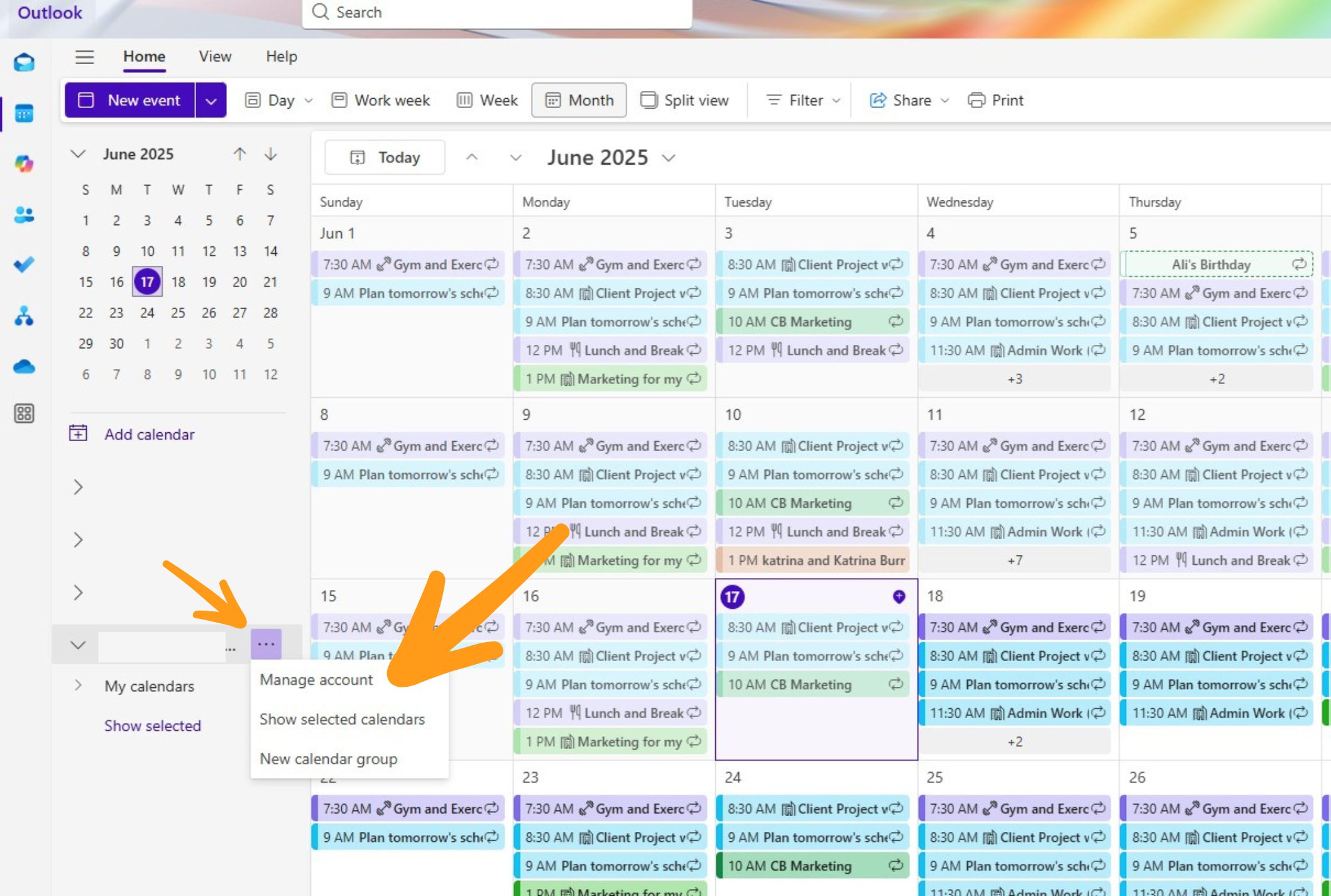
Microsoft Outlook Calendar continues to be a mainstay in many organizations, especially those using Microsoft 365. It’s deeply integrated with Outlook email and other Microsoft applications, making it a natural fit for businesses that rely heavily on the Microsoft ecosystem. Its robust features and customization options appeal to power users, but it can be overwhelming for those who just need a basic calendar.
Apple Calendar is a solid option for teams primarily using Apple devices. It syncs seamlessly with iCloud and offers a clean, user-friendly interface. However, its integration with non-Apple platforms is less robust than Google or Microsoft. It’s a good choice for Apple-centric teams, but less ideal for those with a more diverse technology stack.
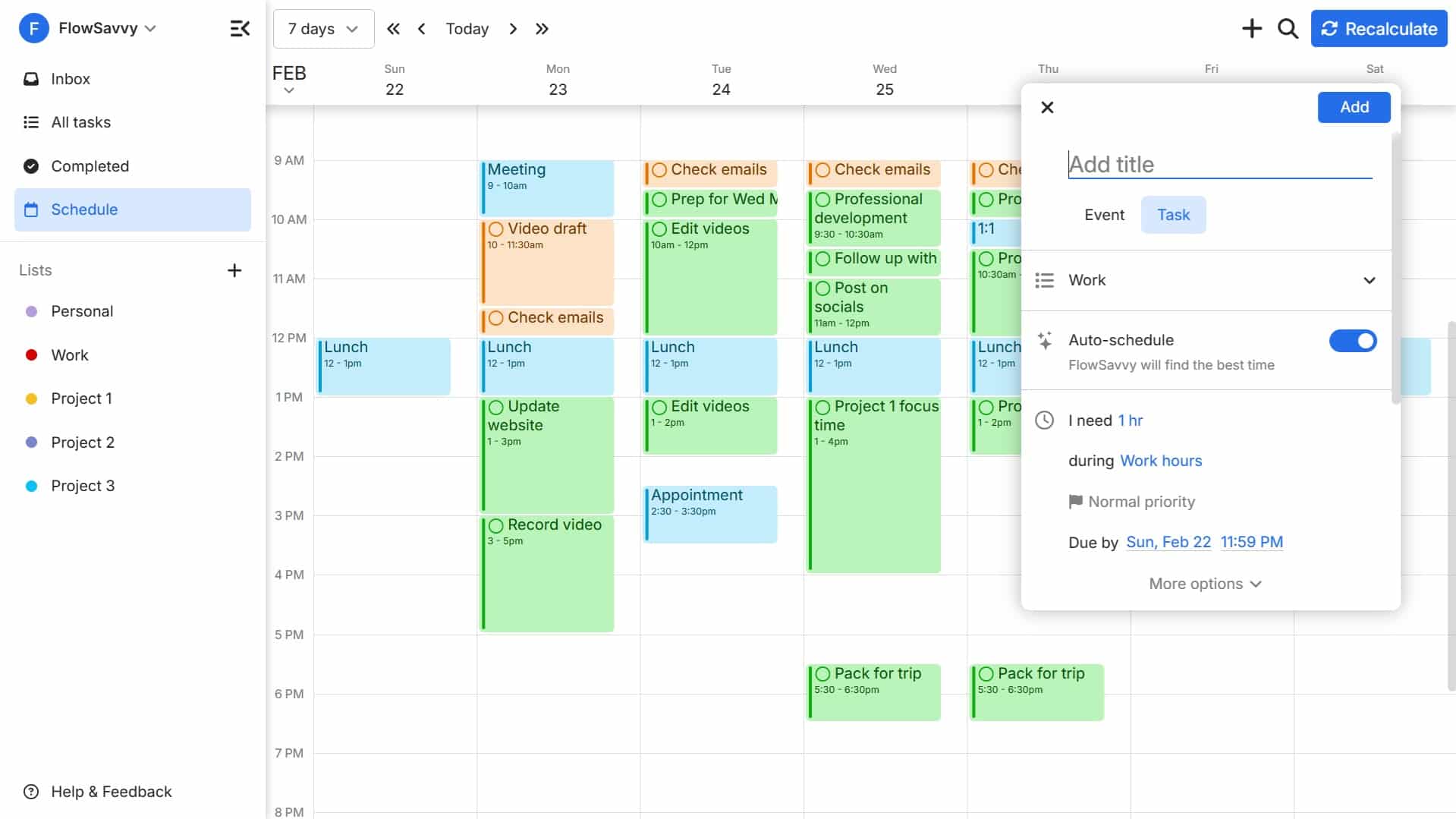
Niche players like Clockwise and Reclaim are gaining traction by focusing specifically on optimizing team scheduling. Clockwise, for example, automatically reschedules meetings to create longer blocks of focused work time, while Reclaim helps you block time for personal commitments and habits. These tools often integrate with Google Calendar and Outlook, adding a layer of intelligence to your existing calendar workflow. The choice depends heavily on existing infrastructure, team preferences, and specific needs.
- Google Calendar is the default for Workspace users because it's already tied to Meet and Gmail.
- Microsoft Outlook Calendar: Best for Microsoft 365 users and advanced features.
- Apple Calendar: Best for Apple-centric teams and simplicity.
- Clockwise/Reclaim: Best for automated scheduling optimization.
Syncing Methods: iCal, APIs, and Beyond
The most basic way to share calendar information is through iCal (.ics) files. This involves exporting a calendar from one platform and importing it into another. While simple, this method is far from ideal for real-time synchronization. Changes made in one calendar aren’t automatically reflected in the other, requiring manual updates and increasing the risk of errors. It’s a one-time snapshot, not a live connection.
API-based synchronization offers a much more robust solution. This involves direct integration between calendar platforms, allowing for automatic, two-way syncing of events. Google Calendar and Microsoft Outlook both offer APIs that developers can use to build integrations with other applications. This is how most modern scheduling tools connect to your calendar.
The trade-off between iCal and API syncing is control versus simplicity. iCal is easy to use but lacks automation. APIs require more technical expertise to implement, but offer greater flexibility and real-time synchronization. Many tools abstract away the complexity of the API, providing a user-friendly interface for connecting your calendars.
CalDAV remains the primary open protocol for sharing, but adoption is slow. Most teams still rely on proprietary APIs because they are more reliable, even if they lock you into specific ecosystems. A shift toward open standards would help, but it isn't happening quickly.
- iCal (.ics): Simple, one-time export/import, no real-time sync.
- API-based Sync: Automatic, two-way sync, requires integration.
- CalDAV: Open protocol, limited adoption.
Remote Work Calendar Synchronization Methods: A Comparison (2026)
| Setup Complexity | Real-time Updates | Data Security | Cost | Customization |
|---|---|---|---|---|
| iCal | Low | Medium | Low | Low |
| Direct API | High | High | Medium | High |
| Zapier | Medium | Medium | Medium | Medium |
| OneSync | Medium | High | Medium | Medium |
| Microsoft Graph API | High | High | Medium | High |
| Google Calendar API | High | High | Medium | High |
Illustrative comparison based on the article research brief. Verify current pricing, limits, and product details in the official docs before relying on it.
Sharing Strategies: Permissions and Visibility
Sharing calendars effectively requires careful consideration of permissions and visibility. Simply granting everyone full access to your calendar can be a security risk and a privacy concern. Most calendar platforms offer granular control over who can see what information. You can typically grant different levels of access, such as view-only, view free/busy time, or full edit access.
Creating separate shared calendars for specific projects or teams is a best practice. This allows you to control access to only the relevant information. For example, you might have a shared calendar for marketing events, a separate one for engineering sprints, and another for all-hands meetings. This keeps things organized and prevents information overload.
Security is paramount when sharing calendars. Be mindful of the information you’re sharing and who you’re sharing it with. Avoid sharing sensitive details in calendar event titles or descriptions. Regularly review calendar access permissions to ensure that only authorized individuals have access. Consider using password protection for shared calendars if the information is particularly sensitive.
Managing calendar access becomes more complex as team members join or leave the organization. It’s crucial to have a clear process for adding and removing users from shared calendars. When an employee leaves, immediately revoke their access to all shared calendars to protect confidential information. A well-defined onboarding and offboarding process is essential for maintaining calendar security.
Meeting Scheduling Tools: Automating the Process
Tools like Calendly, Doodle, and Chili Piper have become essential for streamlining meeting scheduling in remote teams. These platforms integrate with your existing calendar and allow you to share a link with others, giving them visibility into your availability. They can then select a time that works for both of you, eliminating the back-and-forth of email scheduling.
These tools offer a range of features designed to simplify the scheduling process. Buffer times ensure you have a break between meetings, while round-robin scheduling distributes meetings evenly among team members. Timezone detection automatically adjusts meeting times to accommodate participants in different locations. Some tools also offer customizable branding and integration with CRM systems.
I’ve noticed some newer tools focusing on 'focus time' protection, actively blocking off time in your calendar to prevent interruptions. This is a response to the always-on culture that remote work can foster. These tools aim to help you reclaim your time and prioritize deep work.
The integration capabilities of these tools are a key factor to consider. Most integrate with Google Calendar and Outlook, but some also support other platforms. Choose a tool that integrates seamlessly with your existing workflow to avoid friction and maximize efficiency.
- Calendly: Popular for its simplicity and ease of use.
- Doodle: Best for finding consensus on meeting times with large groups.
- Chili Piper: Focuses on sales scheduling and lead qualification.
- Newer Tools: Focus on 'focus time' protection and deep work.
Time Zone Management: Best Practices
Simply telling people to use a world clock isn't a sufficient solution for managing time zones in a distributed team. It's passive and doesn't address the underlying problem of inconsiderate scheduling. A more proactive approach is needed.
The concept of 'core collaboration hours' is crucial. Identify a few hours each day when most team members are available for real-time communication and meetings. Schedule important meetings during these hours to maximize participation and minimize disruption. This requires some compromise from everyone, but it’s a worthwhile investment.
Asynchronous communication should be prioritized whenever possible. Not every interaction requires a real-time meeting. Utilize tools like Slack, email, and project management software to communicate updates, share feedback, and collaborate on projects. This reduces the need for meetings and allows people to work at their own pace.
Tools that visualize team members’ time zones can be incredibly helpful. Some calendar platforms offer this feature directly, while others integrate with third-party apps. Seeing a visual representation of everyone’s time zone makes it easier to schedule meetings that are considerate of all participants. I'm not aware of any definitive research on optimal workday lengths across time zones, but encouraging flexibility is key.
Troubleshooting Common Sync Issues
Calendar sync issues are inevitable, especially in complex remote work setups. Common problems include duplicate events, missing appointments, and incorrect time zone conversions. The first step in troubleshooting is to identify the source of the problem. Is the issue happening on one platform or across multiple platforms?
Duplicate events often occur when a calendar is synced through multiple channels. Try disabling one of the sync methods to see if that resolves the issue. Missing appointments may be caused by a temporary sync error or a conflict between calendar events. Check your calendar settings and ensure that all sync options are enabled.
Time zone errors usually stem from mismatched settings between the OS and the calendar app. Check that both platforms use the same primary zone and that daylight saving adjustments are toggled on. Google’s support documentation provides specific walkthroughs for syncing these settings.
If you’ve tried all of the basic troubleshooting steps and are still experiencing issues, you may need to contact support for your calendar platform. Be prepared to provide detailed information about the problem, including the platforms you’re using and the steps you’ve already taken.
- Duplicate Events: Disable one sync method.
- Missing Appointments: Check sync settings and event conflicts.
- Incorrect Time Zone: Verify time zone and daylight saving settings.
No comments yet. Be the first to share your thoughts!