

Gemini Calendar: A First Look
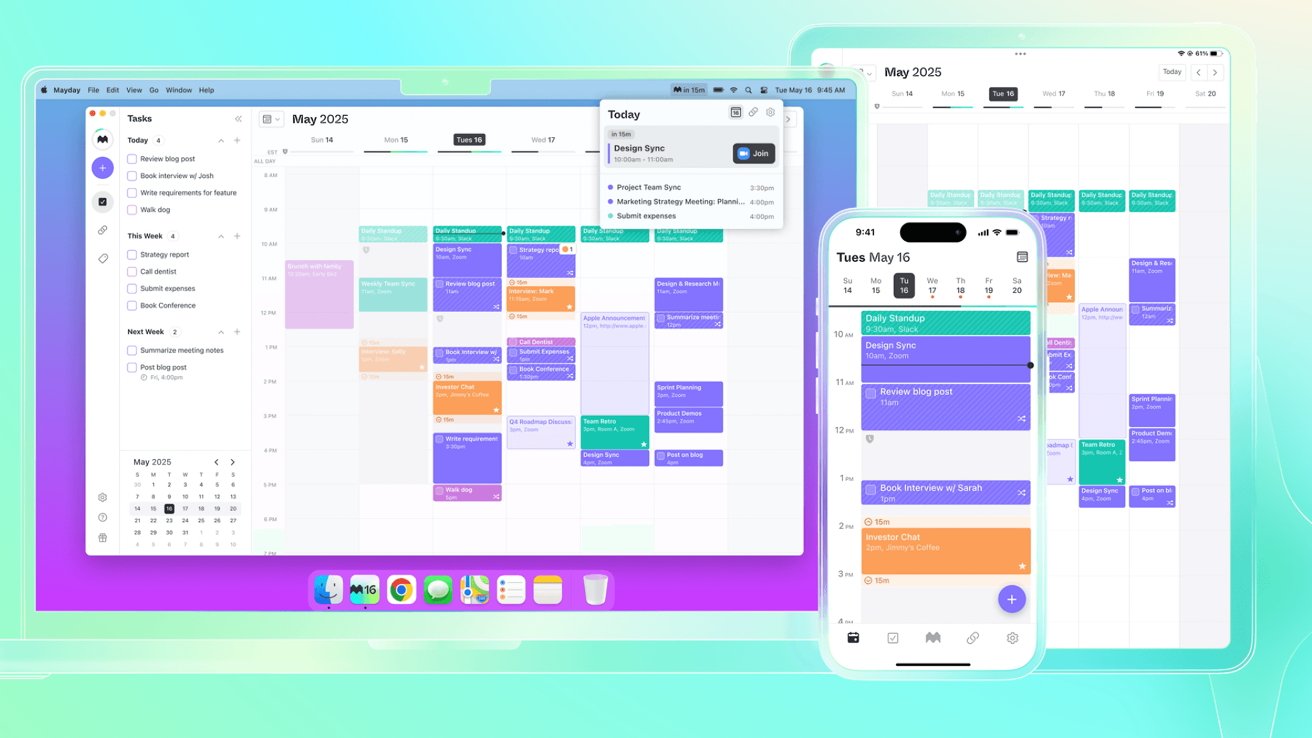
Google's Gemini Calendar aims to unify your existing calendars – Google Calendar, Samsung Calendar, Xiaomi Calendar, and others – into a single, intelligent view. It goes beyond simply displaying events; it seeks to understand them, integrating with the broader Gemini AI ecosystem.
Traditional calendar apps are primarily visual tools for viewing and rearranging appointments. Gemini Calendar uses AI to anticipate needs and streamline scheduling, shifting towards a proactive approach that reduces back-and-forth communication.
This approach simplifies managing multiple calendars, a common need for those with work and personal commitments or using different apps on various devices.
Syncing Your Calendars: Beyond the Basics
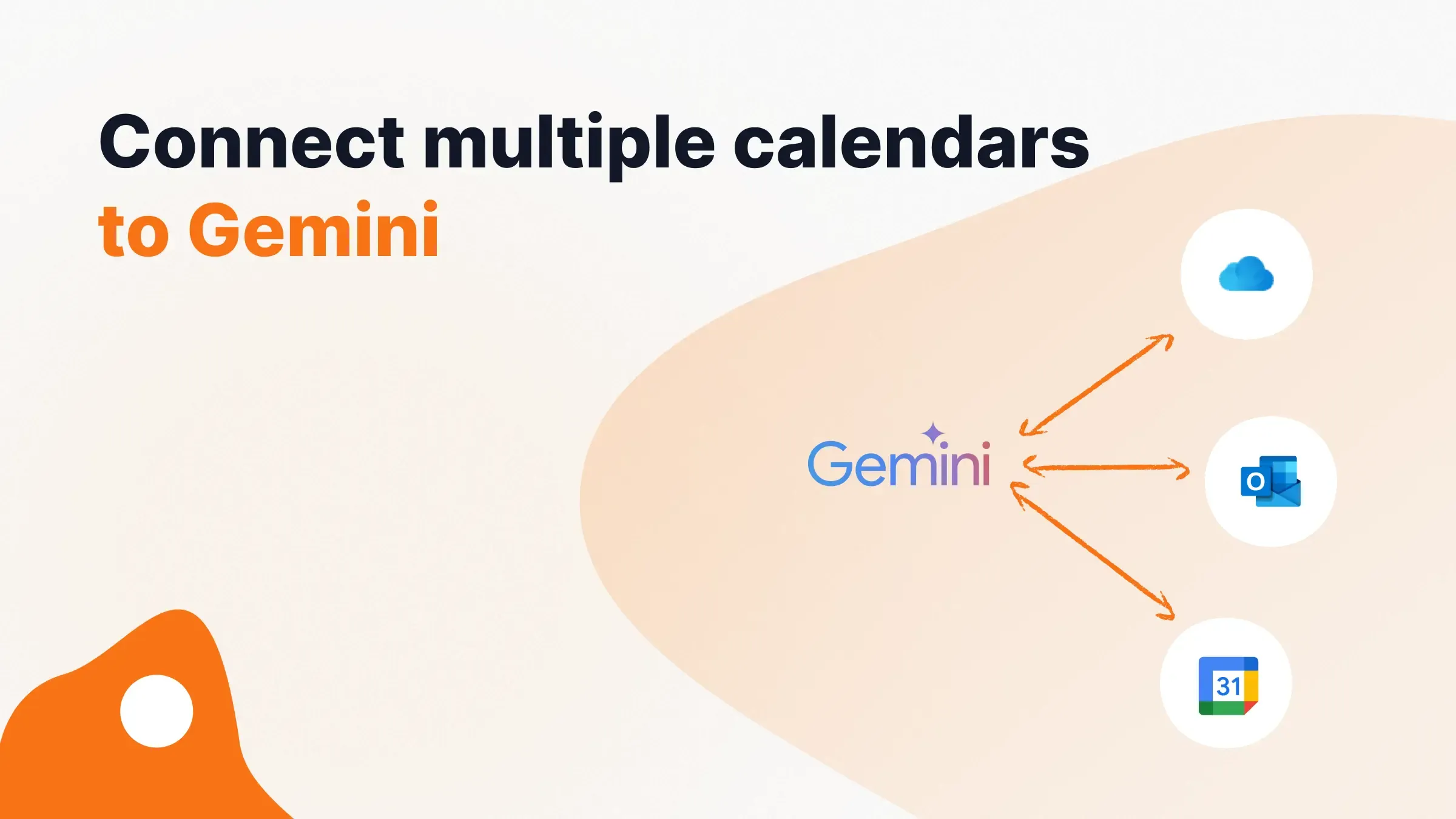
Syncing your calendars with Gemini Calendar is the first step to unlocking its potential. Connecting your Google Calendar is straightforward – the app guides you through the process with standard Google account permissions. However, the real test lies in how well it integrates with third-party calendars. Gemini Calendar currently supports Samsung Calendar, Xiaomi Calendar, OPPO Calendar, TECNO Calendar, and HONOR Calendar, according to Google’s support documentation.
While setup seems simple, integration depth with each platform may vary, with some offering read-only access and others full editing. Support documentation lacks specifics, potentially leading to unexpected behavior.
The syncing mechanisms are unclear; Gemini Calendar might use iCal feeds for some platforms, which can be unreliable. Direct API integration, offering faster and more consistent syncing, is preferable but unconfirmed. Troubleshooting sync issues will likely depend on the calendar provider and connection type.
- Open Gemini Calendar and go to Settings.
- Select 'Connected Calendars'.
- Choose the calendar provider you want to connect (e.g., Samsung, Xiaomi).
- Follow the on-screen prompts to authorize the connection.
Gemini’s Smart Scheduling Features
Gemini Calendar's AI features focus on understanding the context and meaning of your events, learning preferences and anticipating needs to enable smart scheduling.
Gemini Calendar can suggest optimal meeting times by factoring in travel time, existing commitments, and attendee preferences. It learns scheduling habits to proactively suggest focus time blocks and prevent overbooking, a significant improvement over traditional apps that only show availability.
Natural language processing allows users to schedule meetings by simply stating the request, such as 'Schedule a meeting with John next Tuesday at 2 pm.' The app handles event creation and invitations. While its flawless operation is yet to be fully demonstrated, this feature has significant potential to reduce administrative time. The app can also analyze your calendar and proactively suggest rescheduling conflicting events.
Proactively blocking out focus time addresses the common challenge of protecting time for deep work. Gemini Calendar can automate this, ensuring dedicated blocks for important tasks.
Sharing and Permissions: A Simplified View?
Gemini Calendar streamlines calendar sharing with granular permission controls, allowing users to specify view-only access, edit access, or free/busy information for recipients. This control is essential for privacy and preventing unintended schedule changes.
The sharing process appears simplified with a centralized interface for managing settings, allowing calendar sharing with users outside of Gemini Calendar for collaboration across platforms.
Public calendar links allow sharing a read-only view. Google must ensure the sharing process is secure and user data is protected, with clear understanding of what data is shared and with whom.
- View-only: Recipients can see your events but cannot make changes.
- Edit access: Recipients can create, modify, and delete events.
- Free/busy information: Recipients can only see when you are available or busy.
Gemini Calendar vs. Google Calendar: Permission Levels and Granting Access (2026)
| Permission Level | Google Calendar | Gemini Calendar |
|---|---|---|
| View Free/Busy | Calendar Owner, Users with 'See only free/busy' permission | Calendar Owner, Users with 'View free/busy' permission |
| View All Event Details | Calendar Owner, Users with 'See all event details' permission | Calendar Owner, Users with 'View all details' permission |
| Make Changes to Events | Calendar Owner, Users with 'Make changes to events' permission | Calendar Owner, Users with 'Edit events' permission |
| Manage Sharing | Calendar Owner | Calendar Owner |
| Add Guests | Users with 'Make changes to events' permission | Users with 'Edit events' permission |
| See Guest List | Users with 'See all event details' or 'Make changes to events' permission | Users with 'View all details' or 'Edit events' permission |
Illustrative comparison based on the article research brief. Verify current pricing, limits, and product details in the official docs before relying on it.
Gemini Calendar and Workspace Integration
Gemini Calendar integrates with other Google Workspace apps to boost productivity and simplify workflows, creating a seamless user experience.
Gemini Calendar automatically creates meeting links in Gmail and pulls information from Docs, such as agendas and attendee lists, to populate event details, reducing errors and saving time. Intelligent attendee suggestions based on past interactions further streamline scheduling.
By automating repetitive tasks and providing relevant information, this integration reduces cognitive load, freeing up mental energy. Quickly creating and sharing events directly from Gmail or Docs saves significant time.
Troubleshooting Common Sync Issues
Calendar issues, such as a calendar not syncing properly, are inevitable. Check your internet connection and ensure both Gemini Calendar and the connected app are up to date. Force-syncing within Gemini Calendar’s settings can also help.
Duplicate events can often be resolved by disabling automatic syncing temporarily, deleting duplicates, and then re-enabling syncing. Conflicts from simultaneous event modifications across calendars may require manual intervention, though Gemini Calendar attempts to resolve them automatically.
For persistent issues, Google’s support resources offer troubleshooting guides and FAQs. Occasional glitches are expected in the complex process of syncing calendars; having troubleshooting steps ready can reduce frustration.
- Check your internet connection.
- Ensure both apps are up-to-date.
- Force-sync the calendar.
- Disable/re-enable syncing to resolve duplicates.
- Consult Google’s support resources.
What’s Next for Gemini Calendar?
Gemini Calendar's future may include expanded platform support and deeper integration with AI tools, allowing it to proactively manage schedules based on user goals and priorities.
AI capabilities may become more sophisticated, potentially enabling automatic rescheduling based on traffic conditions or suggesting optimal travel routes. Google's investment in AI suggests Gemini Calendar will benefit from these advancements.
Success depends on addressing limitations such as reliable syncing, robust privacy controls, and a user-friendly interface. Continued iteration based on user feedback will be necessary. The focus may shift from connecting calendars to proactively managing time and optimizing productivity.
No comments yet. Be the first to share your thoughts!