

What is an iCal file?
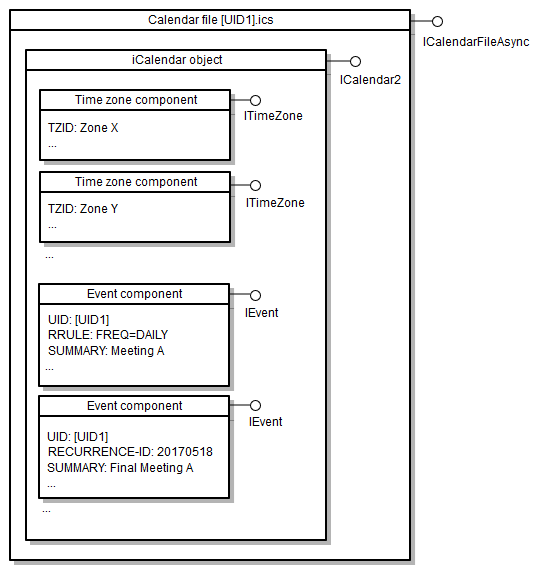
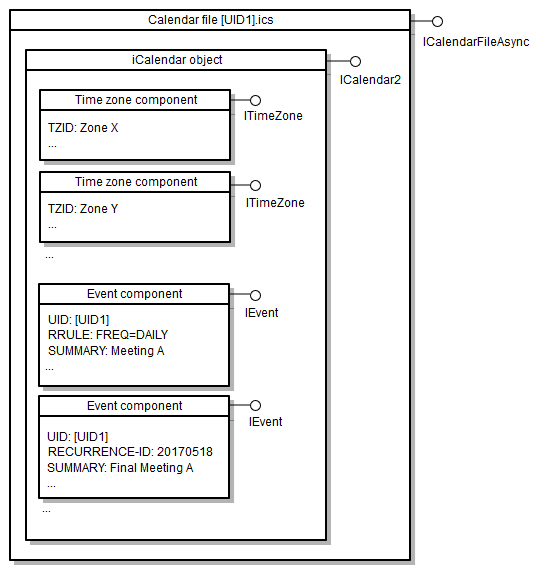
An iCal file is, at its heart, a way to share calendar data. But it's more than just dates and times. It’s a standardized file format – using the .ics extension – designed for exchanging calendaring information between different applications and systems. This includes details like event names, locations, descriptions, and even reminders.
Think of it as a universal translator for your schedule. It allows you to seamlessly move events from Google Calendar to Apple Calendar, or share availability with someone using Outlook, regardless of their preferred platform. The format itself is defined by the iCalendar standard, formally known as RFC 5545, a specification developed to ensure interoperability.
The iCalendar format hasn't changed much since the 1990s. That stability is why it works for everything from personal doctor appointments to public concert listings and Airbnb booking exports. It handles more than just time slots; it carries the metadata that keeps different apps in sync.
Apps that export iCal files
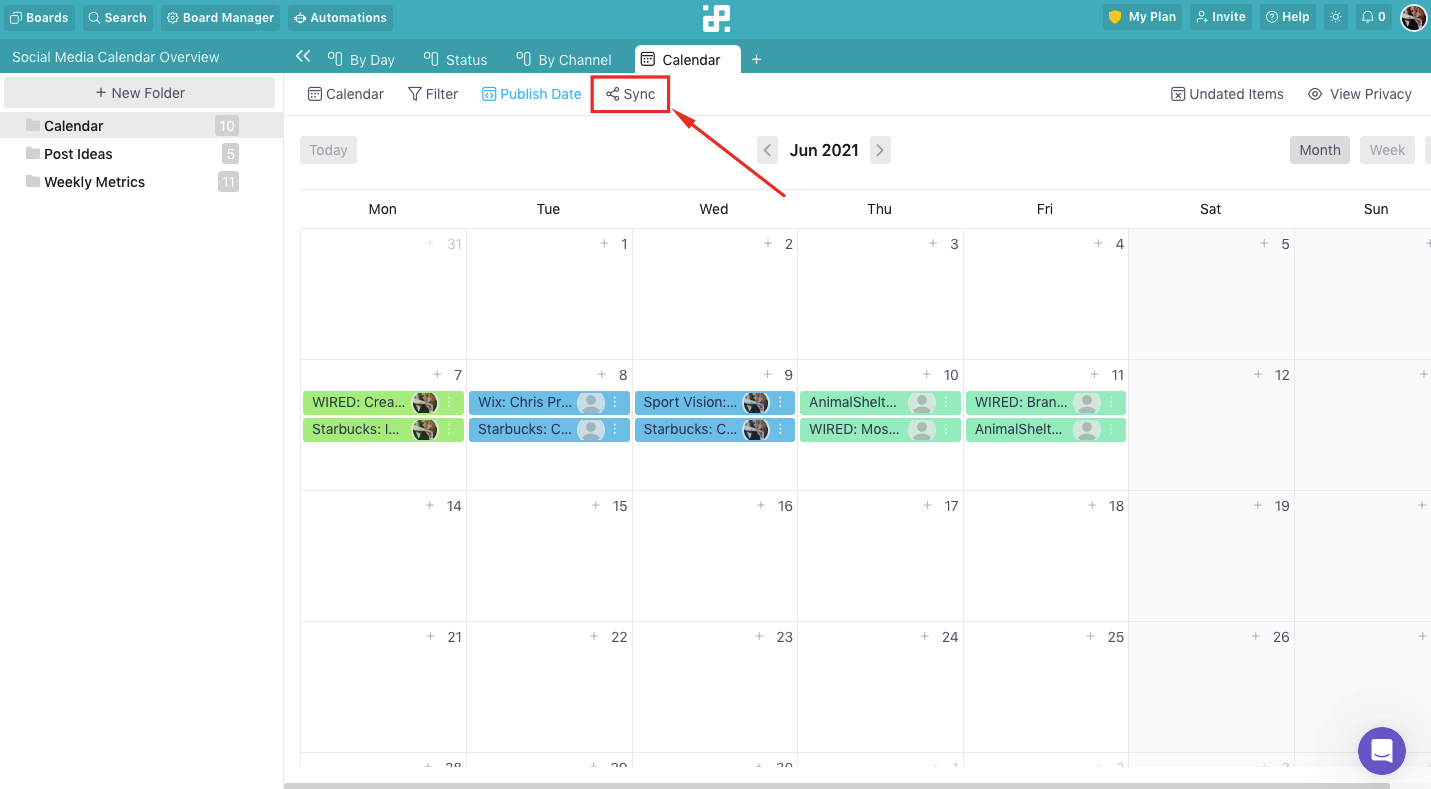
The beauty of iCal is its broad support. A huge number of applications can both read and write iCal files, making sharing information incredibly easy. Here's a rundown of over fifteen popular options, and a quick note on how to get your calendar out of them as an iCal file.
Google Calendar: Export by going to Settings > Import & export > Export. You’ll be given the option to export a specific calendar or all of them. Apple Calendar: File > Export > Export… allows you to select a calendar and save it as an .ics file. Outlook also has export capabilities, generally under File > Save Calendar.
Airbnb and VRBO both allow you to export your booking calendar as an iCal feed – useful for avoiding double-bookings. Any.do and Fantastical, popular task and calendar apps, both support iCal export. Microsoft Teams and Zoom, increasingly used for scheduling meetings, also allow exporting of meeting details as iCal files.
Here’s a more complete list: Doodle, Teamup, Cronofy, CalDAV servers, Nextcloud, Proton Calendar, TimeTree, Business Calendar 2, DigiCal Calendar Agenda, and even some project management tools like Asana and Trello (via integrations). Each app's process differs slightly, but the core principle remains the same: find the 'export' or 'download calendar' option within the settings.
How to import iCal files
Once you have the iCal file, getting it into your calendar is usually straightforward. The process is similar across most platforms. Let’s focus on Google Calendar, Apple Calendar, and Outlook, as these are the most commonly used.
Google Calendar: Click the + icon next to 'Other calendars' on the left sidebar. Select 'Import' and upload your .ics file. Choose which calendar to add the events to. Apple Calendar: File > Import… and select the .ics file. It will ask you which calendar to add the events to.
Outlook: In Calendar view, go to File > Open & Export > Import/Export. Choose 'Import an iCalendar (.ics) or vCalendar (.vcf) file'. Select the file and choose how you want to handle duplicates. You can also subscribe to an iCal feed – often provided by services like Airbnb – by copying the URL provided and pasting it into the 'Add calendar from URL' option in Google Calendar or similar functionality in other apps.
Subscribing is different from importing. An import creates a static copy of the events. A subscription dynamically updates your calendar whenever the source calendar changes. This is ideal for calendars that are frequently updated, like booking systems.
Fixing failed imports
Sometimes, an iCal import doesn't go as planned. There are a few common culprits. A corrupted file is a frequent issue; if the .ics file is damaged during download or transfer, it won’t import correctly. An incorrect format – while rare, sometimes files are mislabeled or not true .ics files – can also cause problems.
App limitations are another factor. Some calendar applications have size limits on imported files, or may not fully support all the features within the iCal file. Network issues can interrupt the import process, especially with larger files. Finally, character encoding errors can sometimes occur, particularly if the file contains special characters.
To troubleshoot, first try re-downloading the iCal file. Verify the file extension is actually .ics. If it’s a large file, try splitting it into smaller chunks if the application allows. Check your internet connection. Before importing, you can use a tool like Calendar Geek’s iCal viewer to inspect the file and identify any obvious errors. It’s also worth trying a different calendar application to see if the issue is specific to one platform.
Validating your data
Importing an iCal file is easy, but what about the quality of the data? A seemingly valid iCal file can still contain errors that cause problems down the line. That’s where iCal validation comes in. Validation ensures the file adheres to the iCalendar standard and doesn’t contain inconsistencies or invalid data.
Why is this important? Invalid dates, missing required fields, or improperly formatted event descriptions can cause events to display incorrectly, reminders to fail, or even crash your calendar application. It’s like building with faulty materials – it might look okay at first, but it’s likely to fall apart.
This is where Calendar Geek’s iCal viewer shines. It allows you to upload an iCal file and instantly checks it for common errors. It highlights invalid dates, missing properties, and other issues, providing a clear report of any problems. It’s a quick and easy way to ensure your calendar data is accurate and reliable.
Decoding iCal Properties: A Quick Reference
An iCal file isn’t just a jumble of text; it’s a structured document with specific properties that define its contents. Understanding these properties can be incredibly helpful for troubleshooting and understanding the data.
BEGIN and END mark the start and end of the file, or specific components within it. VEVENT defines an event, while VTIMEZONE specifies the time zone information. SUMMARY contains the event title, DTSTART is the start date and time, and DTEND is the end date and time.
UID (Unique Identifier) is a crucial property – it uniquely identifies each event. This is important for updates and synchronization. Other important properties include LOCATION, DESCRIPTION, ATTENDEE, and RRULE (for recurring events). While you don’t need to memorize all of these, knowing what they represent can give you a better understanding of how iCal files work.
Common iCal Properties
| Property Name | Description | Example Value |
|---|---|---|
| BEGIN | Indicates the start of an iCalendar component (e.g., VEVENT, VCALENDAR). | BEGIN:VCALENDAR |
| END | Indicates the end of an iCalendar component. | END:VEVENT |
| UID | Unique identifier for the calendar entry. Crucial for updates and avoiding duplicates. | 20240126T100000Z-1234567890@example.com |
| DTSTART | Specifies the start date and time of an event. Can include timezone information. | 20240229T140000Z |
| DTEND | Specifies the end date and time of an event. Also can include timezone information. | 20240229T150000Z |
| SUMMARY | A brief description or title of the event. | Team Meeting |
| LOCATION | The location where the event will take place. | Conference Room A |
| DESCRIPTION | A more detailed explanation of the event. | Discuss Q1 performance and plan for Q2. |
Illustrative comparison based on the article research brief. Verify current pricing, limits, and product details in the official docs before relying on it.
What is your biggest frustration when working with iCal files from different apps?
We are putting together resources to help you troubleshoot common iCal issues. Vote below and let us know where you struggle the most so we can focus on what matters to you!
No comments yet. Be the first to share your thoughts!