

Why connect Notion and Outlook?
Outlook is the standard for corporate meetings, but Notion is where most project planning actually happens. Getting them to work together is possible, though the connection isn't always seamless.
Outlook excels at email and calendaring within a corporate environment. It’s deeply integrated with Microsoft’s suite of tools. Notion, on the other hand, shines as a flexible workspace for notes, databases, and project management. Combining the two allows you to centralize your schedule with your broader work and life context. Think having meeting agendas and related project notes all linked directly from your calendar events.
The connection isn't perfect. Advanced features like shared resource scheduling or complex meeting requests often break. This setup is best if you just need to see your schedule in Notion while keeping the actual management inside Outlook.
Ultimately, the goal is a unified workspace. It’s about reducing context switching and having all the information you need in one place. If that resonates with you, then exploring the Outlook-Notion connection is definitely worthwhile. It requires a bit of setup, and potentially some ongoing maintenance, but the potential productivity gains can be significant.

How iCal works
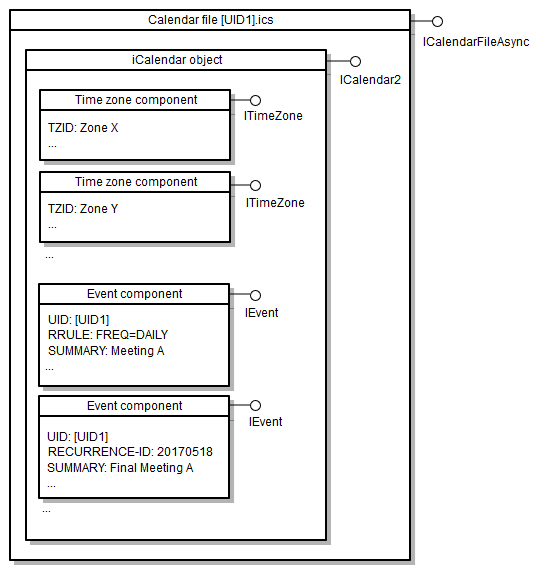
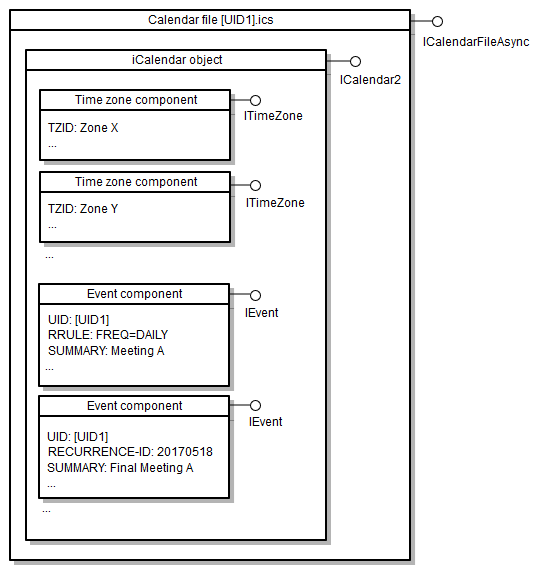
When we talk about importing and syncing calendars, we’re almost always talking about iCal. But what is iCal? It’s not just an Apple calendar app, although it originated there. iCal is actually a file format (.ics) and a protocol for exchanging calendaring information. It’s the standard way different calendar applications "talk" to each other.
Think of it like a universal translator for calendar data. Outlook can export its calendar events as an .ics file, and Notion can import that file. This works because both applications understand the iCal standard. The iCal format contains details like event titles, dates, times, locations, and descriptions. It's a surprisingly complex format, but the key is that it provides a structured way to represent calendar information.
However, iCal has limitations. It doesn’t handle all calendar features perfectly. Complex recurring events or certain types of attachments might not translate flawlessly. Also, be mindful of security when exporting iCal files. An .ics file contains your event details, so treat it like any sensitive document. Avoid sharing it publicly or with untrusted sources. While generally safe, it’s always good to be cautious.
Direct Import: The Simplest Approach
The most straightforward way to get your Outlook calendar into Notion is through a direct iCal import. This is a one-time snapshot, meaning changes made in Outlook after the export won’t automatically appear in Notion. Still, it’s a great starting point and ideal if you just need a historical record of past events in Notion.
Here’s how to do it: First, open Outlook and go to File > Open & Export > Import/Export. Choose 'Export to a file' and select 'Outlook Data File (.pst)' or 'Comma Separated Values' then select your calendar. Save the file as an .ics file. Next, in Notion, create a new database or open an existing one. Click on 'Import' and select 'iCalendar (.ics)'. Choose the .ics file you exported from Outlook.
You might encounter some issues. Time zone differences are a common culprit – make sure your time zone settings are consistent in both Outlook and Notion. Event formatting can also be problematic; some rich text or attachments might not render correctly. It's a good practice to review the imported events in Notion and make any necessary adjustments. I've found that simple text-based events transfer the most reliably.
This method is best for a one-time transfer of data. For ongoing synchronization, you’ll need to explore other options. Don't expect a perfect replica of your Outlook calendar within Notion, especially if you use a lot of complex event types. However, for a basic overview of your schedule, it’s a quick and easy solution.
- Open Outlook and go to File > Open & Export > Import/Export.
- Select 'Export to a file' and choose the .ics format.
- Save the file as an .ics file.
- In Notion, create a new database or open an existing one.
- Click on 'Import' and select 'iCalendar (.ics)'.
- Choose the .ics file you exported from Outlook.
Syncing tools for 2026
Keeping your Outlook and Notion calendars truly synchronized is more challenging. As of late 2026, there isn’t a native, seamless integration offered by either Notion or Microsoft. This means relying on third-party tools to bridge the gap. Several options exist, each with its own trade-offs.
Zapier is a popular choice. It allows you to create "Zaps’ that automatically transfer events between Outlook and Notion. You can configure it to sync events in one direction (e.g., Outlook to Notion) or both. However, Zapier"s free plan is limited, and ongoing synchronization can quickly consume your Zap quota. Paid plans start around $30 per month.
IFTTT (If This Then That) is another option, similar to Zapier. It’s generally more affordable, but also less powerful and flexible. It might be suitable for simple synchronization needs, but struggles with complex event types. The free tier is very limited, with paid plans starting around $6 per month. Newer services like Automate.io also offer similar functionality.
Smaller, specialized tools exist for this specific sync. They offer more features but often lack the reliability of larger platforms. Check the cost and setup complexity before paying for a subscription.
Syncing Services for Outlook to Notion Calendar Integration (2026)
| Service | Setup Complexity | Reliability | Feature Set | Best For |
|---|---|---|---|---|
| Zapier | Medium | Generally High | Basic event sync, some customizability with multi-step Zaps | Users needing broad app connectivity beyond just calendar sync. |
| IFTTT | Easy | Medium | Simple event triggers, limited customization | Basic, straightforward calendar syncing for personal use. |
| Automate.io | Medium | High | More advanced filtering and data mapping than IFTTT | Users requiring more complex workflows and data transformations. |
| Make (formerly Integromat) | Hard | High | Highly flexible visual workflow builder, advanced data handling | Power users needing granular control over their integration logic. |
| n8n | Hard | Medium | Open-source, node-based workflow editor, self-hosting option | Developers and technically proficient users wanting full control and customization. |
| Pipedream | Hard | Medium | Developer-focused, code-based workflows, event-driven automation | Engineers comfortable writing code for complex integrations. |
Qualitative comparison based on the article research brief. Confirm current product details in the official docs before making implementation choices.
Fixing common sync errors
Syncing calendars, as anyone who’s tried can attest, is rarely perfect. Expect to encounter issues. Missing events are common – double-check that your syncing service is properly configured and that there are no errors in its logs. Incorrect time zones are another frequent problem; ensure both Outlook and Notion are set to the same time zone.
Duplicate entries can occur if the sync process gets interrupted or if you have multiple sync rules configured. Most services offer options to prevent duplicates, but you might need to manually clean up any that slip through. Formatting errors, such as lost rich text or incorrect date formats, can also happen. This often depends on the specific syncing service and the complexity of the event.
To debug issues, start by checking the logs of your syncing service. These logs often provide valuable clues about what went wrong. Also, temporarily disable any other calendar integrations to isolate the problem. If you're still stuck, consult the documentation or support resources for your syncing service. I’ve found that restarting the syncing service or re-authenticating your accounts can sometimes resolve intermittent issues.
Don’t underestimate the importance of patience. Troubleshooting sync issues can be time-consuming, but with a systematic approach, you can usually get things working smoothly. Many services have support forums where you can find help from other users who have encountered similar problems.
- Check syncing service logs for errors.
- Verify time zone settings in both Outlook and Notion.
- Disable other calendar integrations temporarily.
- Restart the syncing service or re-authenticate accounts.
- Consult documentation or support resources.
Beyond Basic Events: Recurring Meetings & Reminders
Simple events usually sync without much trouble, but recurring meetings and reminders are a different story. How well do these methods handle complex calendar events? My experience is that Zapier handles recurring events relatively well, but there can still be occasional glitches. IFTTT struggles more with recurring events, often creating separate events for each instance instead of a true recurring series.
Reminders are often lost in translation. Many syncing services don’t support reminders at all, or they only sync them as simple notes. This is a significant limitation for those who rely heavily on reminders to stay on top of their schedule. It's important to test this specifically with your chosen service before relying on it.
I've found that the more complex the event, the more likely it is to encounter syncing issues. If you have a lot of recurring meetings with complex rules or reminders, you might be better off managing those events directly in Outlook and using Notion primarily for simpler appointments and tasks. It’s a trade-off between convenience and reliability.
I recommend testing a representative sample of your calendar events to see how they sync before committing to a particular solution. Pay close attention to recurring events and reminders to ensure they’re handled correctly. Don’t assume that everything will work perfectly – be prepared to make adjustments or find workarounds.
iCal Verification Steps
- Event Timing - Confirm event start and end times accurately reflect your Outlook calendar entries.
- Recurrence Patterns - Verify that repeating events (daily, weekly, monthly) are imported with the correct recurrence rules.
- Time Zone Accuracy - Ensure all events display in the correct time zone after import, especially if you travel or collaborate across time zones.
- Event Details - Check that event descriptions, locations, and any associated notes have transferred completely from Outlook to Notion.
- Reminders & Alerts - Validate that any alarms or reminders you set in Outlook are properly configured within Notion to notify you of upcoming events.
- Attendee Information - While direct attendee functionality may vary, confirm any listed attendees are accurately represented in the imported event details.
- All-Day Event Handling - Specifically review how all-day events are displayed in Notion; ensure they span the entire day as intended.
No comments yet. Be the first to share your thoughts!