

Inside an .ics file
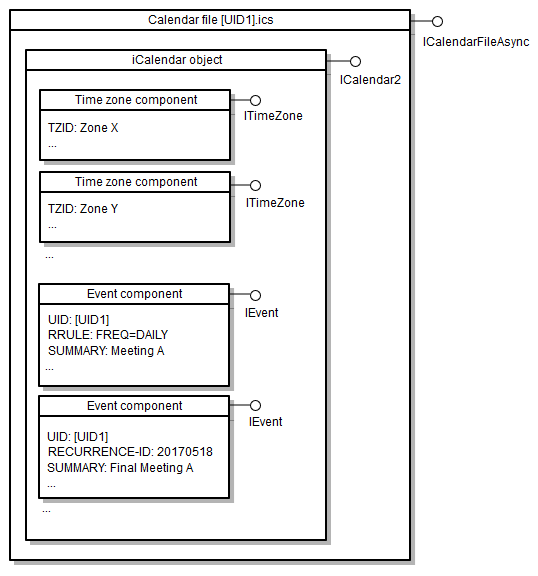
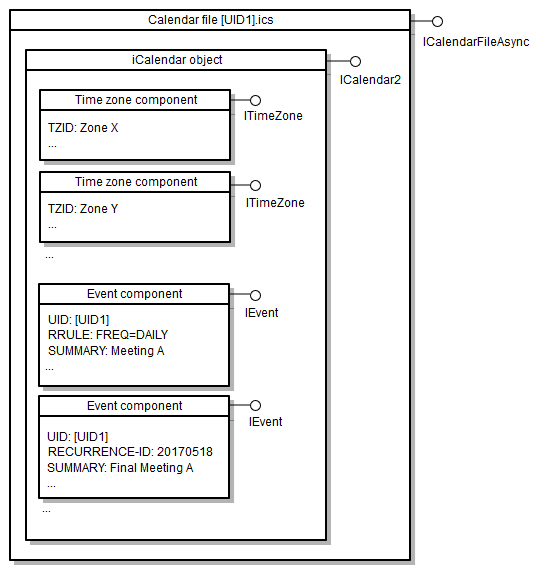
At its most basic, an iCal file – technically an .ics file – is a text file. It's a surprisingly simple way to store a lot of information about your schedule. Think of it like a digital recipe for your appointments, events, and to-do items. It doesn’t contain rich formatting like fonts or colors directly; instead, it uses codes to describe those attributes to the calendar application that opens it.
The data inside includes details like event titles, start and end times, locations, descriptions, and attendees. It can also handle recurring events, reminders, and timezones. What it doesn’t hold are things like attachments or complex multimedia elements. Those are usually handled separately, with the iCal file simply pointing to their location.
The iCal format has been around since the mid-1990s, originally developed by the Internet Engineering Task Force (IETF). Despite its age, it remains incredibly popular because it’s an open standard. This means anyone can create and interpret iCal files without needing proprietary software. It’s a universal language for calendars, which is why you’ll find it used everywhere from Google Calendar to Apple Calendar and beyond. The text-based nature is both a blessing and a curse; it's human-readable (to those who understand the format) and easily manipulated, but also prone to errors if not carefully constructed.
Common import errors
Importing an iCal file should be straightforward, but it’s surprisingly common to run into issues. One of the most frequent problems is a corrupted file. This can happen during download, transfer, or even simply from a faulty save. If the file is damaged, the calendar application may not be able to parse it correctly, leading to a partial or complete import failure.
Incorrect formatting is another major culprit. iCal files adhere to a specific structure, and even a small deviation from the standard can cause problems. This might involve missing required fields, incorrect date/time formats, or improperly formatted recurrence rules. Different calendar applications are also more or less forgiving. Google Calendar, for example, tends to be more lenient than Apple Calendar when it comes to minor formatting errors.
Unsupported features can also cause headaches. Some older iCal implementations don’t support all the features of the latest iCal standard. Complex recurring events, especially those with exceptions or multiple rules, are a common source of trouble. Similarly, certain alarm settings or custom properties may not be recognized by all applications. Large files can also be an issue. While there isn’t a strict file size limit, very large iCal files can sometimes overwhelm calendar applications, leading to import errors or performance issues.
You’ll also encounter timezone discrepancies. A misconfigured timezone in the iCal file, or a mismatch between the timezone in the file and the timezone setting in your calendar application, can result in events appearing at the wrong time. Sometimes the error isn't in the file at all. Your destination calendar might simply be at its event limit.
- Drop entire list
- Incorrect formatting
- Unsupported features
- Timezone discrepancies
- Overly large file
Fixing timezone shifts
Timezone problems are incredibly frustrating because they can subtly mess up your schedule without immediately being obvious. iCal files handle timezones using the VTIMEZONE component. This component defines a timezone’s name, offset from UTC, and rules for daylight saving time. The root of the problem often lies in missing or incorrect timezone definitions within the iCal file itself.
A common pitfall is using timezone abbreviations (like EST or PST) instead of standard timezone identifiers (like America/New_York or America/Los_Angeles). Abbreviations are ambiguous and can vary depending on location and time of year. Always use the standard identifiers to ensure accurate timezone interpretation. Daylight saving time transitions are another source of errors. The VTIMEZONE component needs to accurately reflect the DST rules for the specified timezone.
Different calendar applications interpret timezone information in slightly different ways. Some applications might automatically adjust event times based on your local timezone, while others might display events in the timezone specified in the iCal file. It's important to understand how your specific calendar application handles timezones and to ensure that the timezone settings in the application match the timezones used in your iCal files. When in doubt, explicitly set the timezone for each event in the iCal file to avoid ambiguity.
How recurrence rules work
Recurring events are powerful, but the iCal recurrence rule format (RRULE) can be daunting. It's essentially a mini-programming language for describing repeating patterns. The RRULE component defines how an event repeats, using a series of parameters to specify the frequency, interval, and other details.
Key parameters include FREQ, which specifies the frequency of the recurrence (e.g., YEARLY, MONTHLY, WEEKLY, DAILY); INTERVAL, which defines how often the event repeats within the specified frequency (e.g., every 2 weeks); COUNT, which limits the number of occurrences; and BYDAY, BYMONTH, and other parameters that further refine the recurrence pattern. For example, `RRULE:FREQ=MONTHLY;BYDAY=1SU` means the event repeats on the first Sunday of every month.
Import failures often happen because of errors in these rules. A common mistake is using invalid parameter values or incorrect syntax. For instance, a misspelled `BYDAY` value or a missing semicolon can break the rule. Complex recurrence rules, with multiple exceptions or nested parameters, are particularly prone to errors. It’s also possible for different calendar applications to interpret RRULE parameters slightly differently, leading to inconsistent behavior. A simple rule like `RRULE:FREQ=WEEKLY;COUNT=10` is less likely to cause problems than something like `RRULE:FREQ=MONTHLY;BYDAY=1SU;BYMONTH=1,3,5,7,9,11`.
Viewers and validation tools
When troubleshooting iCal import errors, a good first step is to inspect the file's contents. This is where iCal viewers and validation tools come in handy. These tools allow you to open an iCal file and view its data in a human-readable format, making it easier to identify potential problems. EmailShot’s free online iCal viewer (emailshot.io) is a quick and easy option – you simply drag and drop the file into your browser.
There are also desktop applications available. For a more in-depth analysis, consider using a dedicated iCal editor or validator. These tools often provide more detailed error messages and can help you pinpoint the exact location of errors in the file. Some viewers also offer the ability to export the iCal data in different formats, which can be useful for debugging.
Our own iCal viewer at Calendar Geek is designed to help you quickly identify and resolve common iCal import issues. It highlights potential errors and provides helpful tips for fixing them. When choosing a tool, look for features like syntax highlighting, error reporting, and the ability to validate the iCal file against the iCal standard. The goal is to find a tool that makes it easy to understand the structure of the iCal file and identify any inconsistencies or errors.
iCal Viewer Comparison - 2026
| Tool Name | Platform | Validation | Editing | Price |
|---|---|---|---|---|
| iCal Viewer by Calendar Geek | Online | Basic syntax check | Limited | Free |
| The iCalendar Conference Validator | Online | Comprehensive RFC compliance validation | No | Free |
| Online iCalendar Validator | Online | Checks for common errors | No | Free |
| icalendar.org validator | Online | Validates against iCalendar RFC | No | Free |
| Apple Calendar (iCal) | Desktop (macOS) | Automatic validation upon import | Full | Included with macOS |
| Microsoft Outlook | Desktop (Windows/macOS) | Validation during import and sync | Full | Part of Microsoft 365 subscription |
| Google Calendar | Online | Validation during import | Limited (event details can be edited) | Free (with Google account) |
Illustrative comparison based on the article research brief. Verify current pricing, limits, and product details in the official docs before relying on it.
Repairing corrupted files
Dealing with a corrupted iCal file is a frustrating experience. Sometimes, simply opening the file in a different text editor (like Notepad++ on Windows or TextEdit on Mac) can reveal hidden characters or formatting issues that are causing the problem. If that doesn’t work, you might try using a specialized file repair tool, but be cautious when choosing one – not all of them are trustworthy.
Another approach is to attempt to import the data into a new iCal file. You can do this by opening the corrupted file in a text editor, copying its contents, and then pasting them into a new, empty text file. Save the new file with a .ics extension and try importing it into your calendar application. This can sometimes strip out the corrupted data and allow you to recover at least some of the events.
However, it’s important to be realistic. Some corrupted files are beyond repair. If you’ve tried multiple approaches and the file still won’t import, the data may be lost. This is why it’s crucial to take preventative measures, such as regularly backing up your calendar data and avoiding transferring iCal files over unreliable connections. A good rule of thumb is to treat iCal files with the same care you would any important document.
Syncing vs. importing
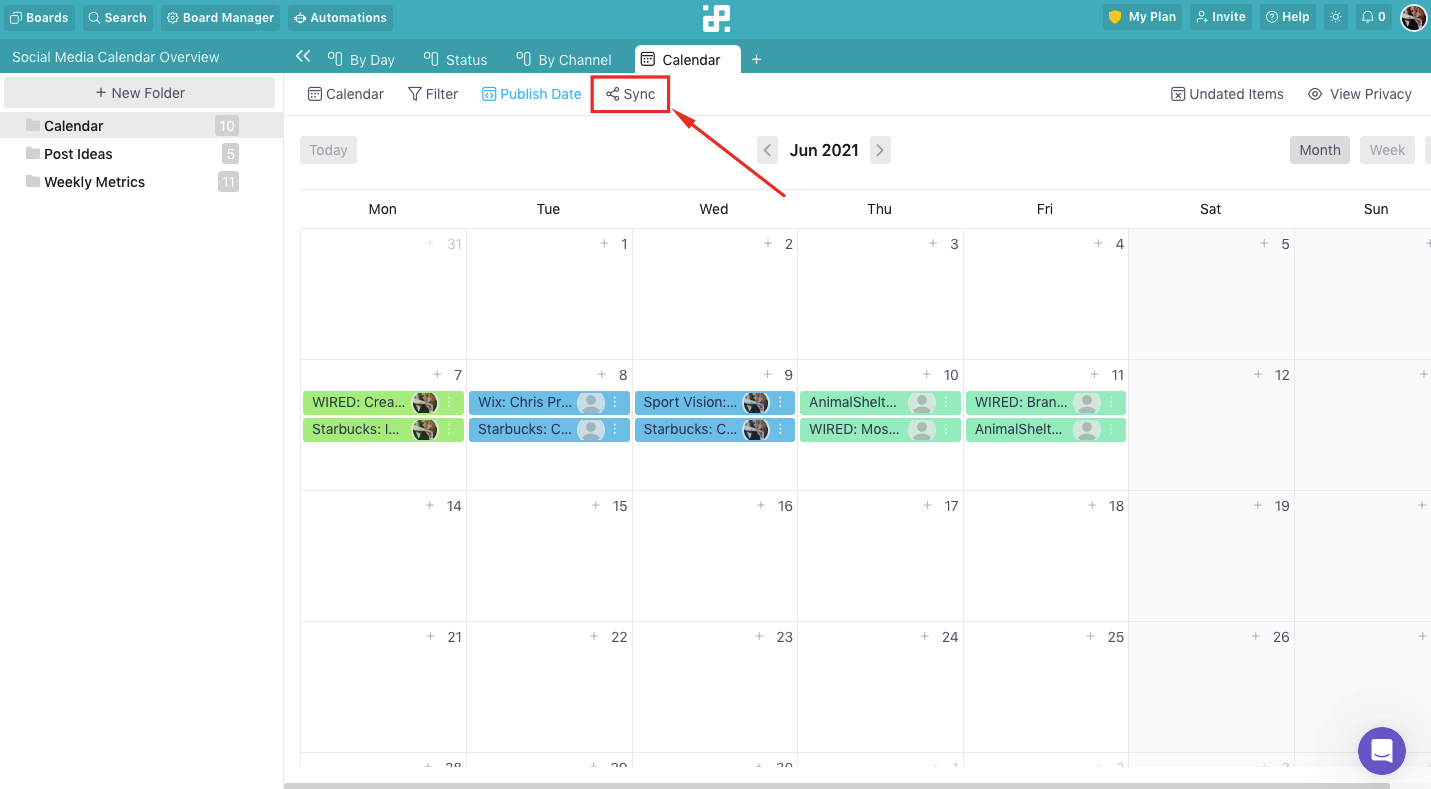
While iCal remains a widely used format, it’s important to understand its limitations in the context of modern calendar syncing. iCal is primarily a transport format – a way to exchange calendar data between applications. It’s not a syncing protocol itself. Services like Google Calendar and Apple Calendar use more sophisticated protocols, such as CalDAV, to synchronize calendars in real-time.
When you import an iCal file into Google Calendar or Apple Calendar, the application typically parses the data and creates new events in your calendar. Subsequent changes made in the calendar application are not automatically reflected back in the iCal file. This means that iCal is often used for one-time imports or for sharing calendars with users who don’t have access to the same syncing infrastructure.
Modern calendar services often handle iCal imports as a way to add events from external sources. For example, you might subscribe to a public iCal feed to receive updates about a sports schedule or a conference agenda. However, the syncing is typically handled by the calendar service itself, not by directly manipulating the iCal file. The iCal file is the initial source of data, but other protocols manage the ongoing synchronization.
No comments yet. Be the first to share your thoughts!