

Get calendar syncing right
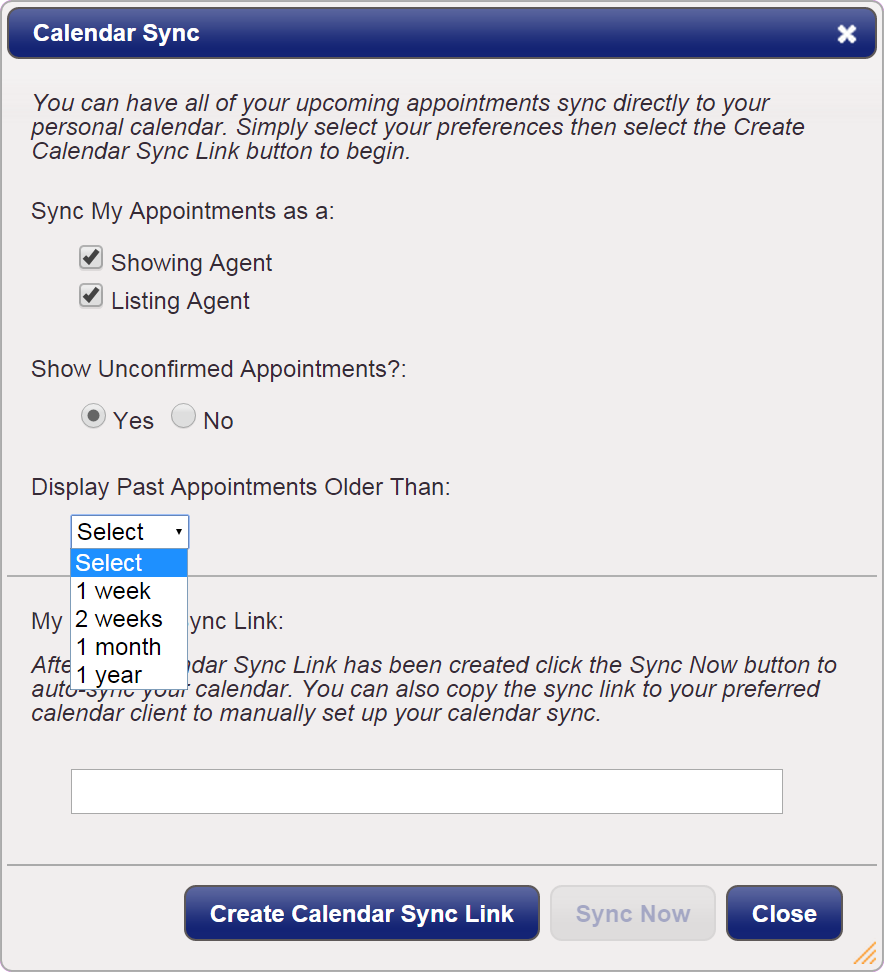
Before connecting iCal, Google, and Outlook, verify that each service is configured for direct syncing. True syncing duplicates events across all calendars, ensuring they remain identical on every device. This differs from sharing or importing, where changes in one location do not automatically update the other.
Start by confirming you are using the same account credentials on all devices. For iCloud, open the Calendar app and select View > Show Calendar List to ensure iCloud calendars are checked and visible. On Android or Windows, download the official Google Calendar app and sign in with your primary Google account. Outlook users should verify that the Exchange or IMAP account is active in the Mail and Calendar settings.
Check your sync frequency settings. Most modern apps default to real-time synchronization, but battery-saving modes can delay updates. Ensure that background app refresh or data saver modes are not restricting calendar access. Once accounts are linked, create a test event on one device and confirm it appears on the others within a few minutes. If delays occur, manually trigger a sync or restart the app to force a connection refresh.
Work through the steps
The to Cross-Platform Calendar Syncing works best as a clear sequence: define the constraint, compare the realistic options, test the tradeoff, and choose the path with the fewest hidden costs. That order keeps the advice usable instead of decorative. After each step, pause long enough to check whether the recommendation still fits the reader's actual situation. If it depends on perfect timing, unusual access, or a best-case budget, include a simpler fallback.
Fix common mistakes
Even with the right apps installed, cross-platform calendar syncing often breaks due to simple configuration errors. Most users confuse calendar sharing with actual syncing. Sharing allows you to view someone else’s schedule, but it does not create a two-way bridge for your own events. True syncing means events are duplicated and updated across all calendars, making them identical on every device. If you only import a calendar, changes made on one end will never reflect on the other.
Another frequent error involves conflicting time zones. When moving between platforms like Google Calendar and Outlook, setting the wrong default time zone can shift your entire schedule by hours. Always verify that the primary time zone in your account settings matches your local time, not the server’s location. Additionally, check for duplicate event creation. If you have enabled sync on multiple devices without verifying the source of truth, you may end up with multiple copies of the same meeting, cluttering your view and causing confusion.
Calendar syncing: what to check next
Before you commit to a syncing method, it helps to understand the limits of each platform and what "sync" actually means in practice. Many users confuse sharing a calendar with true two-way synchronization, which can lead to duplicate events or lost data when switching devices.
Understanding these distinctions prevents the common pitfall of assuming that adding an account automatically merges all schedules. Always verify that the correct calendars are selected in your view settings to avoid clutter or missed appointments.
No comments yet. Be the first to share your thoughts!