

Get calendar syncing right
Before you start connecting accounts, clarify what you need. True syncing means events update on both ends. If you only share a calendar, changes stay local to one device. For most users, syncing is the only way to avoid double-booking yourself across iPhone, Android, and desktop.
Start by picking your primary calendar platform. Google, Microsoft, and Apple each handle syncing differently. Stick to one main provider for your core schedule. Add secondary accounts only when necessary. This reduces conflict errors and keeps your data consistent.
Check your internet connection and permissions. Calendar apps need constant access to update in real time. Disable any aggressive battery savers that might block background sync. Verify that your account settings allow third-party access if you use external tools. A stable connection and correct permissions are the foundation of reliable syncing.
Work through the steps
Calendar syncing connects your booking tool to platforms like Google Calendar, Microsoft Outlook, or Apple iCloud. This keeps free and busy times accurate across devices. When an event changes, your public availability updates without copying meetings by hand. Follow these steps to link your accounts correctly.
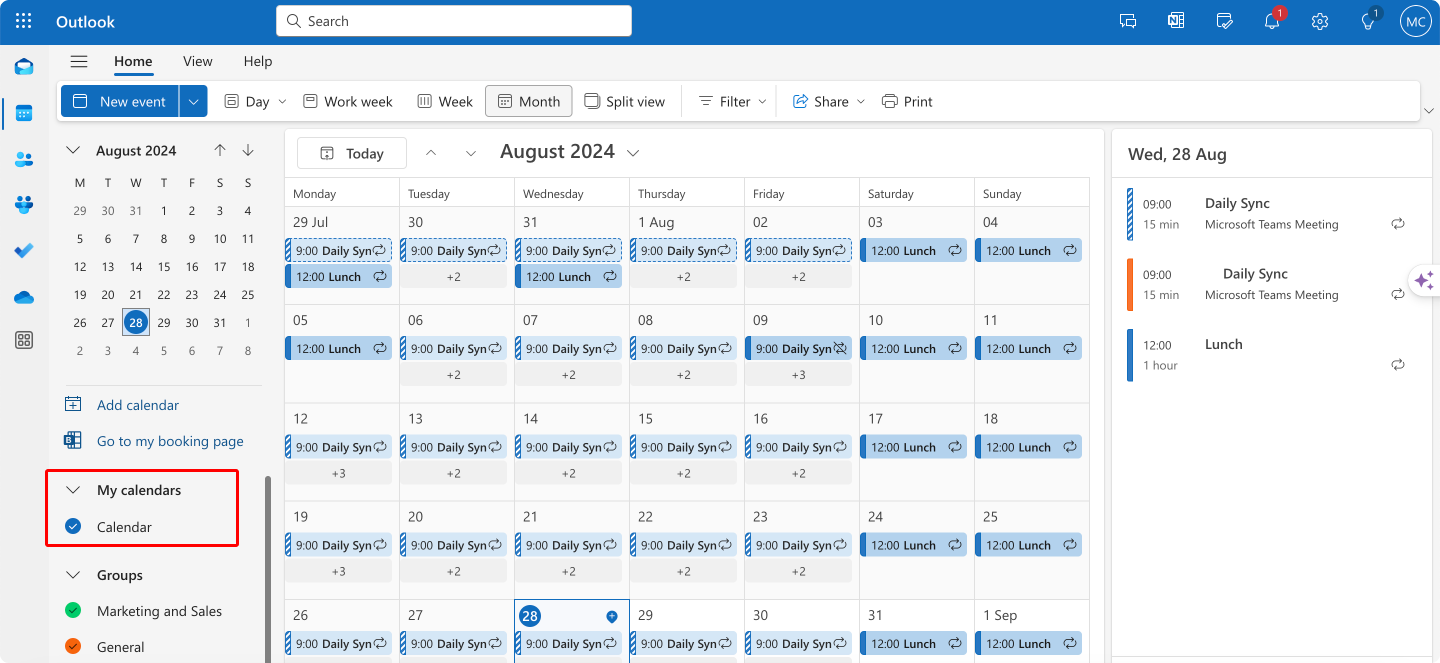
Start by identifying the calendar you use most often. Whether it is Google Calendar for work or iCloud for personal use, this becomes your source of truth. Choose the platform that holds your most frequently updated events. This decision determines which account needs the initial connection credentials.
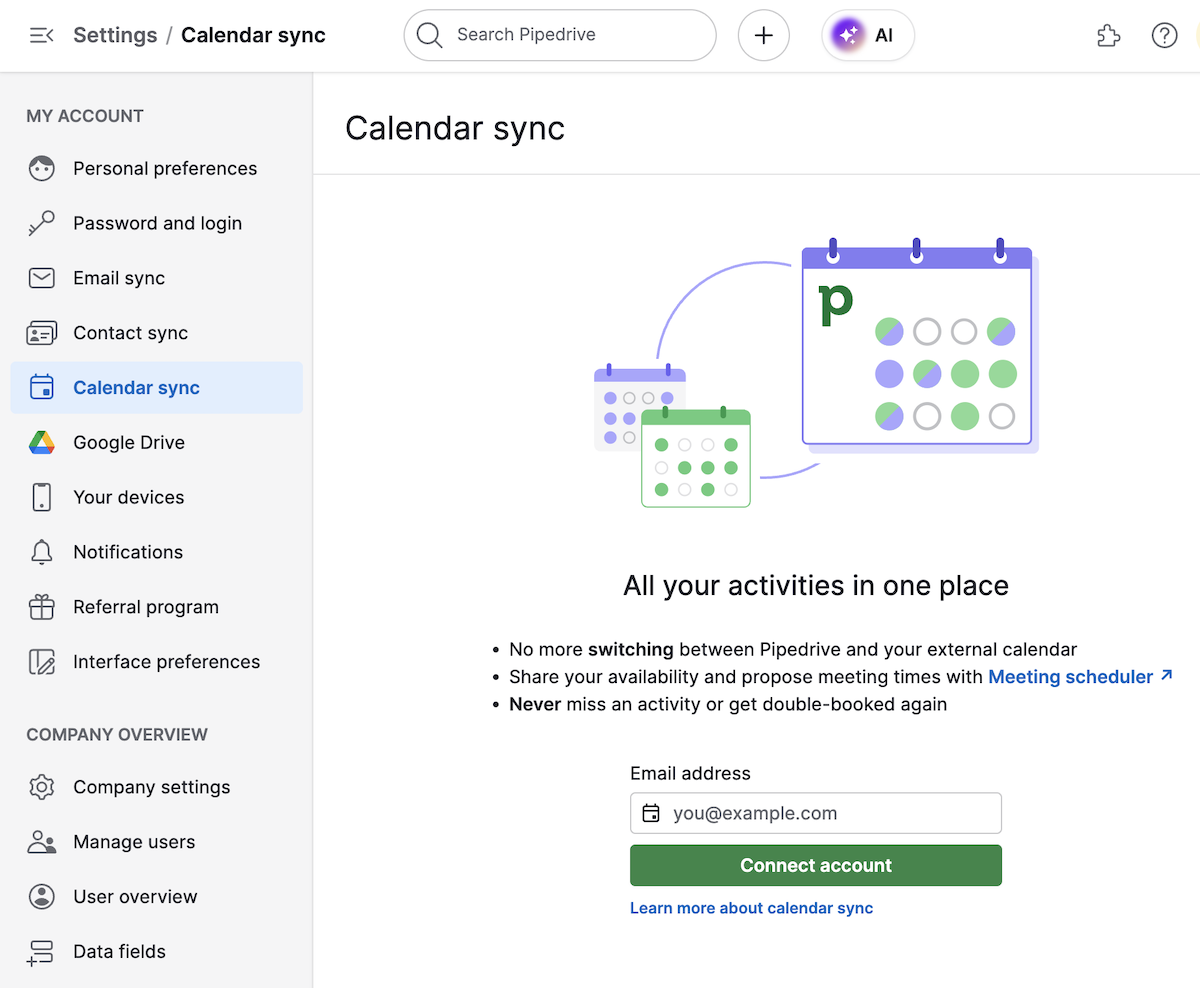
Navigate to your primary calendar’s settings. Look for the sharing or integration section. You must grant permission for external tools to read or write events. Without this explicit permission, the sync connection will fail immediately. Ensure you select the correct calendar if you have multiple private schedules.
Log into your secondary platform. Enter the credentials from your primary source. Most services use OAuth, which redirects you to a secure login page. Approve the access request when prompted. This establishes the two-way bridge that allows data to flow between the systems.
Create a test event with a unique title. Check both platforms within a few minutes. The event should appear on both calendars with the same time zone and details. If it does not appear, check your time zone settings. Mismatched time zones are the most common cause of silent sync failures.
-
Identify primary calendar source
-
Enable sharing permissions in source
-
Connect secondary platform credentials
-
Verify test event duplication
Common calendar syncing mistakes
Even with reliable tools, syncing errors happen when settings conflict or permissions are misconfigured. These mistakes usually stem from how calendars are shared versus how they are truly synced. Understanding the difference prevents duplicate events and missed updates.
Confusing sharing with syncing Sharing a calendar lets others view your schedule, but it does not merge events into your main view. True syncing duplicates events across all connected calendars, keeping them identical on every device. If you only share, changes made on one platform won’t reflect in your personal schedule. Always check if the integration supports two-way sync, not just read-only access.
Overlapping time zones Most syncing errors involve time zone mismatches. If your phone is set to Pacific Time but your work calendar uses Eastern Time, events will appear at the wrong hour. This is especially common when traveling or collaborating across regions. Verify that both the source and destination calendars use the same time zone setting, or enable automatic time zone detection.
Ignoring permission settings Syncing requires specific permissions to read and write events. If you revoke access or change account passwords, the sync breaks silently. Check your account security settings regularly to ensure third-party apps retain the necessary permissions. Re-authorize connections if you suspect a sync failure due to authentication issues.
Using outdated apps Older versions of calendar apps may not support modern sync protocols like CalDAV or iCal. This leads to partial updates or complete sync failures. Keep your calendar apps and operating systems updated to ensure compatibility with the latest sync standards.
Calendar syncing: what to check next
Before committing to a sync strategy, it helps to understand the mechanics behind the connection. Calendar syncing is the ongoing process of linking your booking tool to platforms like Google Calendar, Microsoft Outlook, or Apple iCloud. This ensures free and busy times stay accurate across all devices.
When an event changes, your public availability updates automatically without manual copying. True syncing means events are duplicated across all calendars, making them identical. This differs from sharing or importing, where changes in one location do not reflect in the other.
No comments yet. Be the first to share your thoughts!