
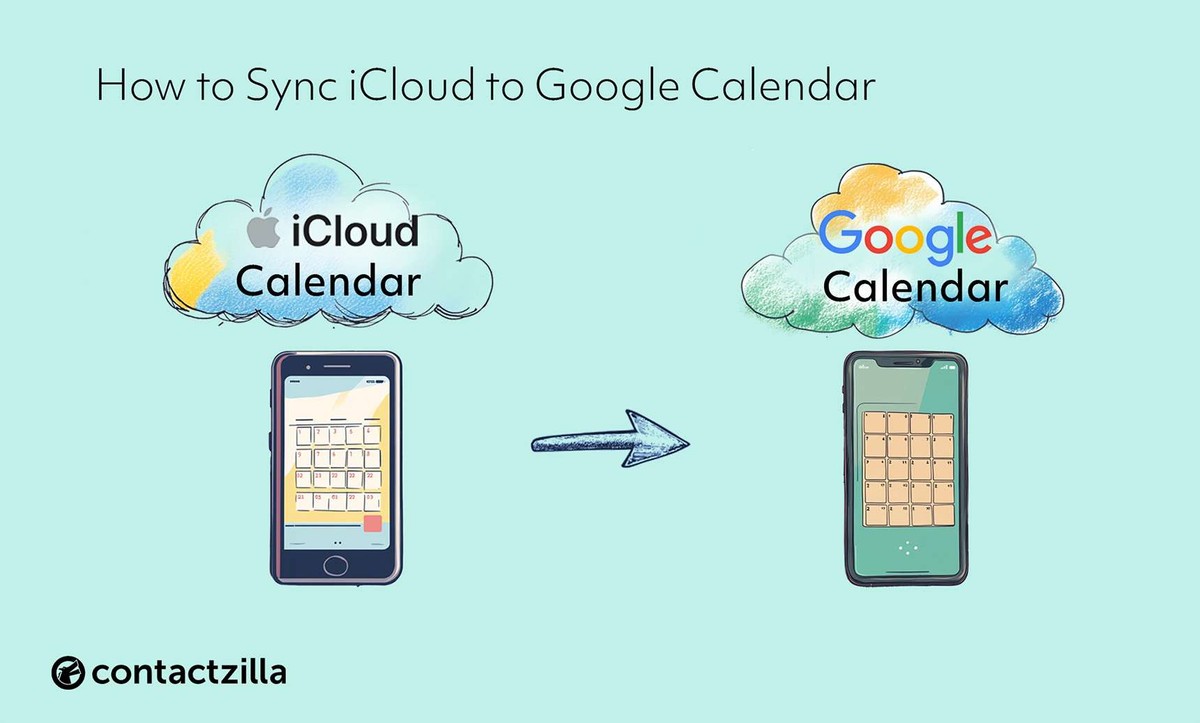
Understanding Cross-Platform Calendar Syncing in 2024
In today's interconnected world, managing calendars across multiple devices and platforms has become essential for maintaining productivity and organization. Whether you're switching between an iPhone for personal use, an Android tablet for work, or a Windows desktop for comprehensive planning, seamless calendar synchronization ensures you never miss an important appointment or deadline.
Cross-platform calendar syncing refers to the process of keeping your calendar events, appointments, and reminders synchronized across different operating systems and devices in real-time. This means that when you add a meeting on your iPhone, it automatically appears on your Android device and desktop computer within minutes.
Cross-Platform Calendar Sync Compatibility Matrix 2024
| Calendar Platform | iPhone Sync Method | Android Sync Method | Desktop Sync Method | Real-Time Sync Speed |
|---|---|---|---|---|
| Google Calendar | Native iOS app or Settings integration | Pre-installed Gmail app | Web browser or desktop client | 1-3 minutes |
| Apple iCloud Calendar | Native Calendar app | Third-party apps or web access | iCloud.com or Outlook integration | 2-5 minutes |
| Microsoft Outlook | Outlook iOS app | Outlook Android app | Outlook desktop client or web | 1-2 minutes |
| Yahoo Calendar | Yahoo Mail app or CalDAV | Yahoo Mail app | Web browser access | 3-5 minutes |
| Calendly | Web browser or mobile app | Web browser or mobile app | Web browser integration | 5-10 minutes |
| Fantastical | Native iOS app | Not available | macOS desktop app | 2-4 minutes |
Why Cross-Platform Calendar Management Matters
The modern professional landscape demands flexibility in device usage. According to recent studies, the average knowledge worker uses at least three different devices throughout their workday. Without proper calendar syncing, this multi-device environment can lead to scheduling conflicts, missed appointments, and decreased productivity.
Effective calendar management across platforms offers several key benefits:
- Universal Access: Your schedule is available wherever you are, regardless of which device you're using
- Real-time Updates: Changes made on one device instantly reflect across all connected platforms
- Reduced Scheduling Conflicts: Centralized calendar data prevents double-booking and scheduling errors
- Enhanced Collaboration: Shared calendars work seamlessly across different team members' preferred devices
- Backup Security: Multiple sync points ensure your calendar data is never lost
Current State of Calendar Platforms in 2024
The calendar syncing landscape has evolved significantly, with major improvements in cross-platform compatibility. Google Calendar continues to dominate as the most versatile solution, offering native support across iOS, Android, and all major desktop platforms. Apple's iCloud Calendar has expanded its reach beyond the Apple ecosystem, while Microsoft Outlook has strengthened its integration capabilities.
Cloud-based synchronization has become the standard approach, utilizing internet connectivity to maintain consistency across devices. This method ensures that your calendar data is stored centrally and accessed by each device, rather than attempting to sync directly between devices.
Key Challenges in Calendar Syncing
Despite technological advances, several challenges persist in cross-platform calendar management:
- Platform-Specific Features: Some calendar features may not translate perfectly across different operating systems
- Sync Delays: Network connectivity issues can cause temporary delays in synchronization
- Account Management: Managing multiple accounts across platforms requires careful configuration
- Privacy Concerns: Storing calendar data in cloud services raises security considerations for sensitive information
- Integration Complexity: Setting up comprehensive syncing often requires multiple steps across different platforms
Essential Components for Successful Syncing
To achieve reliable calendar synchronization across iPhone, Android, and desktop platforms, several fundamental components must be in place. First, a stable internet connection is crucial, as modern calendar syncing relies on cloud-based services to maintain data consistency.
Account management forms the backbone of cross-platform syncing. You'll need to decide on a primary calendar service that will serve as your central hub. Popular options include Google Calendar, iCloud Calendar, Microsoft Outlook, or specialized business solutions like Office 365.
Calendar Sync Compatibility and Setup Complexity Across Platforms (2024)
| Calendar Service | iPhone Support | Android Support | Desktop Support | Setup Complexity |
|---|---|---|---|---|
| Google Calendar | Native app + Settings integration | Pre-installed on most devices | Web browser + desktop apps | Easy |
| iCloud Calendar | Built-in Calendar app | Third-party apps or web access | macOS Calendar app + Windows iCloud | Easy for Apple users |
| Microsoft Outlook | Outlook app + native integration | Outlook app + Exchange sync | Outlook desktop + web client | Moderate |
| Office 365 | Outlook app + Exchange setup | Outlook app + corporate sync | Full Outlook suite integration | Moderate to Complex |
| Yahoo Calendar | Third-party apps or web | Yahoo Mail app integration | Web browser access only | Moderate |
| CalDAV Services | Manual server configuration | Third-party CalDAV apps | Thunderbird or specialized clients | Complex |
| Exchange Server | Native Mail app setup | Built-in Exchange support | Outlook desktop client | Complex |
The choice of your primary calendar platform will significantly impact your syncing experience. Google Calendar offers the broadest compatibility, working natively with Android devices while providing excellent support for iOS and desktop platforms. iCloud Calendar excels within the Apple ecosystem but requires additional configuration for Android and Windows devices.
Understanding the synchronization frequency is also important. Most modern calendar services sync changes within 5-15 minutes, though some offer near-instantaneous updates. This timing can vary based on your internet connection, device settings, and the specific calendar platform you're using.
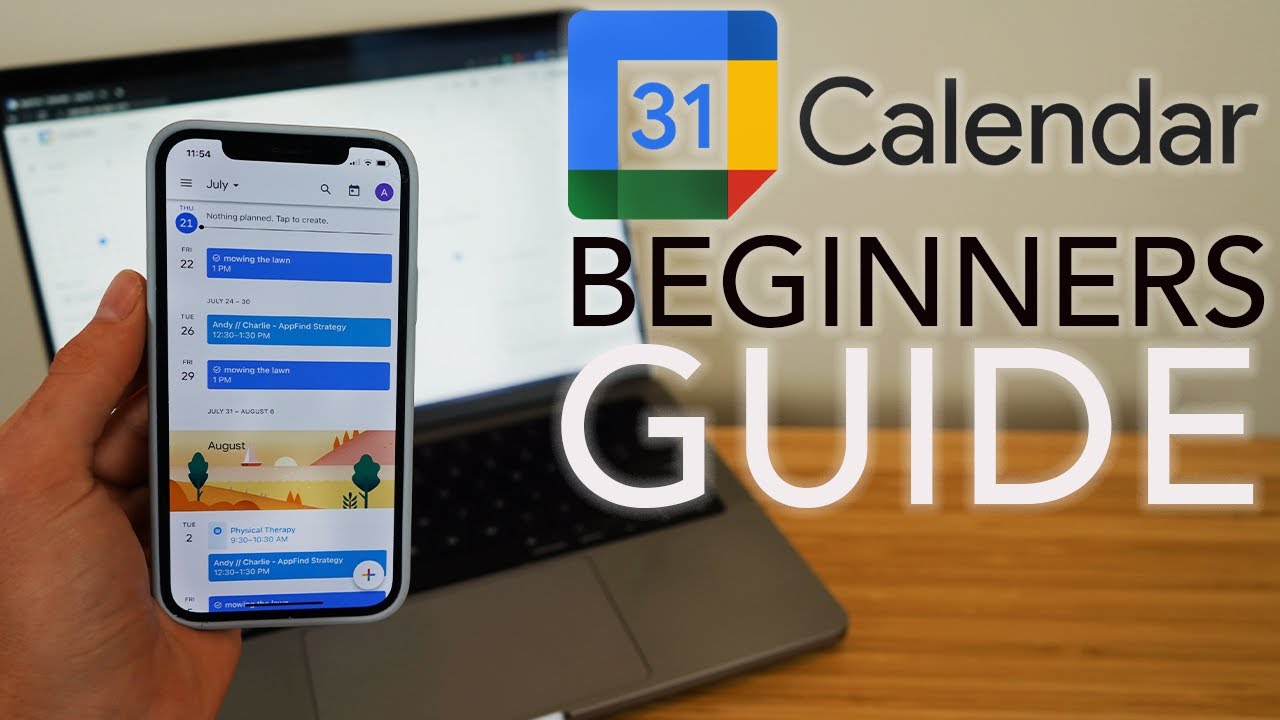
As we move forward in this guide, we'll explore specific implementation strategies for each major platform combination, providing detailed instructions for setting up robust calendar syncing that works reliably across your entire device ecosystem.
Setting Up Cross-Platform Calendar Syncing: Step-by-Step Methods
Now that we understand the fundamentals of cross-platform calendar syncing, let's dive into the practical implementation. This section provides comprehensive methods to establish seamless calendar synchronization across your iPhone, Android, and desktop devices using the most reliable platforms available in 2024.
Method 1: Google Calendar as Your Universal Hub
Google Calendar remains the most versatile solution for cross-platform calendar management due to its native integration capabilities across all major operating systems and devices.
The beauty of using Google Calendar lies in its real-time synchronization capabilities. When you create an event on your iPhone, it instantly appears on your Android device and desktop calendar application. This method supports multiple calendar layers, allowing you to separate work, personal, and shared calendars while maintaining unified access.
Method 2: iCloud Calendar Integration for Mixed Ecosystems
While iCloud Calendar is primarily designed for Apple devices, it can be effectively integrated into Android and Windows environments with proper configuration.
This approach is particularly beneficial for users heavily invested in the Apple ecosystem who occasionally need Android or Windows access. The integration maintains Apple's security standards while providing necessary cross-platform functionality.
Platform Compatibility and Feature Comparison
Understanding the capabilities and limitations of different calendar platforms helps you make informed decisions about your syncing strategy.
Cross-Platform Calendar Sync Compatibility and Features Comparison 2024
| Platform | iPhone Support | Android Support | Desktop Support | Real-time Sync |
|---|---|---|---|---|
| Google Calendar | Native app + Settings integration | Pre-installed on most devices | Web browser + desktop apps | Instant |
| Apple iCloud Calendar | Native integration | Third-party apps required | Web browser + macOS Calendar | Near-instant |
| Microsoft Outlook | Outlook app + Mail settings | Outlook app + Exchange setup | Outlook desktop + web | Within 15 minutes |
| Yahoo Calendar | Mail app integration | Yahoo Mail app | Web browser only | 5-10 minutes |
| CalDAV Protocol | Settings > Calendar > Add Account | Calendar app sync settings | Thunderbird + other clients | 1-5 minutes |
| Exchange ActiveSync | Settings > Mail > Exchange | Built-in Exchange support | Outlook + other email clients | Near-instant |
Each platform offers unique advantages depending on your specific needs. Google Calendar excels in collaboration features and third-party integrations, while iCloud provides superior privacy controls and seamless Apple device integration. Microsoft Outlook offers robust business features and excellent Exchange server compatibility.
Advanced Syncing Configurations
For users requiring more sophisticated calendar management, advanced configurations can optimize your syncing experience across platforms.
These advanced settings allow you to customize sync frequency, manage bandwidth usage, and resolve conflicts when the same event is modified on multiple devices simultaneously. Understanding these options ensures reliable calendar performance regardless of your usage patterns.
Essential Pre-Sync Checklist
Before implementing any cross-platform calendar syncing solution, completing this checklist ensures smooth setup and prevents common synchronization issues.
Proper preparation significantly reduces the likelihood of data loss or sync conflicts during the initial setup process. This checklist covers critical steps often overlooked by users eager to begin syncing immediately.
Visual Setup Guide
The following visual guide illustrates the key steps for establishing successful cross-platform calendar syncing, highlighting critical decision points and common pitfalls to avoid.
This flowchart serves as a quick reference during setup, helping you navigate platform-specific requirements and choose the most appropriate syncing method for your device combination.
Real-World Syncing Scenarios
Understanding how different syncing methods perform in practical situations helps you anticipate and resolve potential challenges before they impact your schedule management.
These real-world examples demonstrate how events, reminders, and calendar sharing appear across different platforms, helping you verify successful synchronization and identify any formatting or feature limitations.
Troubleshooting Common Sync Issues
Even with proper setup, calendar syncing can encounter occasional issues. Understanding common problems and their solutions ensures minimal disruption to your schedule management.
These troubleshooting steps address the most frequently encountered syncing problems, from delayed updates to missing events. Having these solutions readily available helps maintain consistent calendar functionality across all your devices.
Advanced Calendar Management and Troubleshooting
While setting up cross-platform calendar syncing is the foundation, mastering advanced calendar management techniques and resolving common issues ensures your syncing calendars system remains reliable and efficient. This final section covers optimization strategies, troubleshooting methods, and best practices for maintaining seamless calendar platforms integration.
Optimizing Your Calendar Syncing Performance
Effective calendar management goes beyond basic setup. To maximize the efficiency of your calendar syncing guide implementation, consider these advanced optimization techniques that enhance synchronization speed and reliability across all your devices.
Regular maintenance of your calendar platforms is crucial for optimal performance. Clear cache data monthly on Android devices by navigating to Settings > Apps > Calendar > Storage > Clear Cache. On iOS devices, restart the Calendar app periodically to refresh connections. Desktop applications benefit from regular updates and occasional account re-authentication to maintain secure connections.
Comprehensive Troubleshooting Guide
When syncing calendars encounters issues, systematic troubleshooting can resolve most problems quickly. The most common synchronization failures stem from network connectivity issues, account authentication problems, or conflicting calendar settings across platforms.
Network-related sync issues often manifest as delayed updates or missing events. Verify your internet connection stability and check if your calendar service provider is experiencing outages. For persistent connectivity problems, try switching between Wi-Fi and cellular data to identify network-specific issues.
Authentication errors typically occur when passwords change or two-factor authentication settings are modified. Re-authenticate your accounts by removing and re-adding them to your calendar applications. This process refreshes security tokens and resolves most authorization-related sync failures.
Managing Multiple Calendar Accounts Effectively
Professional users often manage multiple calendar accounts across different services. Effective manage calendars strategies involve organizing these accounts hierarchically and establishing clear naming conventions for easy identification.
Color-coding systems enhance visual organization when managing multiple calendar sources. Assign consistent colors across all platforms: use blue for work-related events, green for personal appointments, and red for urgent deadlines. This visual consistency improves productivity and reduces scheduling conflicts.
Security and Privacy Best Practices
Protecting sensitive calendar information requires implementing robust security measures across all syncing calendars platforms. Enable two-factor authentication on all calendar accounts and regularly review sharing permissions to prevent unauthorized access.
Privacy settings deserve special attention when using cloud-based calendar platforms. Review and adjust sharing settings quarterly, removing access for former colleagues or unused applications. Consider using separate calendar accounts for highly sensitive information that requires additional security layers.
Future-Proofing Your Calendar Setup
Calendar technology continues evolving, with artificial intelligence and machine learning enhancing scheduling capabilities. Stay informed about updates to your chosen calendar platforms and be prepared to adapt your syncing strategies as new features become available.
Regular backup procedures protect against data loss during platform transitions or technical failures. Export calendar data monthly and store backups in multiple locations. Most calendar services offer export functionality through their web interfaces, creating ICS files compatible with various calendar applications.
Measuring Success and Optimization
Evaluate your calendar management effectiveness by tracking key metrics such as sync reliability, scheduling conflicts, and time spent on calendar maintenance. Successful cross-platform calendar syncing should reduce these administrative tasks while improving schedule accuracy.
Monitor sync performance by checking timestamp accuracy across devices and noting any delays in event propagation. Optimal systems should synchronize changes within minutes across all connected platforms. If sync delays exceed five minutes consistently, investigate network settings or consider alternative calendar platforms.
By implementing these advanced calendar management strategies and maintaining vigilant oversight of your syncing systems, you can achieve reliable, efficient calendar synchronization that adapts to your evolving needs while maintaining security and performance standards across all your devices and platforms.
No comments yet. Be the first to share your thoughts!