
Set up your calendar accounts
Calendar Geek works best as a sequence, not a scramble through settings. Do the minimum first: confirm compatibility, connect the core hardware, update only when needed, and test the result before adding optional features. That order keeps the task understandable and makes failures easier to isolate. After each step, pause long enough for the interface to finish syncing. Many setup problems are timing problems disguised as configuration problems. If the same step fails twice, record the exact error, restart the smallest affected piece, and retry before moving deeper.
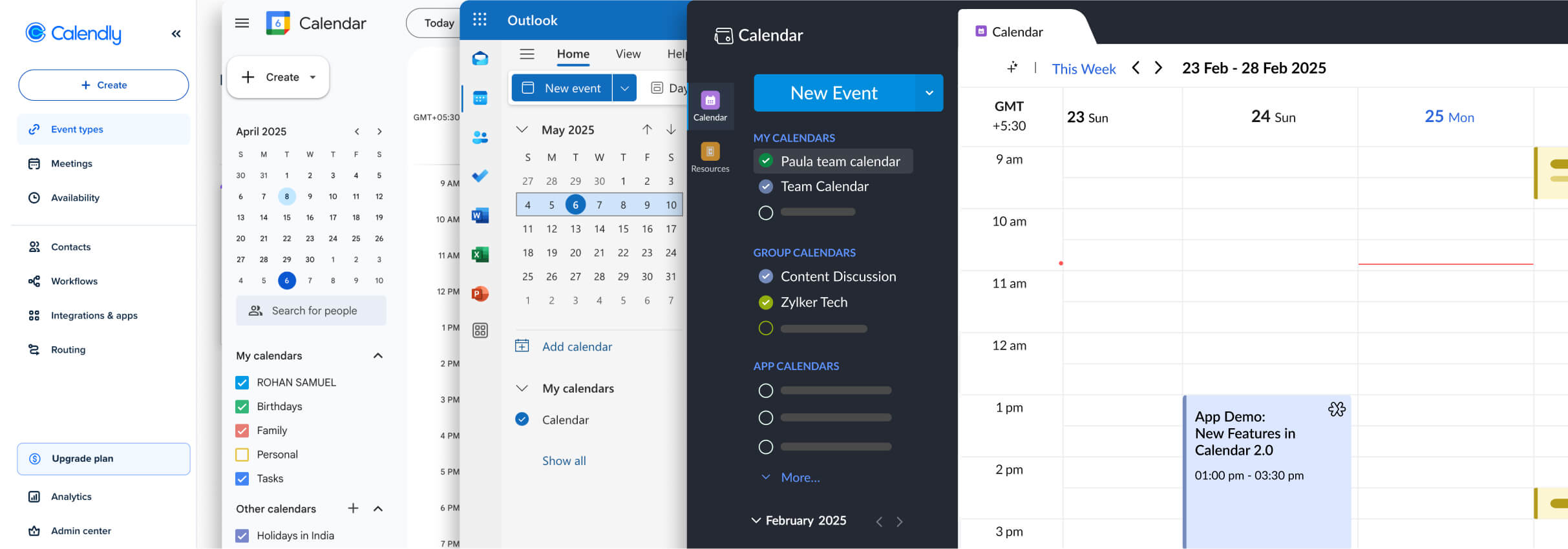
Configure sync frequency and rules
Your calendars are only useful if they stay in step. A misconfigured sync setting can lead to duplicate events or lost appointments, turning your Calendar Geek setup into a source of stress rather than clarity. By adjusting the sync frequency and conflict rules, you ensure that data flows correctly between platforms without overloading the servers.
Start by selecting the right interval. Real-time syncing keeps everything current but can drain battery life and consume more data. For most users, a periodic sync—every 15 to 30 minutes—offers the best balance between accuracy and efficiency.
Next, define how your system handles overlapping events. When two calendars try to book the same time slot, you need a clear rule. Set your primary calendar to "busy" so conflicts are visible, and configure secondary calendars to show as "tentative" or "free" to avoid false alarms.
Finally, verify the connection. Create a test event on one platform and wait for the next sync cycle. Check that the event appears on the other calendars without duplicating. This quick check confirms that your rules are working as intended.
Fix common sync errors
A broken sync turns your calendar into a puzzle you didn't ask for. Duplicate events, missing invitations, and authentication loops are the usual suspects. Follow this sequence to isolate the problem and get your Calendar Geek back in sync.
Duplicates usually happen when a calendar syncs twice or imports the same file multiple times. Open your calendar settings and look for "Connected Accounts" or "Subscribed Calendars." If you see the same service listed twice, remove the extra entry. For imported files, check your "Import/Export" history and delete any duplicate .ics files before re-importing.
Authentication tokens expire or get revoked for security reasons. If you see a "Sync Failed" or "Permission Denied" error, go to your account's security settings. Revoke access for the calendar app, then log in again to grant fresh permissions. This clears out stale tokens that often cause silent sync failures.
A one-hour drift often looks like a missing event or a double-booking. Ensure your primary calendar, the synced account, and your device all use the same time zone. Even a small difference between UTC and local time can push events to the wrong day. Check the settings for both the source and destination calendars to match them exactly.
Stale data can block new updates. On desktop, clear your browser cache or restart the calendar app entirely. On mobile, force-close the app and reopen it. If the issue persists, try syncing a single test event to see if the connection is active. This simple refresh often resolves temporary glitches without needing a full re-sync.
Verify your calendar data
Calendar Geek works best as a sequence, not a scramble through settings. Do the minimum first: confirm compatibility, connect the core hardware, update only when needed, and test the result before adding optional features. That order keeps the task understandable and makes failures easier to isolate. After each step, pause long enough for the interface to finish syncing. Many setup problems are timing problems disguised as configuration problems. If the same step fails twice, record the exact error, restart the smallest affected piece, and retry before moving deeper.
The simplest way to use this section is to keep the setup small, verify each change, and record the stable configuration before adding optional accessories.
Frequently asked: what to check next
Can I use Calendar Geek to manage work and personal events?
Yes. Calendar Geek is designed to handle multiple calendars simultaneously. You can assign specific events to a "Work" or "Personal" view, allowing you to toggle between them or view them in an aggregated timeline. This prevents scheduling conflicts and keeps your professional and private commitments separate yet accessible.
How do I sync Calendar Geek with other platforms?
Calendar Geek supports standard synchronization protocols. To sync with other platforms, navigate to the settings menu and select the "Integrations" tab. From there, you can connect services like Google Calendar, Outlook, or Apple Calendar. The app will pull events in real-time, ensuring your schedule is consistent across all your devices.
What is National Geek Day?
National Geek Day, also known as Geek Pride Day, is celebrated annually on May 25. This date was chosen to coincide with the release of the original Star Wars film in 1977. It is a day dedicated to celebrating geek culture, including interests in science fiction, technology, and gaming.
Is Calendar Geek free to use?
Calendar Geek offers a free tier with basic features, such as managing up to three calendars and standard event creation. For advanced features like unlimited calendar syncing, custom themes, and priority support, a premium subscription is available. You can upgrade your account directly from the settings menu at any time.
No comments yet. Be the first to share your thoughts!