

Get calendar management right
Before you start importing or syncing, you need a clean foundation. Calendar management is a process that involves creating, scheduling, and overseeing appointments across various platforms. If your source data is messy, your sync will be too. Start by auditing what you already have. Delete old events, resolve duplicates, and close out completed tasks. A cluttered calendar creates noise that sync errors amplify.
Next, decide on your time zone strategy. This is the most common source of confusion when sharing calendars across platforms. Pick one primary time zone for your local events and stick to it. For global meetings, use Coordinated Universal Time (UTC) in the event details so everyone sees the correct local time. Most modern tools like Google Calendar and Outlook handle this automatically if you label the event correctly, but you must be consistent.
Finally, check your permissions. If you are syncing a work calendar with a personal one, ensure the sharing settings allow for the level of access you need. Read-only access prevents accidental deletions, while edit access is necessary for collaborative scheduling. Verify these settings before enabling sync to avoid losing data or exposing private appointments to the wrong people.
Work through the steps
Getting cross-platform calendar syncing right requires a deliberate sequence. You cannot simply toggle a switch and expect perfect synchronization across Google, Outlook, Apple, and third-party apps. The process involves auditing existing data, establishing a primary source of truth, configuring sync permissions, and verifying the result.

Before syncing, clear the clutter. Duplicate events, outdated recurring meetings, and old project timelines will replicate across every platform you connect. Open your primary calendar provider and delete or archive events older than two years. Create a dedicated folder or label for "Sync-Ready" events to ensure only current, active schedules are pushed to other platforms.

Choose one calendar as the master. This is usually the one you use most frequently or the one tied to your primary email (e.g., Google Workspace or Microsoft 365). All other calendars will pull from this source. If you have conflicting priorities, the primary source dictates the time slots. Never treat two calendars as equal masters; this is the most common cause of sync conflicts and double-bookings.
Navigate to the settings of your secondary platforms (Apple Calendar, Outlook.com, etc.). Look for the "Connected Accounts" or "Sync" section. Enter your primary calendar credentials here. Crucially, select "Read and Write" permissions. If you only allow "Read" access, changes made on the secondary device will not update the primary calendar, breaking the sync loop.
Most platforms sync automatically every 15 to 60 minutes, but some allow real-time updates. Set the sync interval to the shortest available option to minimize lag. For conflicts (e.g., a meeting moved on one platform but not the other), enable the "Keep Latest" or "Overwrite Older" option. This ensures that the most recent edit takes precedence, preventing stale data from persisting across your devices.
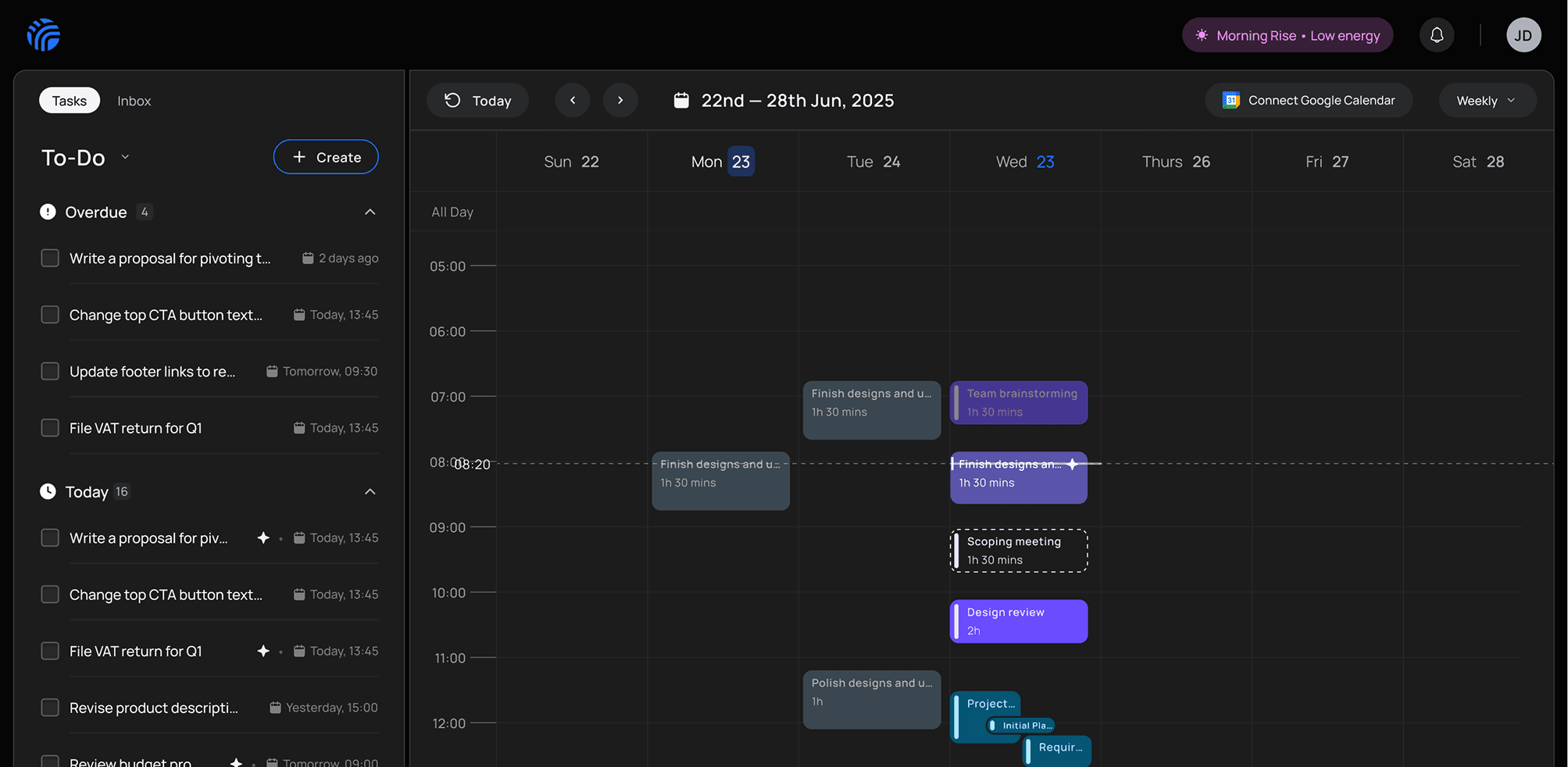
Make a test change: create a single event on your primary calendar with a unique name (e.g., "SYNC TEST 123"). Wait for the sync cycle to complete, then check your secondary devices. If the event appears correctly, your setup is stable. If it does not appear, check your internet connection and ensure the calendar is visible in the secondary app’s view settings. Repeat the test for deletions and edits to ensure full bidirectional flow.
Fix common mistakes
Syncing calendars across platforms sounds simple, but small configuration errors can cause double-bookings, missed meetings, or privacy leaks. These issues usually stem from how permissions are set, how time zones are handled, or how duplicate events are managed. Addressing these areas before you rely on the sync ensures your schedule stays accurate.
Permission overreach
The most frequent error is granting "edit" access when "view only" or "free/busy" is sufficient. When you share a calendar with collaborators or assistants, full edit rights allow them to delete or modify existing events, which can break your workflow.
Always start with the least privilege needed. If a colleague only needs to see your availability, grant free/busy access. If they need to add events, grant edit access to that specific calendar, not your primary personal calendar. This limits the blast radius if a mistake happens.
Time zone mismatches
Cross-platform sync fails most often when one platform uses UTC and another uses local time, or when daylight saving time rules differ. A meeting set for 9 AM in New York might appear as 9 AM in London if the time zone isn't explicitly saved in the event details.
Ensure every event has a specific time zone attached, not just a local time. If you travel frequently, set your default time zone to the location you are currently in, or use a tool that automatically adjusts based on your GPS. Never rely on the platform's default assumption.
Duplicate event creation
Many users enable sync between Google Calendar and Outlook without realizing that the sync agent creates a new event for every change, rather than updating the original. This leads to "double bookings" where the same meeting appears twice, once on each platform.
Use a dedicated calendar management tool or a robust API integration that supports "update" actions instead of "create" actions. If you must use native sync, regularly audit your calendars for duplicates and delete one instance to break the sync link for that specific event.
Ignoring privacy settings
When syncing, personal calendars often bleed into professional ones. A common mistake is merging all calendars into a single view without checking the visibility settings. This can expose private appointments, such as doctor visits or personal calls, to colleagues who have access to your work schedule.
Separate your calendars by context. Keep personal, work, and shared team calendars distinct. Only share the specific calendar needed for the task. Regularly review who has access to each calendar to ensure no sensitive information is inadvertently exposed.
Calendar management: what to check next
Before committing to a syncing strategy, it helps to clarify what the work actually entails. Calendar management is the process of organizing, scheduling, and coordinating tasks, meetings, and events across various platforms in an efficient manner. It involves more than just adding dates; it requires overseeing appointments to ensure they align with your priorities and workflow.
Many professionals view this as a distinct skill set, particularly in executive support roles. A Calendar Specialist must organize and prioritize schedules efficiently, often relying on proficiency with digital tools like Google Calendar, Outlook, or specialized API integrations. Strong organizational habits are just as important as the software itself.
Choosing the right tool depends on your specific syncing needs. While there is no single "best" calendar management tool for everyone, the right choice usually balances cross-platform compatibility with automation features. Look for solutions that handle conflicts automatically and support the specific protocols (like CalDAV or Exchange) required by your devices.
Helpful gear
Use these product recommendations as a starting point, then choose the size, material, and price point that fit how you actually use the gear.
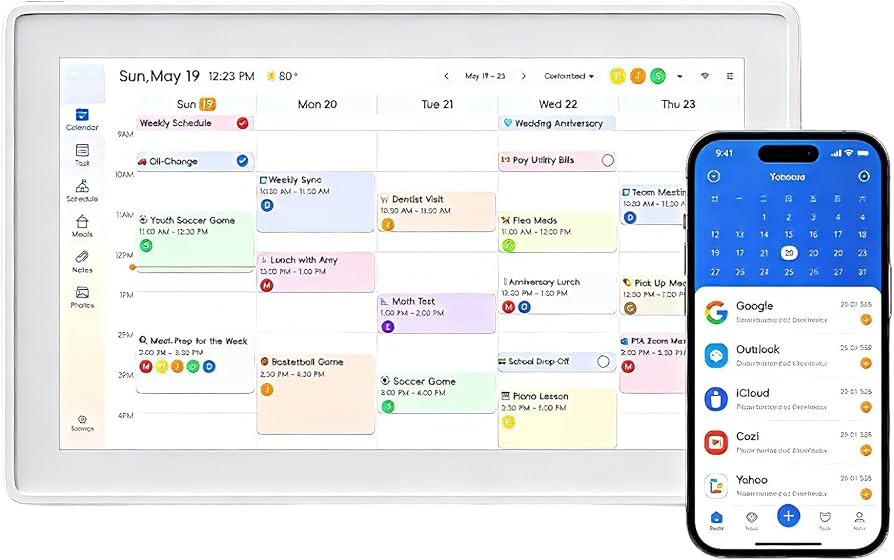

As an Amazon Associate, we may earn from qualifying purchases.
No comments yet. Be the first to share your thoughts!