

Find your primary calendar feed
Every imported calendar needs a single source of truth. Before you add anything to your main view, you need the direct iCal (ICS) URL for the calendar you want to subscribe to. This URL acts as the pipeline; your local app pulls updates from it, ensuring that changes made on the web or another device appear in your primary view.
The location of this URL varies by provider. Most services hide it behind a "Settings" or "Integrate" menu rather than the main calendar list. Look for options labeled "Public calendar," "Subscribe," or "iCal URL." If you only see a "Share" link that requires permission requests, that is not the feed URL you need for automatic syncing.

.ics
.
.ics
and is set to
Public
if you are sharing externally.
Once you have the URL, verify it by pasting it into a new browser tab. If you see raw text starting with BEGIN:VCALENDAR, you have the correct feed. If you see a login screen or a generic calendar view, the URL is for manual viewing, not automatic subscription.
Import feeds into secondary accounts
Once you have your primary calendar stable, the next step is ingesting external feeds into secondary accounts. This allows you to view a unified schedule across different platforms—like seeing a work calendar inside your personal Google Account—without cluttering your main view or creating double-bookings.
The process relies on subscribing to iCal URLs. Think of these URLs as a live pipe to someone else's schedule. When you subscribe, your calendar client pulls new events automatically. The key is to import these into a secondary account or a separate calendar within the same account, keeping them distinct from your primary schedule.
Go to the source of the calendar (e.g., a colleague's Google Calendar, a team Outlook account, or a public holiday list). In Google Calendar, right-click the calendar name in the sidebar and select Settings and sharing. Scroll to Integrate calendar to find the Public URL to this calendar (ending in .ics). In Outlook, go to Calendar > Share > Publish calendar and select the read-only version.

Log into the secondary calendar platform where you want to view the events. In Google Calendar, click the + next to Other calendars and select From URL. Paste the iCal link. In Outlook, go to Add Calendar > From Internet and paste the link. This creates a new, separate calendar layer rather than modifying your existing schedule.
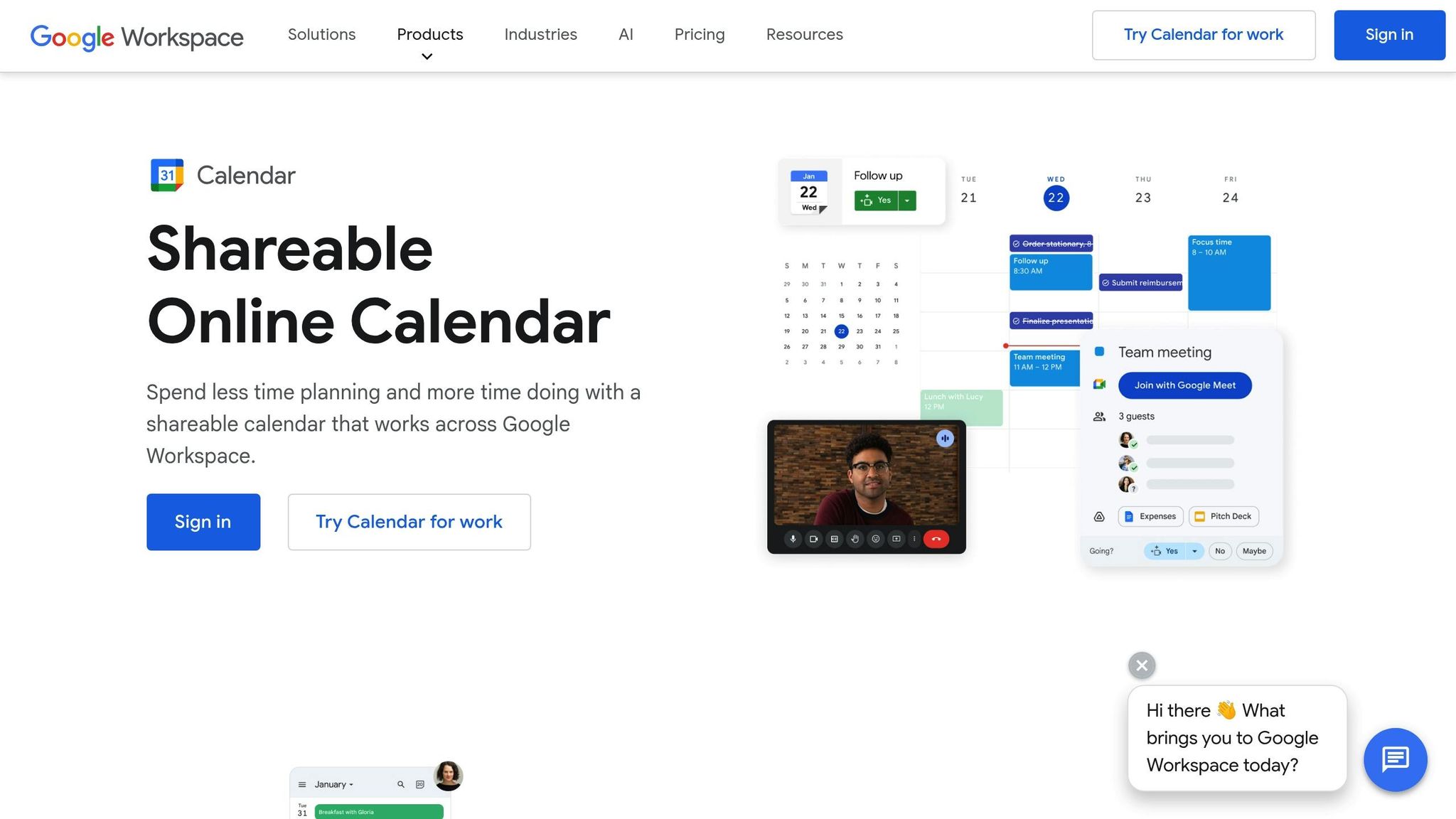
Immediately after adding the feed, adjust its settings. Rename the calendar (e.g., "Team Projects") so you can toggle it on or off with one click. Crucially, check the time zone setting. If the feed is from a different region, your calendar client might display events in your local time or the source's time. Set it to Show in local time to avoid confusion during cross-time-zone meetings.
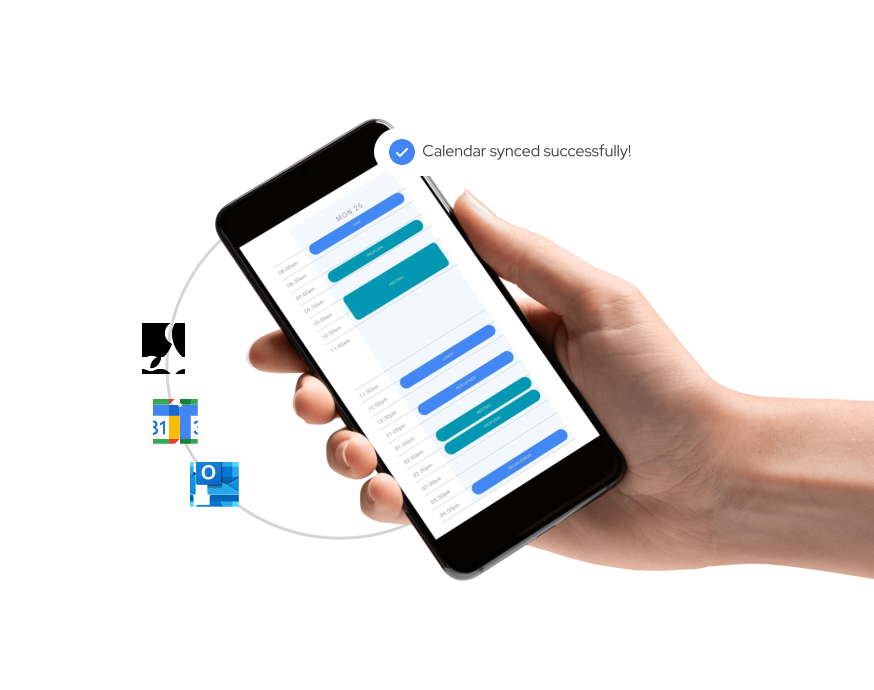
Test the integration by adding a test event to the source calendar. Confirm it appears in your secondary view within a few minutes. Check that it does not overwrite your primary calendar events. If you use the same account for both, ensure the calendars have distinct colors and that your notification settings are turned off for the secondary feed to prevent alert fatigue.
By keeping imported feeds in separate calendar containers, you maintain a clean mental model. You can hide the secondary view when you need deep focus, or show it only when you need to coordinate with others. This method prevents the "double-booking" trap that often happens when people manually copy-paste events between accounts.
Handle time zone and conflict errors
Syncing calendars across platforms often feels like a magic trick until it fails. The most common culprits are time zone drift and duplicate events, both of which stem from how different systems interpret and store temporal data. Understanding these mechanics helps you fix the issues before they disrupt your schedule.
Fix time zone drift
Time zone drift usually happens when an event is created in one time zone but viewed in another, or when the calendar app fails to convert the time correctly during an import. This is particularly common when dealing with iCal URLs from external services or when sharing calendars across devices set to different local times.
To prevent this, ensure that the calendar hosting the event is set to the correct time zone in its settings. If you are importing an iCal feed, check the source calendar's properties. Most modern calendar apps automatically adjust for daylight saving time, but manual overrides can break this logic. If an event appears at the wrong time, check the event details to see if the time zone is explicitly set to "UTC" or a specific city rather than "Local."
Resolve duplicate events
Duplicate events typically occur when a calendar syncs multiple times or when two different calendars contain overlapping entries for the same meeting. This often happens after a failed sync attempt that retries without clearing the previous batch, or when merging calendars from different sources.
To fix duplicates, first identify the source of the overlap. If you are using a shared calendar, check if it is subscribed to multiple times. In most calendar apps, you can view the subscription list and remove any redundant entries. For local duplicates, use the search function to find events with identical titles and times. Most platforms offer a "Find Duplicates" tool in the settings or can be filtered by date and title to manually select and delete redundant entries.
If duplicates persist, try disabling the sync for the affected calendar, deleting the local copies, and re-enabling the sync. This forces a fresh download of the event data, ensuring that only the current version of each event is stored.
Verify sync with a test event
Before relying on your new calendar setup for actual work, you need to prove the data is flowing correctly. A quick test event acts as a smoke test for your integration. If the sync works for a dummy meeting, it will work for your quarterly review.
Open your primary calendar and create an event titled "Sync Test." Set it for 15 minutes in the near future. Avoid using your real lunch break or a current appointment; you want a clean slate to track the propagation.
Switch to the synced calendar (the one receiving the data). If you are syncing Google to Outlook, check Outlook. Look for the "Sync Test" event. If it appears with the correct title and time, the connection is active. If it is missing, wait 5–10 minutes; some services have a propagation delay.
Time zones are the most common failure point. If your test event shows up at the wrong hour, your time zone settings are mismatched. For example, a 9:00 AM meeting in New York might appear as 6:00 AM in London if the source calendar defaults to UTC. Adjust the source or destination time zone settings to match your local context.
Once confirmed, delete the event from both calendars. This clears the clutter without leaving ghost meetings in your schedule. You can now proceed with confidence that your primary and secondary calendars are talking to each other.
This verification step prevents the most embarrassing sync failures: double-booking yourself or missing a meeting because the calendar didn't update. If the test fails, check your permissions. Most sync errors stem from read-only access rather than connection issues.
Review your calendar setup checklist
Before you rely on your new multi-platform schedule, run through this verification list. It catches the most common sync failures, time zone mismatches, and permission errors that break cross-device reliability.
- Verify iCal URLs are active: Open each published iCal link in a private browser window. If you see an XML error or a blank page, the export is broken. Refresh the URL in your primary calendar app to force a resync.
- Check time zone consistency: Ensure all connected accounts use the same time zone (e.g., UTC or local). Even a one-hour offset can shift all imported events, causing double-bookings or missed meetings.
- Test edit permissions: Invite a test user or create a secondary account. Try editing an event on one platform and verify the change appears on the other within 15 minutes. If changes don't propagate, the shared calendar is likely set to "view only."
- Confirm conflict resolution: Create two overlapping events on different platforms. Check how your main calendar displays them. Most apps show one event as primary and the other as a conflict; ensure this behavior matches your preference.
Once these checks pass, your calendar infrastructure is ready for daily use.
Common calendar sync: what to check next
Syncing calendars can feel like juggling live wires, but the mechanics are straightforward once you know where to look. Here are the answers to the most frequent technical hurdles users encounter.
No comments yet. Be the first to share your thoughts!