

The reality of Outlook syncing in 2026
Syncing an Outlook calendar across devices is harder than it looks. I've found that as we add watches and tablets to our pockets, the chance of a schedule mismatch grows. Hybrid work makes this worse because we're jumping between home setups and office desktops all day.
The core problem isn’t just about technology; it’s about the sheer number of moving parts. Outlook isn’t an island. It needs to play nicely with various operating systems, email providers, and third-party apps. Each connection point is a potential source of conflict or delay. As we move towards 2026, Microsoft will likely continue to add features and integrations, which could introduce new syncing issues. It’s a constant balancing act.
Right now, many users experience frustrating delays or inconsistencies, even with seemingly straightforward setups. This isn't something that’s going to magically fix itself. Understanding the underlying mechanisms and potential pitfalls is the first step towards a more reliable experience. We'll examine the core challenges and consider what users need to know to stay ahead of the curve.
Why Exchange beats IMAP for speed
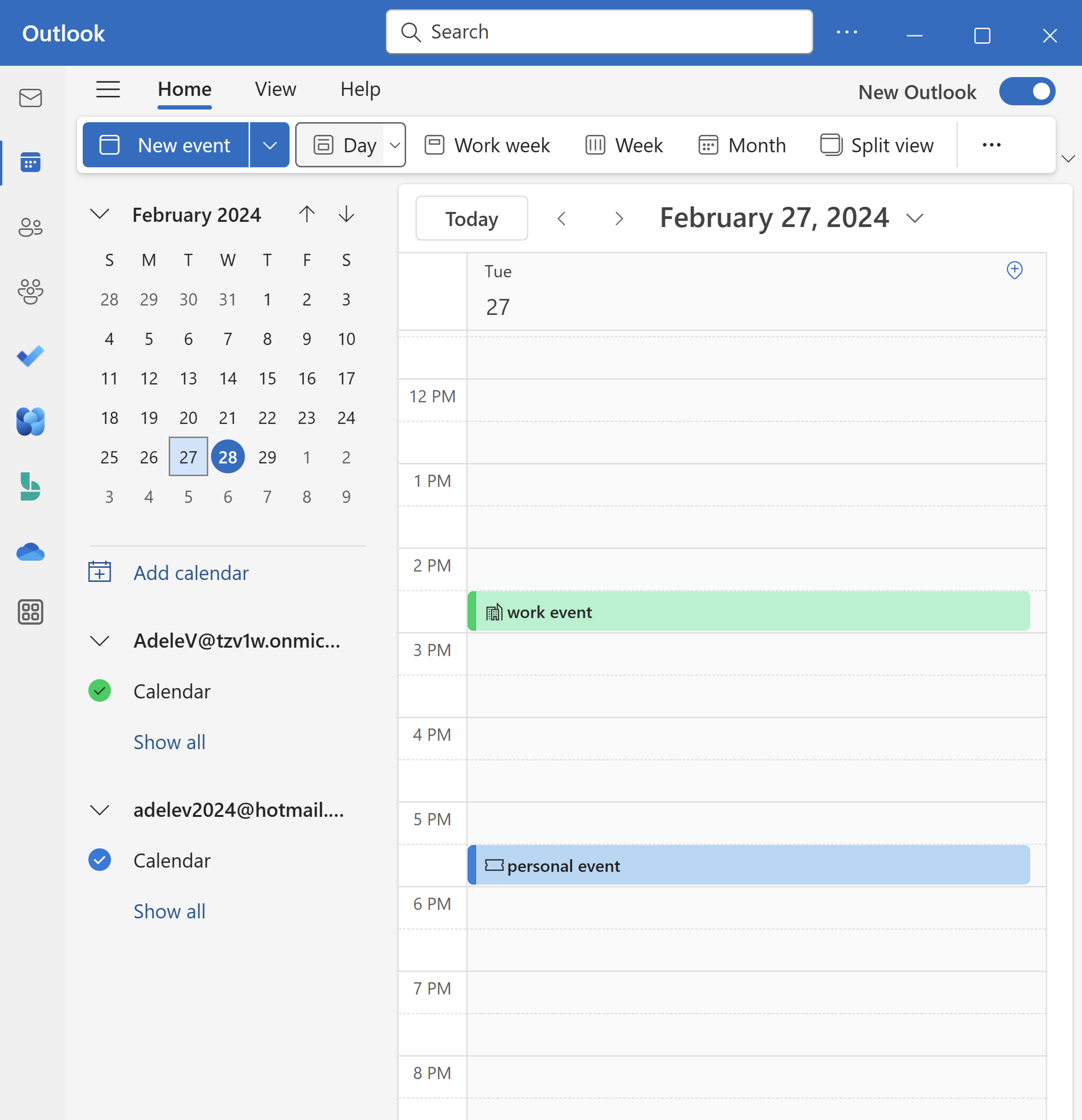
Outlook uses several methods to synchronize your calendar, and understanding which one you’re using is crucial for troubleshooting. The most robust method, especially for business environments, is Exchange ActiveSync (EAS). It provides real-time synchronization of email, contacts, and calendars, meaning changes on one device are almost instantly reflected everywhere else. It requires an Exchange server, which is common in corporate settings.
However, many personal Outlook accounts rely on IMAP for email synchronization. While IMAP can sync calendars, it’s not designed for that purpose and often results in delays or incomplete synchronization. Calendar information is handled differently under IMAP, and it doesn’t offer the same level of real-time responsiveness as EAS. This difference is a frequent source of confusion and frustration for users.
Microsoft 365 accounts use these protocols by default. You should check your account settings to see if you're on Exchange or IMAP. If you see IMAP, that's usually why your phone and laptop don't match up.
Multi-Device Quirks: Phone, Tablet, and Web
Even with a solid synchronization method like EAS, syncing across different Outlook clients – the mobile app, the web version, and the desktop application – isn’t always flawless. I've noticed a pattern of delays appearing more frequently on the mobile app, often taking several minutes to reflect changes made on the desktop. This isn’t a universal issue, but it's common enough to be annoying.
Conflicts can also arise when editing events simultaneously on multiple devices. Outlook tries to resolve these conflicts automatically, but sometimes it doesn’t, leading to duplicate appointments or incorrect details. The OneCal YouTube video from May 7, 2024, highlights this perfectly, showing real-time sync issues and the frustration they cause. They point out that even seemingly minor network hiccups can disrupt the synchronization process.
The Outlook web version sometimes appears to be the 'weakest link' in the chain. Updates from the web app can be slower to propagate to other devices than changes made directly within the desktop application. This is likely due to the web app’s reliance on a browser and its associated caching mechanisms. It’s a situation where the convenience of web access comes at the cost of immediate synchronization.
- Check your wifi or data connection first.
- Restart the Outlook app on all devices.
- Update the Outlook app on every device you own.
The trouble with Google and Apple integrations
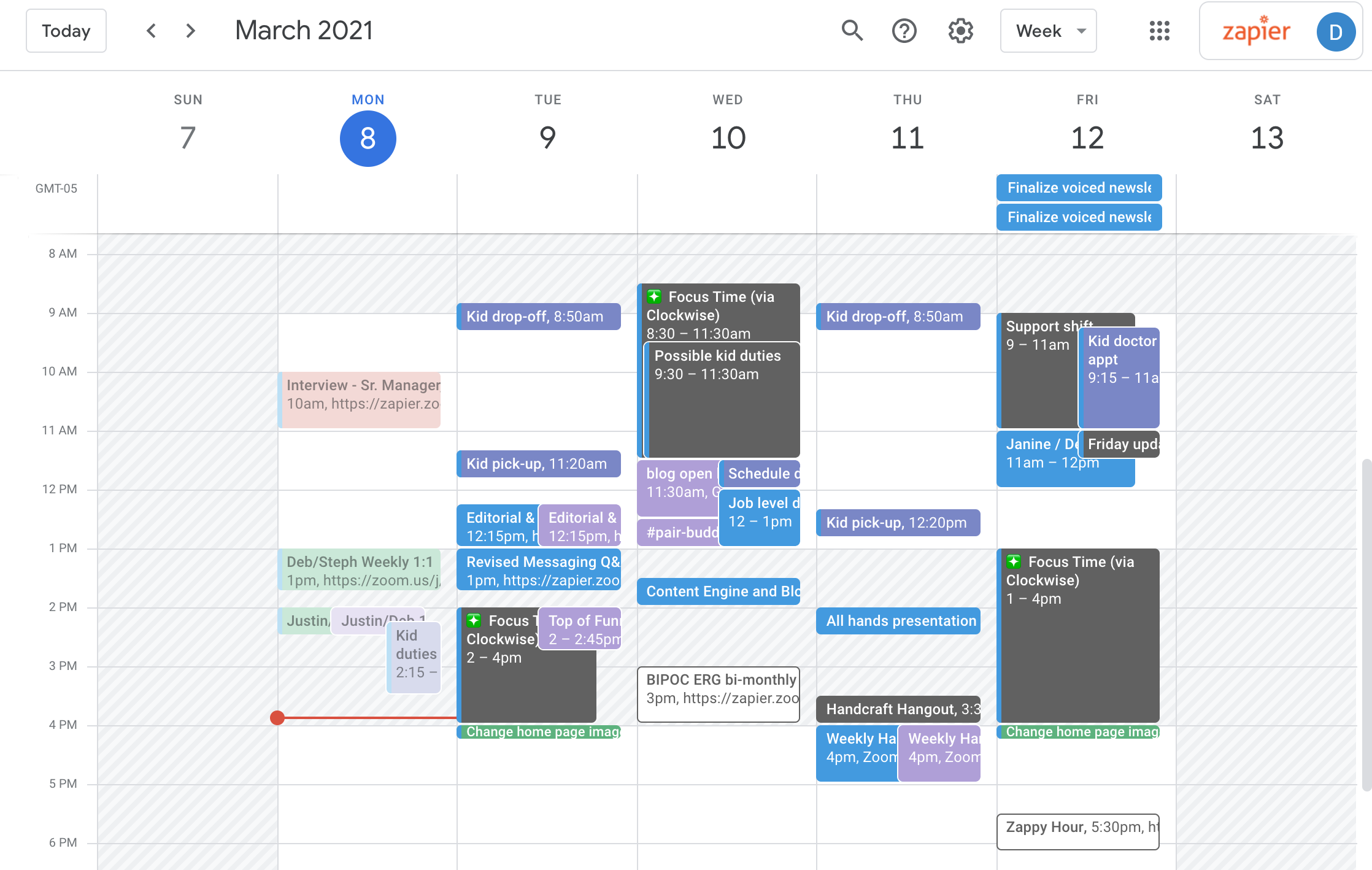
Outlook’s integration with other calendar platforms, like Google Calendar and Apple Calendar, and scheduling tools, like Calendly and Doodle, introduces a whole new layer of complexity. The Calendar Geek guide to syncing with AI scheduling tools is a great resource for understanding these challenges. Essentially, you’re trying to bridge different ecosystems, each with its own protocols and limitations.
Syncing with Google Calendar, for example, often requires using a third-party tool or manually exporting and importing iCal files (more on that later). Direct synchronization isn’t always seamless, and changes made in one calendar may not immediately appear in the other. The same is true for Apple Calendar, which relies heavily on iCal for interoperability.
Scheduling tools add another wrinkle. Calendly, Doodle, and others often act as intermediaries, creating events in your Outlook calendar based on availability. If there’s a problem with the integration, events may not be created correctly or may not sync properly. The key takeaway here is to be cautious about relying too heavily on third-party integrations and to regularly verify that your calendars are in sync. It’s a good idea to periodically check for discrepancies.
iCal: Your Universal Calendar Translator
The iCal (ICS) file format is your universal calendar translator. It’s a standard file format for exchanging calendar data between different applications and platforms. If automatic syncing fails, iCal provides a manual fallback option. You can export your Outlook calendar to an ICS file and then import it into another calendar application, or vice versa.
However, iCal isn’t a perfect solution. It’s a one-time snapshot of your calendar, meaning changes made after the export won’t be reflected. You’ll need to repeat the export/import process to keep your calendars synchronized. It’s also prone to errors if the ICS file is corrupted or improperly formatted. Furthermore, it doesn't handle recurring events as reliably as a direct sync.
The Calendar Geek website offers a helpful iCal viewer that allows you to inspect the contents of an ICS file and verify that it contains the correct information. This is a useful tool for troubleshooting synchronization issues and ensuring that your calendar data is being transferred correctly. It's a bit cumbersome, but it can be a lifesaver when other methods fail.
- Export your Outlook calendar as an ICS file.
- Import the ICS file into your desired calendar application.
- Regularly repeat the process to keep your calendars synchronized.
Outlook Rules and Shared Calendars: Potential Conflicts
Outlook rules, while powerful, can inadvertently interfere with calendar syncing. For example, a rule that automatically deletes meeting requests from unknown senders could prevent legitimate events from being added to your calendar. It’s important to review your Outlook rules regularly and ensure that they aren’t causing unintended consequences.
Shared calendars present their own set of challenges. When multiple users are making changes to the same calendar, conflicts are more likely to occur. Outlook attempts to manage these conflicts, but it’s not always successful. It's crucial to establish clear guidelines for managing shared calendars, such as designating a primary owner and avoiding simultaneous edits.
Permissions also play a role. If a user has limited permissions on a shared calendar, they may not be able to see all changes made by other users. This can lead to confusion and frustration. Make sure everyone involved has the appropriate level of access. It's a surprisingly common source of sync headaches.
Best Practices for a Reliable 2026 Outlook Sync
To maximize your chances of a reliable Outlook calendar sync, start with the basics: keep Outlook updated to the latest version. Microsoft regularly releases updates that address syncing bugs and improve performance. Use a strong, unique password for your Outlook account and enable two-factor authentication for added security. This isn’t directly related to syncing, but it protects your account from unauthorized access, which could disrupt syncing.
Be mindful of third-party integrations. Only use integrations from reputable sources and regularly verify that they’re working correctly. If you experience issues, try disabling the integration to see if that resolves the problem. Prioritize using Exchange ActiveSync whenever possible, as it offers the most robust and reliable synchronization.
Open your phone and laptop side-by-side once a week. If the appointments match, you're good. It's better to catch a sync error on a Sunday than five minutes before a Monday meeting.
Featured Products

7-in-1 USB-C hub with 4K HDMI output · 60W Power Delivery for charging laptops · Includes 2 USB 3.0 ports, Ethernet, and card readers
This hub provides essential ports for connecting external displays and peripherals, ensuring reliable data transfer for consistent Outlook calendar syncing across devices.

5-in-1 USB-C hub with 4K HDMI display output · One USB-C port with 5Gbps data transfer · Two USB-A 3.0 ports with 5Gbps data transfer
This compact hub offers high-speed data transfer and 4K display capabilities, ideal for maintaining seamless Outlook calendar synchronization on the go.

8-in-1 USB-C hub with 4K HDMI output · 115W USB-C Power Delivery charging · Includes 3 USB-A ports, Ethernet, and card readers
With robust charging capabilities and a comprehensive set of ports, this hub ensures your devices stay powered and connected for uninterrupted Outlook calendar syncing.

7-in-1 docking station with dual 4K@60Hz HDMI displays · 10Gbps USB-A and USB-C data ports · 100W Power Delivery for laptop charging
This docking station supports dual high-resolution displays and offers exceptionally fast data transfer, critical for managing complex Outlook calendar schedules across multiple screens.
As an Amazon Associate I earn from qualifying purchases. Prices may vary.
No comments yet. Be the first to share your thoughts!